


iCloud Backup is one of the most important safety features in the Apple ecosystem because it protects the part of the iPhone that cannot be replaced at a store: the data. A broken screen, lost device, stolen iPhone, failed upgrade, accidental erase, or new model setup becomes far less stressful when the important information already has a copy in iCloud.
Apple designed iCloud Backup around convenience. The best backup is the one that happens without requiring the user to remember it. Once iCloud Backup is turned on, an iPhone or iPad can back up automatically when it is connected to power, connected to Wi-Fi, and locked. Apple also lets users start a manual backup from Settings at any time. That makes iCloud Backup the easiest option for most people because it does not require a Mac, cable, external drive, or separate backup routine.
The value becomes obvious during device recovery. When setting up a new iPhone, restoring from iCloud can bring back app data, device settings, Home Screen layout, messages and media that are included in the backup, purchase history, Apple Watch backups, ringtones, and other important settings. Some data is not stored directly inside the backup because it already syncs separately through iCloud, such as iCloud Photos, iCloud Drive, Notes, Contacts, Calendars, and Messages in iCloud when those services are enabled. That separation helps Apple avoid duplicating everything while still making the device easier to restore.
This is why iCloud Backup should be treated as part of iPhone ownership, not an optional extra. The device can be replaced. The personal history inside it is harder to rebuild.


iCloud Is Built for Recovery
iCloud Backup is useful because it solves the most common failure point in personal technology: people do not back up manually often enough. A Mac backup may be more complete for some advanced users, but it depends on connecting the device and maintaining a routine. iCloud Backup is designed to run in the background when the iPhone is charging and connected to Wi-Fi.
To turn on iCloud Backup:
Settings > Apple Account > iCloud > iCloud Backup > Back Up This iPhone
To start a manual backup:
Settings > Apple Account > iCloud > iCloud Backup > Back Up Now
That automatic design is what makes iCloud the best option for most users. It protects the device without asking the user to think about it every week. If an iPhone is replaced, lost, or damaged, the latest backup can be used during setup. Apple’s own support guidance explains that a backup gives users a copy of their information to use if the device is ever replaced, lost, or damaged.
iCloud also fits the Apple ecosystem because the backup is tied to the Apple Account. A user can move from one iPhone to another, restore an iPad, or recover after erasing a device without building the setup again from zero. Apps can be reinstalled, settings can return, and much of the old device experience can reappear on the new one.
That is especially important before an iPhone upgrade. A fresh iCloud backup before switching devices can prevent missing app data, settings, and configuration details. Even when using Quick Start to transfer directly from one iPhone to another, iCloud Backup remains a strong safety net.
Security Depends on the Protection Level
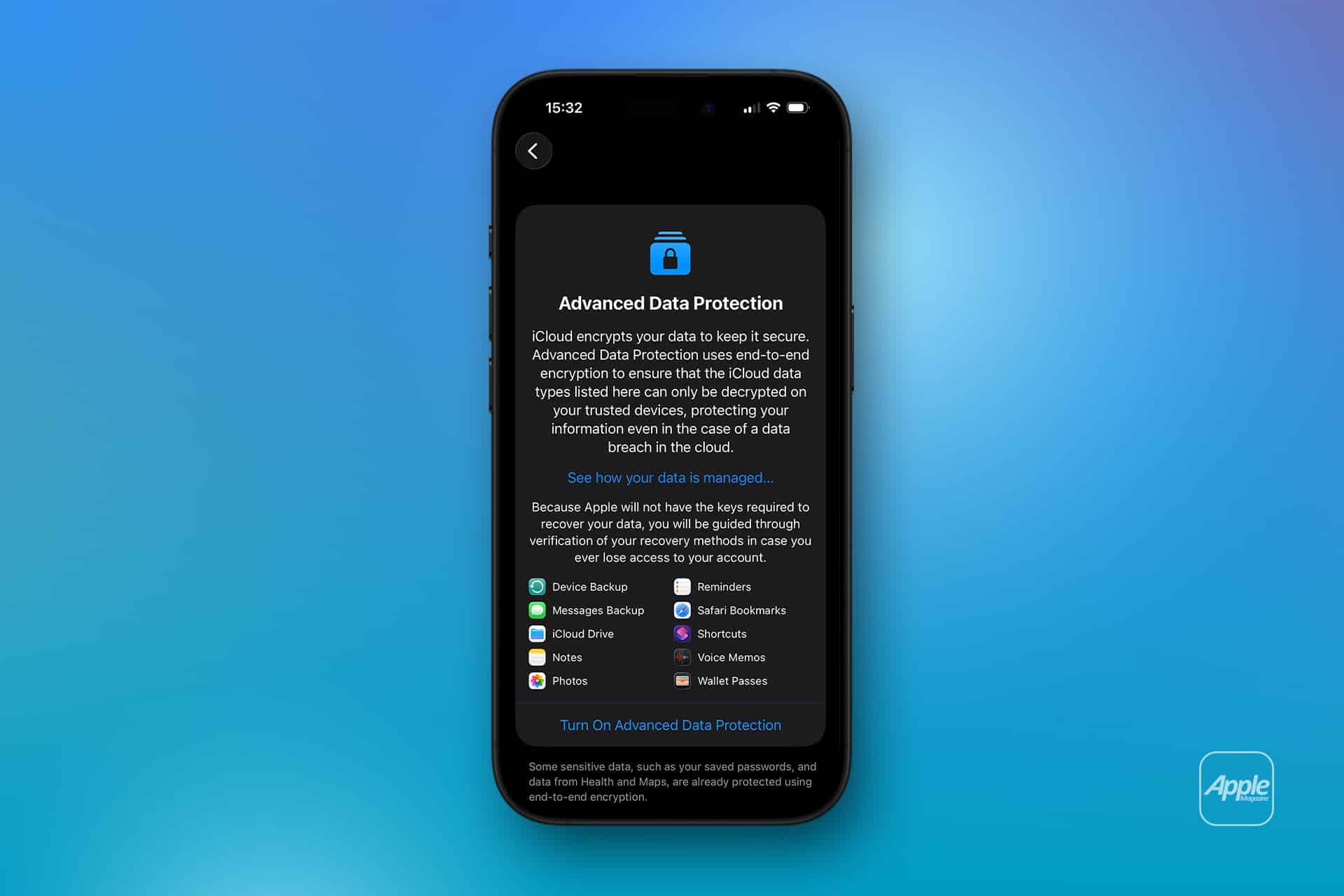
iCloud Backup is also part of Apple’s broader security model. Under standard data protection, Apple says iCloud Backup data is encrypted in transit and stored in encrypted format, with keys secured in Apple data centers. With Advanced Data Protection enabled, iCloud Backup and the data inside it are end-to-end encrypted, including the Messages in iCloud encryption key.
That difference matters. Standard protection is designed for recovery and convenience. Advanced Data Protection raises the security level by making more iCloud data categories end-to-end encrypted, so they can be decrypted only from trusted devices. Apple says Advanced Data Protection covers categories including device backup, messages backup, iCloud Drive, Notes, Photos, Reminders, Safari bookmarks, Siri Shortcuts, Voice Memos, and Wallet passes.
The tradeoff is responsibility. Advanced Data Protection requires stronger account recovery planning, such as a recovery contact or recovery key. Apple says that because it does not have the keys needed to recover end-to-end encrypted data, only the user’s account recovery methods can help restore access if the account is lost.
For many users, standard iCloud Backup is already far better than having no backup. For users who want the strongest cloud data protection available in supported regions, Advanced Data Protection is worth considering, but only after setting up recovery carefully.
To turn on Advanced Data Protection:
Settings > Apple Account > iCloud > Advanced Data Protection
Before enabling it, users should make sure recovery contacts or a recovery key are set and stored safely. Strong privacy is useful only if the owner can still recover the account when something goes wrong.
Backup Size Can Be Reduced Safely
iCloud Backup can become large, especially after years of app use, message attachments, device changes, and old backups. Apple gives users tools to reduce backup size without turning off iCloud entirely. The goal is to remove unnecessary backup data while keeping the information that matters.
The first place to check is the current backup size and app list. Apple says users can view backup details, including the last backup, next backup size, and apps included in the backup. Apps can be turned off individually, and their existing backup data will be deleted from iCloud.
To reduce backup size:
Settings > Apple Account > iCloud > iCloud Backup > This iPhone > Choose Data to Back Up
Then turn off apps that do not need to be backed up.
This is useful for apps that already store data in their own cloud service, apps that can be re-downloaded without losing anything important, games that sync separately, streaming apps, social apps, temporary editing apps, or utilities that do not hold unique personal data. Users should be careful with apps that store local-only documents, projects, drafts, recordings, or work files.
A safe rule is simple: turn off backup only for apps where losing local data would not matter.
Old backups can also take up space. If an old iPhone or iPad backup remains in iCloud after the device is no longer used, deleting it can free storage.
To delete old backups:
Settings > Apple Account > iCloud > Manage Account Storage > Backups > Choose Old Device > Delete Backup
This should be done carefully. Deleting a current device backup removes the recovery copy for that device. Deleting an old device backup is safer after confirming that the device has been replaced, erased, sold, or no longer contains needed data.
Photos and Messages Need Separate Attention
iCloud Backup size is often confused with iCloud storage size. They are related, but not the same. iCloud Photos, iCloud Drive, Messages in iCloud, Mail, Notes, and other synced services can use iCloud storage outside the device backup. Reducing backup size may not solve storage problems if Photos or Messages are the real issue.
Apple’s storage management guidance recommends checking iCloud storage categories, deleting content that is no longer needed, and considering archiving or copying important information before removal. Categories can include iCloud Photos, iCloud Drive, Messages, Mail, backups, and app data.
To review iCloud storage:
Settings > Apple Account > iCloud > Manage Account Storage
Photos and videos are usually the largest category for many users. If iCloud Photos is enabled, photos are stored and synced through iCloud Photos rather than duplicated inside the iCloud Backup. Deleting photos from iCloud Photos removes them from iCloud and from devices using that same library, so this should be done carefully.
To manage photo storage:
Settings > Apple Account > iCloud > Photos
Apple also offers Optimize iPhone Storage, which keeps smaller versions on the device while storing full-resolution originals in iCloud. That reduces local iPhone storage, but it does not reduce iCloud storage. To reduce iCloud storage, users must delete unwanted photos or videos, or move them elsewhere before deleting.
Messages can also grow large because of photos, videos, voice messages, GIFs, and attachments. Removing old large attachments can reduce iCloud storage without turning off backup entirely.
To review large attachments:
Settings > General > iPhone Storage > Messages
The key is to know which problem is being solved. If the backup itself is too large, reduce app backup data or delete old backups. If iCloud storage is full, review Photos, Messages, iCloud Drive, Mail, and other storage categories.

The Best Setup Is Balanced
iCloud Backup works best when users keep the important data protected while avoiding unnecessary clutter. The goal is not to back up every temporary file forever. The goal is to make sure the iPhone can be restored with the information that would be painful or impossible to lose.
A good setup keeps iCloud Backup on, reviews backup size occasionally, removes unused apps from the backup list, deletes old device backups, keeps iCloud Photos organized, and uses enough iCloud storage for the real size of the user’s digital life. For many people, the free 5GB plan is no longer realistic because iPhones now hold far more photos, messages, app data, and device settings than they did years ago.
iCloud+ storage plans are often worth it when the alternative is no current backup. A small monthly storage plan can be much cheaper than the time, stress, and loss caused by a device failure with no backup available.
The strongest approach is layered. Use iCloud Backup for automatic recovery. Use iCloud Photos, iCloud Drive, Notes, Contacts, and Messages in iCloud for syncing. Use Advanced Data Protection if stronger encryption is needed and recovery is set up properly. Use a Mac backup for an additional local copy if the data is especially important.
iCloud Backup is not exciting until the day it is needed. Then it becomes one of the most valuable features Apple offers. A new iPhone can be bought. A lost photo library, missing message history, forgotten app data, and years of device settings are much harder to replace. Apple designed iCloud Backup to make that recovery feel ordinary instead of catastrophic, and keeping it clean makes the system more useful when it matters most.