

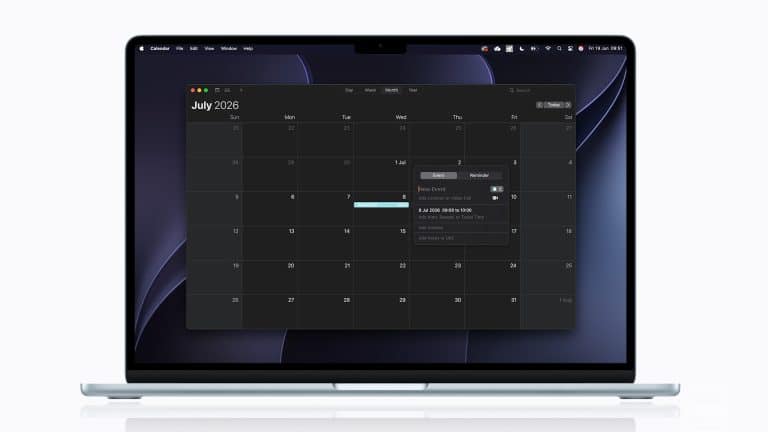
Apple’s Calendar app has a sharing option that can remove a lot of friction from everyday scheduling: public iCloud Calendar links. Instead of adding people one by one, a calendar owner can make an iCloud calendar public, copy the link, and send it to anyone who needs to follow the schedule.
The feature is simple, but it solves a common problem. Many schedules are meant to be seen by several people without becoming a group-editing project. A school calendar, soccer practice schedule, local event list, shared travel itinerary, small business availability calendar, or release calendar for a creator can be easier to manage through one live calendar link than through screenshots, PDFs, or long message threads.
Apple’s public calendar option is read-only. People with the link can view and subscribe to the calendar, but they cannot edit events, add appointments, delete entries, or change the calendar’s settings. That makes public links different from private iCloud calendar sharing, where the owner invites specific people and can choose whether they are allowed to view or edit.
The other advantage is access. A person does not need to use iCloud to subscribe to a public calendar. Anyone with the link can view and subscribe through a compatible calendar app. That makes the feature useful for mixed-device groups, including people using iPhone, iPad, Mac, Windows PCs, Android phones, or web-based calendar tools.
Public Sharing Works Best for Read-Only Schedules
The best use case is a calendar that needs regular updates from one owner and passive access for everyone else. If the schedule changes, the owner edits the event inside Calendar, and subscribers can keep following the updated calendar rather than searching for the latest message.
That can be especially useful when a schedule changes often. A volunteer group may need to move meeting times. A club may update event locations. A tutor may publish class sessions. A small business may share public booking windows. A creator may maintain publishing dates. A household may keep a dedicated calendar for activities that several people need to track without letting everyone edit the entries.
Public sharing also reduces confusion caused by repeated announcements. When a time changes in a chat, older messages remain visible and can lead people to the wrong information. A subscribed calendar creates one central version of the schedule. The calendar itself becomes the place to check.
The limitation is in the name: public. Anyone who has the link can subscribe. The link can also be forwarded by someone else. Apple’s public calendar option should not be used for private appointments, medical details, personal addresses, school pickup specifics, financial deadlines, confidential business meetings, or anything that should only be seen by selected people.
For sensitive schedules, private iCloud sharing is safer. Private sharing lets the owner invite specific people who use iCloud and set permissions. A person can be allowed to view only or to edit, depending on what the owner chooses. Public sharing is better for publishing a calendar; private sharing is better for controlled collaboration.

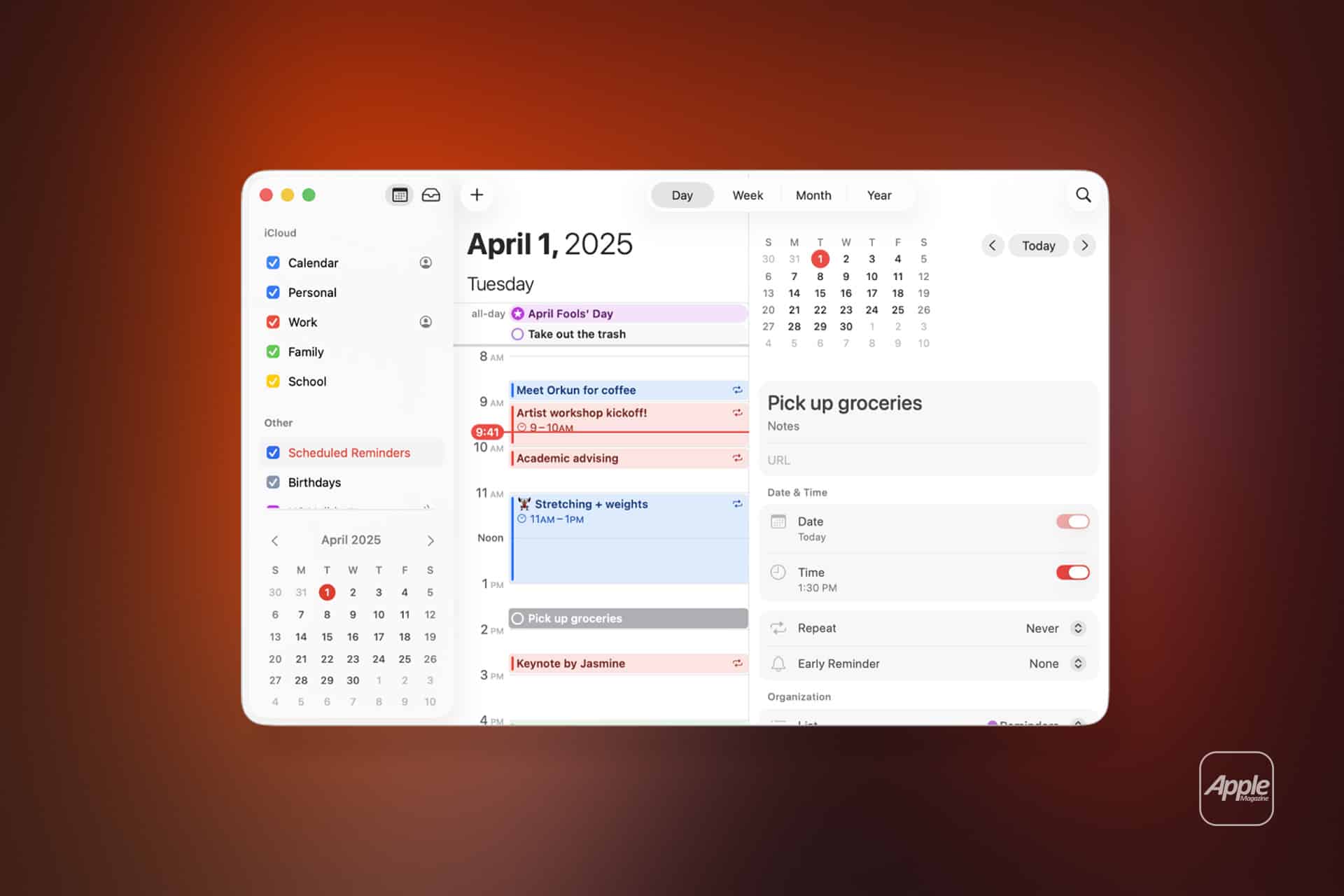
How to Share a Public iCloud Calendar on iPhone or iPad
Before sharing a calendar publicly, it needs to be an iCloud calendar. If a calendar is stored under another account, such as Google, Exchange, or another calendar service, Apple’s iCloud public sharing controls may not apply. In the Calendar app, the calendar list separates calendars by account, which helps identify where each one is stored.
To make a calendar public on iPhone or iPad:
Calendar > Calendars > Info button next to the iCloud calendar > Public Calendar > Share Link
After Public Calendar is turned on, iPhone or iPad lets the owner share the URL through options such as Messages, Mail, or other installed apps. The owner can also copy the link and paste it wherever needed.
A cleaner approach is to create a dedicated calendar before sharing. Instead of making a personal calendar public, the owner can create a separate calendar only for the schedule meant to be shared. That keeps private appointments separate and makes the public calendar easier for subscribers to understand.
To create a new iCloud calendar on iPhone or iPad:
Calendar > Calendars > Add Calendar > Add Calendar > Name the calendar > Account > iCloud > Done
That new calendar can then be used only for public items. For example, a user could create a calendar named “Events,” “Practice Schedule,” “Class Sessions,” or “Travel Plan.” Short names work best because they are easier to recognize when subscribed to from another app.
When creating events for a public calendar, the calendar selection matters. On iPhone or iPad, open or create the event, then check the Calendar field and choose the public calendar. This avoids accidentally adding private events to the public schedule.
To choose the right calendar for an event on iPhone or iPad:
Calendar > Event > Calendar > Select the public iCloud calendar > Done
How to Share a Public iCloud Calendar on Mac
The Mac version of Calendar offers the same type of public sharing, with more room to manage multiple calendars at once. If the calendar list is hidden, it can be shown from the app’s View menu.
To show the calendar list on Mac:
Calendar > View > Show Calendar List
Once the list is visible, public sharing can be enabled from the calendar’s sharing controls.
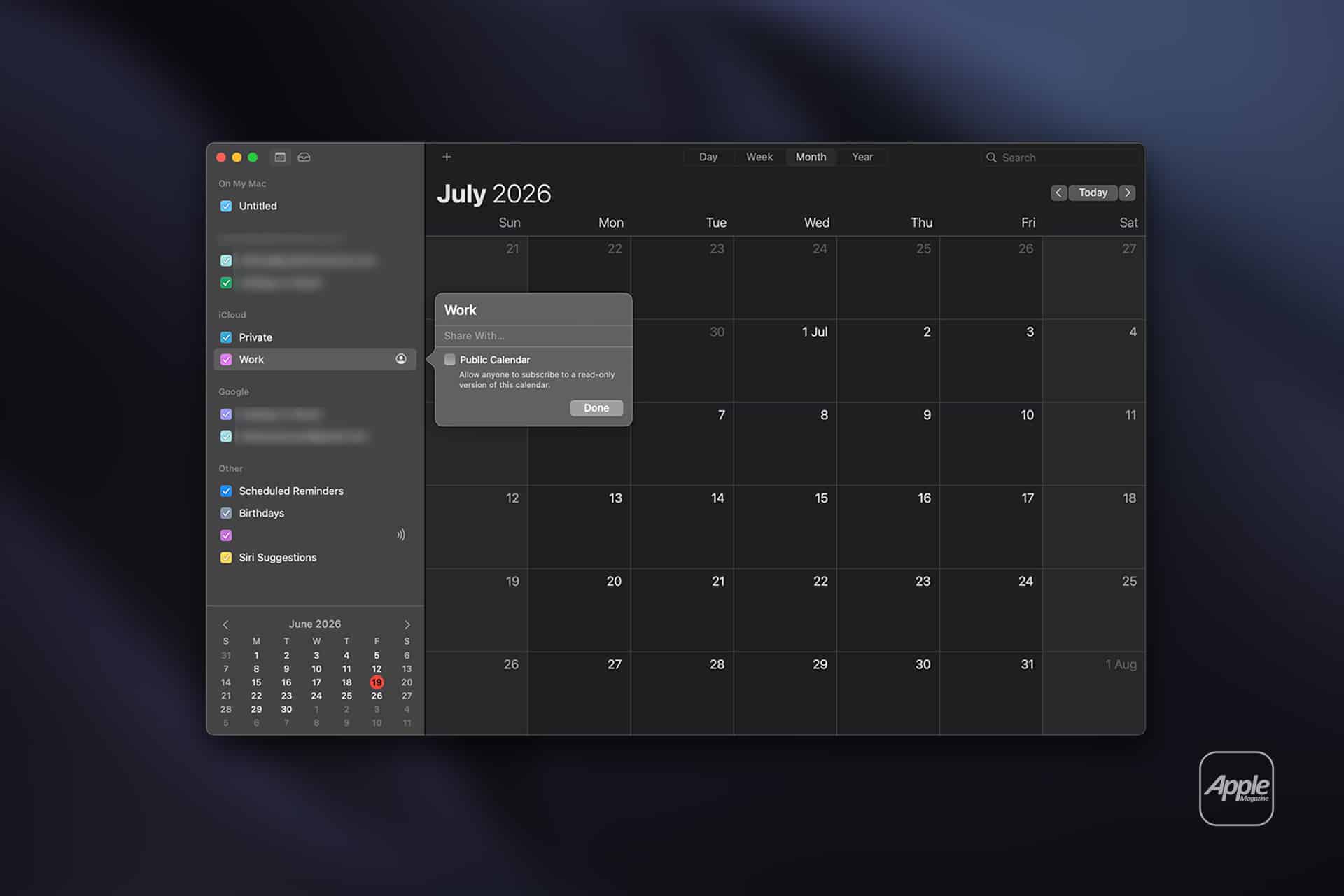
To make a calendar public on Mac:
Calendar > Calendar list > Pointer over the iCloud calendar > Share Calendar button > Public Calendar > Share button
The Share button lets the owner send or copy the subscription link. The link can be pasted into an email, message, webpage, newsletter, or document. Since the calendar is read-only for subscribers, it is well suited for public schedules that should stay controlled by one person or organization.
Mac users can also create a dedicated iCloud calendar before publishing a link.
To create a new iCloud calendar on Mac:
Calendar > File > New Calendar > iCloud
After creating it, add only the events meant for public viewing. The owner can use color coding inside Calendar to separate it from personal calendars, work calendars, reminders-based schedules, or subscribed calendars from other services.
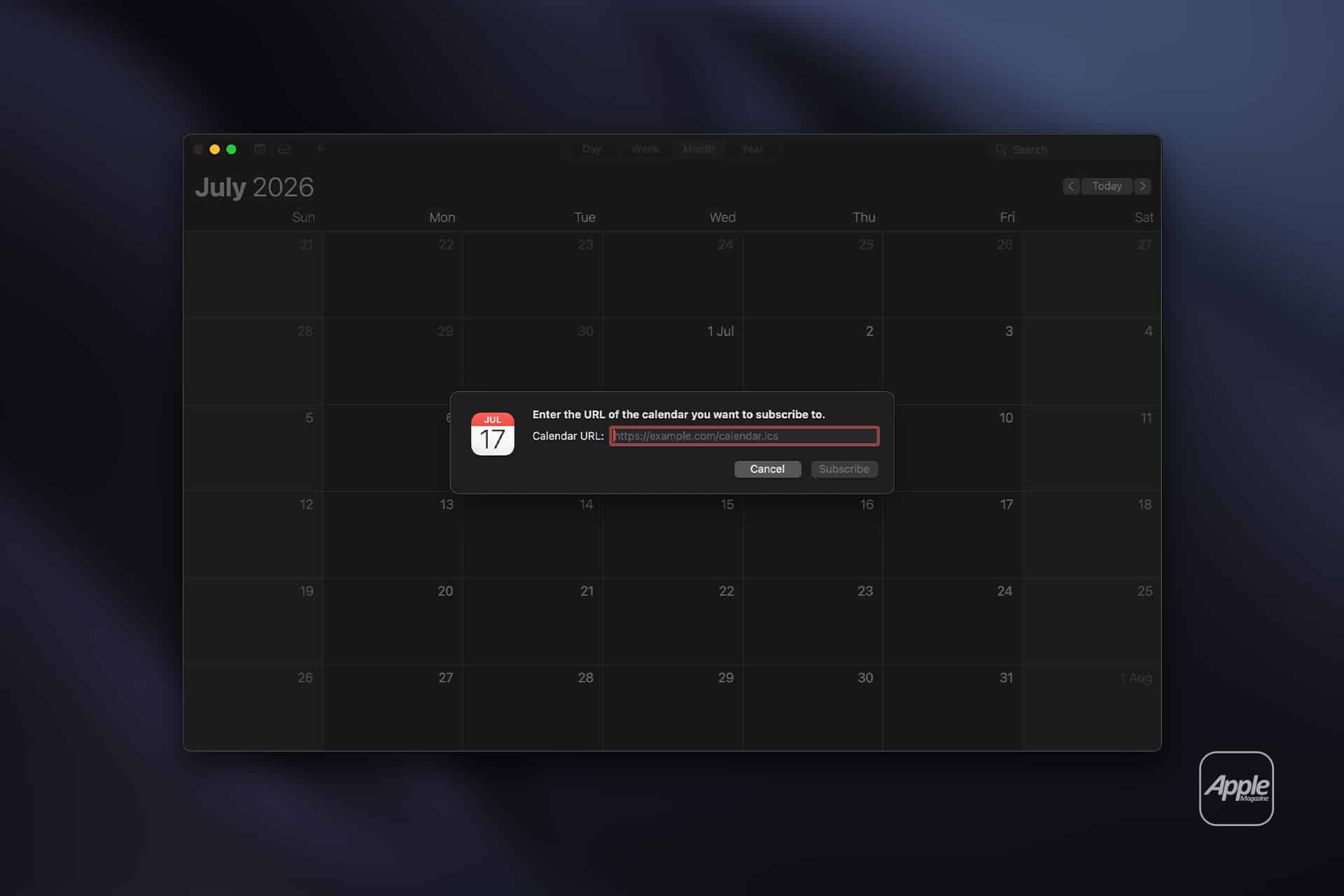
Mac is also useful for subscribing to someone else’s public calendar. If a public calendar link is received, clicking it may open a subscription prompt. The manual path is also available.
To subscribe to a public calendar on Mac:
Calendar > File > New Calendar Subscription > Paste the calendar URL > Subscribe
The subscription options on Mac can include where the calendar is stored and how often it refreshes, depending on the version of macOS and the calendar source. For readers who follow several public calendars, storing subscriptions in iCloud can help keep them available across Apple devices.
Using iCloud.com for Calendar Sharing
Apple also supports iCloud Calendar sharing from the web. This can be useful when a user is away from their main device, working from a shared computer, or managing a calendar from a browser. Apple notes that Calendar on iCloud.com requires a tablet or computer, not just any mobile browser experience.
The web version is useful for simple calendar management, especially when a user wants to copy a public calendar link without opening Calendar on iPhone, iPad, or Mac.
To share a calendar on iCloud.com:
iCloud.com/calendar > Sign in > Select the calendar > Sharing controls > Public Calendar > Copy or send the link
The exact interface may vary as Apple updates iCloud.com, but the public calendar option remains tied to calendar sharing controls. As with iPhone and Mac, the calendar should be reviewed before making it public. Event titles, locations, notes, attachments, invitees, and URLs can reveal more than expected if they are added casually.
A safe setup is to use public calendars with minimal event details. A public event can include the name, date, time, and general location if needed. Private instructions, access codes, addresses, internal notes, and contact details should be kept out unless they are truly meant for everyone with the link.
The Privacy Trade-Off
Public iCloud Calendar links are convenient because they reduce barriers. That convenience is also the reason they need to be used carefully. A public calendar link does not behave like a private invitation. It is closer to publishing a live schedule.
This does not mean every public calendar is risky. A calendar of store events, class dates, public performances, group activities, or release dates may be intended for wide viewing. In those cases, the public link is exactly the right tool. The issue is using it for personal schedules without separating private details first.
There are several good habits that make public calendar sharing safer. Create a dedicated calendar instead of sharing a main personal calendar. Use short event names that make sense to subscribers but do not expose private information. Avoid adding home addresses unless the location is public. Leave personal notes out of event descriptions. Review recurring events before turning on public sharing. Turn off public sharing when the calendar is no longer needed.
To stop public sharing on iPhone or iPad:
Calendar > Calendars > Info button next to the shared iCloud calendar > Turn off Public Calendar
To stop public sharing on Mac:
Calendar > Calendar list > Share Calendar button next to the public calendar > Turn off Public Calendar
Turning off public sharing removes access through the public link. For temporary schedules, this is useful after a project, trip, event season, or course ends. For ongoing schedules, owners may prefer to keep the same public calendar active and update events over time so subscribers do not need a new link.
When to Use Public Links Instead of Private Sharing
Public links are best when the calendar owner wants reach, simplicity, and view-only access. Private sharing is better when the calendar owner wants control over who sees the calendar or wants other people to edit events.
A public link suits a community event calendar, school club calendar, sports schedule, office hours calendar, tour schedule, release calendar, class calendar, open house schedule, or public availability calendar. A private shared calendar suits a couple coordinating appointments, colleagues managing a project, roommates splitting household tasks, or a small team where multiple people need editing access.
This distinction is especially useful for people managing both personal and public responsibilities from the same Apple devices. The Calendar app can hold multiple calendars under iCloud, each with its own purpose. One can stay private. Another can be shared with specific people. Another can be public and read-only.
Apple’s setup also makes public sharing feel familiar because it uses the existing Calendar app rather than a separate publishing tool. The owner can add and edit events from iPhone, iPad, Mac, or iCloud.com, and the public link continues pointing to the same calendar. That is enough for many everyday publishing needs.
Public calendar links are not a replacement for full scheduling platforms, booking systems, or project management apps. They do not handle forms, approvals, payments, assigned tasks, or complex collaboration. Their value is that they are already built into iCloud and work well for a straightforward job: publish a schedule once, keep it updated, and let others subscribe without asking them to join Apple’s system.
For Apple device owners, the feature is worth revisiting because it can make Calendar more useful beyond personal appointments. A dedicated public calendar with clean event names, limited details, and a link shared only where it belongs can turn the default Calendar app into a simple publishing tool that works across more devices than many people expect.