


Cloud storage works seamlessly — until the signal disappears. Airports, flights, remote job sites, underground transit, and rural travel all expose the same assumption many users make: that files shown in iCloud Drive are automatically stored on the device. They are not. iCloud Drive offline access depends entirely on whether a file has been downloaded locally before the connection drops.
Apple designed iCloud Drive to balance storage efficiency with availability. Files appear consistently across devices linked to the same Apple ID, but many remain cloud placeholders until opened. When internet access is stable, the system downloads files silently as needed. Without internet access, only files physically stored on the device can be opened.
Understanding how to control that behavior prevents interruptions at the worst possible moment.
How iCloud Drive Stores Files
On Mac, iCloud Drive appears in Finder like a regular folder. On iPhone and iPad, it appears inside the Files app. Visually, everything looks present. Technically, two types of files exist:
- Local files stored on the device
- Cloud-only files requiring download
On Mac, a small cloud icon indicates that a file exists in iCloud but is not currently stored locally. On iPhone or iPad, the download status is less obvious, but files not opened recently may not be cached.
If you try to open a cloud-only file without internet, it will not load.
There is no universal “offline mode” switch. Instead, offline access requires manual preparation.


Making Files Available Offline on iPhone and iPad
To ensure a file is stored locally:
Files app > iCloud Drive > Long Press File > Download Now
Once downloaded, the file remains accessible even in Airplane Mode.
To confirm:
Turn on Airplane Mode > Open Files app > Open the file
If it opens instantly, it is stored locally.
For folders, repeat the process for each important file. iOS does not provide a single folder-level “download all” toggle, so preparation requires attention. This step is especially important before flights, travel, or presentations.
Managing Offline Files on Mac
On macOS, the process is more visible:
Finder > iCloud Drive > Right Click File > Download Now
Once downloaded, the cloud icon disappears.
To control automatic removal of local files, check storage optimization settings:
System Settings > Apple ID > iCloud > iCloud Drive > Optimize Mac Storage
When enabled, macOS may remove infrequently used files to free disk space, keeping them only in iCloud. If you need guaranteed offline access, disabling this setting ensures files remain stored locally, assuming enough storage is available.
For professionals working remotely or traveling, this setting makes a significant difference.


Editing Files Offline
Files downloaded locally can be edited without internet access. Changes sync automatically once the device reconnects.
If you create a new document inside iCloud Drive while offline, it remains stored locally until connectivity resumes. Once connected, the file uploads automatically.
This sync behavior works across iPhone, iPad, and Mac.
However, deleting a file while offline will sync that deletion once internet access returns. Caution is necessary when managing documents without immediate cloud confirmation.
Preparing for Travel or Unstable Networks
Offline preparation becomes routine for:
- Students traveling between campuses
- Photographers working in remote areas
- Business professionals flying frequently
- Field workers in low-signal regions
Before leaving a stable connection:
- Download essential documents
- Open large files once to confirm caching
- Verify storage capacity
On iPhone:
Settings > General > iPhone Storage
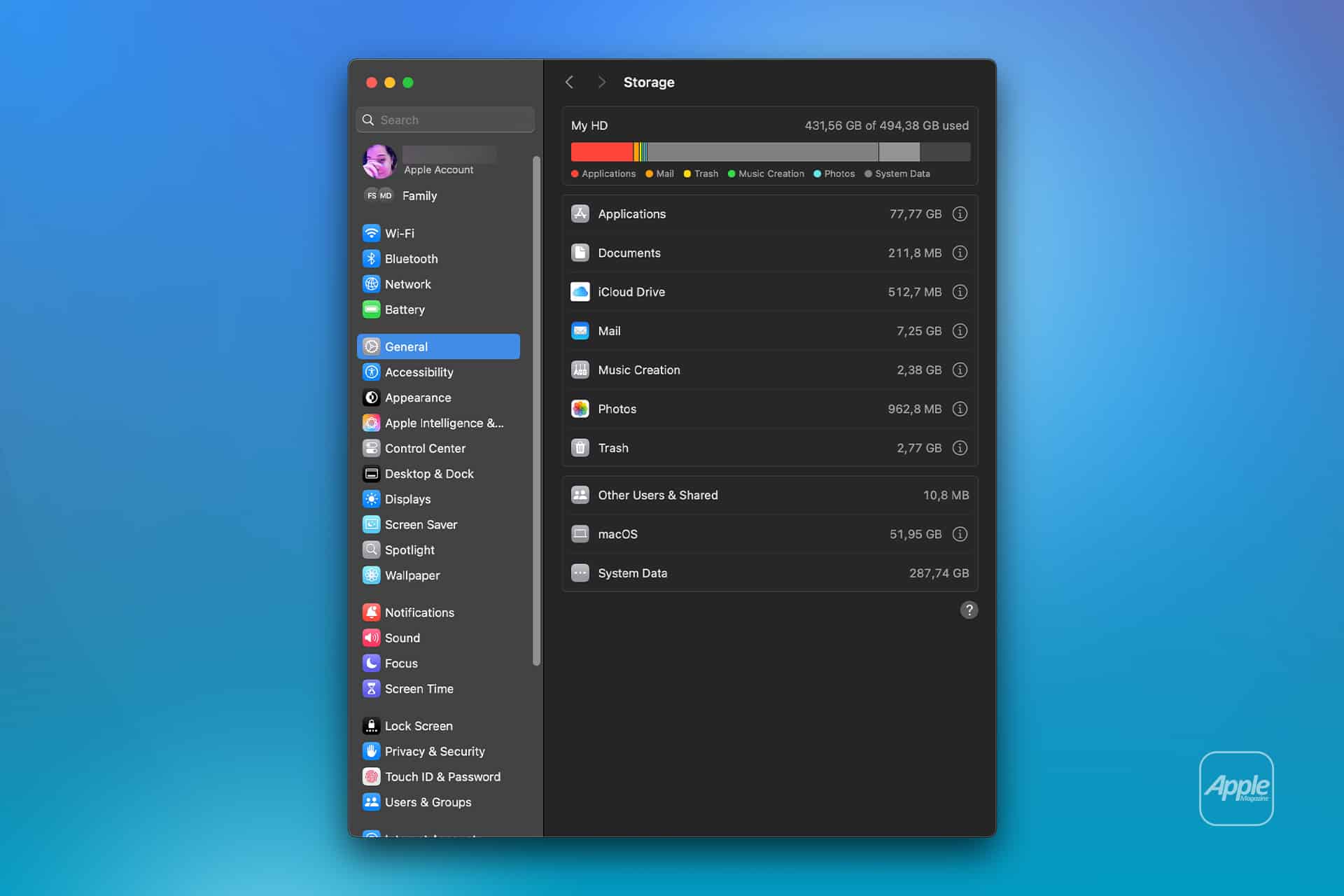
On Mac:
System Settings > General > Storage
Large video files, design assets, and presentations can consume significant space.
Testing With Airplane Mode
Airplane Mode remains the simplest reliability test.
Turn on Airplane Mode before departure and attempt to open critical files. If any file attempts to download, it was not stored locally.
This quick test prevents last-minute complications.
Common Misunderstandings
Many users believe that because iCloud Drive shows files across devices, they are automatically stored everywhere. In reality, each device maintains its own local cache.
Downloading a file on Mac does not make it available offline on iPhone. Each device must be prepared individually.
Another misconception involves storage optimization. Users sometimes enable optimization without realizing macOS may remove local files automatically to save space. For offline reliability, understanding this setting is essential.
Security and Encryption
Files stored locally remain protected by Apple’s security architecture.
On Mac, enabling FileVault ensures disk encryption:
System Settings > Privacy & Security > FileVault
On iPhone or iPad, device encryption is active once a passcode is set:
Settings > Face ID & Passcode
Offline access does not reduce encryption protections.
Balancing Cloud Convenience and Local Control
iCloud Drive is designed to minimize manual file management. Most of the time, its dynamic download system works invisibly.
However, when internet access cannot be guaranteed, users benefit from taking direct control.
Downloading files in advance transforms iCloud Drive from a streaming storage model into a dependable offline workspace. Documents remain editable, viewable, and ready — whether inside a conference center with restricted Wi-Fi or mid-flight without connectivity.
Offline access is not automatic, but with deliberate preparation, it becomes predictable.