

Apple devices are deeply tied to a single Apple ID. It controls access to iCloud data, Find My, App Store purchases, subscriptions, messages, and device activation. When that access is lost — whether due to a forgotten password, a stolen device, or a compromised account — recovery becomes urgent. This is where iForgot plays a critical role.
iForgot is Apple’s official recovery service for Apple ID credentials. It is designed for situations where users cannot authenticate using their usual password, Face ID, Touch ID, or trusted device prompts. Knowing how to use it before something goes wrong can save time when you need it most.
Settings > [your name] > Sign-In & Security > Two-Factor Authentication

iForgot and the Apple Security Layer
iForgot verifies identity through multiple factors rather than a single step. Depending on what you still have access to, it may rely on a trusted phone number, a trusted Apple device, or an account recovery request that takes longer. This is deliberate. Apple’s security system is designed to block account takeovers even if someone knows your email address or guesses your password.
If Apple cannot confirm identity right away, it starts Account Recovery, which can take time. That waiting period is part of the protection, not a mistake, and it’s one reason keeping your trusted number current matters.
How to Use iForgot Step by Step
If you still have a trusted Apple device nearby, recovery is often fastest through iPhone or iPad settings. If you don’t, iForgot is the fallback that works from any browser.
Safari or any browser > iforgot.apple.com > Apple ID email > Continue > Trusted phone number > Continue > Follow prompts
During this flow, Apple may send a verification code to a trusted device. If no trusted device is available, you may be asked to begin account recovery. Apple will then provide an estimated time and instructions for completing the process when verification is possible.
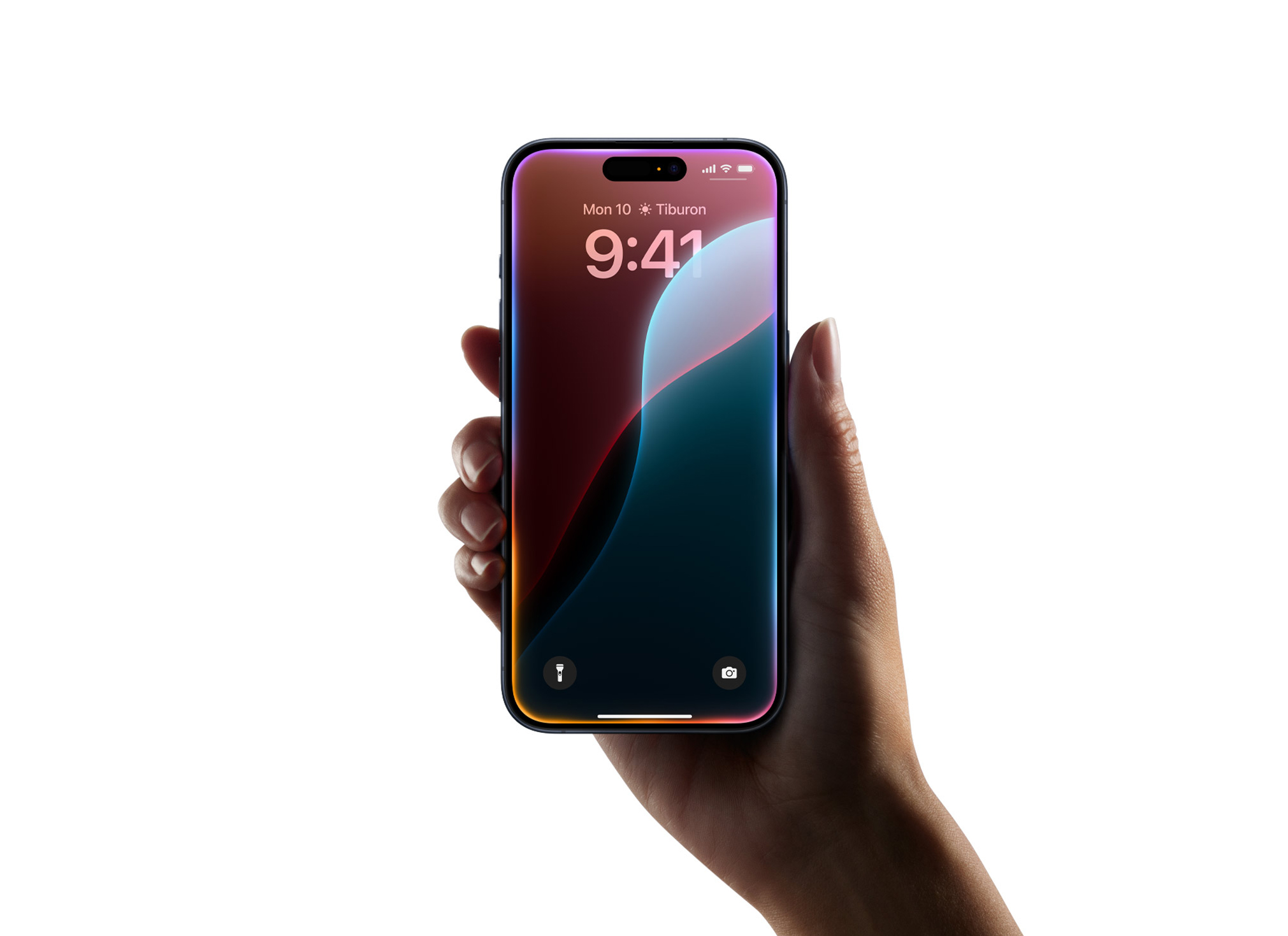
What to Do If Your iPhone Was Lost or Stolen
If the iPhone that normally receives verification codes is missing, iForgot becomes even more important. Recovery can still work, but it depends heavily on having another trusted device or a working trusted phone number.
Find My app on another Apple device > Devices > Select iPhone > Mark As Lost > Turn on Lost Mode
Lost Mode helps protect the iPhone and can reduce the urgency of immediate access, but it does not replace Apple ID recovery. iForgot is still needed if you cannot sign in to your Apple account.
How to Prepare So iForgot Works When You Need It
Many users only discover account recovery gaps during a crisis. A few checks reduce risk and speed up recovery later.
Settings > [your name] > Sign-In & Security > Trusted Phone Numbers
Make sure trusted numbers are current and reachable. If you manage a child’s device through Family Sharing, keeping the organizer account protected and recoverable is even more important, because that account often controls purchases, approvals, and device management.

iForgot in Apple’s Broader Security Approach
iForgot reflects Apple’s security model: protect user data first, then provide recovery paths that are verified and resistant to fraud. This can feel strict during emergencies, but it also prevents someone from hijacking an account and locking the rightful owner out permanently.
Understanding iForgot, and keeping recovery settings up to date, turns a stressful moment into a structured process with a clear path back to control.


