

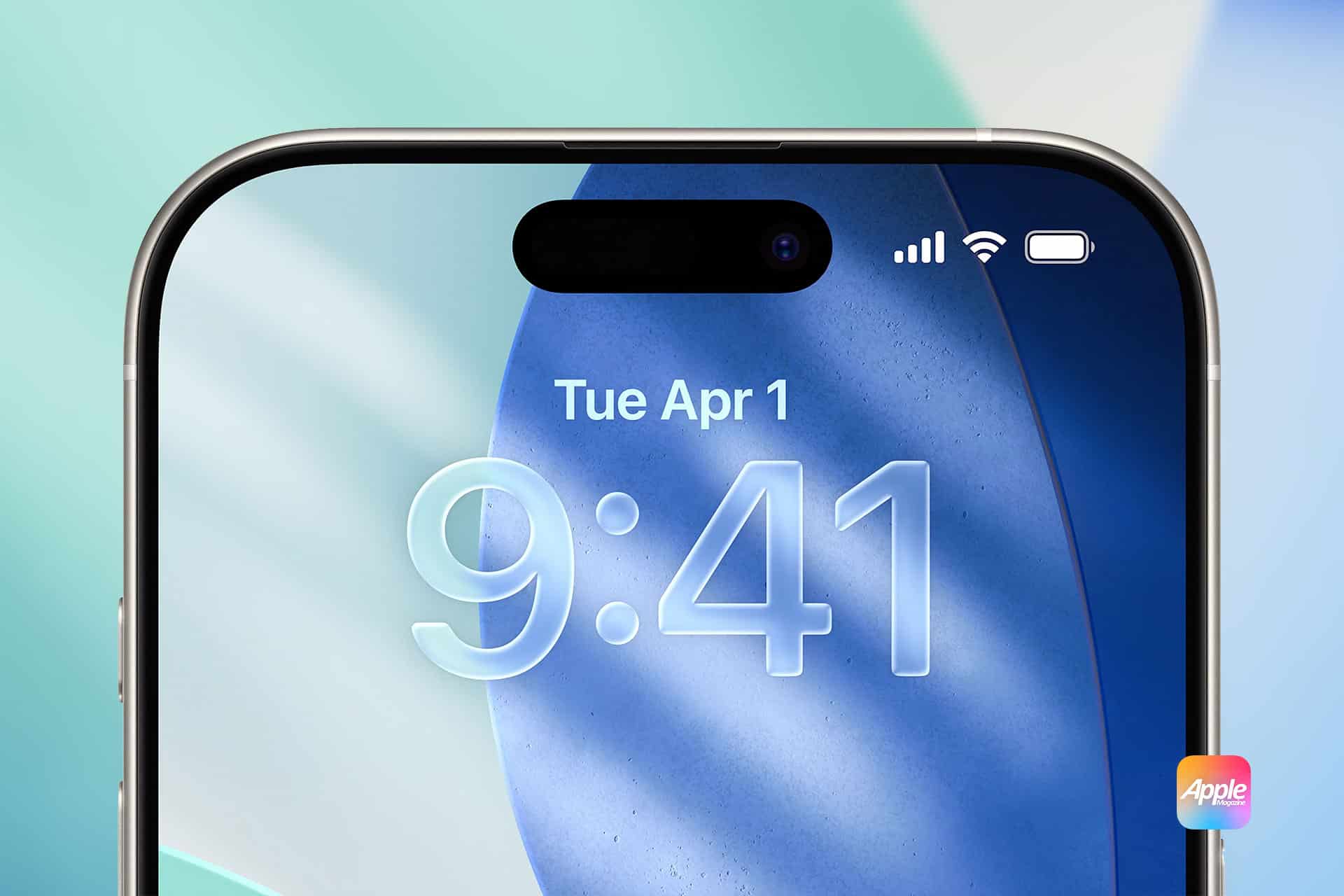
iOS 26 Phone app changes are designed around the part of the iPhone many people still use every day but rarely think about until something interrupts them: calls. Apple has updated the Phone app with a cleaner unified layout, smarter call handling, better protection from unknown numbers, and a new way to avoid waiting on hold while a customer service line repeats the same music for half an hour.
The update is not trying to reinvent calling. It is trying to make the most common phone moments less annoying. Unknown numbers can be screened before the iPhone rings. Long customer service holds can be handled by Hold Assist. Favorites, Recents, and Voicemail can now live in a single optional layout. Live Translation can help during calls in supported languages and regions. Together, these changes make the Phone app feel more useful in daily life, especially for users who receive a mix of personal calls, work calls, delivery calls, school calls, medical calls, and spam.
Apple says the new unified layout brings Favorites, Recents, and Voicemails together in one place, while Call Screening can gather the caller’s name and reason for calling before the phone rings. Hold Assist can keep the user’s place in line during a call and ring when a live agent is available. Those features may sound small, but they address the most frustrating parts of modern calling: not knowing who is calling, wasting time on hold, and switching between tabs just to find the right call history or voicemail.
The practical value depends on setup. Some features are optional, some vary by country or region, and some depend on iPhone model or language support. Users who update to iOS 26 should spend a few minutes inside the Phone settings rather than assuming every new feature is already working the way they want.

A Cleaner Phone Layout for Daily Use
The iOS 26 Phone app introduces an optional unified layout that combines Favorites, Recents, and Voicemail in one place. This is the most visible design change because it affects the screen people see when they open the app. Instead of jumping between separate tabs as often, users can keep their most important call information in a single view.
That change is useful for everyday calling because the old Phone app could feel more segmented than necessary. Favorites were in one place, call history in another, and voicemail in another. For people who mainly call the same few contacts, return missed calls, or check voicemail, the new layout reduces movement inside the app.
The unified view is also easier for people who use the Phone app quickly. A missed call from a doctor’s office, a voicemail from a family member, a recent call from a delivery driver, and a favorite contact can all be closer together. The Phone app becomes less of a folder of separate call tools and more of a single call dashboard.
Apple describes the new layout as an option, which matters. Users who prefer the older structure are not forced into a completely unfamiliar system. This gives iOS 26 a softer redesign than some other app changes. The Phone app can feel newer without taking away every established habit.
For people who make many calls during the day, the best first step is to open the Phone app after updating and decide whether the unified layout feels better. If it does, it can become the default way to manage calls. If it feels too crowded, the older separated approach may still be easier.
The real improvement is not only visual. It is about reducing hesitation. The Phone app should make it obvious where to tap next, whether the user is calling a favorite, returning a missed call, or listening to a voicemail. iOS 26 moves closer to that goal.
Call Screening Helps Unknown Numbers Explain Themselves
Call Screening is one of the strongest iOS 26 Phone app changes because it addresses a daily problem: unknown callers. Most people no longer answer every number they do not recognize. That habit is understandable, but it can also cause missed calls from schools, doctors, delivery drivers, repair services, banks, recruiters, restaurants, or local businesses.
Apple says Call Screening builds on Live Voicemail by gathering information from unknown callers and giving users details before they decide whether to answer or ignore the call. In Apple’s iOS 26 support notes, Call Screening can ask an unknown caller for their name and reason for calling before the iPhone rings.
Screened calls from unknown numbers can also be placed in a separate area of the call list so they are out of the way:
Settings > Apps > Phone > Screen Unknown Callers
This makes the feature more practical than a simple block list. A spam call may not get through. A legitimate caller can explain who they are. The user can then decide whether the call deserves attention. That is especially useful during work, school, driving, family time, or any moment when an unknown number would usually be ignored.
Call Screening also helps because spam calls have become more sophisticated. Many people receive calls from spoofed local numbers, fake support lines, suspicious financial services, and automated systems. Screening does not solve every scam problem, but it creates a small barrier before the user’s attention is interrupted. A caller with no clear reason to call is easier to ignore.
The feature should be adjusted carefully. Some users may want unknown numbers screened aggressively. Others may receive important calls from numbers that are not saved. A person waiting for medical results, a school office, a job interview, a delivery, or a service appointment should be mindful of how screening affects incoming calls.
The best setup is usually balanced. Save important contacts, allow known callers through normally, and let Call Screening handle numbers that are not recognized. Over time, users can save legitimate numbers so they do not keep being treated as unknown.
Call Screening is also a reminder that the Phone app is becoming more intelligent. The iPhone is not only showing who called. It is helping decide whether the call deserves to interrupt the user at all.

Hold Assist Takes Over the Worst Part of Customer Service
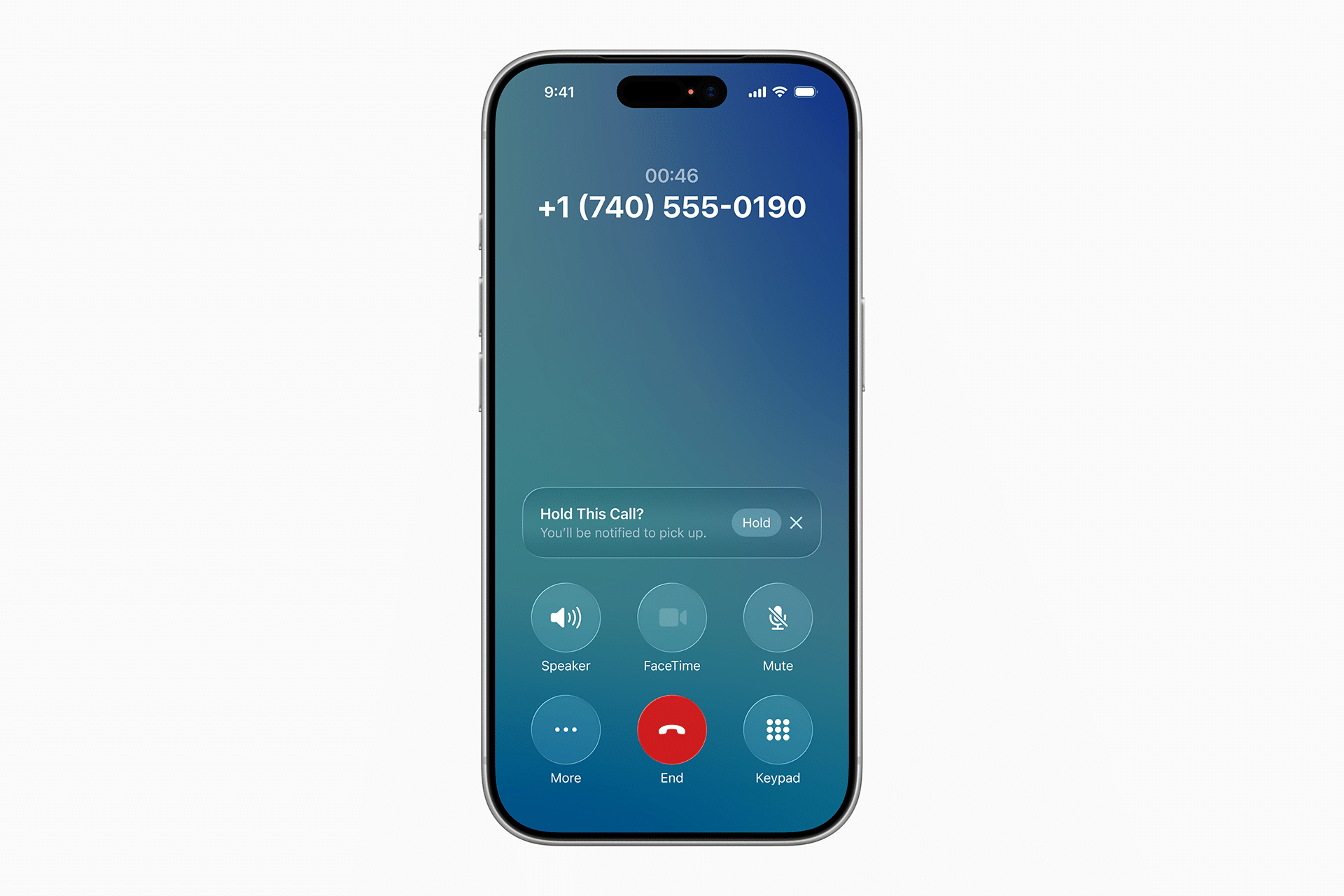
Hold Assist may become one of the most appreciated iOS 26 Phone app features because it targets a problem almost everyone knows: waiting for a live agent. Apple says Hold Assist can keep the user’s spot in line and notify them when a live agent becomes available. That means the iPhone can listen for the transition while the user steps away from the call.
The feature is useful for banks, airlines, insurance companies, government offices, stores, internet providers, repair services, medical offices, and any customer support line where hold times can stretch. Instead of keeping the phone against the ear or listening to hold music on speaker, the user can let the Phone app monitor the call.
Apple’s iPhone guide says Hold Assist is available on iPhone 12, iPhone SE third generation, or later, though it is not available in all countries or regions. That device and availability limit matters because not every iOS 26 user will see the same feature set.
During a call, when the user is placed on hold, the Phone app may offer the option to use Hold Assist. Once enabled, the user can wait for a notification instead of staying actively connected to the audio.
When a live agent is available, the Phone app rings so the user can return:
Phone call > Hold Assist
The feature is not magic. It still depends on the call, the automated system, and how clearly the support line transitions to a live person. Users should also be careful with calls involving sensitive information, callbacks, or systems that require regular keypad input. Hold Assist is best when the user is simply waiting in a queue, not when the call requires constant interaction.
Still, the everyday benefit is obvious. Hold time often turns a five-minute task into a frustrating break in the day. Hold Assist gives users some of that time back. They can keep working, make lunch, read, walk around, or continue another task while iPhone waits for the moment that actually matters.
For users who regularly call customer service, this may be more useful than many larger iOS features. It does not need to be flashy. It only needs to save time during one of the most irritating parts of using a phone.
Live Translation Makes Calls More Flexible
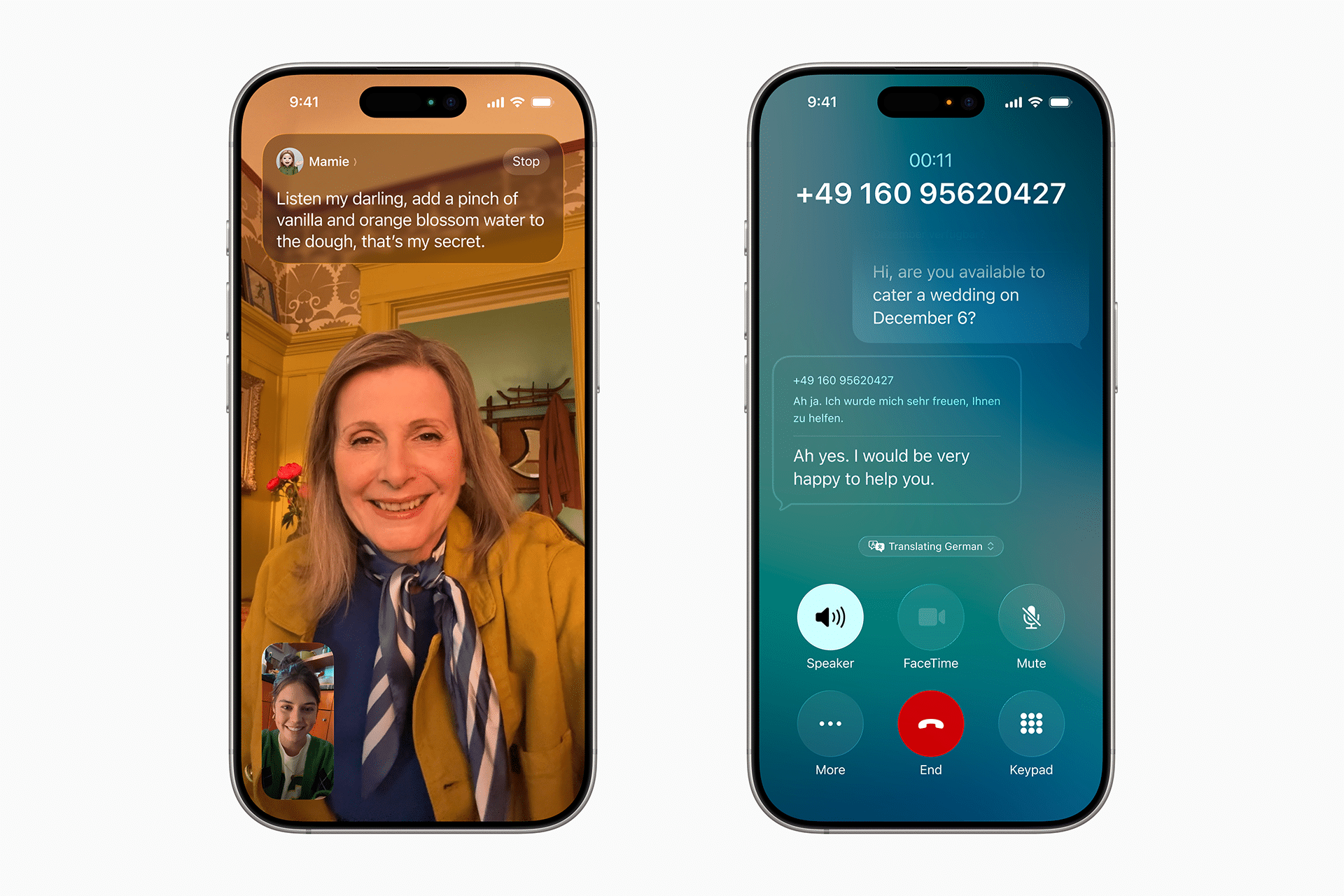
Live Translation adds another layer to the Phone app in iOS 26, especially for people who communicate across languages. Apple’s iOS 26 materials describe Live Translation across Messages, FaceTime, and Phone, with availability tied to supported languages and Apple Intelligence requirements. On calls, the feature is meant to help users understand and respond during conversations where language would otherwise be a barrier.
This has practical value beyond travel. Families, customers, businesses, students, support lines, medical offices, service providers, and international contacts can all involve language differences. A built-in translation layer inside the Phone app can reduce the need to switch devices, open a separate translation app, or rely on someone else to interpret.
The feature’s usefulness depends on supported languages, regions, and devices. Apple’s feature availability page lists language support for Apple Intelligence Phone features, and users should check local availability before relying on it for important calls.
Translation quality can also vary by language pair, accent, audio quality, background noise, and context:
Settings > Apple Intelligence & Siri
Live Translation should be treated as assistance, not a perfect substitute for professional interpretation in serious situations. Legal, medical, financial, immigration, or emergency conversations may require human expertise. For everyday calls, though, it can make iPhone more helpful when language differences would normally slow down communication.
The addition fits the larger iOS 26 pattern. Apple is placing intelligence inside ordinary communication tools rather than turning every AI feature into a separate app. Messages, FaceTime, and Phone are where people already communicate. Translation inside those apps makes the feature easier to use because it appears where the conversation is already happening.
For frequent travelers or multilingual families, this may become one of the most practical updates. It does not only make the Phone app smarter. It makes the iPhone feel more capable during real conversations that would otherwise be more difficult.
The Best Setup Starts in Phone Settings
The iOS 26 Phone app is strongest when users customize it instead of leaving everything untouched. Call Screening, Hold Assist, unknown caller behavior, voicemail settings, Live Voicemail, Silence Unknown Callers, and notification settings can all shape how calling works.
A few minutes of setup can prevent frustration later:
Settings > Apps > Phone
The first setting to review is unknown caller handling. Users should decide whether they want unknown numbers screened, silenced, or allowed to ring normally. Someone who receives many legitimate calls from new numbers may want a lighter approach. Someone overwhelmed by spam may want stronger screening.
The second setting is Live Voicemail and voicemail behavior. Live Voicemail already lets users see a real-time transcription when someone leaves a message, and Call Screening builds on that idea. Together, these features make the Phone app less dependent on answering immediately. Users can judge whether something needs attention before interrupting what they are doing.
The third setting is notifications. Phone notifications should be allowed for most people because calls can be important, but the way alerts appear can be adjusted. Lock Screen, banner, sound, and badge behavior should match the user’s needs.
Someone using Focus modes may also want to decide which calls break through during Work, Sleep, Personal, or Weekend Focus:
Settings > Focus > Choose Focus > People
The fourth step is contact cleanup. Call Screening works better when important numbers are saved. A school, doctor, office, building front desk, family member, delivery service, or frequent contact should be in Contacts if the user wants them recognized. A messy address book makes calling feel less intelligent.
The final step is testing the new layout. The unified Phone layout may be better for many users, but not everyone. iOS 26 gives enough flexibility for people to choose what feels faster. The best Phone app is the one that helps the user answer, ignore, return, or manage calls with less thought.
Everyday calls are not the most glamorous part of iPhone, but they remain essential. iOS 26 makes the Phone app more aware of how people actually handle calls now: they avoid unknown numbers, hate waiting on hold, rely on voicemail transcripts, move between languages, and want fewer interruptions. The update does not make calling feel new. It makes it feel less annoying, which may be exactly what the Phone app needed.