

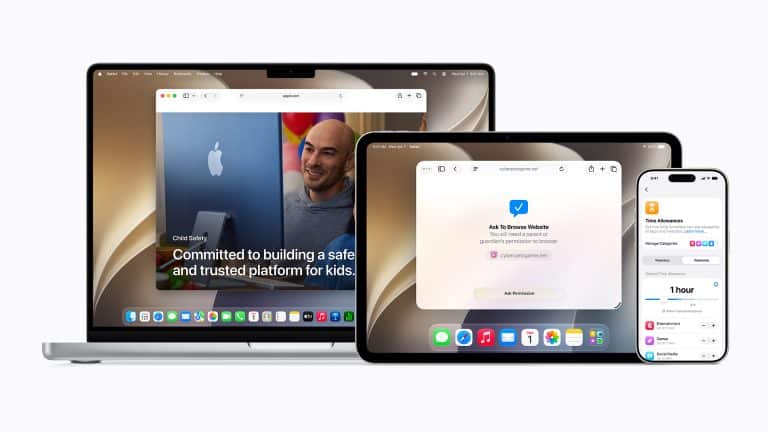
iOS 27 parental controls give parents more practical ways to manage what children can see, who they can talk to and when they can use apps. Apple’s latest child-safety update expands Screen Time across iPhone, iPad and Mac, with new tools designed to make family setup easier and give parents more control without turning every device decision into a fight.
The update arrives at a moment when families are under real pressure. Children use iPhones and iPads for school, entertainment, messaging, games, photos, music, social apps and family coordination. Parents do not always want to ban devices. They want settings that match age, maturity, school needs, sleep routines and family rules.
That is where iOS 27 matters. Apple is adding more guided setup for child accounts, stronger controls over apps and websites, contact approvals, expanded Communication Safety and more flexible Screen Time options. The goal is not to make the iPhone parent-proof or child-proof. It is to give families a clearer structure before problems happen.
iOS 27 Parental Controls Start With the Child Account
iOS 27 parental controls work best when a child is using a proper child account inside Family Sharing. That account lets parents apply age-appropriate protections, Screen Time settings, purchase approvals, content restrictions and family controls from their own device.
Apple says iOS 27, iPadOS 27 and macOS 27 add a simpler setup process for child accounts, with age-appropriate protections available during setup. This is important because many families make the first mistake at the beginning: a child uses an adult account, shares a parent’s Apple Account or receives a device without family settings turned on. Once that happens, limits become harder to manage.
To set up or manage a child through Family:
Settings > Family > Add Member > Create Child Account
After the child account is active, parents can manage Screen Time from their own iPhone or iPad.
To open a child’s Screen Time settings:
Settings > Screen Time > Family > child’s name
This is the central place for most controls: downtime, app limits, communication limits, content restrictions, web restrictions, Communication Safety and activity summaries.

Ask to Browse Adds Web Approval
One of the most useful new iOS 27 features is Ask to Browse. Apple says the feature lets children request access before visiting new websites, giving parents more control over web activity without manually predicting every site in advance.
This matters because web filters are imperfect. Blocking everything is too restrictive. Allowing everything is too open. Ask to Browse gives parents a middle path: the child can request a site, and the parent can decide whether it fits the child’s age and the family’s rules.
For younger children, this can help avoid accidental exposure to adult content, violent material, gambling pages, scam sites or unsafe communities. For older children, it can support a more negotiated approach. Parents can allow school, hobbies, sports, coding resources or educational sites while still keeping limits around mature content.
To manage web restrictions:
Settings > Screen Time > Family > child’s name > Content & Privacy > Store, Web, Siri & Game Center Content > Web Content
The exact iOS 27 Ask to Browse prompt may appear as part of Apple’s updated Screen Time flow after the Screen Time update is installed. Parents should review the web settings after updating, because child-safety features can depend on the child account, region and device software version.
Approve New Contacts Puts Communication in Focus
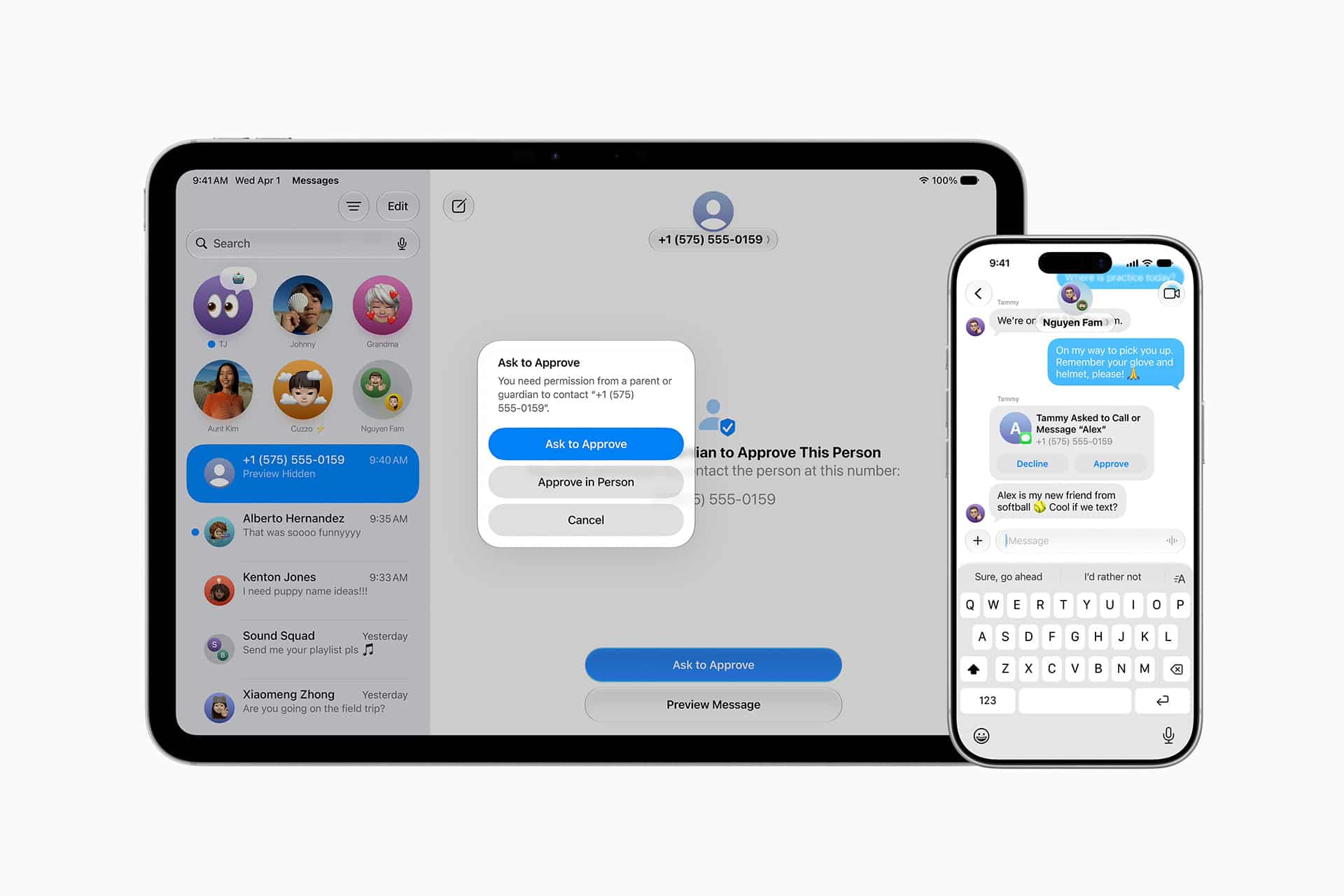
iOS 27 also introduces stronger control over who children can communicate with. Apple says parents will be able to approve new contacts for communication apps, including Messages, Phone and FaceTime. This addresses one of the most sensitive parts of a child’s device: not only what they can open, but who can reach them.
Contact approval matters because messaging is where many online problems begin. A child may receive contact from strangers, older teens, unknown group chats, gaming acquaintances or people they met through social apps. Parents may not want to monitor every conversation, but they do want some control over who enters the child’s communication circle.
Apple already offers Communication Limits in Screen Time, allowing parents to manage who a child can communicate with during allowed Screen Time and during Downtime. iOS 27 builds on that idea by making new-contact approval more direct.
To manage communication limits:
Settings > Screen Time > Family > child’s name > Communication Limits
Parents can also manage a child’s contacts when supported.
To manage a child’s contacts:
Settings > Screen Time > Family > child’s name > Communication Limits > Manage Contacts
For families, this setting should be discussed openly. A child should understand that contact approval is not punishment. It is a safety boundary, especially for unknown numbers, new group chats and people outside trusted circles.
Communication Safety Expands Beyond Content
Apple’s Communication Safety feature has already warned children before viewing or sending sensitive images and videos in supported apps and services. In iOS 27, Apple says Communication Safety is expanding to cover more categories of harmful visual content, including violent or graphic material.
This is a meaningful change because online safety is not only about sexual content. Children can also be exposed to violent images, gore, self-harm content, harassment material or disturbing videos through messages, shared links and group chats. A warning layer can slow the moment down and give the child a chance not to view or forward something harmful.
Communication Safety is designed with privacy in mind. Apple says image and video analysis happens on the device, and Apple does not get access to the content. For child accounts, parents can turn the feature on or off in Screen Time.
To manage Communication Safety:
Settings > Screen Time > Family > child’s name > Communication Safety
This is one of the settings parents should leave enabled for most children. It does not replace conversations about online behavior, but it adds a useful pause before sensitive content spreads.
Screen Time Gets More Age-Aware
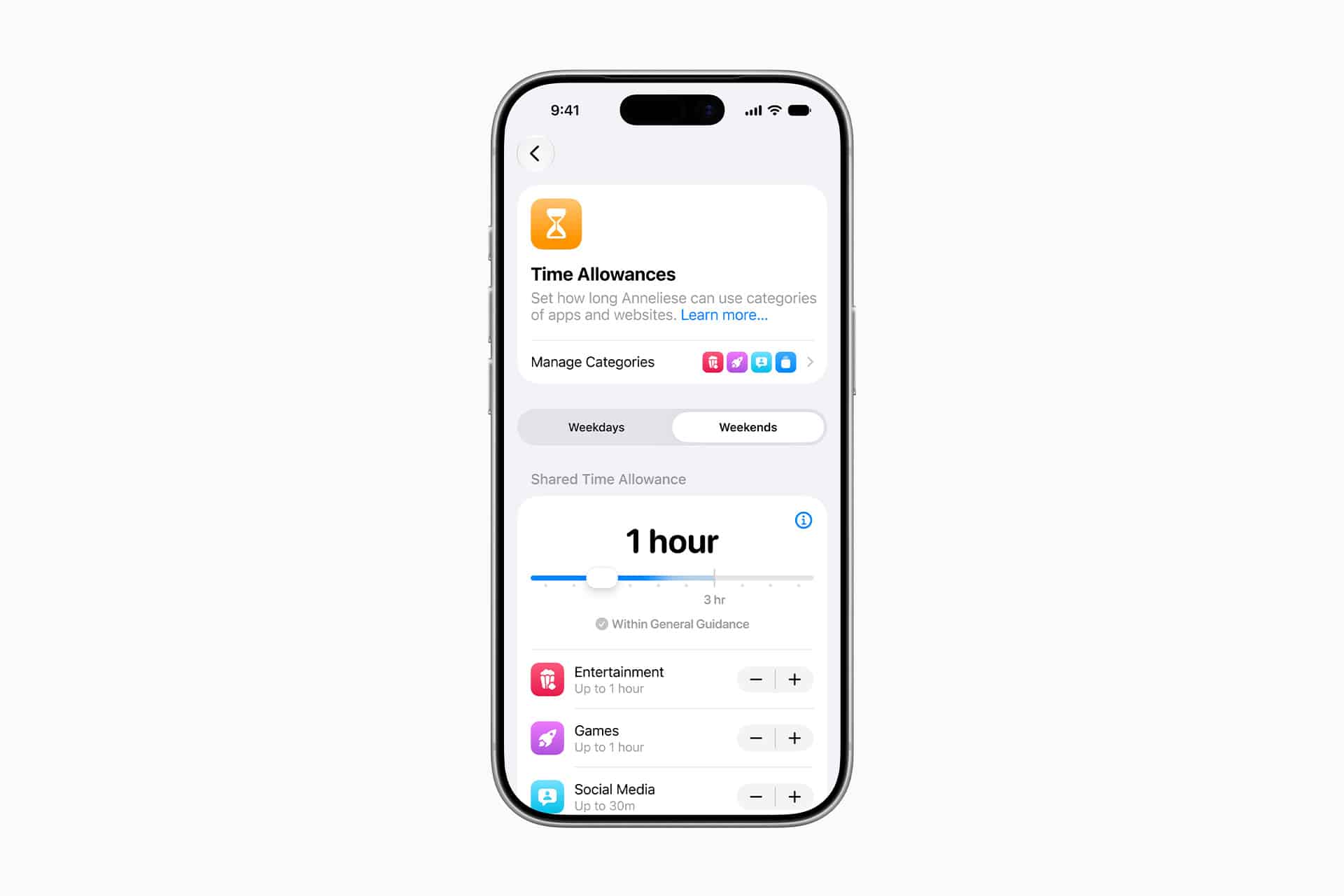
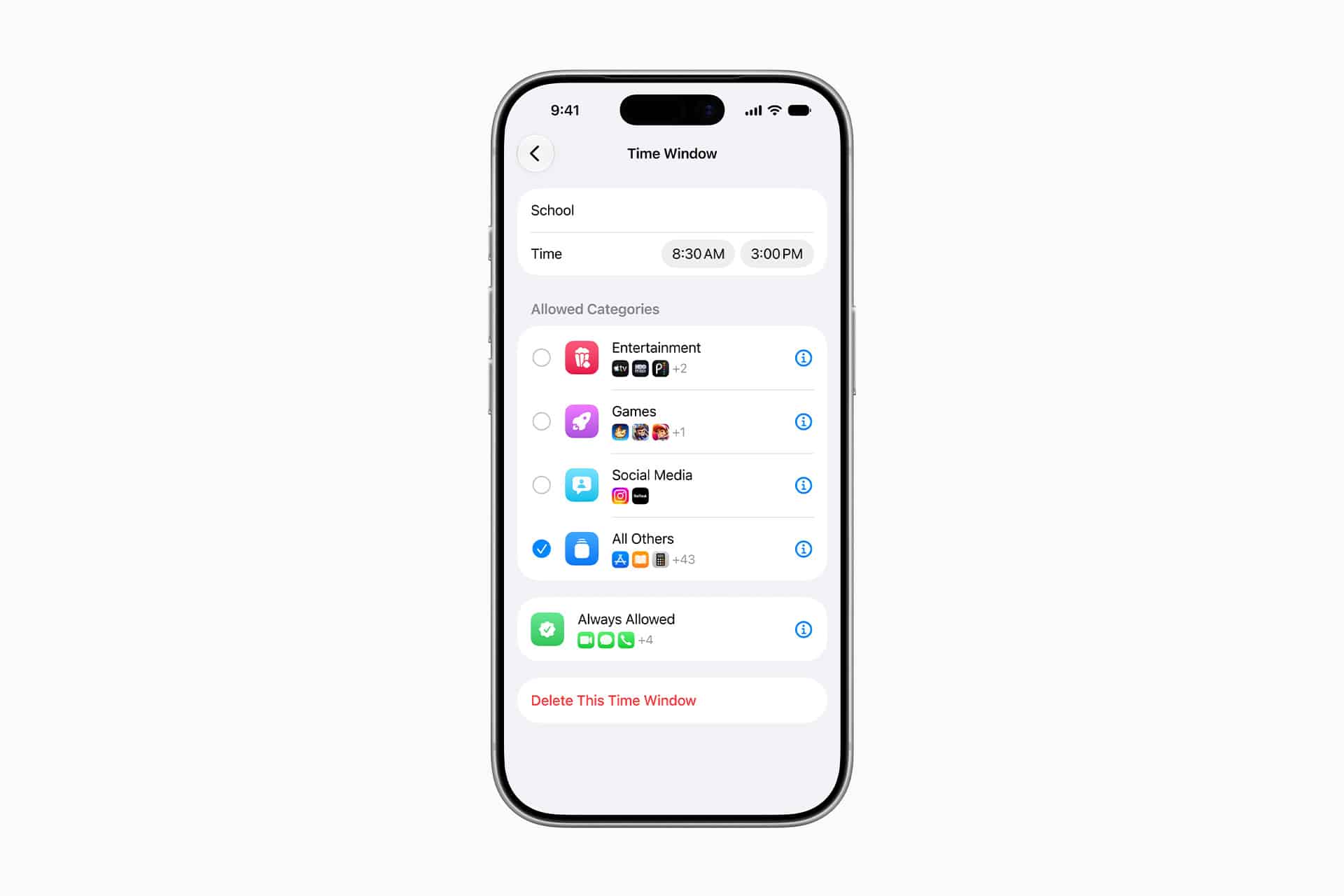
Screen Time has long allowed parents to set Downtime, App Limits and Content & Privacy Restrictions. iOS 27 adds more guided, age-aware controls, including customizable time allowances based on expert guidance and categories such as Entertainment, Games and Social Media, according to Apple’s child-safety preview and reporting from WWDC26.
That helps because not all screen time is the same. A child using an iPad for school reading is not the same as a child watching short videos for two hours before bed. A creative app is not the same as a gambling-style game. A FaceTime call with grandparents is not the same as an unknown group chat.
The best Screen Time setup separates device use by purpose. Parents can set stricter rules for games and social apps, keep school or communication tools available longer, and use Downtime to protect sleep, meals and homework.
To set Downtime:
Settings > Screen Time > Family > child’s name > Downtime
To set App Limits:
Settings > Screen Time > Family > child’s name > App Limits
To choose apps that remain available during Downtime:
Settings > Screen Time > Family > child’s name > Always Allowed
A healthy setup usually allows essential communication while limiting entertainment at specific times. Parents should also protect the Screen Time passcode and avoid sharing it casually.
Content and Privacy Restrictions Still Matter
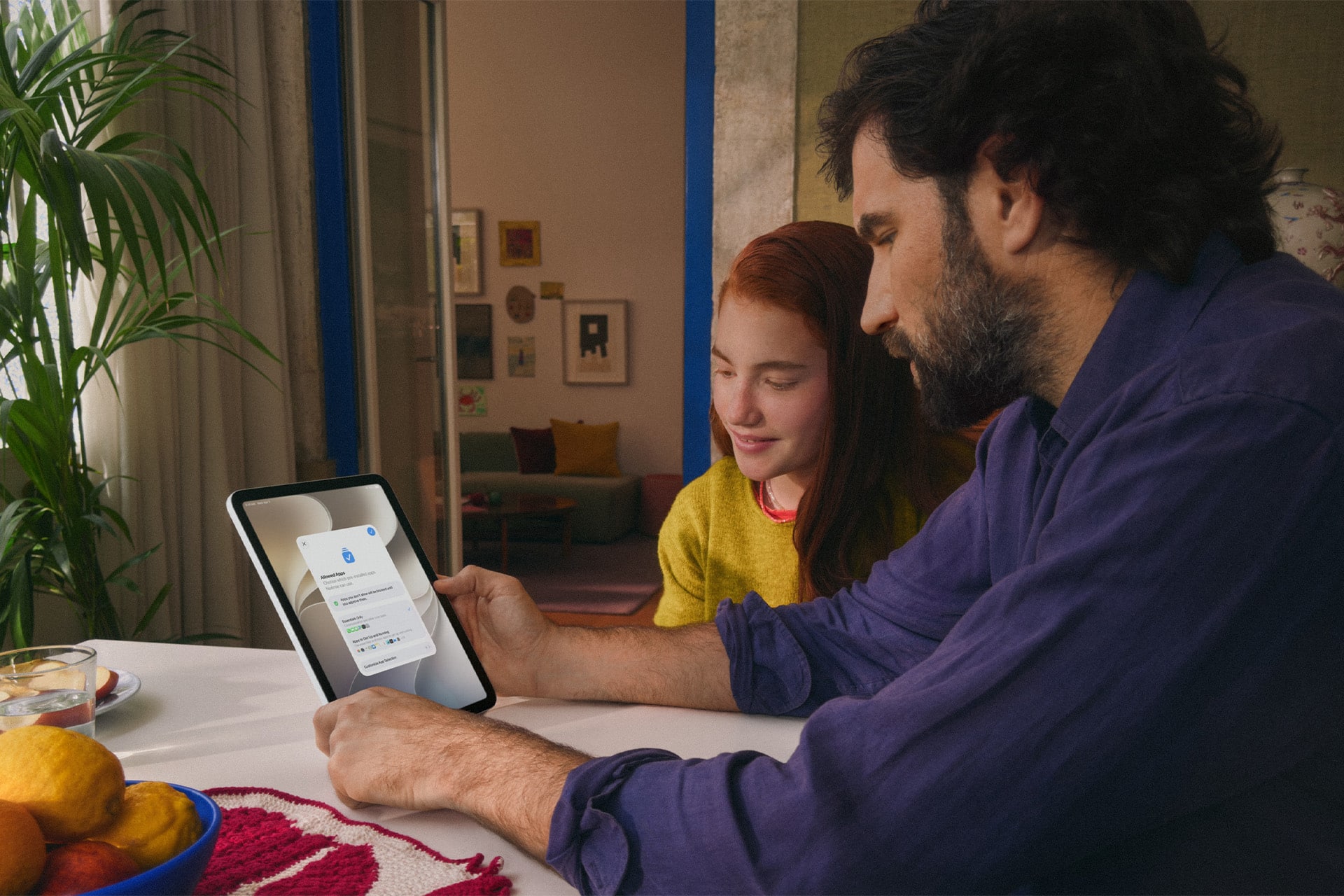
Content & Privacy Restrictions remain one of the most important parts of iPhone parental controls. These settings let parents restrict explicit content, app installations, purchases, web content, privacy changes, location access and other account-level behaviors.
To turn on Content & Privacy Restrictions:
Settings > Screen Time > Family > child’s name > Content & Privacy
From there, parents can control App Store purchases, app deletion, in-app purchases, allowed apps, content ratings, web content, Siri results, Game Center access and privacy settings.
The most important settings for many families are app installations, in-app purchases and web content. Children can easily download games, social apps or messaging tools if restrictions are loose. In-app purchases can also become expensive quickly, especially in games designed around upgrades, coins, skins or subscriptions.
To manage purchases:
Settings > Screen Time > Family > child’s name > Content & Privacy > iTunes & App Store Purchases
Parents should also enable Ask to Buy for children in Family Sharing.
To manage Ask to Buy:
Settings > Family > child’s name > Ask to Buy
Ask to Buy is useful because it gives parents a chance to approve or reject downloads before they appear on the child’s device.
Location Sharing Needs a Family Rule
Parental controls are not only about content. Location sharing is another major family decision. Find My can help parents know where a child’s device is, coordinate pickups, check safety during travel or locate a lost iPhone. It can also become a source of tension if used without trust or explanation.
The healthiest approach is to treat location sharing as a family safety rule, not a secret surveillance tool. Younger children may need stronger location settings. Teenagers may need clearer boundaries and more conversation.
To manage location sharing:
Settings > Family > child’s name > Location Sharing
Parents should also teach children what Find My does, when it is used and what to do if the device is lost. Location tools work best when they are part of
a safety plan, not a surprise.
Parents Should Review Apps, Not Just Time
Screen Time numbers can be misleading. A child may spend one hour on an educational app or one hour in a risky social environment. The time is the same. The meaning is different.
Parents should review app categories, new downloads and which apps are allowed during school hours or bedtime. Social media, messaging apps, games with chat, browser apps, VPNs, anonymous posting apps and AI image tools deserve more attention than simple puzzle games or reading apps.
To review usage:
Settings > Screen Time > Family > child’s name > See All App & Website Activity
This helps parents identify patterns. A child may be staying up late in one app, receiving messages during Downtime or spending more time than expected in a browser. The goal should be adjustment, not panic.
A good rule is to review settings after major life changes: new school year, first phone, new social app, travel, sleep problems, grade changes, new friend group or a child asking for more independence.
Parental Controls Work Better With Conversation
iOS 27 gives parents more tools, but settings alone cannot do the entire job. Children still need to understand why limits exist, how to report uncomfortable contact, what kinds of images should not be shared, why unknown adults are risky and how to ask for help without fear of automatic punishment.
This is especially important with older children and teenagers. If parental controls feel purely secretive or punitive, children may search for workarounds. If controls are explained as part of safety, sleep, school and trust, they are more likely to work.
Parents should also adjust controls as children mature. A 7-year-old, 11-year-old and 15-year-old do not need the same settings. Apple’s new age-aware setup is useful, but family judgment still matters.
The best parental control system is not the strictest one. It is the one parents actually maintain and children understand well enough to respect.
A Stronger Starting Point for Families
iOS 27 parental controls make Apple’s family tools more complete. Ask to Browse gives parents a better handle on web access. Approve New Contacts makes communication safer. Expanded Communication Safety adds warnings for more harmful content. Screen Time remains the control center for app access, downtime, content restrictions and family rules.
Parents should not wait until something goes wrong to use these settings. The right moment to configure parental controls is before the device becomes the center of a child’s social, school and entertainment life.
A child’s iPhone can be a useful tool, a learning device, a creative space and a safety connection. It can also become overwhelming without structure. iOS 27 gives parents more ways to set that structure from the beginning, then adjust as the child grows.