The iOS File System rarely shows itself directly. It runs quietly beneath the surface, organizing documents, photos, app data, and system components inside a tightly controlled structure. Unlike traditional desktop systems where users browse open folders freely, iOS was designed from the beginning around isolation and security. What appears simple on screen hides a carefully segmented architecture underneath.
Every app on iPhone operates inside its own container. This sandboxing model means each app receives a private directory where it can store data, preferences, caches, and temporary files. One app cannot read or modify another app’s container unless the user explicitly grants access through system-level sharing tools. That separation forms the backbone of iOS security and privacy.
Under the hood, iOS uses Apple File System (APFS), the same modern file system family found across Apple platforms. APFS supports encryption, fast cloning, snapshots, and efficient space management. On iPhone, encryption is integrated at multiple levels, with hardware keys tied to the device’s Secure Enclave. Files stored locally are protected not just by software rules but by cryptographic design embedded in the hardware.
App Containers and Data Isolation
Each installed app receives a unique directory path that includes subfolders for Documents, Library, and tmp. The Documents folder holds user-generated files. Library contains app preferences and support files. The tmp directory handles temporary data that can be cleared by the system when storage runs low.
This structure prevents accidental corruption between apps. A photo editing app cannot browse your banking app’s files. A game cannot inspect your notes. Even system apps operate within defined boundaries. The user experience may feel seamless, but behind that interface, strict permissions are enforced constantly.
When apps need to exchange data, iOS uses controlled mechanisms such as share sheets, file providers, or document pickers. Instead of exposing raw directory access, the system acts as mediator. That design reduces the attack surface and limits the risk of malicious code moving laterally across apps.
How Files App Simplifies Everything
The Files app presents a curated view of storage without revealing the full directory tree. It acts as an abstraction layer, combining local device storage, iCloud Drive, and third-party cloud providers into a unified interface. Users see folders and documents, but the app handles the mapping between visible folders and underlying app containers.
When you save a document “On My iPhone,” the file is stored inside the container of the app that created it. Files simply provides access to those document directories that apps expose through Apple’s file provider framework. The system never grants blanket access to the entire file system.
iCloud Drive integrates at the same level. Files stored in iCloud appear alongside local files, but synchronization happens automatically in the background. APFS optimizes space by using cloning and snapshots so that duplicates do not unnecessarily consume storage. The user sees a clean folder structure. The system manages the complexity.
Storage Optimization and System Control
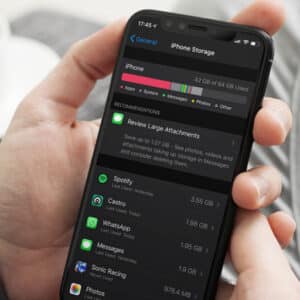
iOS continuously monitors storage usage. If space runs low, temporary caches are cleared automatically. Apps that store excessive cached data can have that data removed without affecting user documents. This behavior differs from desktop systems where users often manage disk cleanup manually.
The system also distinguishes between essential user files and app-generated support data. Offloading unused apps keeps user documents intact while removing the executable portion of the app. When reinstalled, the app reconnects to its existing container data.
From a user perspective, this feels simple. Behind the scenes, it is a tightly orchestrated balance between performance, security, and space efficiency.
Security as Structural Principle
The iOS File System was never designed as an open browsing environment. It was built around containment. Each app’s identity is cryptographically signed. Each file’s access is governed by entitlements and permissions. Even developers cannot bypass sandbox restrictions without explicit system authorization.
That architecture limits malware spread. If a malicious app is installed, its ability to explore the device is constrained to its own container unless the user grants additional permissions. The system enforces these boundaries continuously.
For developers, working within sandbox constraints requires careful planning of file access. Shared containers, iCloud entitlements, and document-based workflows must follow Apple’s security model. For users, the result is a simplified experience where file management rarely requires manual path navigation.
A Layer You Rarely See
The iOS File System does not present itself as a visible hierarchy like macOS. Instead, it prioritizes protection and predictability. The Files app offers a friendly window into this architecture, but the complexity remains underneath.
That combination — strict sandboxing with a unified abstraction layer — defines how iPhone storage works today. The user interacts with folders and documents. The system handles encryption, isolation, optimization, and synchronization continuously in the background.