

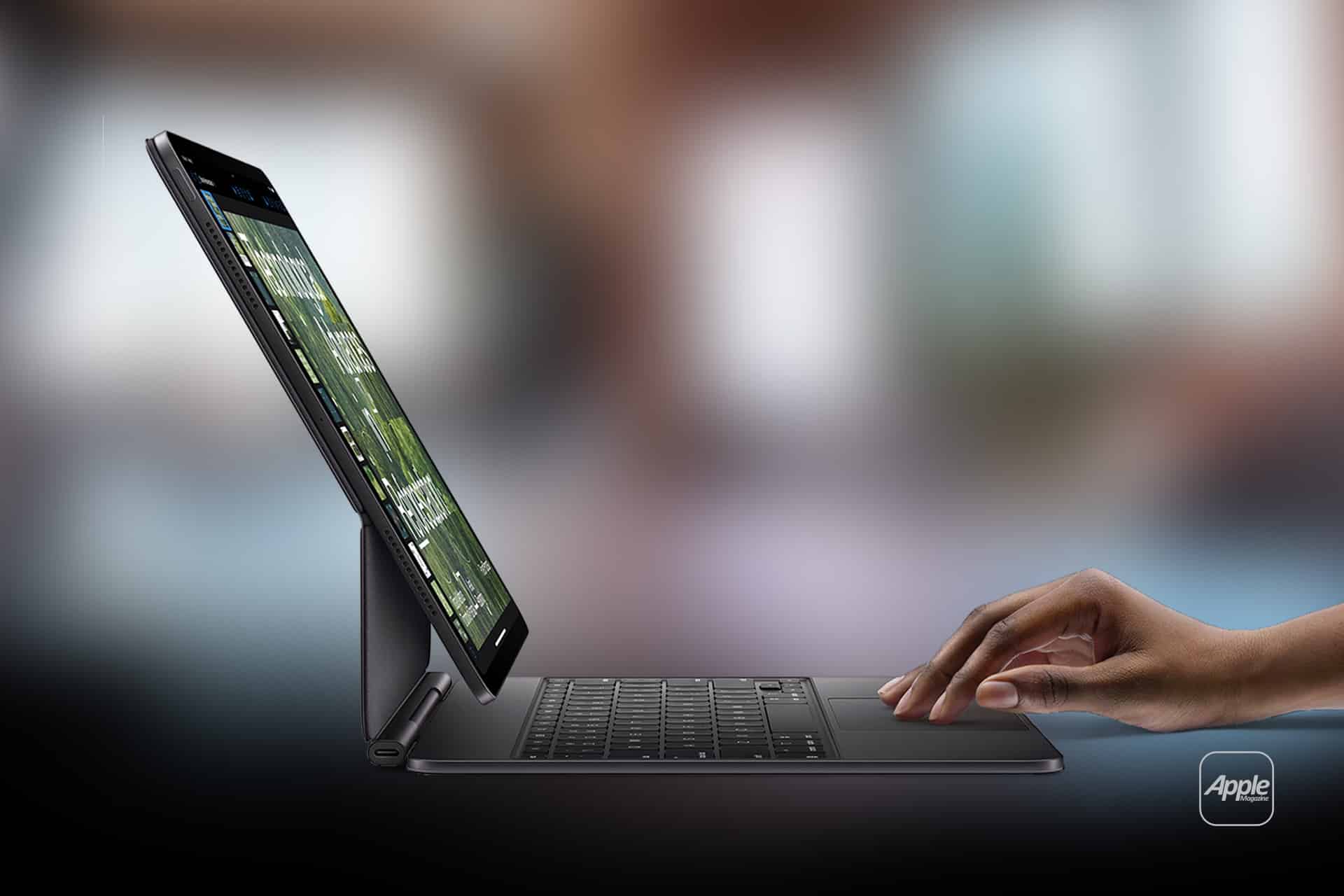
Typing on glass works for quick replies. It works for short emails. It works when you are standing. But when writing stretches beyond a few paragraphs, a physical iPad external keyboard changes the experience entirely.
The iPad was never limited to touch input alone. Over the years, it has gained deeper support for external keyboards, trackpads, and pointer control. With the right setup, it shifts from consumption device to focused writing tool.
The difference is not dramatic in appearance. The screen remains the same. What changes is posture, speed, and flow.
Connecting a Keyboard: Wired, Smart Connector, or Bluetooth
iPad supports three main keyboard types.
First are Apple’s Smart Connector keyboards. Accessories such as Magic Keyboard and Smart Keyboard connect magnetically and draw power directly from the iPad. There is no pairing process. Attach the keyboard, and it works instantly.
Second are USB-C or wired keyboards. Modern iPads with USB-C ports can connect directly using a cable or hub. Once connected, the keyboard is recognized automatically.
Third are Bluetooth keyboards. Pairing requires one initial setup:
Settings > Bluetooth > Select Keyboard
After pairing, reconnection happens automatically when Bluetooth is enabled.
All three options provide similar typing functionality. The difference lies in portability and design.
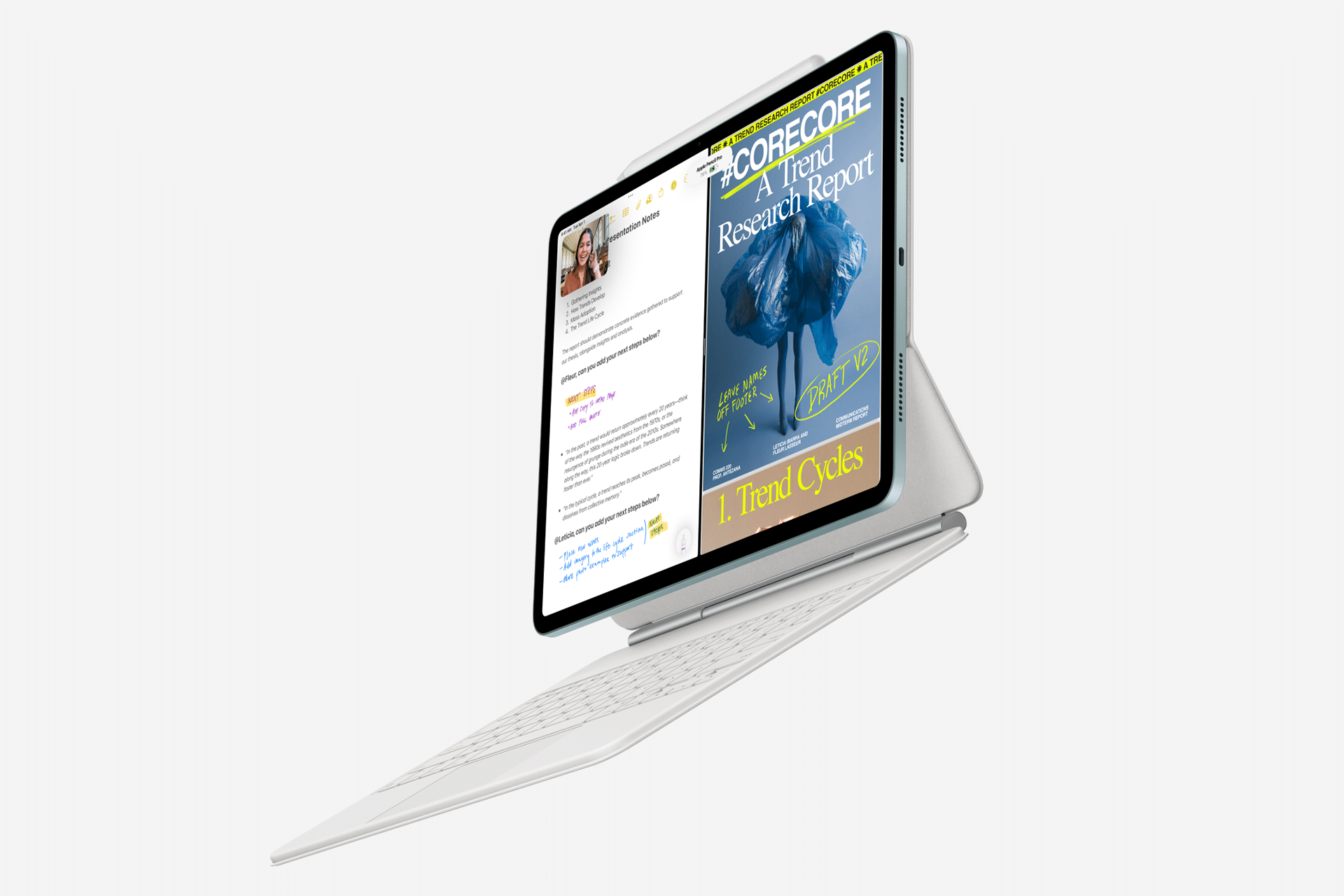

Configuring the Keyboard for Comfort
Once connected, iPad allows several configuration adjustments.
Settings > General > Keyboard > Hardware Keyboard
Inside this menu, you can adjust:
- Key repeat rate
- Delay until repeat
- Modifier keys
- Keyboard brightness (for compatible models)
Modifier key customization is particularly useful. You can remap keys like Caps Lock to function as Escape, Globe, or Control. For users coming from macOS or Windows, this flexibility smooths transition.
Typing productivity increases when muscle memory aligns with layout.
Language and Layout Adjustments
If you type in multiple languages or use different layouts, iPad supports switching seamlessly.
Settings > General > Keyboard > Keyboards
Adding additional layouts allows toggling between them with shortcut commands. This is practical for multilingual users or those who rely on special characters.
The hardware keyboard respects system language settings and autocorrect preferences, but autocorrect can also be disabled if you prefer manual control.
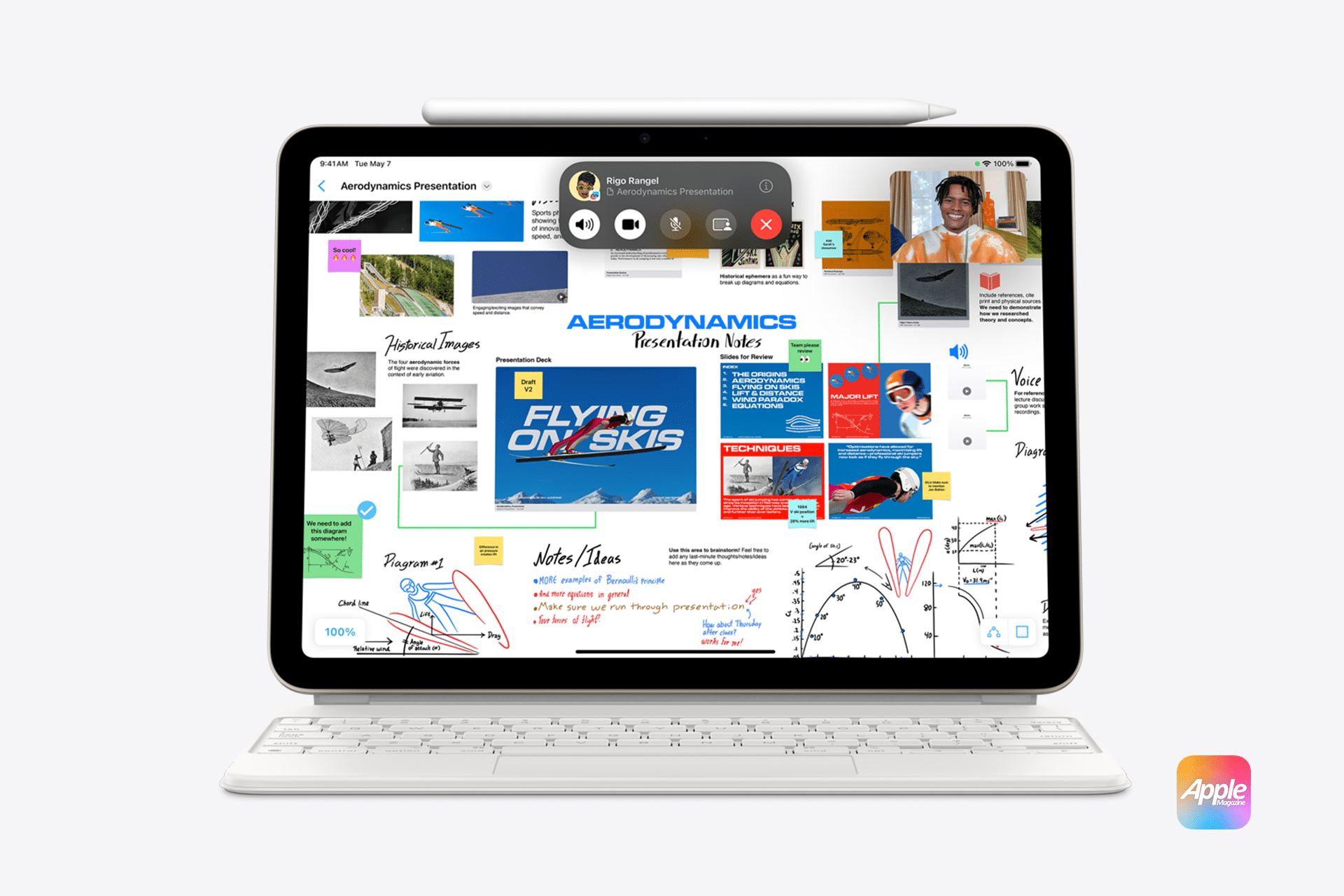
Keyboard Shortcuts: The Hidden Advantage
External keyboards unlock a deeper layer of iPad functionality through shortcuts.
Holding the Command key reveals available shortcuts inside many apps. This mimics desktop behavior and reduces touch interaction.
Common shortcuts include:
- Command + Space for search
- Command + Tab for app switching
- Command + H to return Home
- Command + C and V for copy and paste
These commands shorten navigation time significantly. Instead of reaching for the screen, you remain in typing position. For writers, students, and professionals, that continuity matters.
Trackpad and Pointer Integration
Many external keyboards now include trackpads. iPadOS supports pointer control natively.
When connected, a circular cursor appears. It adapts contextually, highlighting buttons and interface elements.
This changes how you interact with text selection, spreadsheets, and document editing. Selecting paragraphs becomes more precise. Dragging and dropping files feels more natural.
Settings > Accessibility > Pointer Control
Here you can adjust tracking speed and scrolling behavior.
With keyboard and trackpad combined, iPad moves closer to laptop-like operation without losing touch support.

Workflow Improvements
Typing long emails, editing documents, working in spreadsheets, or coding in supported apps becomes more comfortable with a full-size keyboard.
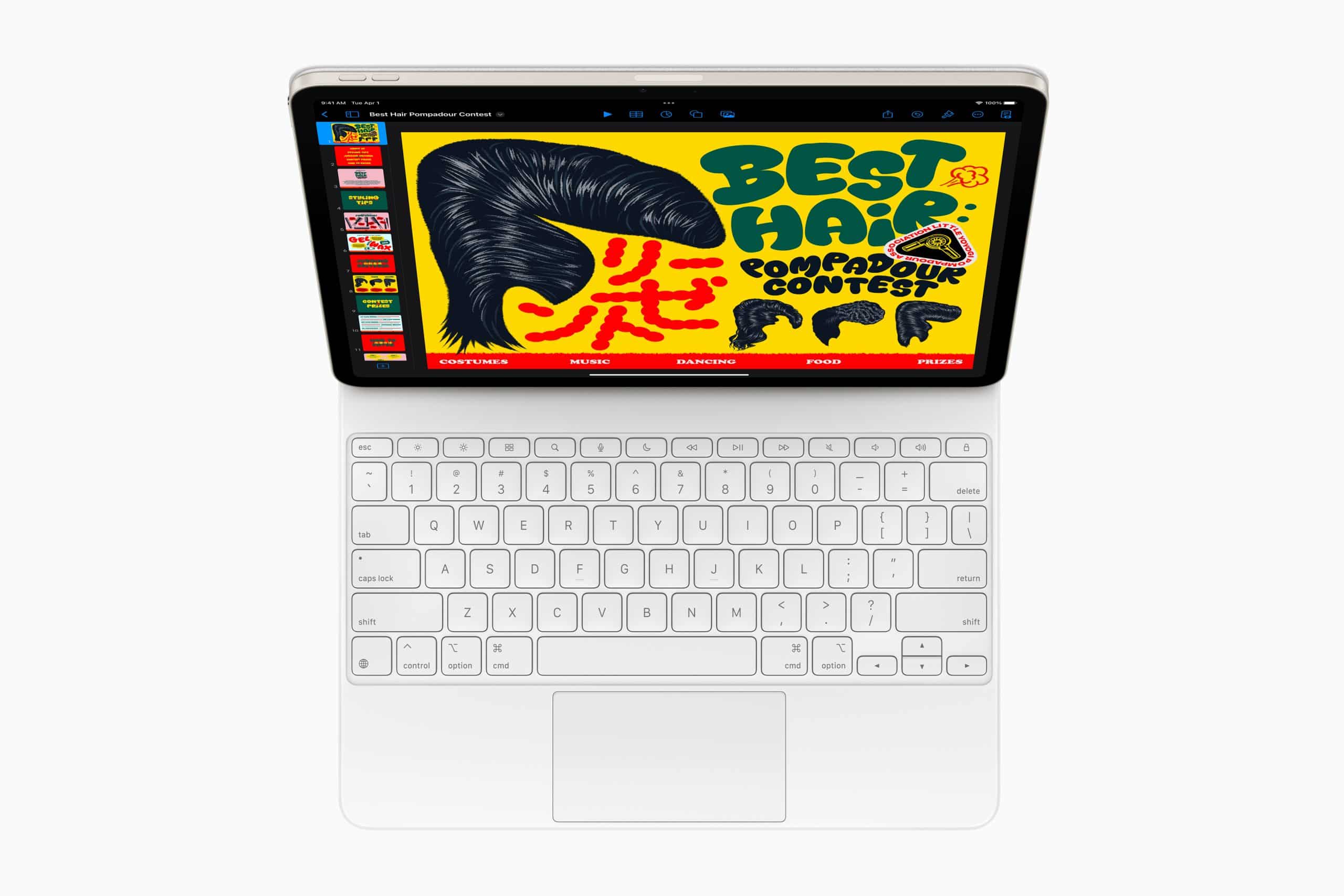
Split View and Stage Manager (on supported models) enhance multitasking. Keyboard shortcuts make switching between apps fluid.
For example, drafting text in Notes while referencing Safari becomes faster when app switching does not require swiping gestures.
Battery Considerations
Smart Connector keyboards draw minimal power from the iPad. Bluetooth keyboards use their own batteries, reducing drain on the tablet itself.
Disconnecting or turning off unused keyboards preserves energy. For mobile workflows, lightweight Bluetooth models provide flexibility without adding significant bulk.
Choosing the Right Setup
The best keyboard depends on use case.
For desk-based work, a full-size Bluetooth keyboard may feel most comfortable. For travel, a slim keyboard case keeps everything attached. For hybrid workflows, Apple’s Magic Keyboard integrates both keyboard and trackpad in a compact form.
Regardless of hardware choice, the configuration inside iPadOS shapes the experience.
Turning iPad Into a Writing Tool
iPad External Keyboard support does not attempt to replace traditional computers entirely. Instead, it expands what the device can handle comfortably.
With thoughtful configuration, shortcut familiarity, and a layout that fits your typing habits, the iPad becomes more than a touchscreen device. It becomes a focused workspace that balances portability with productivity.
The transformation is not about adding complexity. It is about removing friction between thought and text.