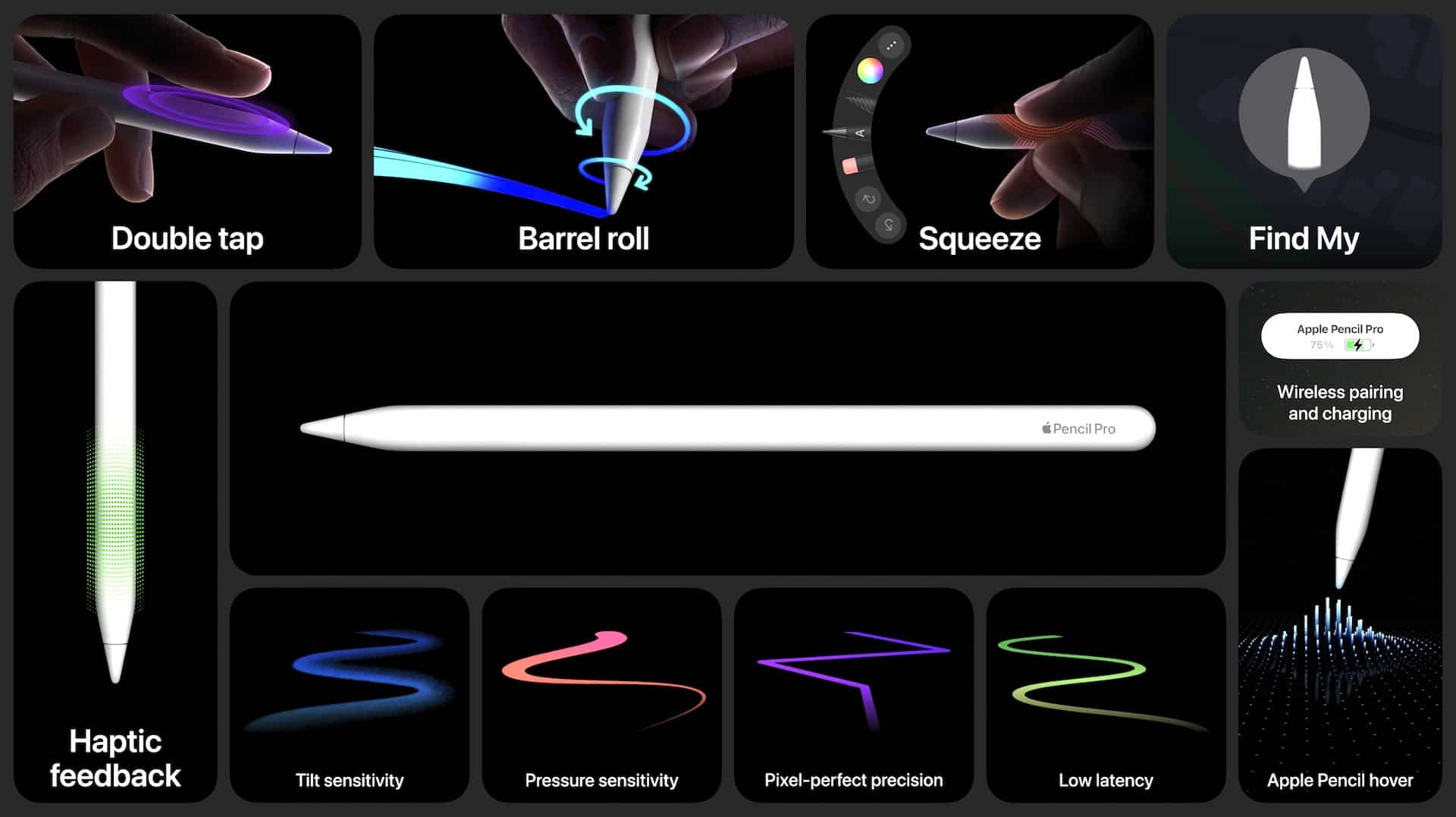
Precision on iPad changed the moment Apple introduced hover support for Apple Pencil. For artists, designers, note-takers, and anyone who relies on accurate placement, hover features bring a level of anticipation that traditional touch input never offered.
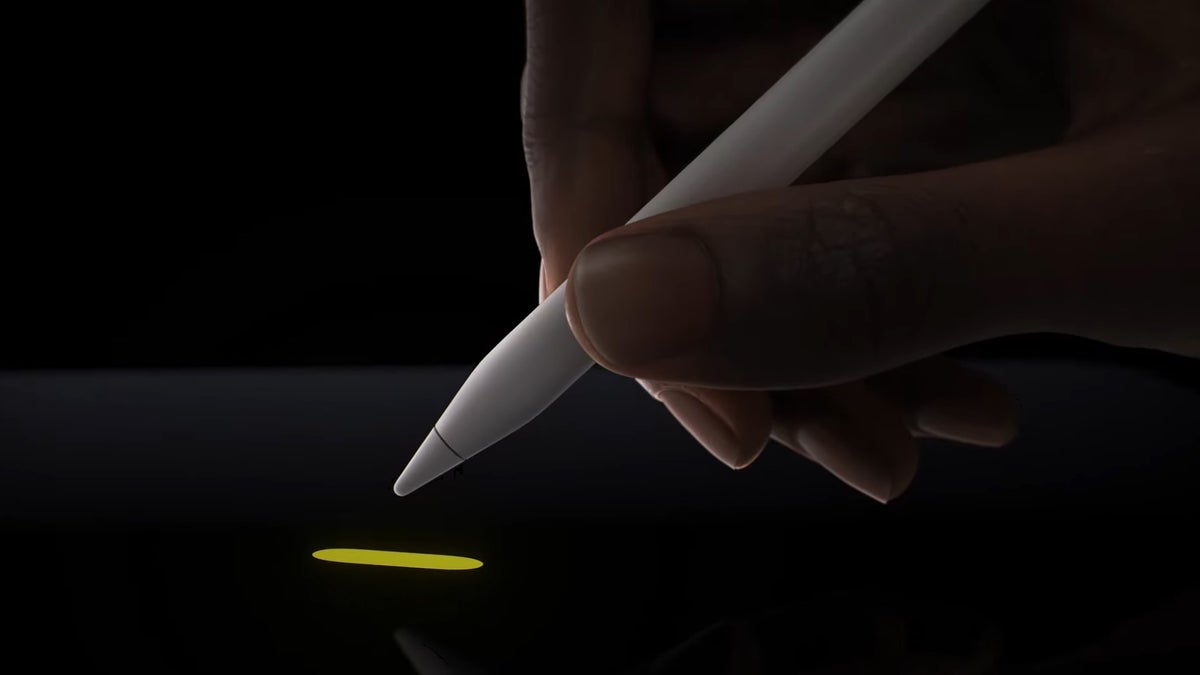
With compatible iPad Pro models, Apple Pencil can now detect proximity above the display — typically up to 12 millimeters — before making contact. That small distance transforms how interactions unfold. Instead of committing immediately to a stroke or tap, users see previews, cursor movements, and tool responses in advance.
Hover is not a flashy feature. It is subtle. But for precision workflows, subtlety is everything.
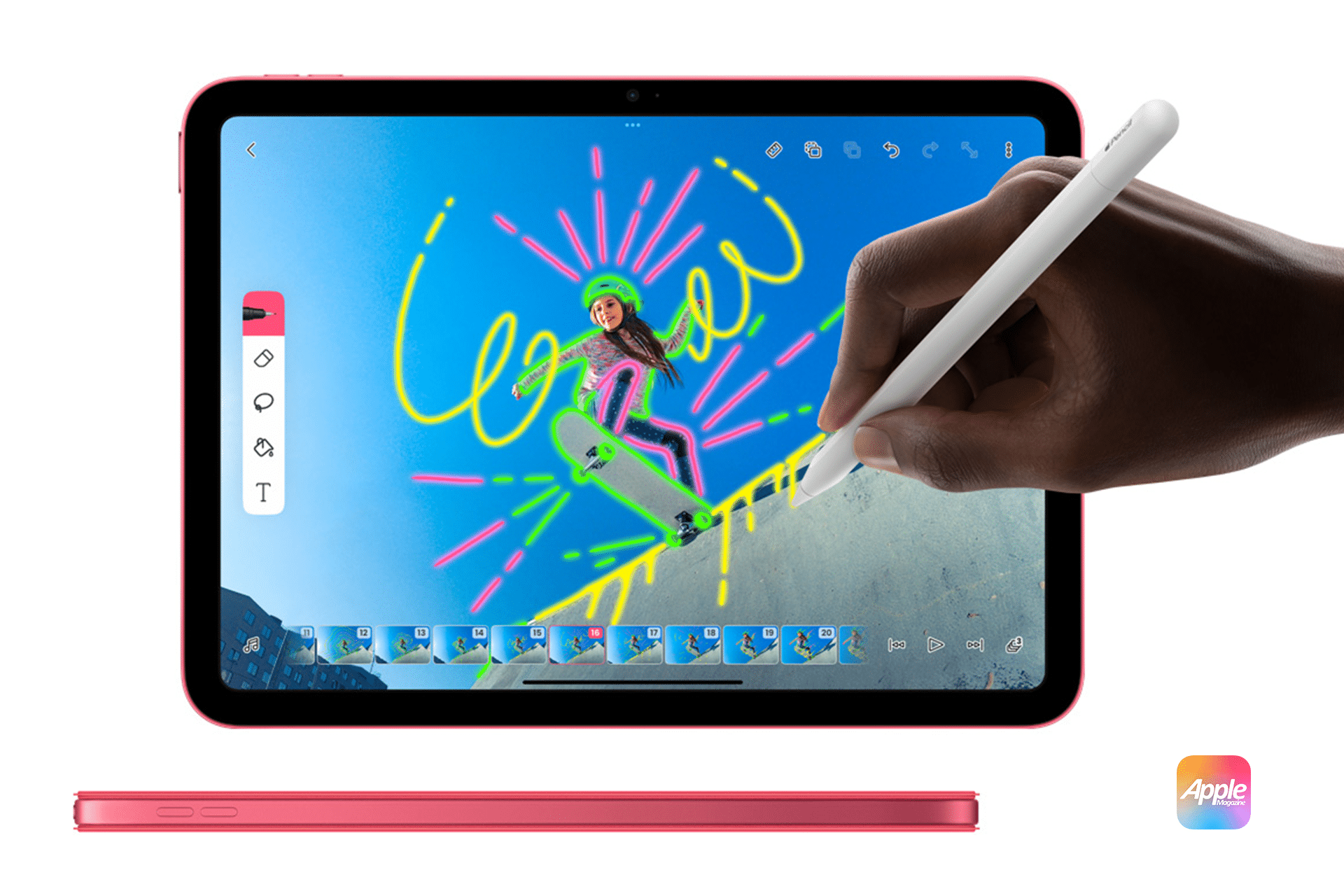

How Apple Pencil Hover Works
Apple Pencil hover uses advanced sensor detection built into supported iPad Pro displays. When the Pencil approaches the screen, the system detects its position and angle, displaying a visual cue before contact.
In drawing apps, brush previews expand or contract as the Pencil moves closer. Shading areas respond dynamically based on tilt. Text insertion points appear before a tap. Buttons highlight under the invisible cursor.
The result is less guesswork and fewer corrections.
Hover feels natural because it mirrors physical drawing. A painter does not press a brush into canvas without first aligning the stroke. Hover brings that alignment phase into digital workflows.
Where Hover Improves Precision Most
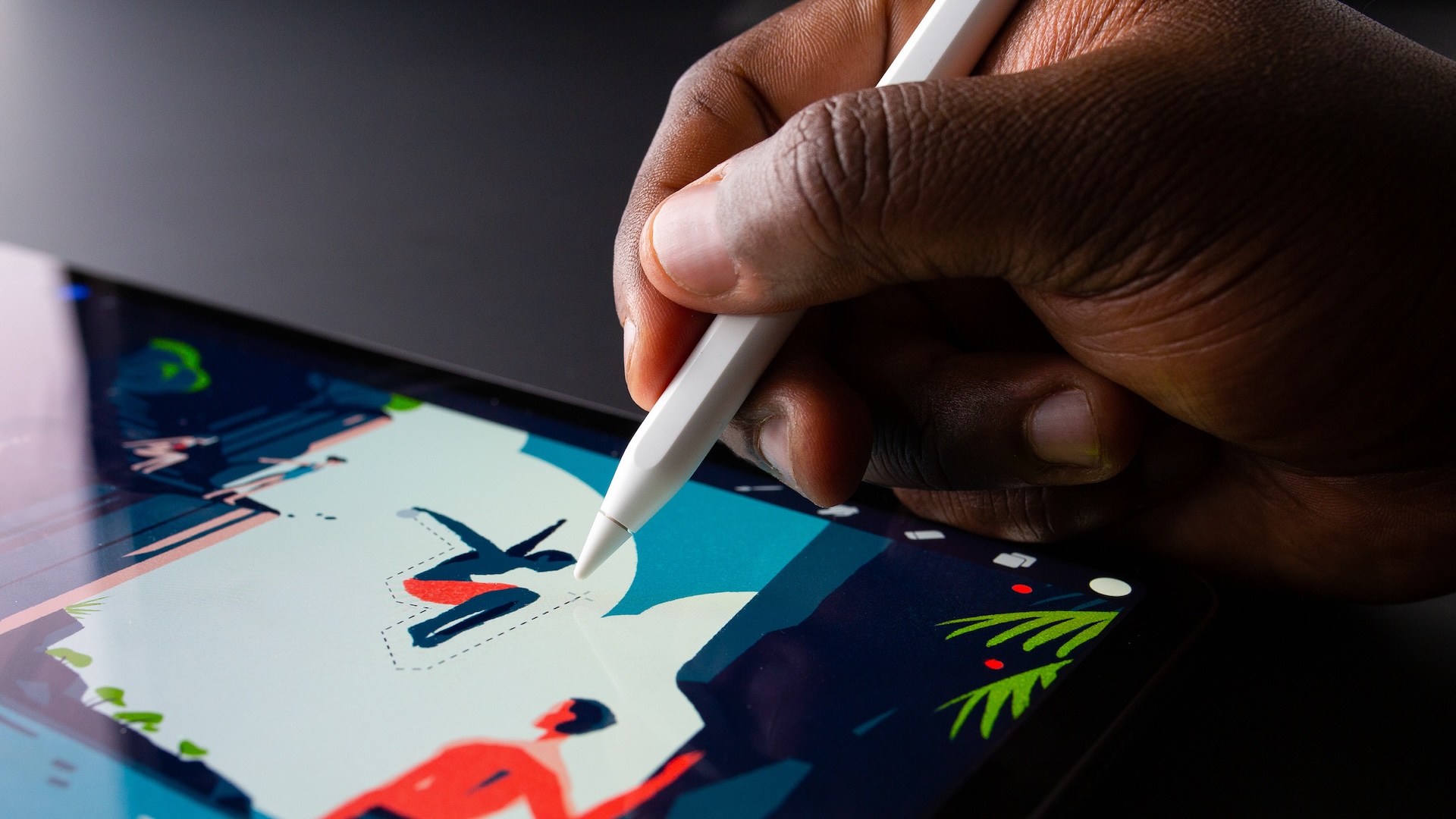
Creative professionals benefit immediately. In illustration apps, hovering shows the exact brush size and shape before applying ink. This prevents accidental marks and improves line placement.
In photo editing, hover previews adjustments before applying them. When selecting small interface elements, the Pencil highlights icons or sliders in advance, reducing mis-taps.
In note-taking apps, hovering over text reveals editing controls or formatting options. It makes selecting specific words or lines easier, especially in dense documents.
Even basic navigation improves. Instead of tapping blindly, users can guide the Pencil toward a control, confirm visually, then tap.

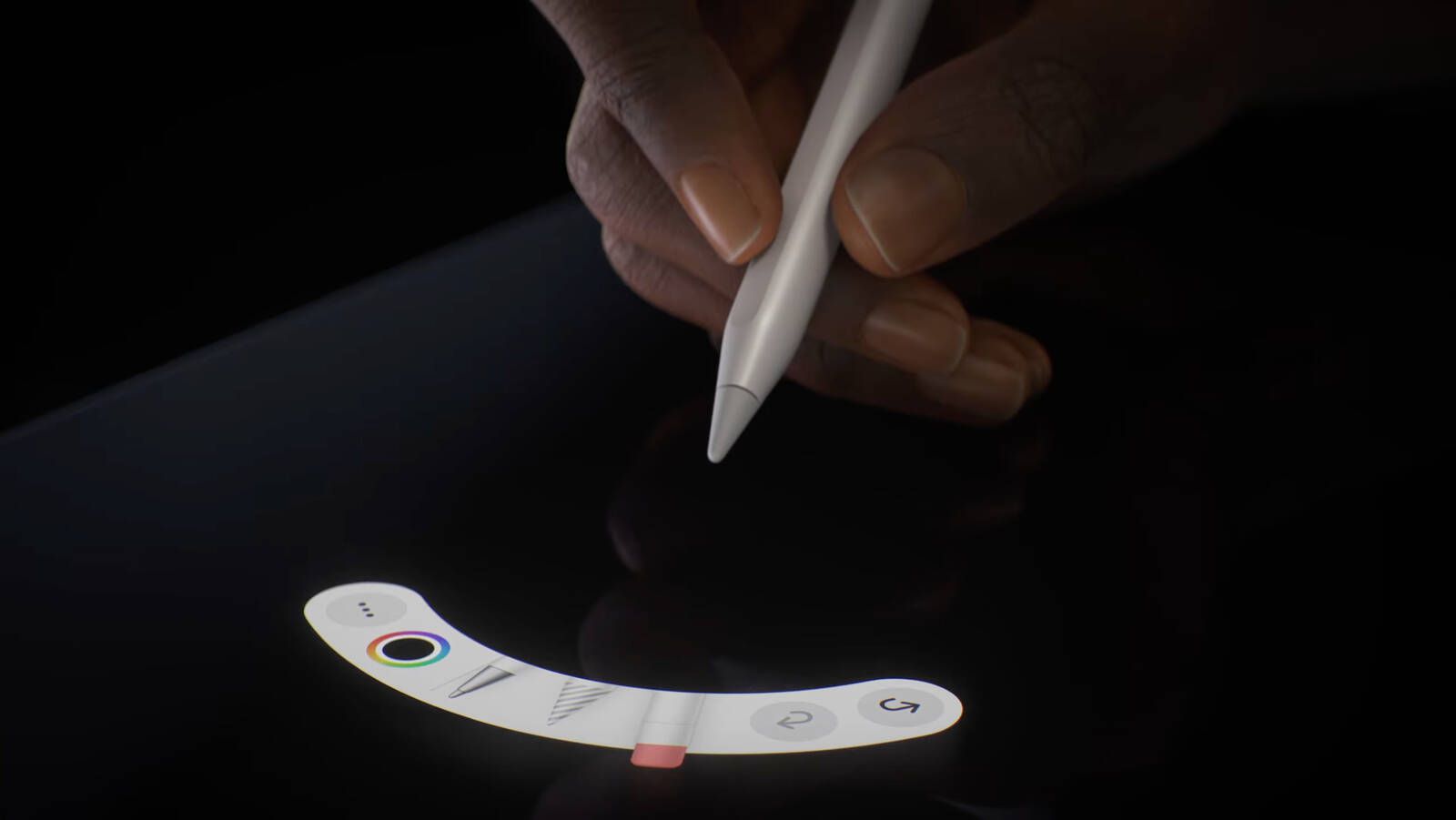
Enabling and Using Hover
Hover is automatically enabled on compatible iPad Pro models when using a supported Apple Pencil. There is no complex setup required.
To verify compatibility and adjust related settings:
Settings > Apple Pencil
Some apps include their own hover preferences, allowing you to customize previews or disable specific behaviors.
Because hover works at the system level, supported apps integrate it seamlessly without requiring manual activation each time.
Creative Workflows With Hover
For digital artists, hover reduces friction. Instead of undoing strokes repeatedly, artists refine placement before drawing. Line weight becomes more predictable. Crosshatching and shading gain control.
Designers working with vector graphics can preview anchor points before placing them. Hover reveals alignment guides, ensuring elements snap into place accurately.
Writers using Apple Pencil for annotation can position highlights precisely over text, avoiding overshooting lines.
The feature does not replace skill. It enhances confidence.

Reducing Fatigue and Errors
Repeated corrections slow workflow. Hover minimizes accidental strokes and interface mistakes, reducing the need for constant undo actions.
For professionals working long sessions — illustrators, architects, students annotating textbooks — small efficiency gains compound over time.
Hover also reduces the pressure to “commit” immediately. You can approach the screen thoughtfully, verify placement, then proceed.
Compatibility and Limitations
Hover is currently supported on select iPad Pro models with Apple Pencil (second generation or newer). Standard iPad models without advanced display sensors do not support proximity detection.
Because hover relies on hardware sensors, it cannot be added via software update to older devices lacking the required components.
For users who upgrade to compatible models, hover becomes part of daily interaction almost immediately.
iPad hover features demonstrate how incremental hardware advances can reshape digital workflows. By detecting intent before touch, Apple Pencil creates space between decision and action — improving precision across drawing, editing, writing, and navigation.