

Choosing between an iPad and a MacBook is one of the most common questions AppleMagazine readers face as they evaluate new devices. While both are powerful, capable, and seamlessly integrated into Apple’s ecosystem, they serve different needs based on daily habits, workflows, and preferences.
Understanding where each device shines helps you choose with confidence instead of guesswork.

Performance and Workflow: What You Do Every Day
The first question to ask is straightforward:
- Do you primarily consume content, take notes, draw, read, watch, and stay connected?
- Or do you regularly create content, write long documents, build spreadsheets, edit video, or run professional apps?
If your daily tasks involve productivity software, laptop-class applications, or complex file management, a MacBook tends to be the better fit. If your routine leans toward light productivity, creativity, media, and multitouch workflows, an iPad can be more fun and liberating.
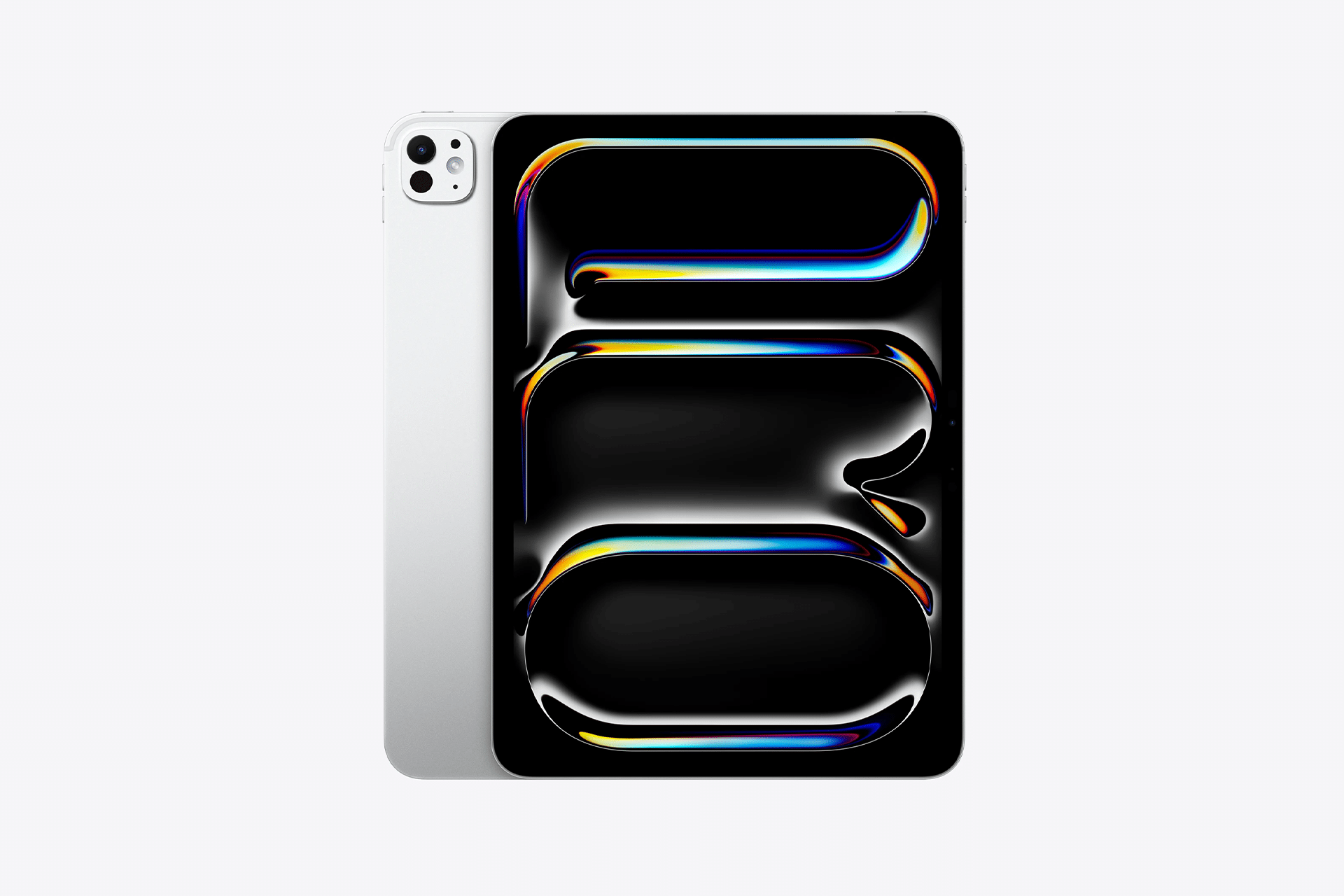
Multitasking on iPad
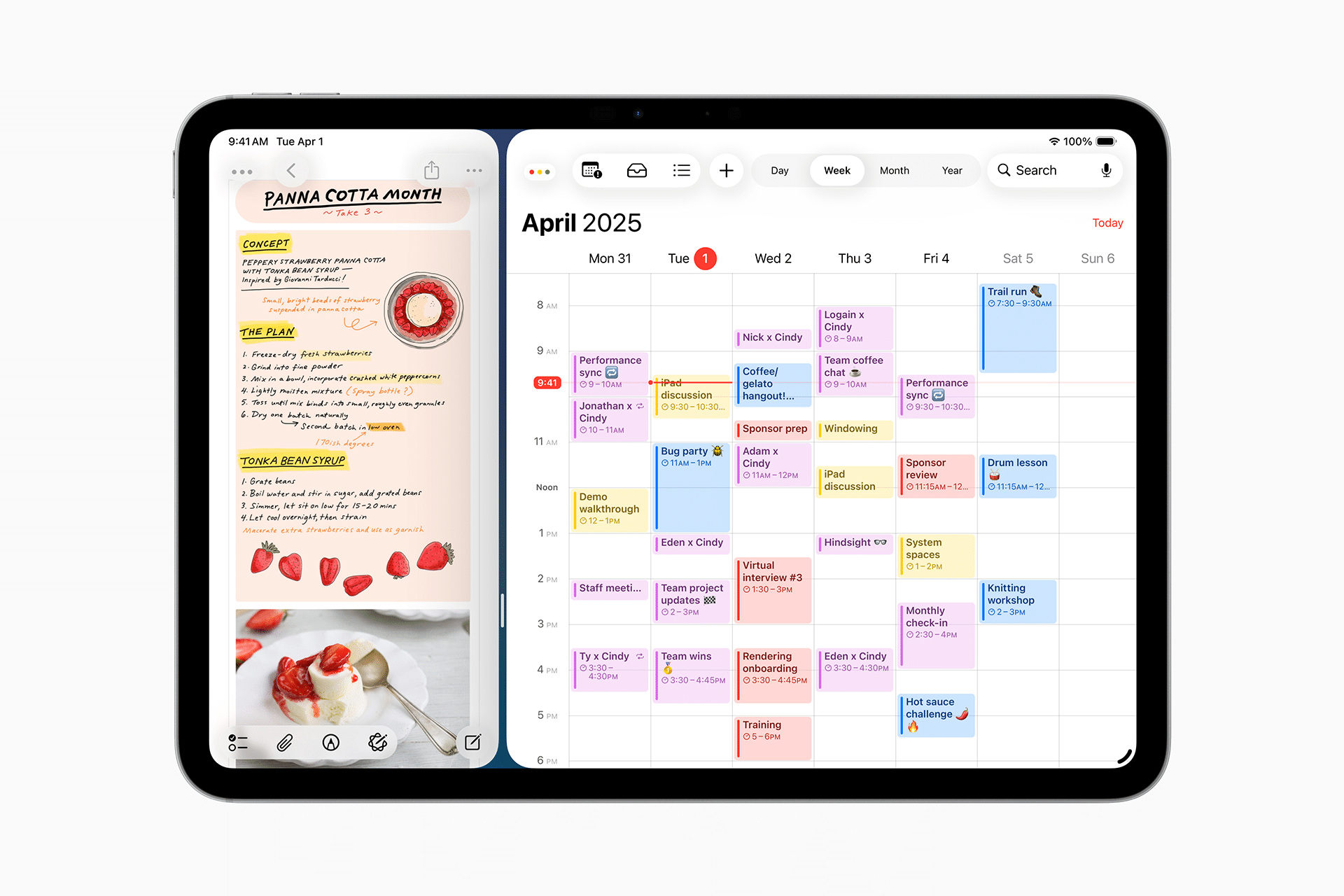
Modern iPads support robust multitasking tools like Split View, Slide Over, and Stage Manager on supported models. These features allow you to run multiple apps side by side, switch between tasks quickly, and drag content between windows.
Workflow example on iPad:
• Safari on one side for research
• Notes on the other for capturing ideas
• Drag photos directly into a document
• Apple Pencil for annotations and sketches
This fluid, touch-centric workflow works well for students, researchers, and creative hobbyists who don’t need full desktop applications.
MacBook Productivity Power
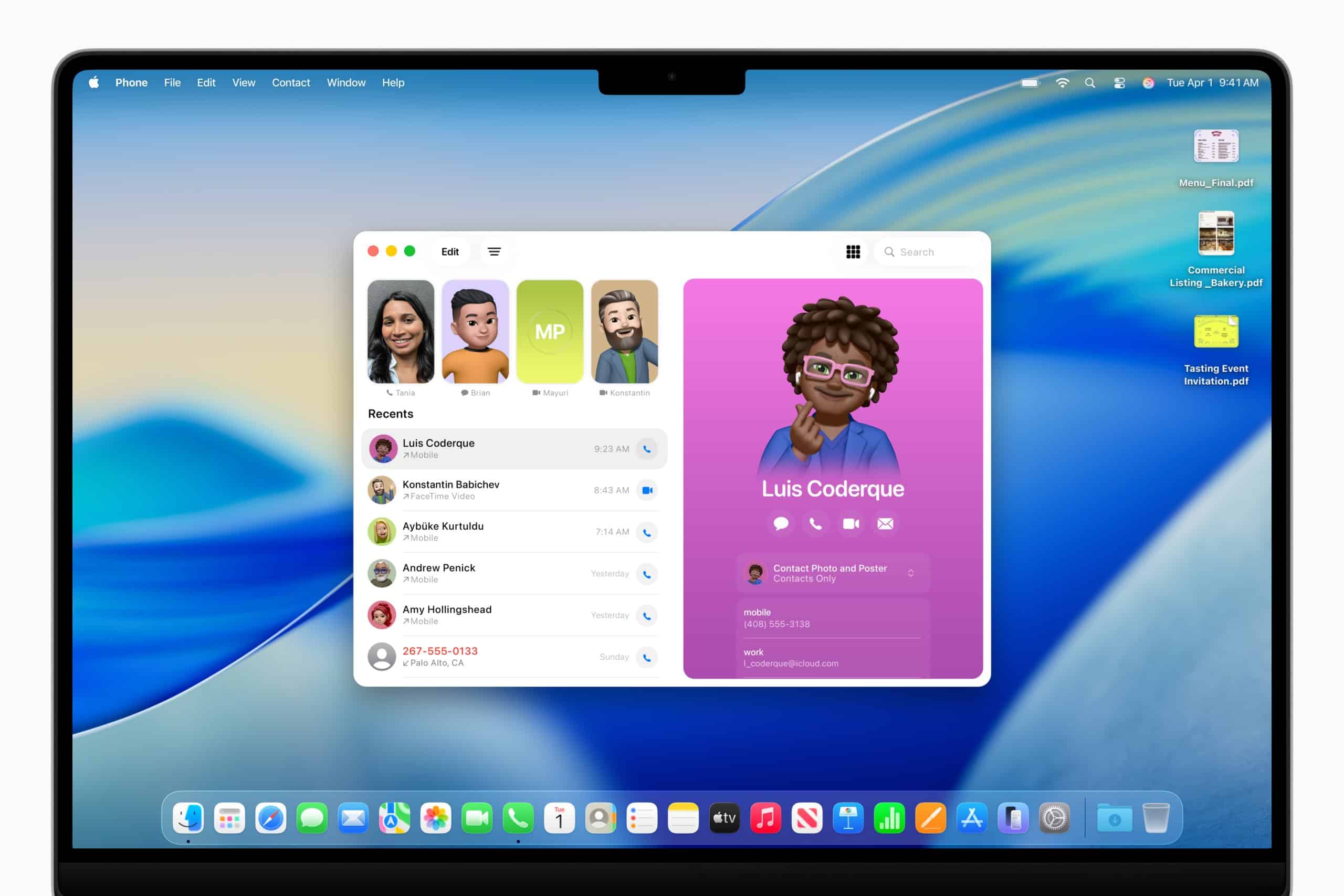
MacBook models — especially with Apple silicon — deliver laptop-class performance, making them strong for:
- Spreadsheet analysis
- Document editing and research
- Full desktop apps like Final Cut Pro, Logic Pro
- Multiple external displays
- File-centric workflows and developer tools
Bluntly put: If your day depends on software that’s powerful, window-rich, or keyboard-driven, a MacBook often provides comfort and speed that’s hard to match on iPad.
Creativity and Input Methods
One of the biggest advantages of iPad is how naturally it adapts to creative tasks thanks to the Apple Pencil and touch screen.
Design, drawing, and annotation tasks feel more immediate with Pencil support:
- Sketching in Procreate
- Taking handwritten notes
- Marking up PDFs
- Precise fine-tuned interaction with creative software
This tactile input is difficult to replicate on a MacBook without additional hardware like tablets or styluses.
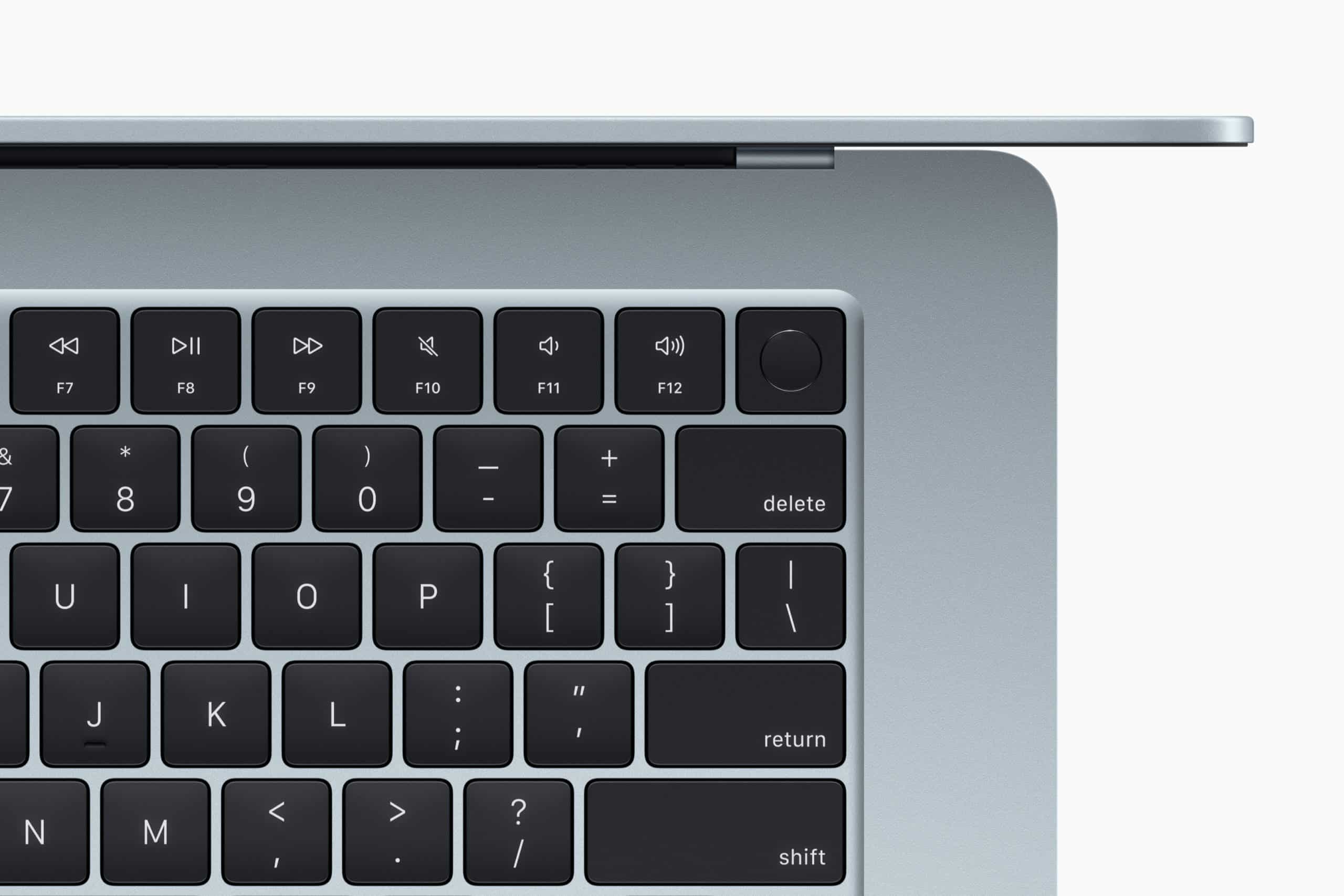
Keyboard and Text Entry
If your daily use involves heavy typing, long form writing, or complex text editing, the MacBook’s physical keyboard and integrated trackpad usually wins. iPads can be paired with keyboards, but they’re often less comfortable for long sessionsand lack the precision of a built-in trackpad and mouse ecosystem.
Email, coding, and sustained writing tend to feel more natural on MacBook.
Portability and Battery Life
iPad generally wins on portability — lighter, thinner, and easier to hold. Battery life on tablet workflows can last all day for browsing, media, reading, and casual work.
MacBook battery life also lasts all day in most productivity scenarios, but the device is inherently heavier and larger. If you’re carrying a device constantly and want minimal bulk, iPad has a clear edge.
Software Ecosystem and Compatibility
Another key difference lies in software ecosystems:
- iPadOS focuses on touch-optimized apps with mobile workflows and creativity at the forefront.
- macOS supports full-featured desktop class applications and robust multitasking with multiple screens and windows.
For example:
- Professionals editing video in Final Cut Pro usually prefer a MacBook.
- Artists sketching in vector or raster art tools might favor an iPad.
- Students switching between textbooks, note-taking, and research often enjoy iPad’s flexibility.
External Displays and Expansion
MacBooks generally support more capabilities with multiple external displays, USB-C expansion, and full-size ports. iPads can connect to displays and accessories, but those workflows are often more limited and depend on adapter support.
Storage, Memory, and Performance Scaling
MacBook models typically offer more scalable configurations for storage and memory, supporting larger datasets, media libraries, and professional files. iPad storage is fixed at purchase, and while cloud integrations are strong, local capacity can matter for large projects.
A device choice therefore depends on how much local storage and performance scaling you need for daily tasks.
Use Case Scenarios
- Daily email, browsing, light office tasks: iPad with keyboard accessory
- Multimedia control center (music, video, social): iPad in casual or travel settings
- Heavy document editing and multitasking: MacBook
- Professional creative apps (desktop grade): MacBook
- Visual art, sketching, handwriting: iPad and Apple Pencil
- Coding, simulation, development environments: MacBook

Making a Practical Decision
Ask:
What do I do most every day?
Where am I most productive?
How much does keyboard precision matter?
Do I need desktop-level software or more fluid creativity tools?
An honest answer to these questions tends to reveal which device aligns best with your daily life — not based on specs alone, but on how you actually use tech.
Side-by-Side Feature Comparison for Daily Use
|
Feature / Use Case |
iPad |
MacBook |
|---|---|---|
|
Primary Interaction |
Touch-first interface with gestures and Apple Pencil support, ideal for direct manipulation and visual tasks |
Keyboard and trackpad centered workflow, optimized for precision and long typing sessions |
|
Operating System |
iPadOS, focused on touch-optimized apps, quick access, and fluid multitasking tools |
macOS, designed for desktop-class software, advanced file management, and multi-window workflows |
|
Multitasking Style |
Split View, Slide Over, and Stage Manager for flexible app combinations |
Traditional windowed multitasking with resizable apps and multiple desktops |
|
Creative Input |
Apple Pencil enables drawing, handwriting, annotation, and precise visual control |
Requires external peripherals for drawing or handwriting; better for timeline-based editing |
|
Typing & Text Work |
External keyboards available, good for short to medium writing sessions |
Built-in keyboard and trackpad ideal for long writing, coding, and editing tasks |
|
Professional Software |
Excellent mobile creative apps, but limited access to full desktop applications |
Full access to desktop-grade software like Final Cut Pro, Logic Pro, and advanced productivity tools |
|
Portability |
Extremely lightweight and easy to carry; comfortable to hold or use on the go |
Portable laptop design, but heavier and better suited for desk or lap use |
|
Battery Life |
Long battery life for browsing, media, note-taking, and light productivity |
All-day battery life for productivity and creative workloads |
|
External Displays |
Supports external displays, often with limitations depending on model and apps |
Strong support for multiple external displays and higher-resolution setups |
|
Connectivity & Ports |
Minimal ports; often requires adapters for accessories |
Broader port support depending on model, better for complex setups |
|
Camera & Microphone |
Built-in cameras and microphones suited for scanning, video calls, and content capture |
Cameras and microphones optimized for calls and conferencing, not capture-focused |
|
File Management |
Simplified file system designed for ease of use |
Advanced file system control suitable for complex projects |
|
Best For |
Students, creatives, travelers, note-takers, media consumption, casual productivity |
Professionals, writers, developers, analysts, video editors, heavy multitaskers |


