

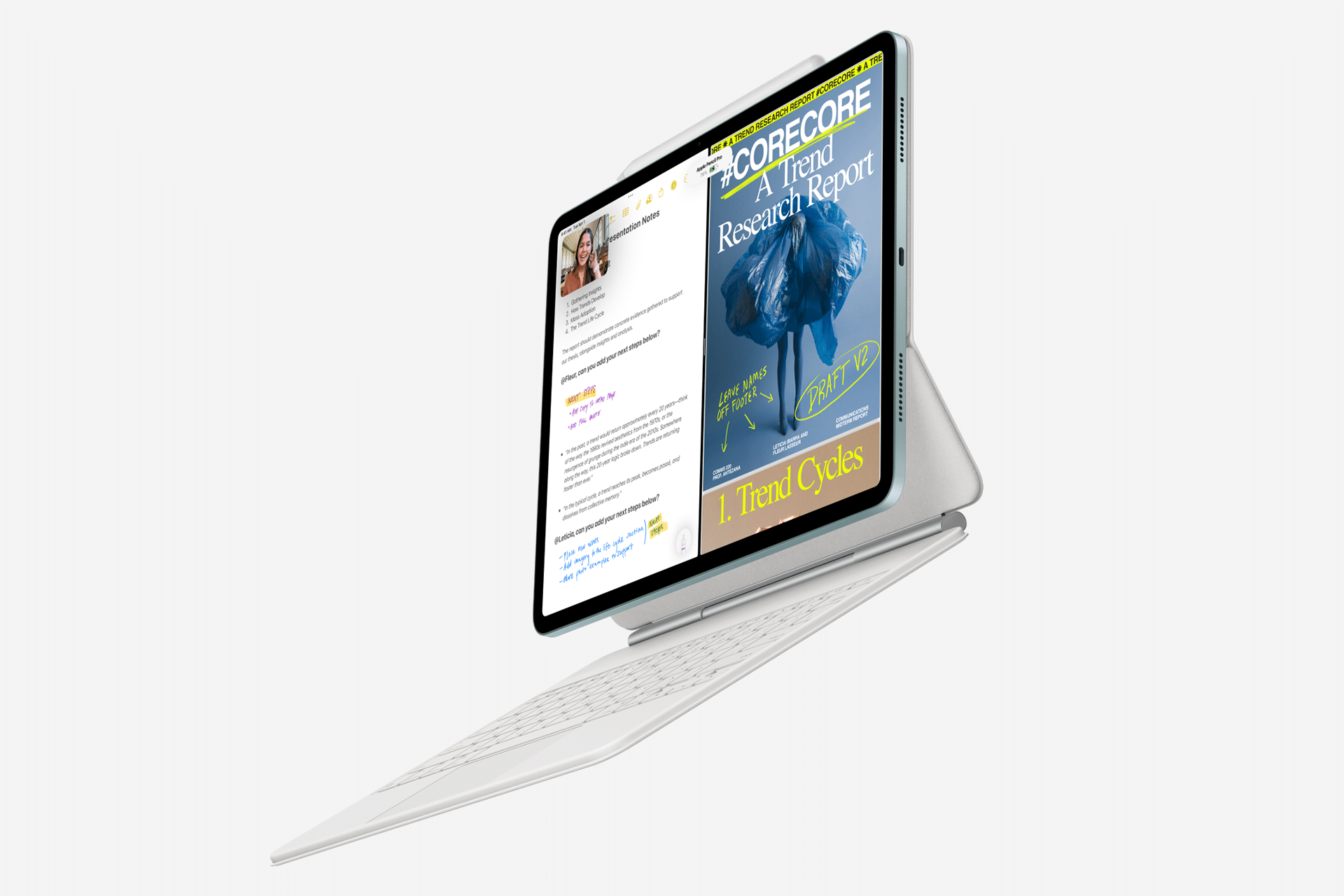
The iPad Multitouch Gestures are one of those features that separate casual use from fluent use. Once they become muscle memory, the iPad stops feeling like a big phone and starts behaving like a true productivity machine. No Home button tapping, no constant Dock hunting. Just hands on glass, moving naturally from one task to the next.
Most people use one or two gestures and stop there. But iPadOS hides a deeper layer—especially for switching apps quickly, managing multiple windows, and handling text without opening menus. If you work, study, design, or even just browse heavily on iPad, these moves change your rhythm completely.
Here are the ones worth mastering.
Switch Apps Without Thinking
You don’t need the App Switcher button. Your fingers already know what to do.
Home Screen or inside an app > swipe up from the bottom edge > pause in the middle
That opens the App Switcher. But the faster way is even smoother:
Inside any app > swipe left or right along the bottom edge with one finger
This instantly moves between recently used apps. It feels similar to switching tabs on a Mac with keyboard shortcuts. After a few days, you stop noticing the gesture. Your hand just does it.
You can also use four fingers:
Inside any app > swipe left or right with four fingers
It accomplishes the same thing. Many power users prefer this when working in landscape with both hands on the screen.


Open Split View and Slide Over Like a Pro
Multitasking is where iPad Multitouch Gestures really shine.
Inside an app > swipe up slightly from the bottom to reveal the Dock
Drag an app icon from the Dock to the left or right edge
That creates Split View. If you drag the app icon toward the center instead, you create Slide Over. Slide Over is excellent for quick replies in Messages, checking Notes, or referencing a document.
To switch between Slide Over apps:
Inside Slide Over > swipe left or right on the small horizontal bar at the bottom of the floating window
To view all Slide Over apps:
Slide Over window > swipe up from the bottom of the floating panel
This reveals a mini App Switcher just for Slide Over. Once you’re comfortable, you can rearrange Split View panes simply by dragging the divider in the center. No settings menus required.
Copy and Paste With Three Fingers
This is the gesture most people don’t know exists.
Select text or an object > pinch in with three fingers
That copies.
To paste:
Place the cursor where you want the content > pinch out with three fingers
To undo:
Swipe left with three fingers
To redo:
Swipe right with three fingers
These gestures work across many system apps and supported third-party apps. Once you internalize them, you stop long-pressing and digging through context menus.
If you want to see the gesture bar appear visually while learning:
Settings > Accessibility > Touch > Turn on “Show Touches” (if available in your iPadOS version)
It helps build muscle memory during the first few days.
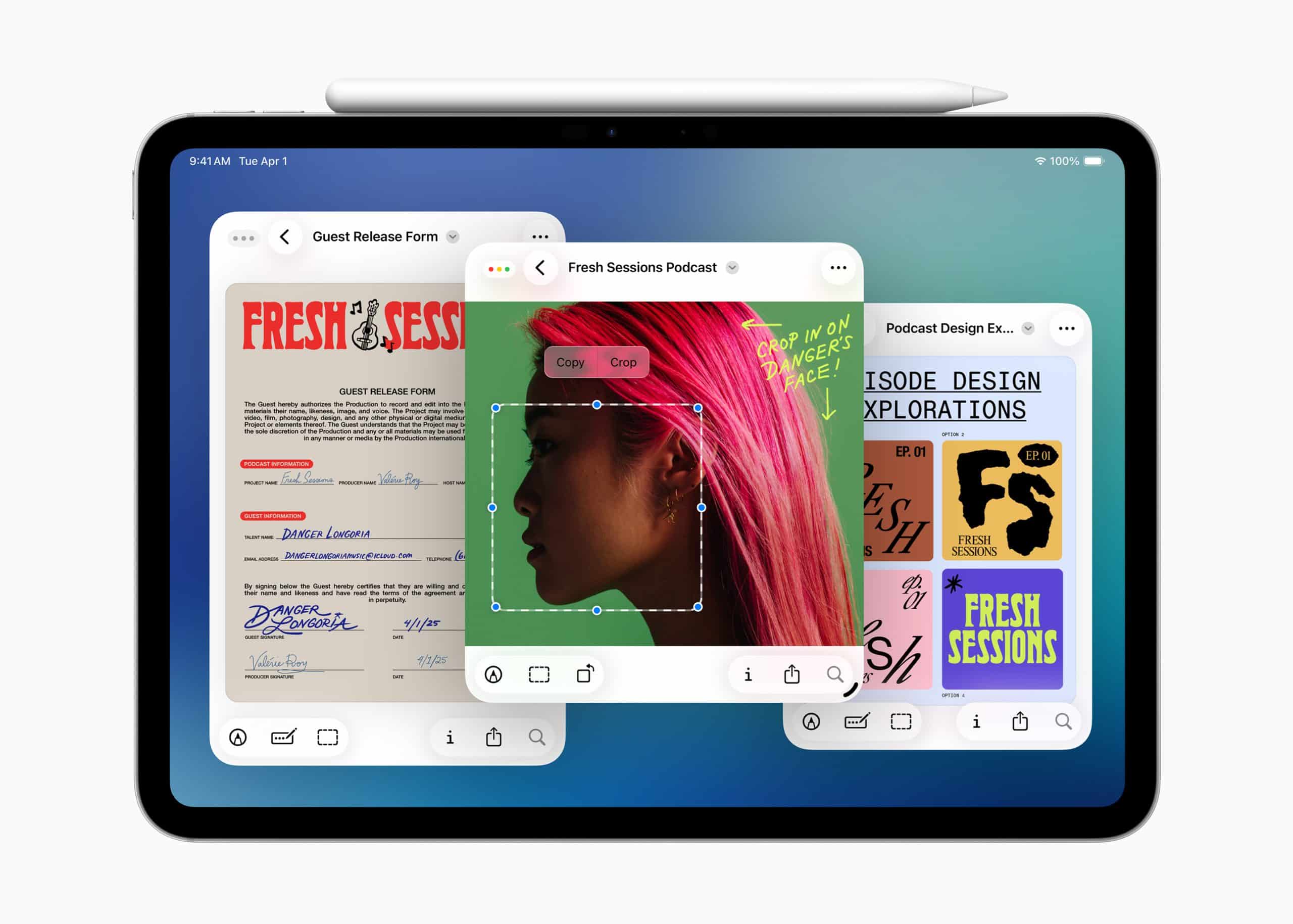

Use the Dock and Quick Window Switching
The Dock is the multitouch command center.
Inside any app > swipe up slightly to reveal the Dock
From there you can drag apps into Split View or Slide Over instantly.
If you’re using Stage Manager:
Settings > Home Screen & Multitasking > Stage Manager > On
Stage Manager allows overlapping windows and external display workflows. With it enabled, you can grab windows, resize them, and group them without diving into menus.
Switch between Stage Manager groups:
Swipe left from the left edge of the screen
That reveals recent app groups.
The key idea: multitouch gestures reduce taps. They replace UI hunting with fluid motion.
Trackpad and Gestures
If you use a Magic Keyboard or external trackpad, the gestures expand.
- Three-finger swipe up on trackpad = App Switcher
- Three-finger swipe left/right = Switch between apps
- Pinch with trackpad = Return to Home Screen
You can adjust trackpad gesture sensitivity here:
Settings > General > Trackpad & Mouse
This makes a big difference if gestures feel too fast or too slow.


The More You Use Them, the Less You Notice Them
iPad Multitouch Gestures aren’t flashy features. They don’t come with big announcements. But they quietly define how fast you move between tasks.
Switching from Notes to Safari to Mail without touching a button. Copying text with a pinch instead of tapping menus. Dragging a second app into view in one motion. These are small actions, repeated dozens of times per day.
Spend a week forcing yourself to use gestures instead of buttons. After that, going back feels slow.

