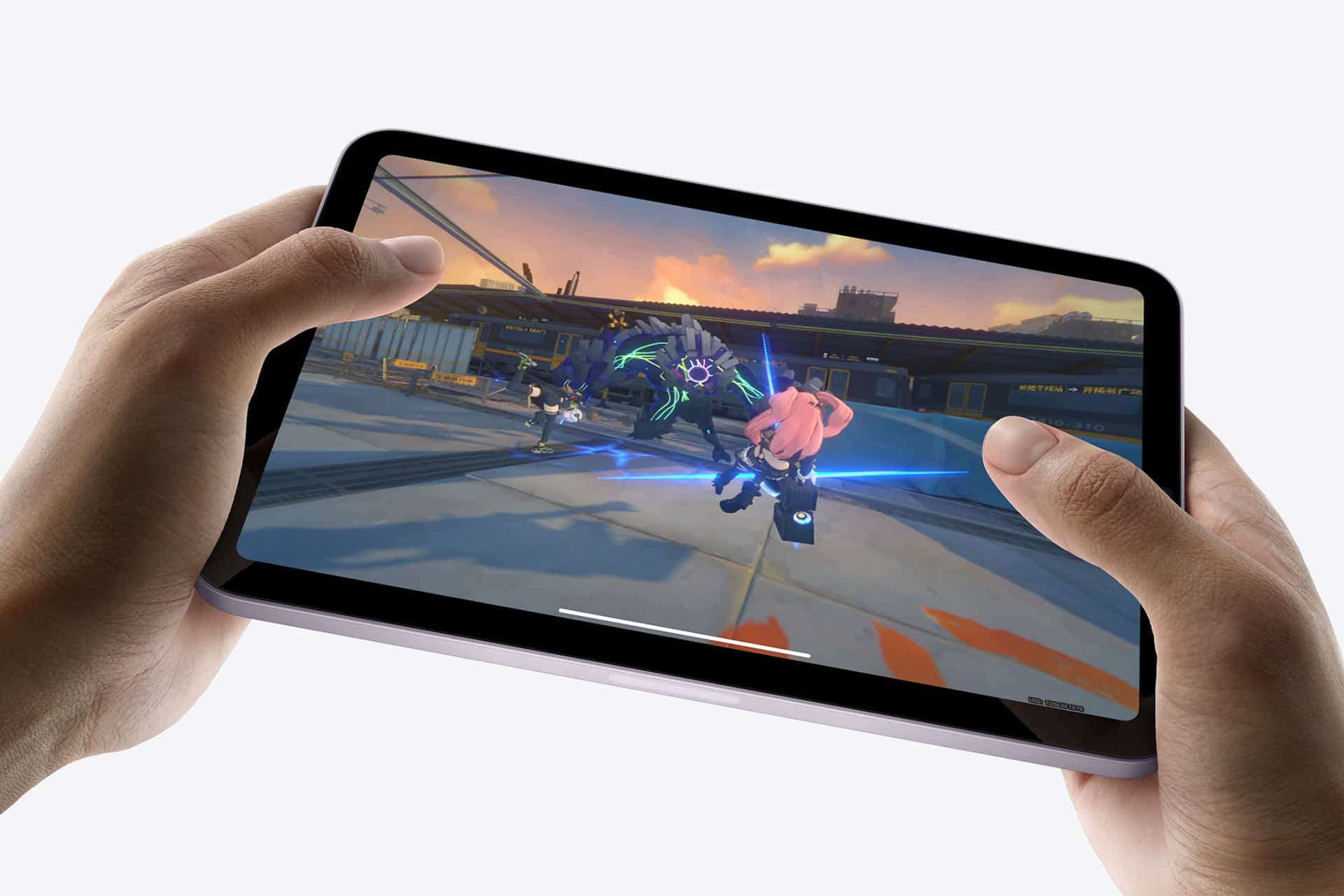
It’s a setup that makes sense: the main screen shows the game, while your iPad fills in the gaps with updates, insights, and extras you’d otherwise miss. This approach keeps you locked in from kickoff to final whistle.
Why Do You Need a Second Screen in the First Place?
A second screen gives you a way to follow the game more closely without taking your eyes off the action. Instead of flipping channels or digging through apps on your TV, the second screen keeps everything you want to check within reach.
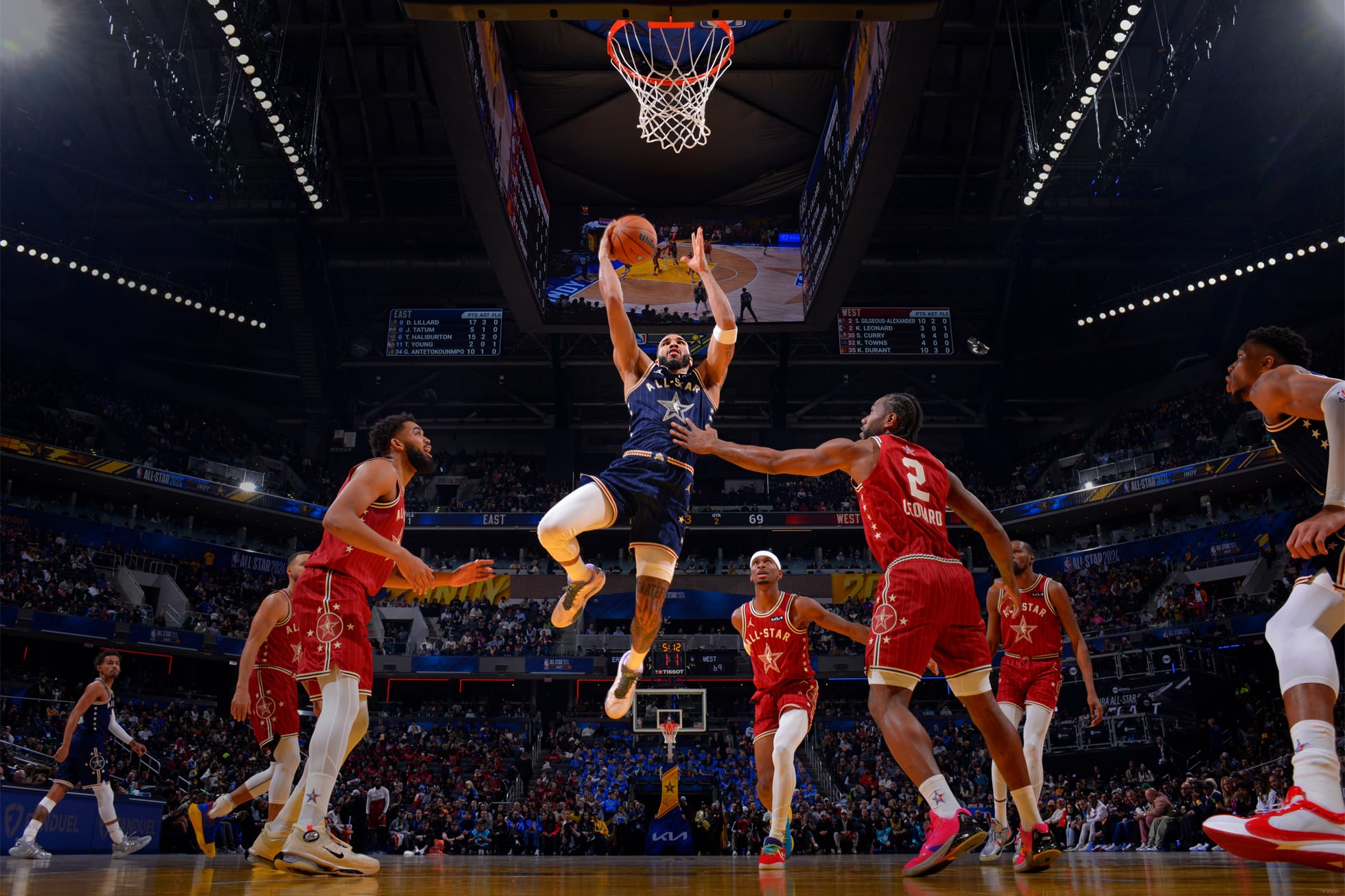
Take live stats, for example. While you’re watching a basketball game on the main screen, your iPad can show shot charts, possession breakdowns, or real-time substitutions. It’s the kind of information that adds meaning to the plays you’re already watching, especially if you’re following a team closely or trying to understand matchups as they evolve.
The second screen on game day can also be useful for sports bettors. Nowadays, there are hundreds of interesting betting sites that offer engaging content, bonuses, and promotions. You can actually read more at betting.net, where David Genge wrote detailed overviews of the best sites. With a second screen, it’s easier to track live odds, follow game-specific markets, and adjust your bets as the match unfolds, all without interrupting your main viewing.
It’s also useful if you’re managing a fantasy roster. Whether you’re checking on injuries or reacting to last-minute changes in the lineup, having those updates right next to you makes it easier to move quickly. You stay ahead, stay informed, and don’t miss a moment of the actual game.

Step 1: Selecting the Ideal iPad Model and Accessories
Getting started means picking the right iPad for the job. Apple has a wide lineup, but if you want a setup that handles everything without lag, focus on models built for speed and clarity.
The iPad Pro is the top pick; its M-series chip and Liquid Retina XDR display are built to handle heavy multitasking, video streams, and real-time updates without slowing down. If you’re after something lighter, the iPad Air is a solid alternative. It’s powerful enough to manage multiple apps at once, and its compact size makes it easy to hold or move around during long game days.
Accessories matter, too. A stand with adjustable angles keeps your iPad at eye level, so you’re not constantly shifting to read updates. And if you need extra ports, a USB-C hub comes in handy for connecting to external displays or charging without swapping cables.
Step 2: Configuring Your iPad’s Display and Connectivity Options
With your gear ready, it’s time to dial in the display! Start by updating to the latest version of iPadOS: newer updates bring better multitasking tools and compatibility features that matter during live events.
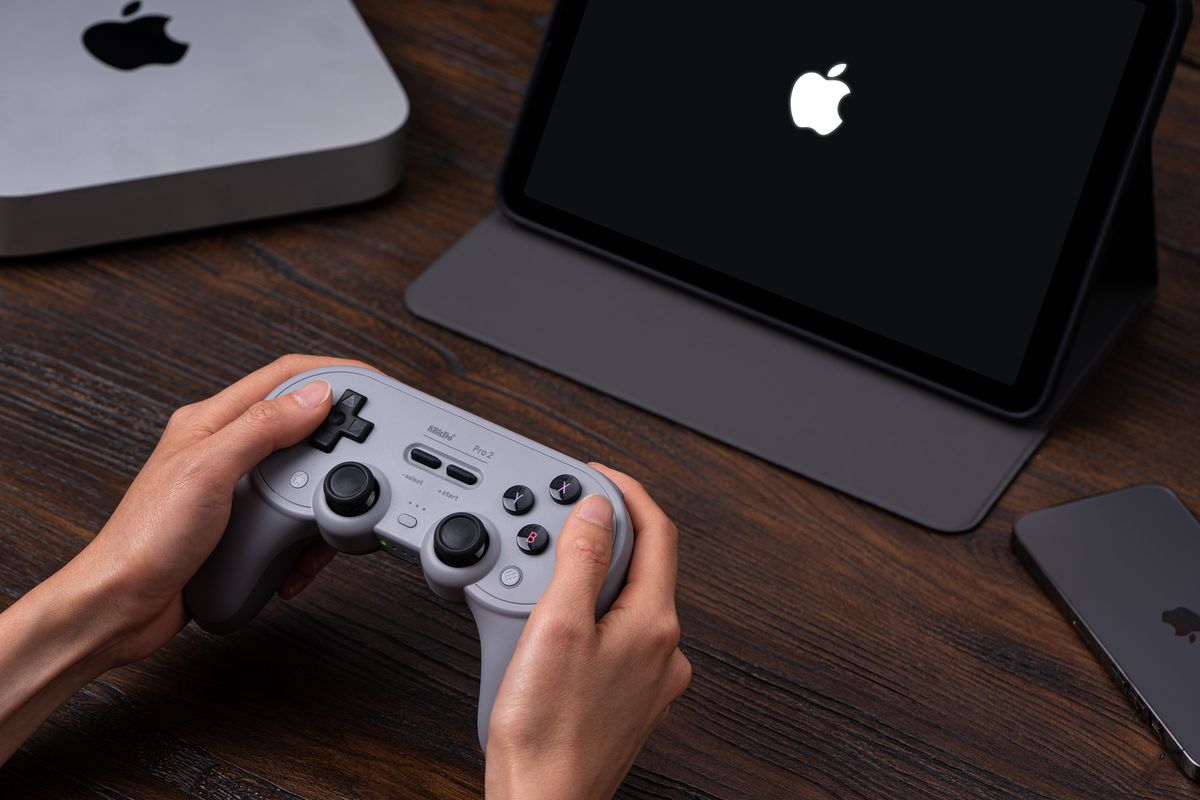
If you’re working with a Mac or Apple TV, Sidecar lets you use your iPad as a second display. It’s a quick way to pull up a stats page or live chat while keeping the game fullscreen on your main screen.
For standalone setups, HDMI adapters let you plug your iPad into a monitor or projector. This works well when tracking multiple games or viewing content side-by-side. Go into Settings and adjust resolution or aspect ratios so everything looks sharp and properly scaled. If you’d rather skip the cables, AirPlay is a good fallback. It lets you cast content wirelessly from other Apple devices, or stream from your iPad directly to compatible TVs. It’s worth testing these setups before the game starts!
Step 3: Installing and Customizing Essential Sports Apps
Apps are what turn your iPad from a screen into a control center. Start with the basics: ESPN is a must-have. It covers most leagues, offers live scores, and sends alerts for team news, trades, and injury updates. You can adjust it to prioritize the sports or teams you care about most, so you’re not scrolling through irrelevant info mid-game.
Then add the official apps for the leagues you follow. NFL and NBA apps, for example, offer unique views, extra audio feeds, and in-depth stats that go beyond the broadcast.
Bleacher Report is useful if you want a mix of news, rumors, and social media takes in one place. For radio-style commentary, apps like TuneIn offer streaming audio that pairs well with a muted game on TV. CBS Sports also stands out if you’re managing fantasy lineups while keeping an eye on the scores.
To keep everything smooth, group your sports apps into folders or use widgets to bring key updates to your home screen. Set alerts for major events only, like lead changes or player swaps, so you’re not bombarded every few seconds.

Step 4: Mastering Multitasking Features for Seamless Integration
The iPad’s multitasking tools are where everything starts to come together. Split View lets you run two apps side by side, like keeping stats on one half of the screen while scrolling through social updates on the other. If you need a third layer, Slide Over lets you quickly pull up extra apps, perfect for checking weather delays or team news without interrupting your main view.
Picture-in-Picture is especially useful during busy sports days. You can float a smaller video window, maybe a second game or a post-match interview, on top of whatever else you’re doing.
Get familiar with these features ahead of time. Practice switching layouts during a regular broadcast so you don’t fumble during a close finish. You can also use Siri for quick voice commands: ask for scores, set reminders, or open apps hands-free.
Social and Interactive Elements on Gameday
Your iPad isn’t just for solo viewing; it’s a solid tool for staying connected during the game. Platforms like X are packed with real-time reactions, hot takes, and fan debates. Jumping into a live thread or responding to polls can make you feel part of the larger moment, even when watching alone.
Some league apps, like UFC or MLS, include live chat features built into the stream, letting you join in as the action unfolds.
In some apps, augmented reality features are starting to pop up, visualizing player movements or simulating possible plays. It’s a small detail, but one that makes the whole experience feel more layered and interactive.
Elevate Your Gameday Experience
Turning your iPad into a second screen is about watching smarter. You get deeper insight, better tools, and more control without ever taking your eyes off the main event. With the right setup, even a regular game can feel more engaging.
As teams adjust, platforms update, and new features roll out, your setup can evolve too. There’s no fixed formula here, just tools you can shape around how you like to follow sports. Try different layouts, test new apps, and see what works for you!