iPad Sidecar is one of those features that feels obvious once you use it, yet still surprising the first time it works. It allows your iPad to become a second display for your Mac, either mirroring the main screen or extending the desktop into a new, touch-enabled workspace. No cables are required if you don’t want them, and no third-party software is needed. Sidecar is built directly into macOS and iPadOS, designed to feel like a natural extension of how Apple devices already work together.
What makes iPad Sidecar special is not just the extra screen space. It’s the flexibility. Your iPad can sit beside your MacBook, below an external monitor, or off to the side as a dedicated tool surface. It can act as a traditional display, a canvas for Apple Pencil, or a control area for creative apps. Sidecar adapts to how you place your devices, rather than forcing you into a fixed layout.
This elasticity is what turns Sidecar into more than a screen-sharing feature. It becomes a way to rethink how you arrange your workspace, whether you’re at a desk, on the couch, or traveling with only a laptop and tablet.
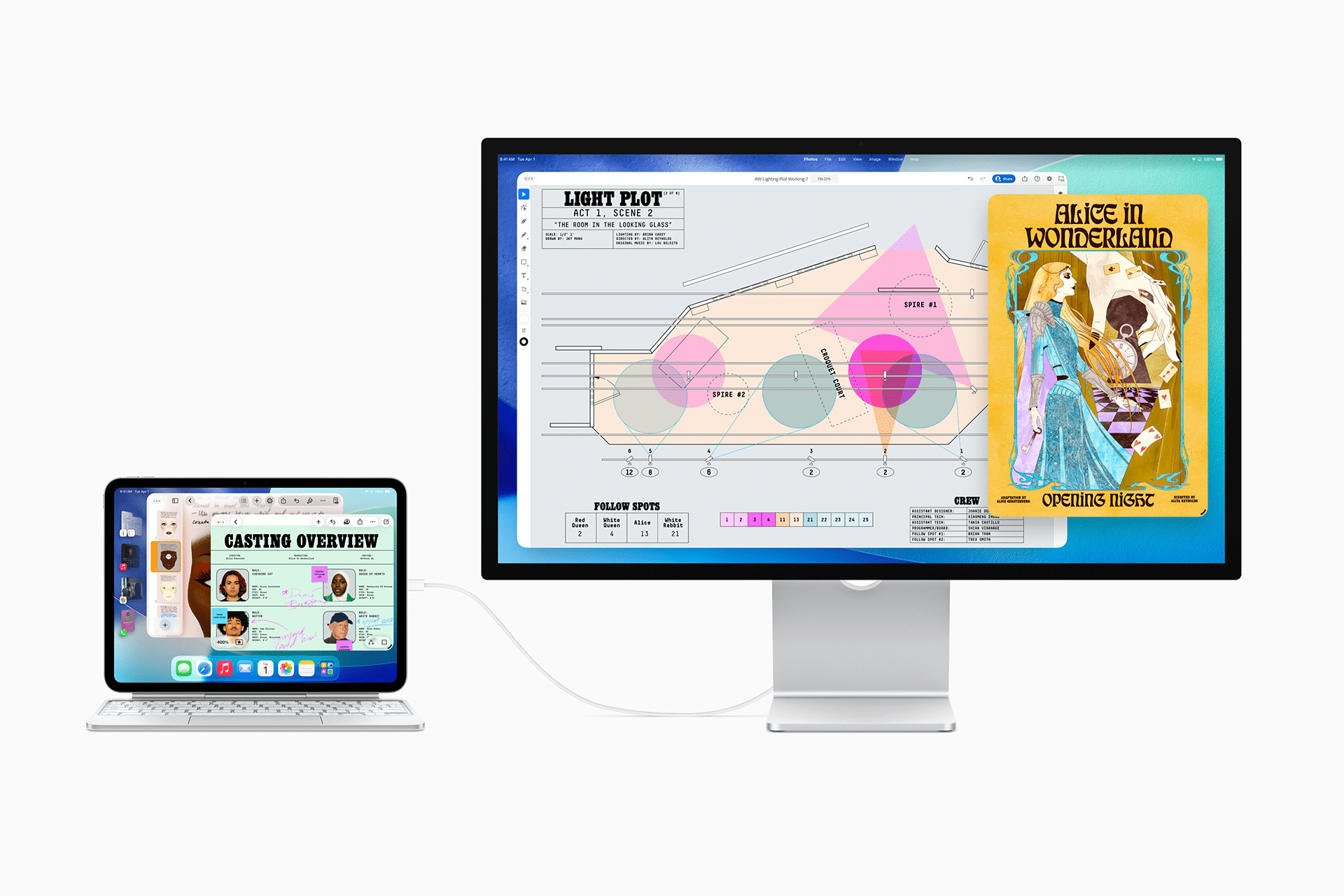

What iPad Sidecar Does and Why It Feels Natural
At its core, iPad Sidecar allows the iPad to function as a secondary Mac display. You can drag windows from your Mac onto the iPad, arrange apps across screens, and interact with content using mouse, trackpad, keyboard, or Apple Pencil. The Mac treats the iPad as a real display, not a mirrored video feed.
This matters because everything behaves as expected. Windows snap, menus respond, and performance remains smooth. When using Apple Pencil, the iPad becomes a precision input device for macOS apps that support drawing, annotation, or fine control. For creative work, this turns the iPad into a tablet without requiring separate drivers or configuration.
Sidecar works whether or not you already use an external monitor. On a MacBook alone, the iPad adds space without increasing physical footprint. With an external display, the iPad becomes a third surface, perfect for tools, palettes, chat apps, or reference material. This layered approach reduces clutter on your main screen and keeps focus where it belongs.
Wireless Sidecar uses Wi-Fi and Bluetooth, making it ideal for flexible setups. A wired connection via USB is also supported, offering lower latency and charging at the same time. The choice depends on how stationary your setup is and how you prefer to work.
How to Set Up iPad Sidecar on Your Mac
Setting up iPad Sidecar takes only a few steps and works seamlessly once both devices are signed into the same Apple ID.
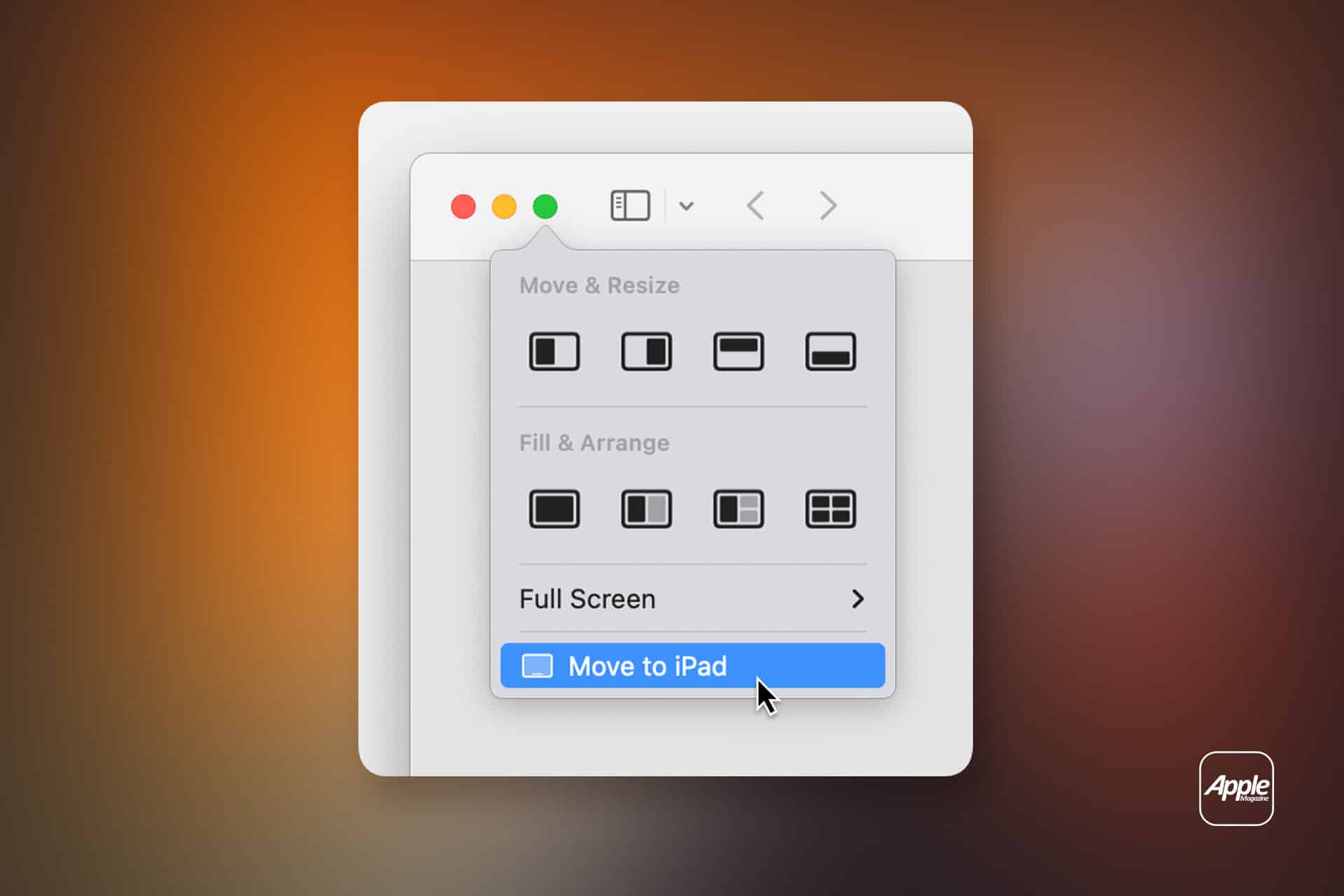
Settings > Displays > Add Display > Select Your iPad
After selecting the iPad, you can choose whether it mirrors the Mac display or extends it. The arrangement can be adjusted just like any other display, letting you position the iPad virtually to match its physical location.
If you prefer using Control Center:
Control Center > Screen Mirroring > Select Your iPad
From the display settings, you can also decide where the menu bar appears, how scaling works, and whether touch input or Apple Pencil interactions are enabled. macOS remembers these preferences, so future connections feel instant.
One delightful detail in Sidecar’s design is how Apple solved display placement. Instead of using sensors, NFC (Near Field Communication), cameras, or complex calibration, Apple relied on a simple human instinct. Most people naturally move the cursor toward the side where the second screen sits. macOS watches how you move the pointer and adjusts accordingly. Try moving the cursor to the opposite side and you’ll feel how wrong it seems.
Sidecar works because it trusts natural behavior rather than forcing technical complexity.
Best Uses for iPad Sidecar in Daily and Creative Work
iPad Sidecar shines in creative workflows. Designers and illustrators can use Apple Pencil directly with macOS apps, gaining pressure sensitivity and precision. Photo editors can place tools and panels on the iPad while keeping the main image clean on the primary display. Video editors often move timelines or media bins to the iPad, freeing space for playback and preview.
Writers and researchers benefit as well. Notes, outlines, or reference material can live on the iPad while the main document stays front and center. This separation reduces constant window switching and helps maintain flow.
Sidecar is equally useful outside professional work. It’s perfect for presentations, where slides can sit on the iPad while speaker notes remain private. It’s helpful for learning, coding, or managing communication apps without cluttering the main screen. Even casual use, like keeping music controls or messaging apps off to the side, adds comfort to long sessions.
Because the iPad remains a fully functional device, you can disconnect it instantly and continue using it on its own. Sidecar doesn’t lock the iPad into a single role. It simply borrows it when needed, then lets it go.
iPad Sidecar is a nice example of Apple’s design philosophy at its best. It avoids unnecessary technology, respects natural behavior, and solves a real problem with elegance. By trusting how people already move, work, and think, Sidecar turns two devices into one cohesive workspace—no friction required.