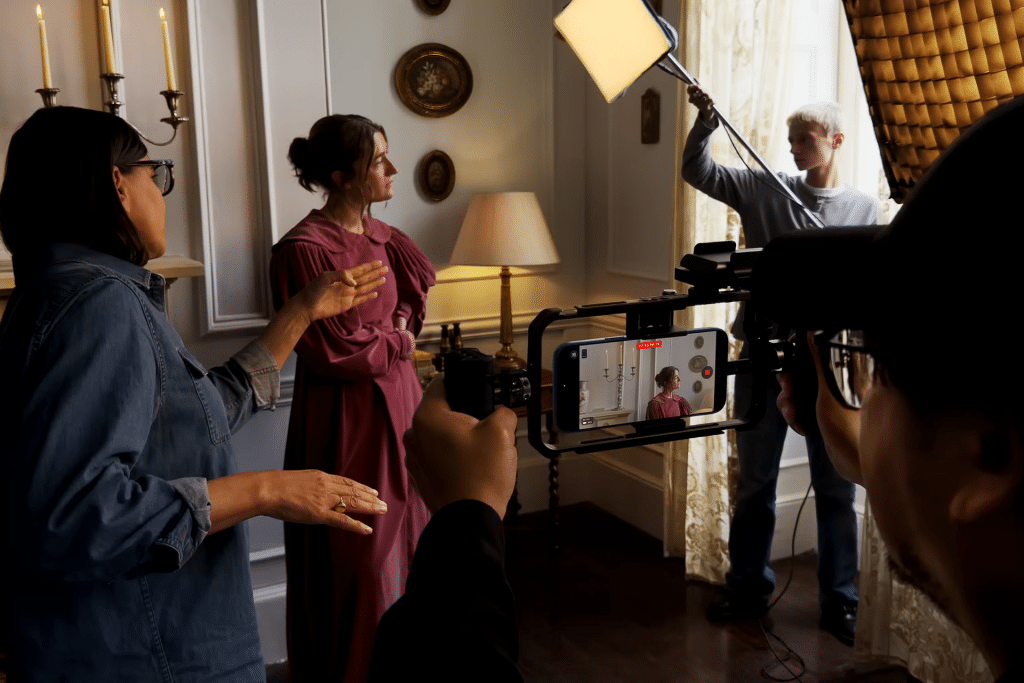
iPhone users span all ages and use their devices in widely different environments, from bright outdoor locations to dim bedrooms, classrooms, studios, and production sets. The iPhone 17 Pro is used for casual clips, social media videos, documentary footage, short films, professional marketing, and even broadcast-ready content. Some users rely on glasses or accessibility features, others shoot handheld in fast-moving situations, and many now use the iPhone as a primary video camera rather than a backup. Apple designed the iPhone 17 Pro camera system and its professional apps to support this entire range, allowing mobile footage to be shaped into results that resemble traditional studio production.
Getting the most professional video results from iPhone 17 Pro begins before pressing record. Apple’s camera hardware, combined with Final Cut Pro, iMovie, and supporting Apple Studio tools, forms a complete capture-to-delivery workflow when configured correctly.
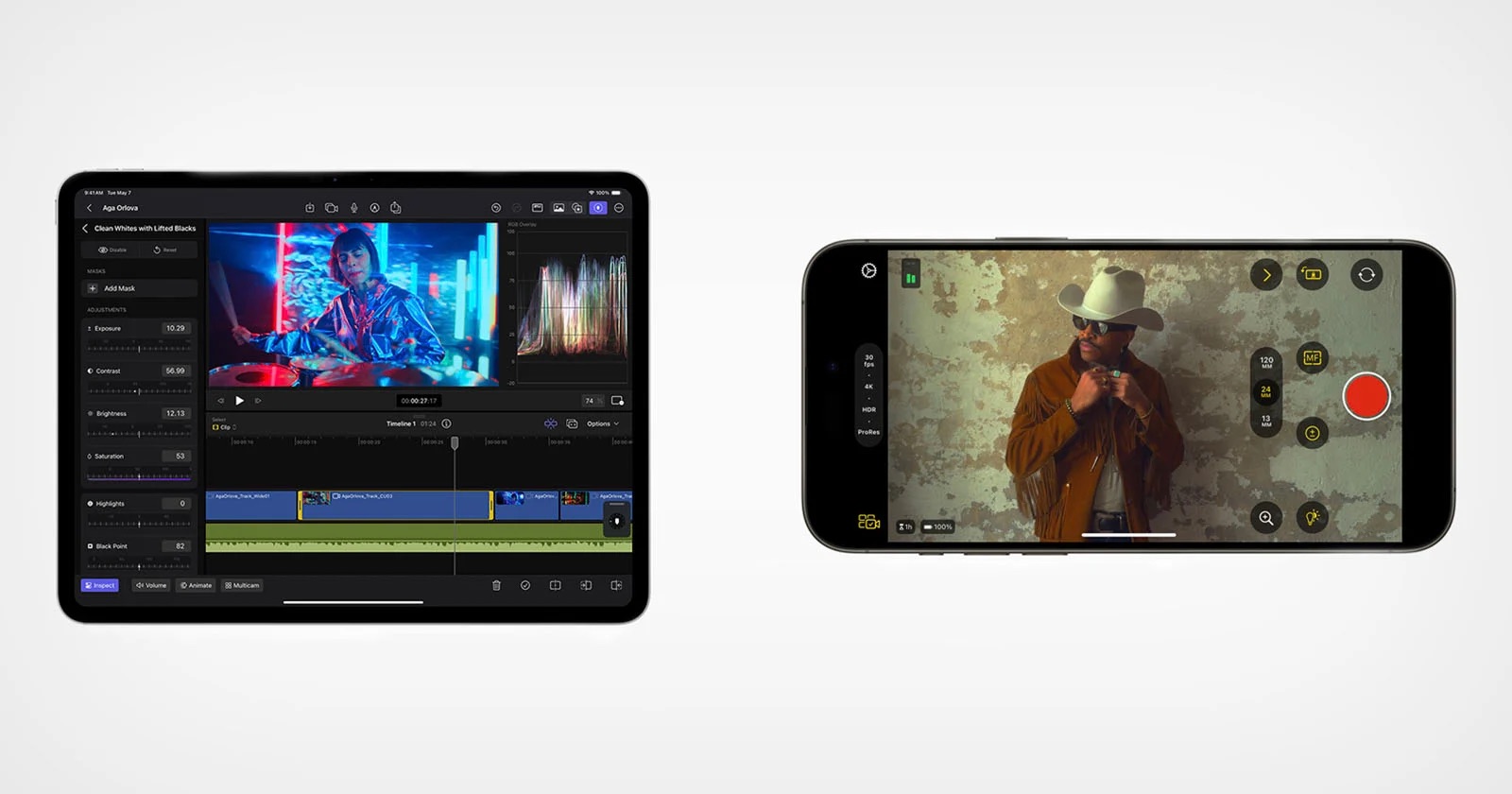
iPhone 17 Pro Camera Settings for Professional Video
The foundation of studio-quality video on iPhone 17 Pro starts with manual control inside the Camera app.
Settings > Camera > Record Video
Resolution and frame rate should be matched to the intended output. Shooting at 4K provides flexibility for reframing, while 24 fps delivers a cinematic motion profile, and 30 or 60 fps suits documentary, sports, or social content. ProRes should be enabled when storage allows, as it preserves color data and dynamic range for post-production.
Apple Log recording is central to professional results.
Settings > Camera > Formats > Apple Log
Log footage appears flat during capture but retains more highlight and shadow information, allowing controlled color grading later. This format aligns closely with workflows used in traditional cinema cameras and integrates directly with Final Cut Pro’s color tools.
Stabilization and lens choice also matter. The main wide lens delivers the best balance of sharpness and low-light performance, while the telephoto lens excels in controlled lighting. Digital zoom should be avoided in favor of lens switching to preserve image integrity.
Lighting, Exposure, and On-Set Control
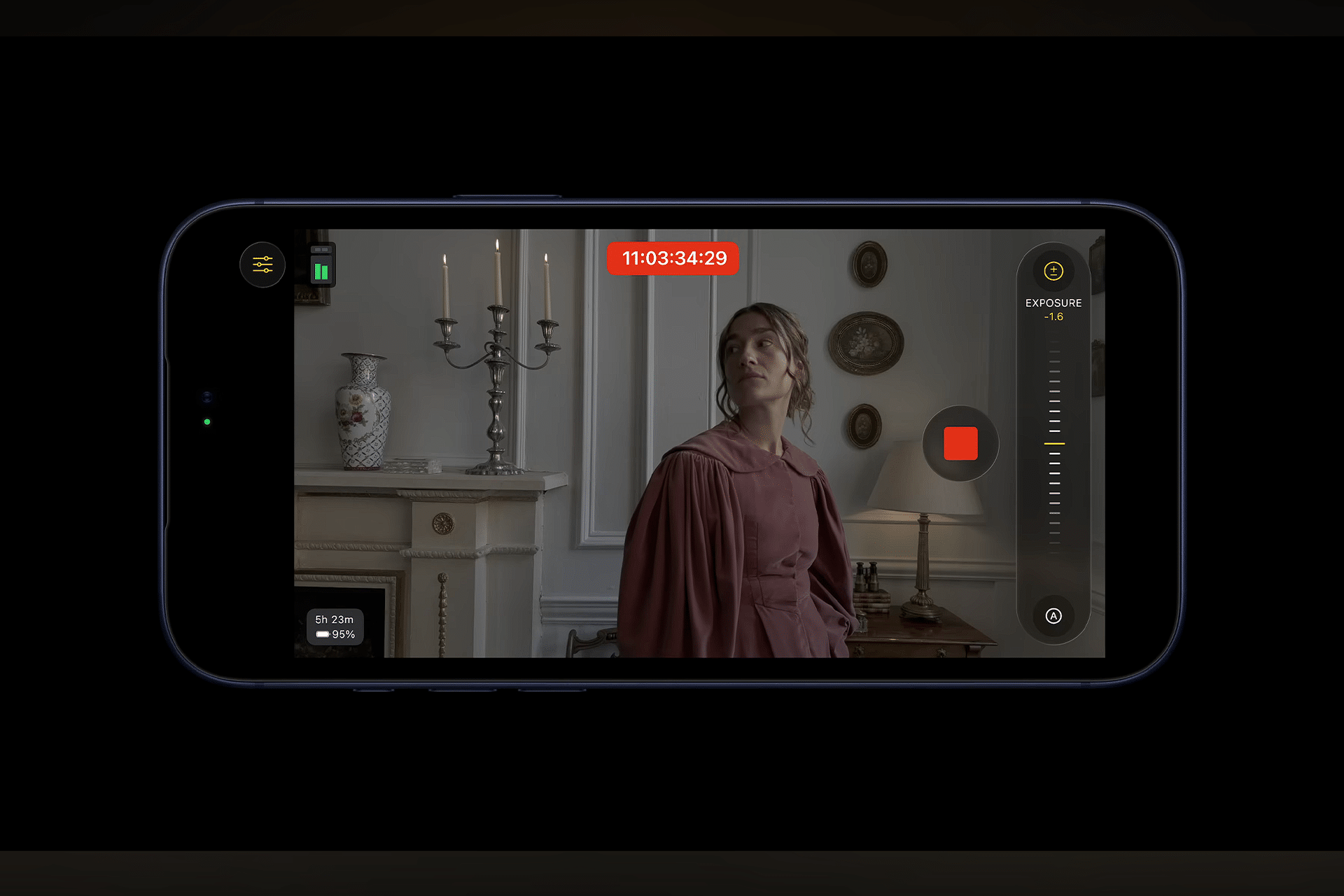
Professional video relies on consistent exposure rather than automatic adjustment.
Camera App > Long-press on subject > Lock Exposure
Locking exposure prevents brightness shifts during movement or lighting changes. This is especially important for interviews, narrative scenes, and product shots.
White balance consistency is equally important. While the Camera app handles this automatically, shooting in stable lighting environments helps prevent color shifts that complicate editing. External lighting, even minimal LED panels, can dramatically elevate perceived production quality.
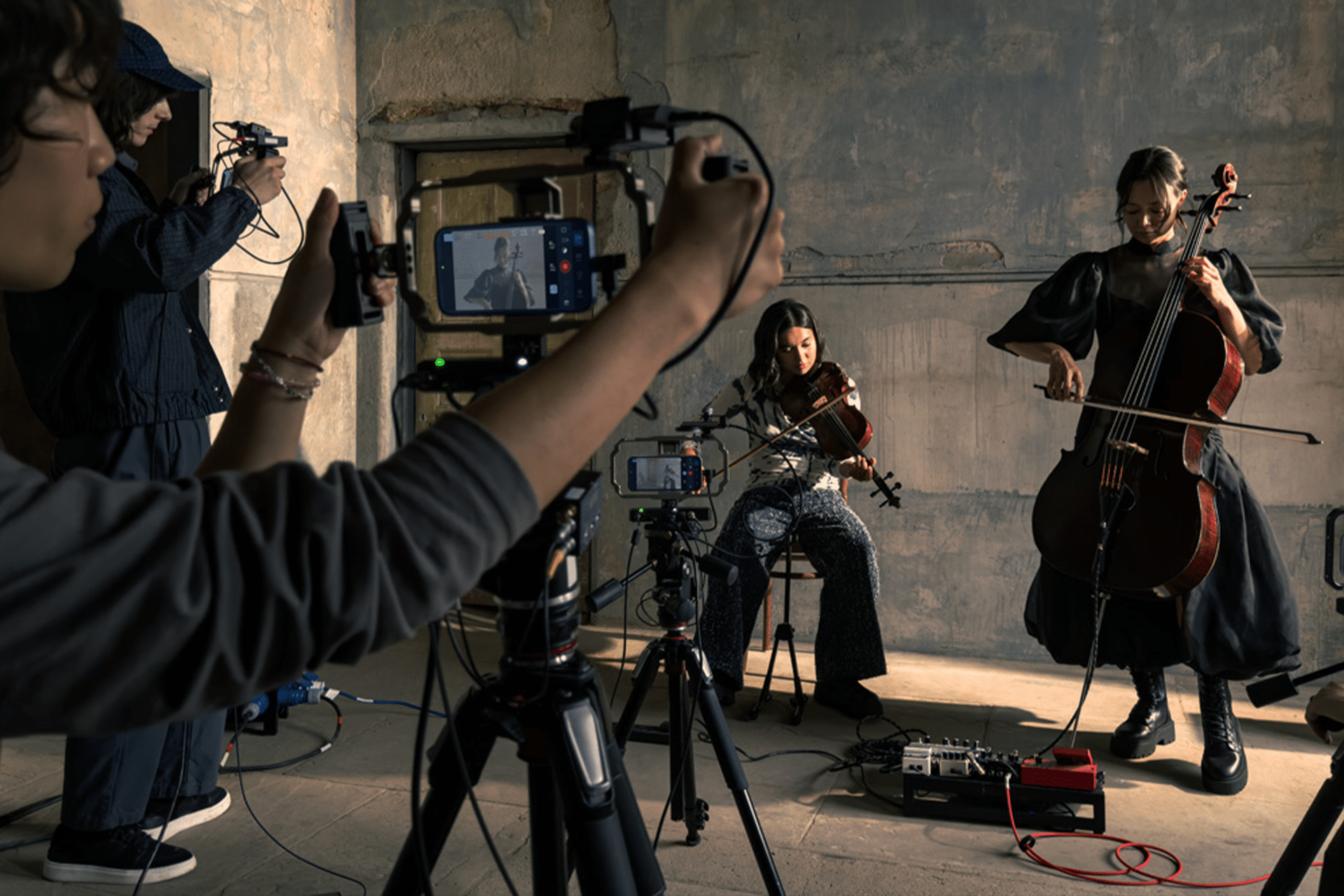
Audio capture should not be overlooked. While the iPhone 17 Pro microphones are capable, external microphones connected via USB-C or wireless systems provide cleaner dialogue and separation, aligning footage more closely with studio expectations.
Editing With Final Cut Pro and iMovie on Apple Platforms
Once footage is captured, Apple’s editing software completes the professional workflow.
Final Cut Pro > Import Media > iPhone Footage
Final Cut Pro recognizes Apple Log and ProRes automatically, enabling advanced color correction, LUT application, and timeline control. Color wheels and curves allow precise shaping of contrast and tone, transforming flat Log footage into cinematic visuals.
For faster projects or mobile-first editing, iMovie offers streamlined tools while maintaining Apple’s color science.
iMovie > Create Project > Movie
iMovie handles trimming, transitions, titles, and music with minimal setup, making it suitable for short-form content, social video, and quick turnarounds without sacrificing polish.
Both apps integrate seamlessly with Apple devices, allowing footage shot on iPhone 17 Pro to move fluidly between iPad, Mac, and external displays for review and refinement.
Finishing and Exporting for a Studio Look
Export settings determine how professional the final video appears.
Final Cut Pro > Share > Computer
Using high-bitrate exports preserves detail and avoids compression artifacts. Matching export color space to the target platform ensures consistent playback across devices.
Sound design and pacing finalize the studio effect. Subtle background music, controlled audio levels, and deliberate cuts elevate iPhone footage beyond its mobile origins. Apple’s built-in sound libraries and timing tools support this without requiring third-party software.
With the right camera settings, controlled capture, and Apple Studio editing tools, the iPhone 17 Pro becomes more than a smartphone camera. It functions as a compact production system capable of delivering results that visually align with traditional studio filmmaking workflows.