


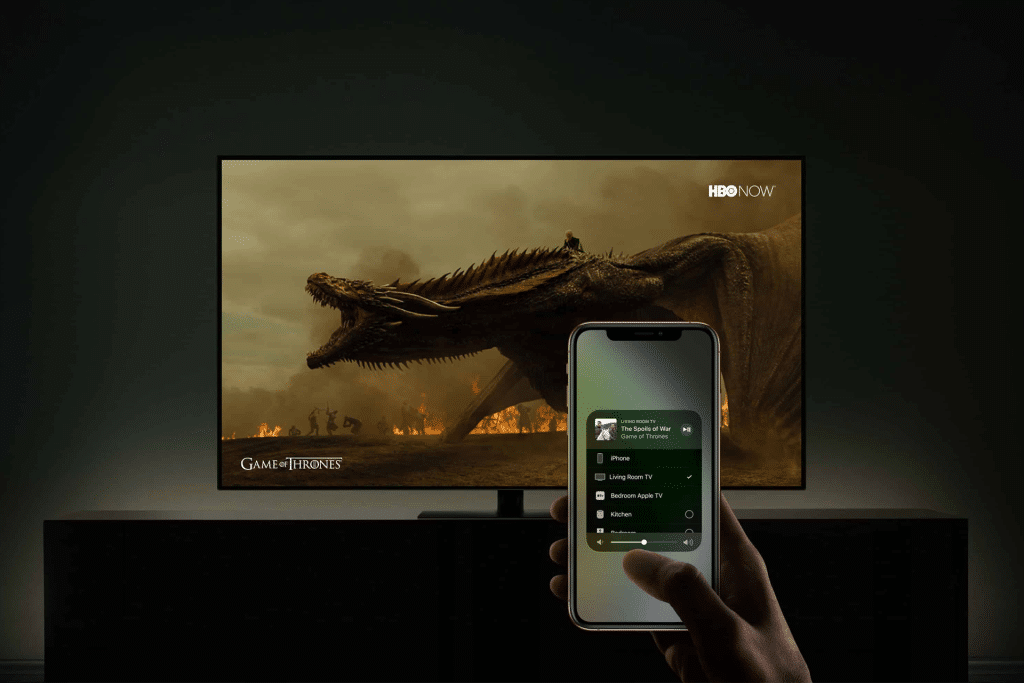
AirPlay is Apple’s wireless streaming technology that allows your iPhone to send audio and video to other Apple devices instantly. If you have an Apple TV or HomePod, AirPlay transforms your phone into a powerful remote and content hub for your living room, bedroom, or even a whole-home audio setup.
Quick Answer: What Is iPhone AirPlay and Why Use It
iPhone AirPlay lets you stream music, movies, photos, or mirror your entire screen to Apple TV, HomePod, or compatible speakers without cables. It works over Wi-Fi, keeps audio and video in sync, and integrates deeply with Apple’s ecosystem for a smooth, reliable experience.
How AirPlay Works on iPhone
AirPlay uses your local Wi-Fi network to stream content directly from your iPhone to another device. Unlike Bluetooth, AirPlay sends high-quality audio and video with minimal compression, making it ideal for movies, music, and presentations.
When you use AirPlay, your iPhone acts as a controller. The content plays directly on Apple TV or HomePod, which means better quality, less battery drain, and the ability to keep using your phone while playback continues.
Apple designed AirPlay to feel invisible. Once devices are on the same Wi-Fi network and signed in with compatible Apple IDs, they simply appear when you need them.


How to Use AirPlay from iPhone
The fastest way to use AirPlay is through Control Center.
Workflow
- Swipe down from the top-right corner of your iPhone
- Tap Screen Mirroring or the AirPlay icon
- Select Apple TV, HomePod, or another AirPlay device
For music and audio, the AirPlay icon usually appears inside the Music app, Podcasts, or any supported media app.
Workflow
- Open the Music app
- Play a song
- Tap the AirPlay icon
- Choose HomePod or another AirPlay speaker
Once connected, volume controls automatically adjust the output device instead of your iPhone speakers.
Using AirPlay with Apple TV
AirPlay and Apple TV are designed to work together. You can stream videos, mirror apps, share photos, or even display games and presentations on a larger screen.
Video playback through AirPlay supports high resolution and smooth frame rates, making it ideal for movies, sports, and YouTube videos. Screen mirroring is useful for apps that don’t offer a built-in AirPlay button.
If you start watching a video on your iPhone, you can send it to Apple TV and continue watching without interruption. Playback controls stay on your phone, while the content plays on the TV.
AirPlay and HomePod: Better Sound Instantly
AirPlay shines with HomePod. With one tap, your iPhone music fills the room with rich, spatial audio. If you have two HomePods set as a stereo pair, AirPlay automatically respects that configuration.
You can also use AirPlay for multiroom audio.
Workflow
- Open Control Center
- Tap the AirPlay icon
- Select multiple HomePods or speakers
This lets you play the same music throughout your home or different audio in different rooms, all controlled from your iPhone.


Why AirPlay Feels Different from Bluetooth
AirPlay offers several advantages over Bluetooth. Audio quality is higher, range is better within a Wi-Fi network, and synchronization between multiple speakers is far more accurate.
Because playback happens on the receiving device, notifications and calls on your iPhone don’t interrupt music. This makes AirPlay ideal for long listening sessions or movie nights.
AirPlay also supports system-level integration. Volume controls, lock screen controls, and Siri all understand where audio is playing.
Common AirPlay Issues and Fixes
If AirPlay doesn’t appear, make sure all devices are connected to the same Wi-Fi network. Restarting Wi-Fi or toggling Airplane Mode on and off often resolves detection issues.
If audio drops or lags, check for network congestion. AirPlay performs best on stable, modern Wi-Fi routers.
For HomePod issues, ensure it’s updated to the latest software and assigned to the correct room in the Home app.
Why AirPlay Is a Core iPhone Feature
AirPlay is one of those features that quietly changes how you use your iPhone. It turns a personal device into a shared experience, whether that’s watching a movie, hosting a party, or filling your home with music.
Once you start using AirPlay regularly, it becomes second nature. It’s not just about streaming. It’s about making your iPhone feel bigger, more powerful, and more connected to everything around you.

