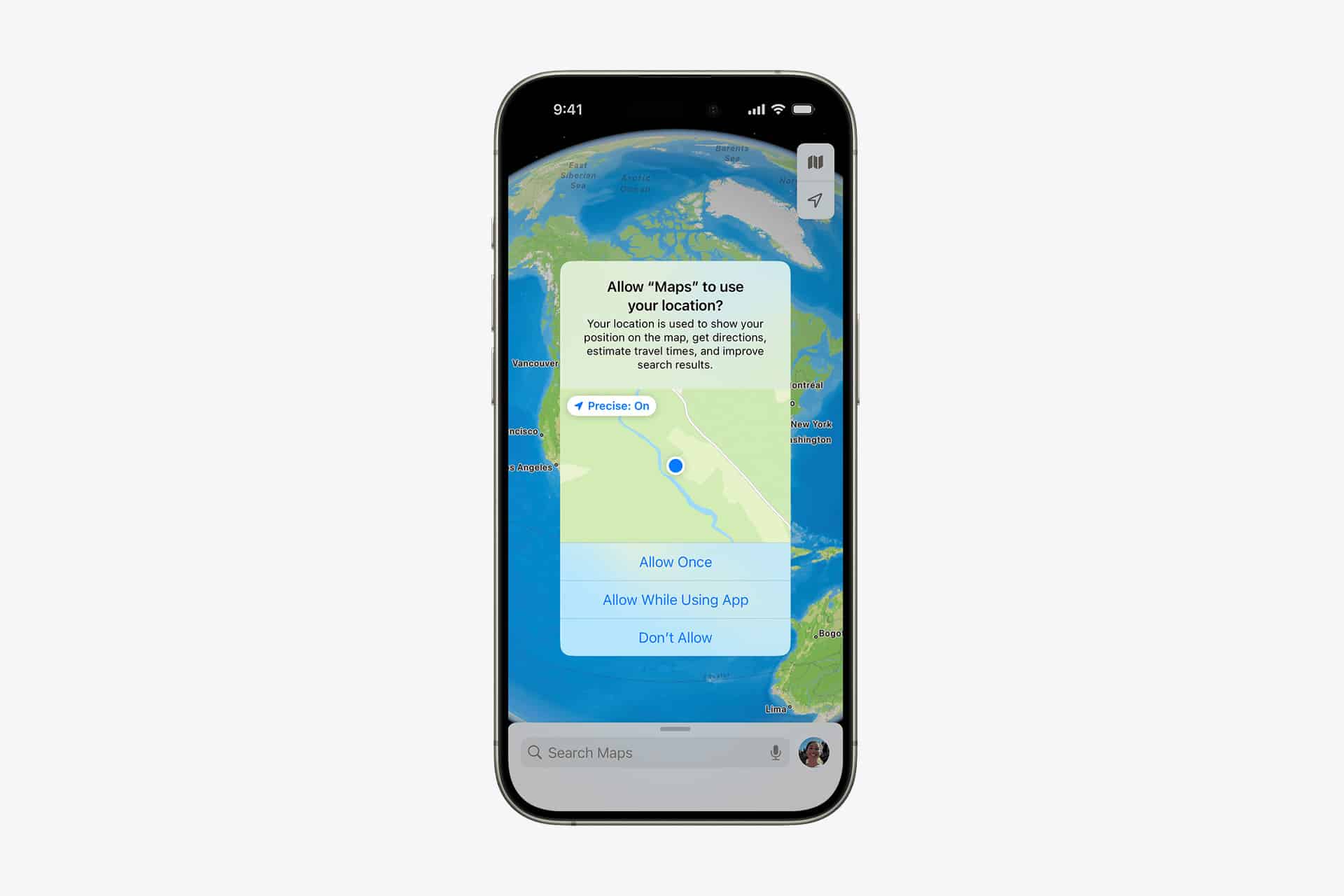
Most permission prompts appear at the exact moment you want something to work. You open a camera app to scan a document, and a message asks for camera access. You tap “Allow” because the task matters more than the decision. The same happens with microphone requests during video calls or location access while ordering a ride. In the moment, speed wins over reflection.
Over time, those small decisions accumulate. An app installed briefly for a trip may still have location access months later. A social app granted microphone permission for one feature may retain it indefinitely. None of this necessarily indicates misuse — it simply reflects how easily permissions are granted and forgotten.
iPhone App Permissions are designed to be adjustable, not permanent. The system assumes that your needs evolve. A navigation app might deserve constant location access during a travel-heavy period but not during a season when you barely leave your neighborhood. A messaging app may require microphone access only if you use voice messages regularly. The flexibility exists so that access can match current behavior rather than past habits.

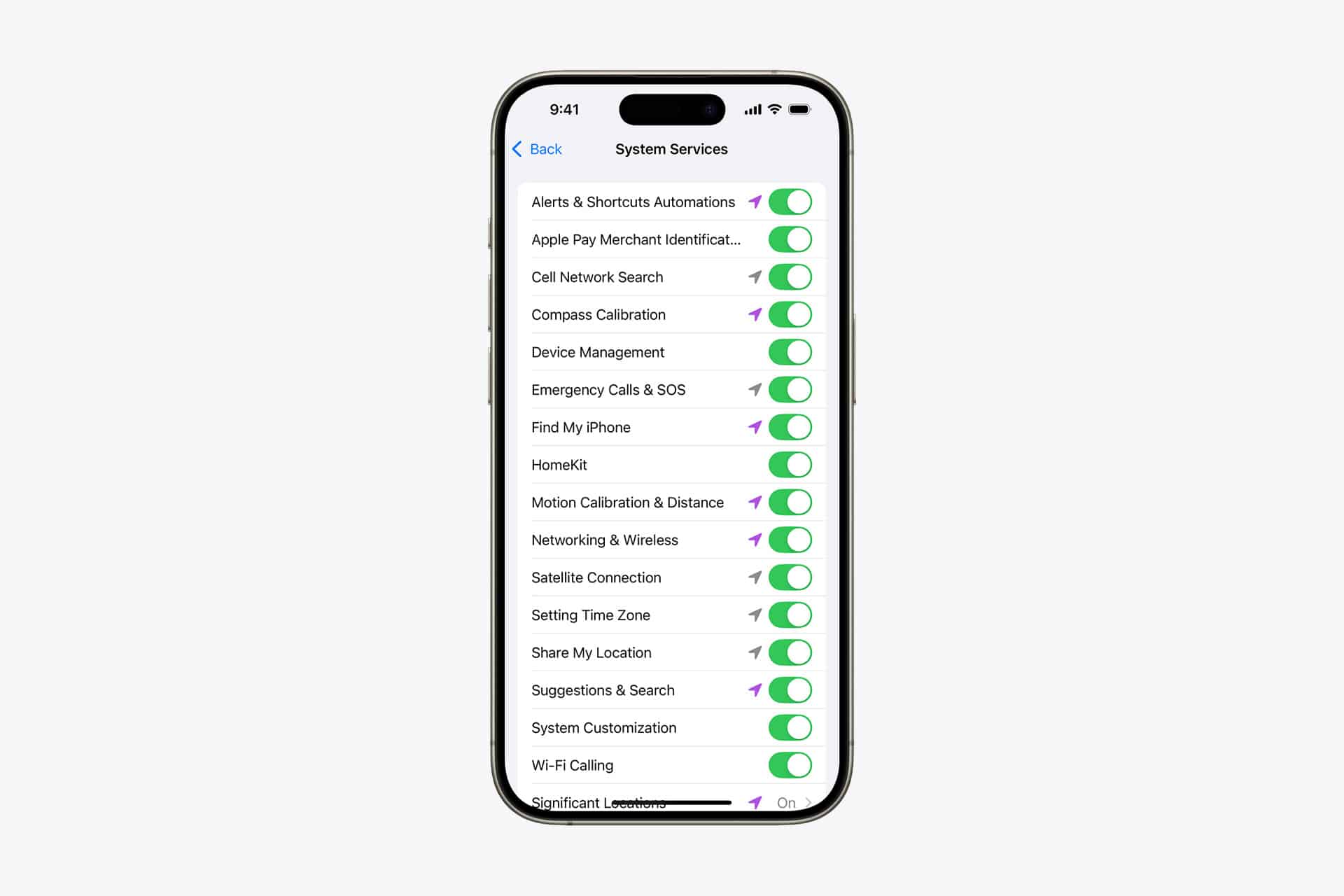
Where to Review Permissions
All major hardware permissions are grouped under Privacy & Security.
Settings > Privacy & Security
Inside this menu, you will find separate sections for Camera, Microphone, Location Services, and more.
Selecting any category displays a list of apps that have requested access. Each app shows its current status, making it easy to see which ones are active.
Managing Camera and Microphone Access
Camera and microphone permissions are straightforward. If an app does not need these features regularly, it does not need permanent access.
Settings > Privacy & Security > Camera
Settings > Privacy & Security > Microphone
Toggling off access prevents the app from using that hardware. If you open the app later and it requires access again, the system will prompt you to reauthorize.
iOS also displays indicators when these sensors are active. A green dot appears in the status area when the camera is in use. An orange dot appears when the microphone is active. These visual signals provide real-time awareness.
Reviewing Location Permissions
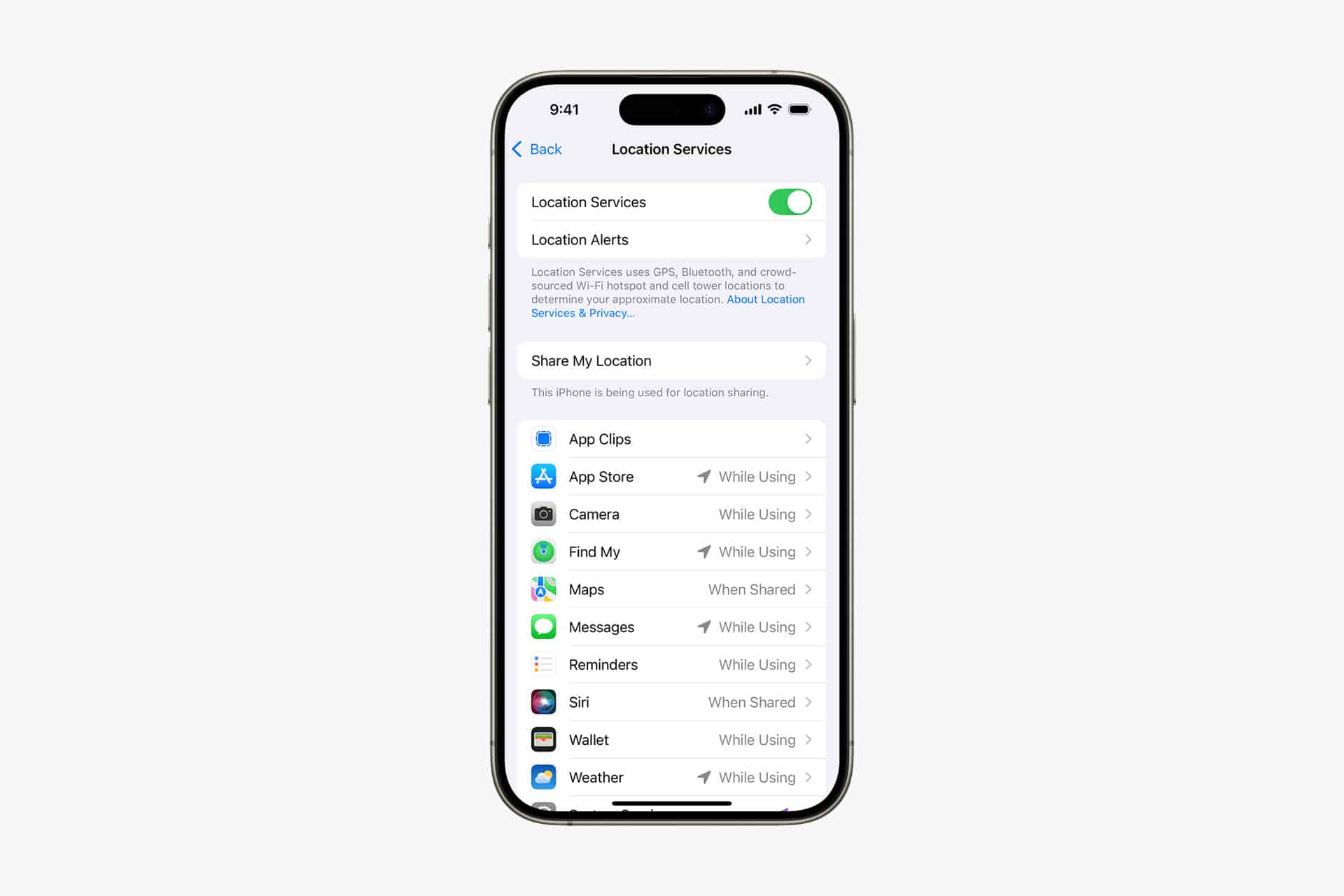
Location access is more nuanced because apps can request different levels of access.
Settings > Privacy & Security > Location Services
Inside each app’s settings, you can choose:
- Never
- Ask Next Time or When I Share
- While Using the App
- Always
For many apps, “While Using the App” is sufficient. This prevents background tracking while preserving functionality.
There is also an option to disable Precise Location. When turned off, the app receives an approximate location rather than exact coordinates. This is useful for apps that only need general area information.
Background Location and Battery
Apps with “Always” location access can update in the background. This may affect battery life and data usage.
Reviewing which apps truly require continuous location tracking can improve both privacy and performance.
iOS periodically reminds users when an app has used location in the background, displaying a map snapshot of activity. This allows you to confirm whether that access aligns with your expectations.
App Privacy Report
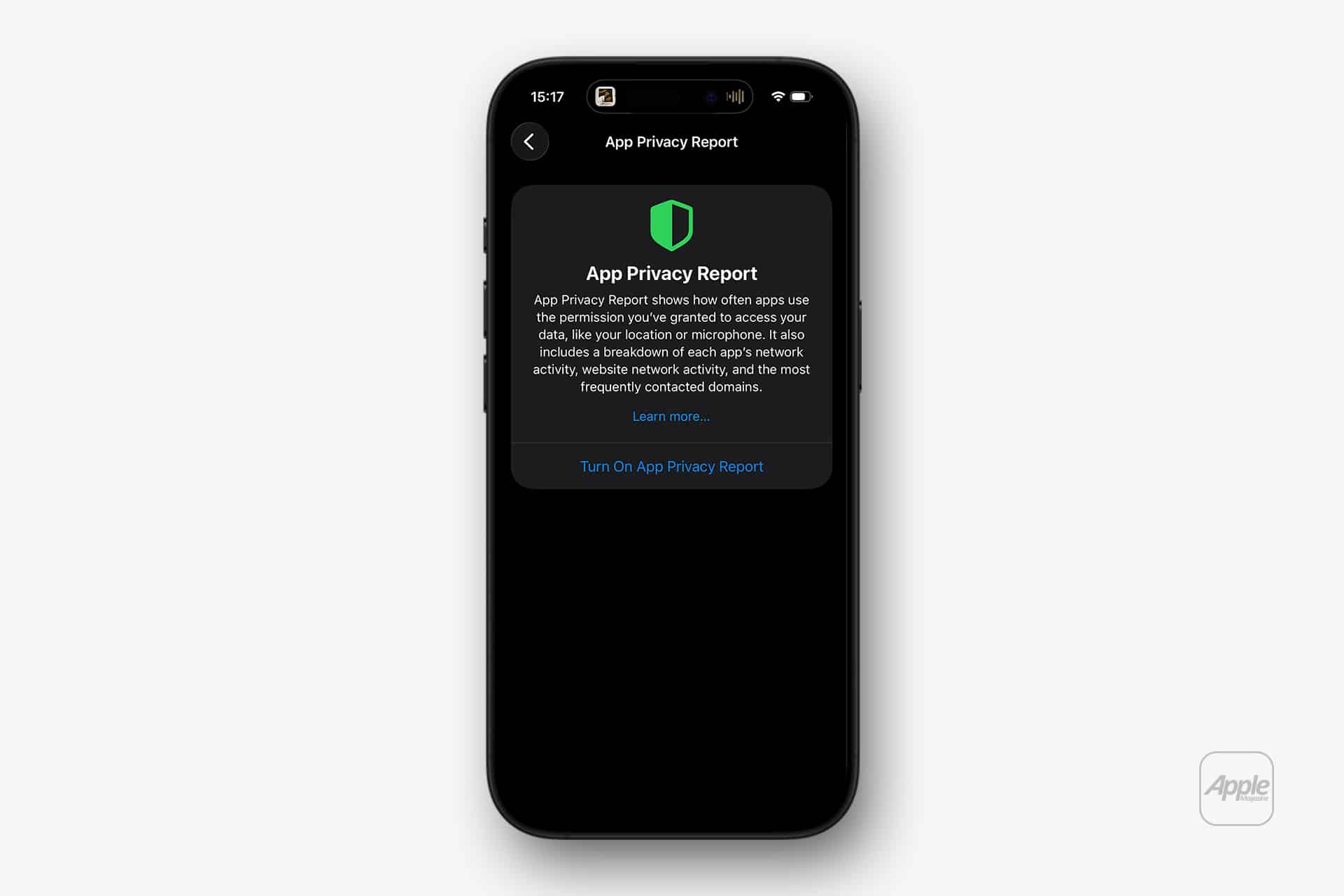
iOS includes a feature that tracks how often apps access sensitive data.
Settings > Privacy & Security > App Privacy Report
This report shows:
- Sensor access frequency
- Network activity
- Domain contacts
Reviewing it occasionally provides context about how apps behave beyond initial permission prompts
Resetting Permissions
If permissions feel disorganized or unclear, you can reset all location and privacy settings.
Settings > General > Transfer or Reset iPhone > Reset > Reset Location & Privacy
This restores default permission states without deleting data. Apps will request access again as needed.
Granting access often improves app functionality. Maps requires location. Video calls require camera and microphone. The goal is not to deny everything but to align permissions with actual use.
If an app has not been opened in months, its access may no longer be necessary. Periodic review keeps settings aligned with current habits.
Why It Matters
Permissions define what information leaves the device. iOS requires explicit user approval for hardware and location access, and those choices remain adjustable.
Reviewing permissions is not about distrust. It is about clarity. Knowing which apps can activate the camera, listen through the microphone, or track location gives you context. It removes uncertainty. The structure inside iOS makes that review straightforward, grouping hardware and data access into organized categories rather than scattering controls across individual apps.
Keeping those permissions intentional ensures that access reflects current needs rather than past taps on an “Allow” button.