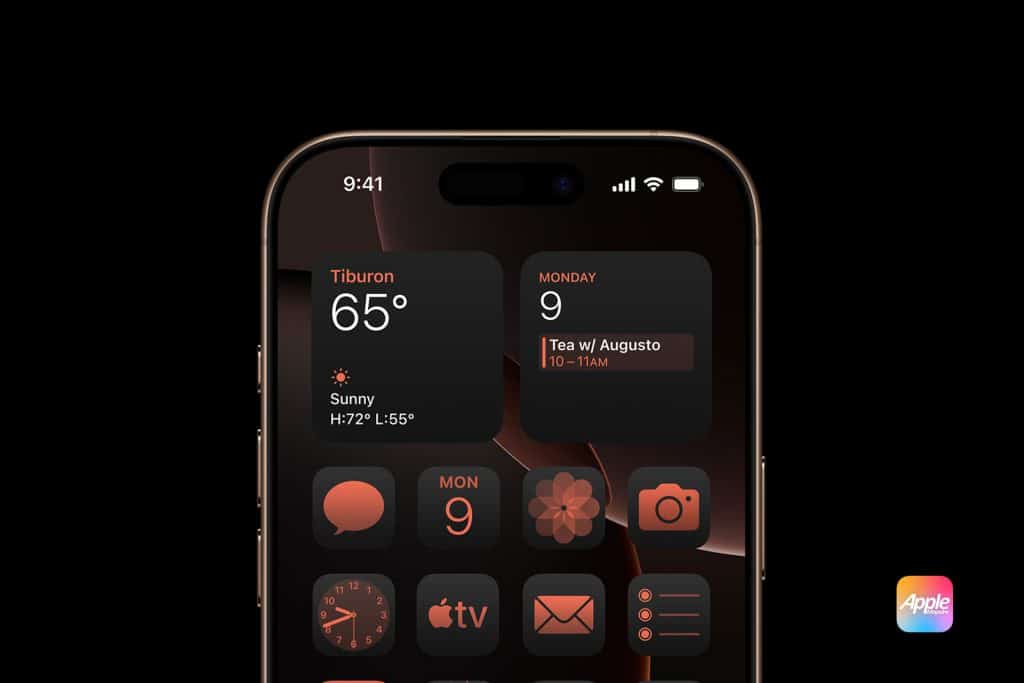
iPhone apps shape how every day unfolds, often more than we realize. From the first unlock in the morning to the last glance before sleep, the way apps are arranged controls how quickly you get things done. A cluttered layout turns simple tasks into little moments of friction. A smart layout makes your iPhone feel calm, predictable, and easy to use.
Organizing iPhone apps isn’t about chasing a perfect aesthetic. It’s about matching your home screen to real life so your phone stops feeling like a drawer full of random stuff. The simplest mental shift is to stop thinking app-by-app and start thinking moment-by-moment: money, entertainment, travel, fitness, family, work, food, and downtime. When iPhone apps are grouped around those moments, you swipe with intention and find what you need without searching.
Home Screen Layouts That Actually Help
Category-based screens are the most reliable option, but they work best when you commit to the idea of full themed pages, not just a few folders sprinkled across everything. A finance page can hold Wallet, banks, credit cards, investments, and a couple of money widgets, so anything related to bills or spending lives in one place. An entertainment page can group Apple TV, streaming apps, music, podcasts, and games, so relaxing doesn’t get mixed up with work tools.
Settings > Home Screen & App Library > Newly Downloaded Apps > App Library Only
Settings > Focus > Choose Focus > Home Screen > Custom Pages
A communication page can be the “people” page, with Messages, FaceTime, Mail, calendar, shared notes, and safety tools like Find My. A productivity page can combine Pages, Numbers, Word, Excel, notes, scanning, and to-dos, so your phone behaves like a pocket office when you need it. And a travel page is perfect for Maps, rideshare, airlines, hotels, parking, and weather when you’re moving around.
These pages work because they create simple muscle memory. You don’t remember where an app is. You remember which part of your life it belongs to.

Creative Pages and “Quiet” Screens
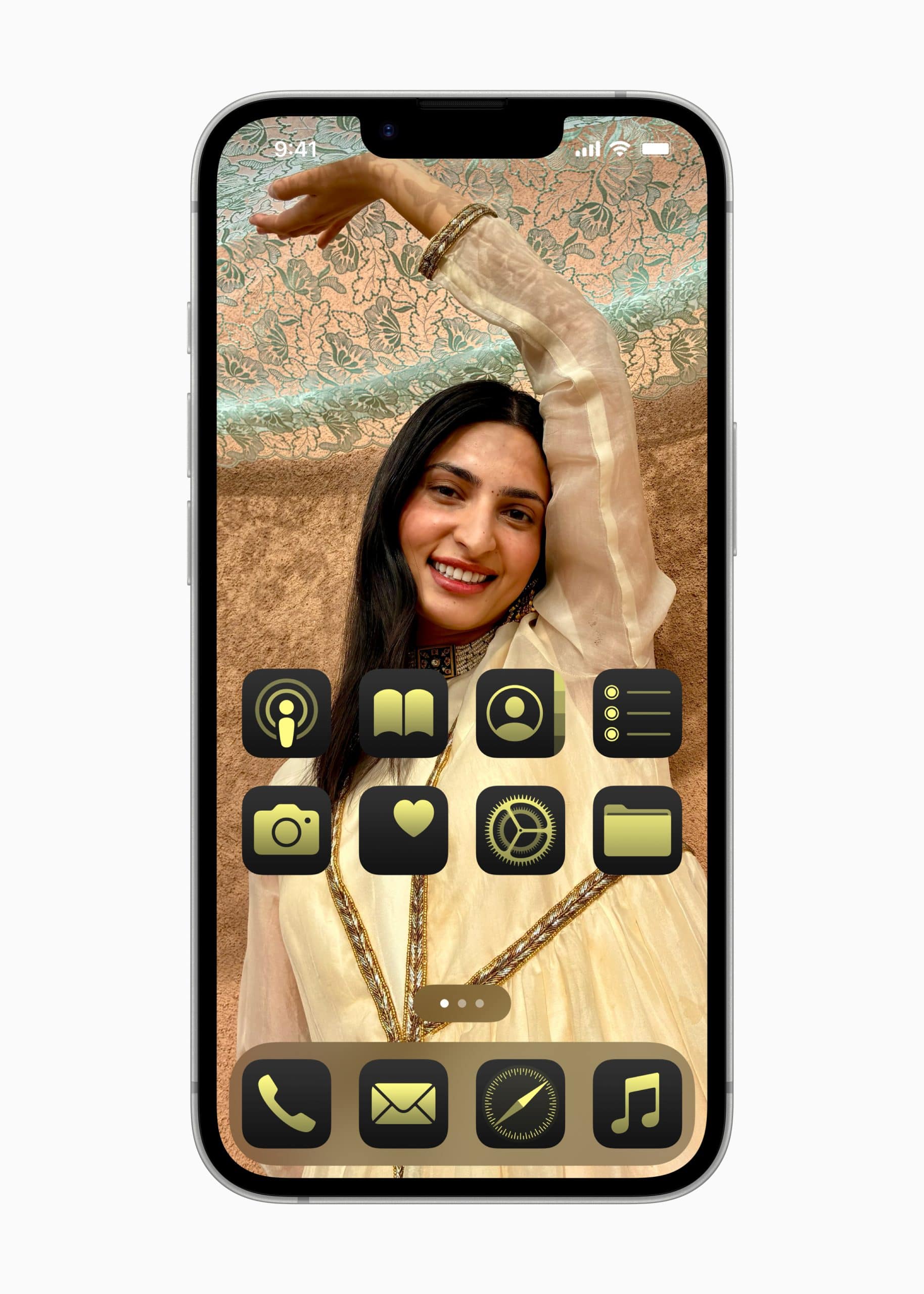
Some iPhone apps deserve a screen that feels more like a studio than a list. If you edit photos, record voice notes, shoot video, or sketch ideas, a creative screen can group camera tools, photo editors, video editors, recording apps, and inspiration apps. That screen becomes the place you go when you want to make something, not just consume.
A separate AI or web tools page can also be useful if you use assistants, research tools, or web apps often. Keeping those together prevents them from cluttering daily pages, while still staying easy to reach when you need them.
And for people who love a calmer iPhone, a widget-focused page can be surprisingly powerful. A clean screen with a few large widgets for calendar, weather, reminders, and music can replace a lot of daily tapping.
Personal Systems That Only You Understand
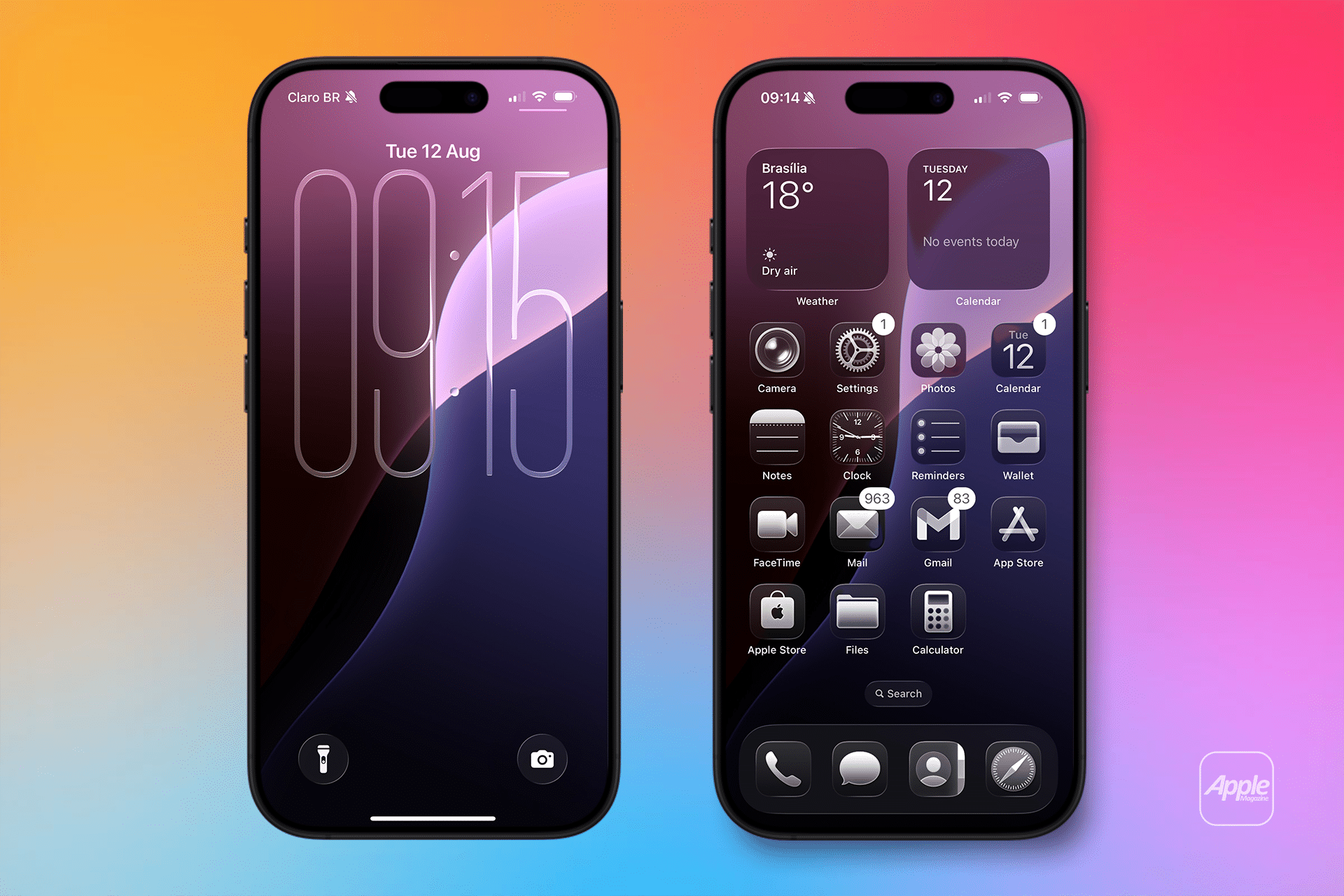
Not every good layout looks “logical” to someone else. Some people organize iPhone apps by color because it’s faster for their eyes to scan. Others prefer alphabetical order because it turns the home screen into an index. Some split pages into day vs. night, work vs. fun, home vs. on-the-move, or even alone vs. with others. If it matches how your brain thinks, it works.
Settings > Home Screen & App Library > Notification Badges > Toggle On/Off
The best home screen isn’t the cleanest or trendiest. It’s the one that makes your iPhone feel effortless.

How to Organize iPhone Apps
To start, tap and hold any app until the icons begin to move. From there, drag apps into folders, drag them to the edge to create new pages, and place your most-used apps where your thumb naturally lands.
If you want faster access with fewer distractions, consider moving new downloads straight into the App Library so your home screen stays intentional. If you use Focus modes, you can also create different home screen pages for different parts of your day, like studying, working, or relaxing, so you only see the iPhone apps that matter in that moment.
Once you’ve built your first themed pages, live with them for a week. You’ll notice which apps you keep reaching for and which ones never get touched. That’s when your layout starts becoming truly personal, and your iPhone starts feeling like it was arranged just for you.