

Back Tap is an iPhone accessibility feature introduced with iOS 14 that lets you assign system actions or run shortcuts by tapping the back of your phone two or three times. It works on compatible models running iOS 14 or later, offering a discrete but highly customizable way to access features and shortcuts without navigating menus.
How Back Tap Works on iPhone
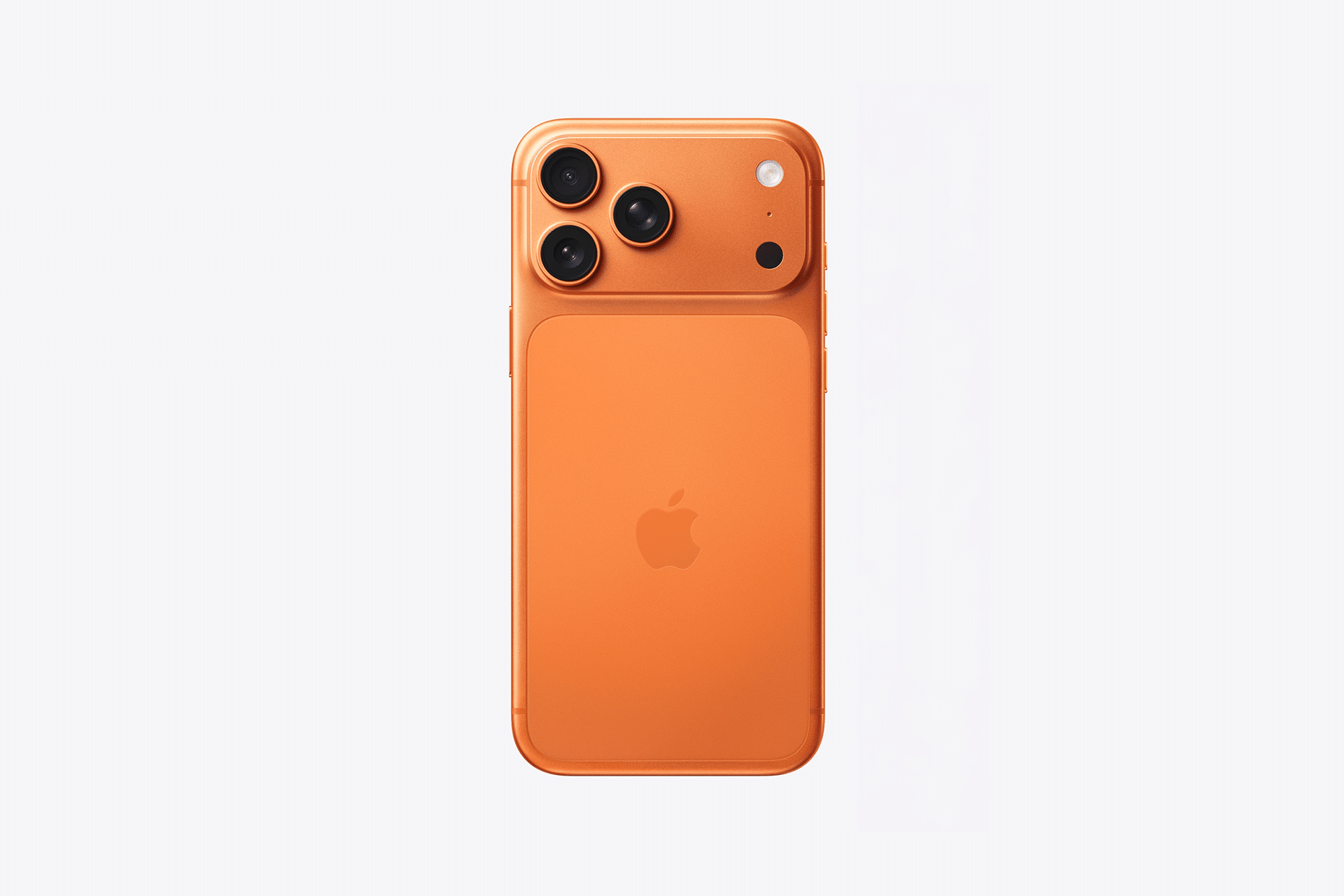
Back Tap is designed to detect quick taps on the back glass of the iPhone and translate them into actions such as taking a screenshot, opening Control Center, activating Siri, or running a shortcut you’ve created in the Shortcuts app. You can assign Double Tap and Triple Tap independently, giving you two gesture triggers for frequent tasks.
Setting Up Back Tap Shortcuts
To get started with Back Tap:
-
Open Settings on your iPhone.
-
Go to Accessibility > Touch > Back Tap.
-
Choose either Double Tap or Triple Tap.
-
Scroll through the list of actions and select a system action or a Shortcut you have created.
-
The Back Tap setting takes effect immediately — just tap the back of your iPhone to trigger the selected action.
Back Tap supports running any shortcut that appears in the action list — meaning creative and automated workflows you’ve built with the Shortcuts app can now be triggered with a simple back tap.
Best Uses for Back Tap Shortcuts
Back Tap greatly expands quick access on your iPhone. Some popular custom setups include:
- Launching your favorite app
- Taking a screenshot
- Toggling the flashlight
- Opening the camera
- Running a pre-configured Shortcut that sends a message, starts navigation, or logs data
Turning on accessibility tools like Magnifier or VoiceOver
Because Back Tap works with the Shortcuts app, you can create complex workflows — such as logging health data, toggling multiple settings, or launching contextual automations — then assign them to your Back Tap triggers for instant execution.
Compatibility and Tips
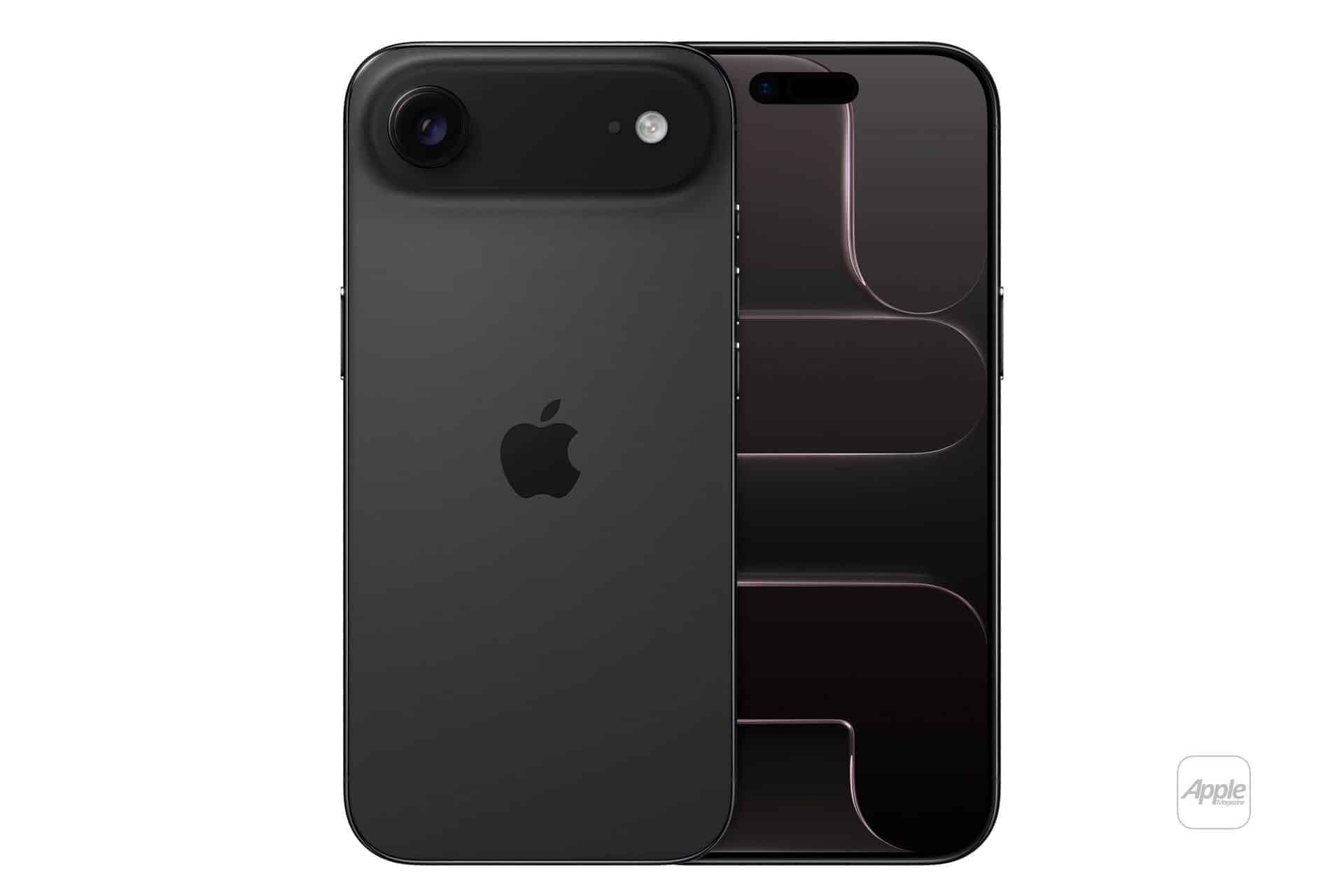
Back Tap works on iPhone models with compatible motion sensors (iPhone 8 and later) running iOS 14 or newer. Some users find the feature may act inconsistently depending on how firmly or where on the back surface they tap; experimenting with placement near the center or slightly above the Apple logo often improves accuracy.
Because Back Tap uses motion detection rather than physical buttons, a thick or rugged case can sometimes reduce responsiveness. If you notice inconsistent behavior, try removing the case briefly to test and adjust your tap gesture accordingly.
Hidden but Powerful Productivity Gesture
Although originally placed in Accessibility settings, Back Tap has become a favorite customization among iPhone users who prefer gesture-driven workflows. By pairing Back Tap with shortcuts tailored to your routine, you can streamline daily tasks and reduce repetitive tapping — making your iPhone feel more responsive to intent and context.


