

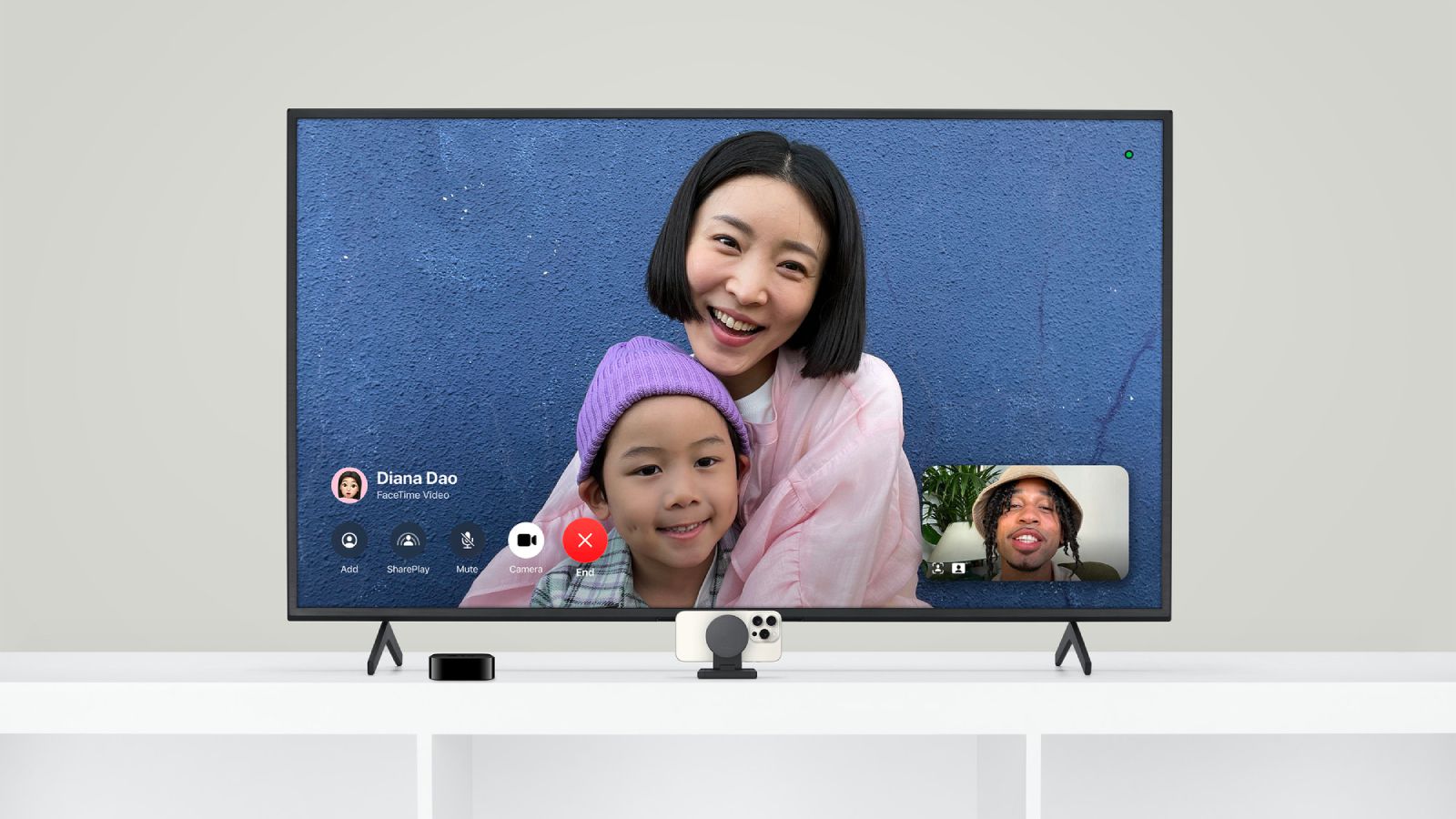
iPhone camera can become a live video feed on Apple TV with one simple trick: AirPlay screen mirroring. By mirroring the iPhone screen to Apple TV, anything shown on iPhone appears on the television in real time, including the Camera app, Magnifier, video mode, photo previews, and close-up views of small details.
This is not the same as using iPhone as a security camera or a permanent live-streaming setup. It is a quick, practical way to place the iPhone camera near something small, detailed, awkward, or hard to see, while the larger Apple TV screen gives everyone a clearer view.
The setup can be useful in surprisingly ordinary moments. The iPhone can be pointed under a couch to look for a missing earring, toy piece, screw, or AirPods case. It can show a close-up of a bruise, cut, splinter, or skin irritation before deciding whether better light or medical attention is needed. It can help preview a hairstyle from the back, test makeup under different lighting, frame a group photo before taking it, or turn the TV into a larger magnifier for reading fine print.
It can also turn a small presentation into a bigger living-room moment. A child can perform a short scene, show a drawing, present a school project, or act out a story in another room while the iPhone sends the live camera view to Apple TV. The result feels closer to a tiny theatrical broadcast, with the television acting as the big screen and the iPhone becoming the production camera. For kids interested in movies, acting, storytelling, or directing, it can make a simple play or homemade scene feel more polished, more dramatic, and more fun to watch.


iPhone Camera to Apple TV With AirPlay
The easiest way to show the iPhone camera on Apple TV is through Screen Mirroring in Control Center. The iPhone and Apple TV need to be on the same Wi-Fi network, and AirPlay should be enabled on Apple TV.
To mirror iPhone to Apple TV:
Control Center > Screen Mirroring > Choose Apple TV
After the iPhone screen appears on the TV, open the Camera app:
Camera > Photo or Video > Point iPhone at What You Want to Show
The live camera view will appear on the Apple TV screen. The image will follow the iPhone orientation, so rotating the phone can change how the picture fills the TV. For the clearest view, keep the iPhone steady, use good lighting, and move the camera slowly.
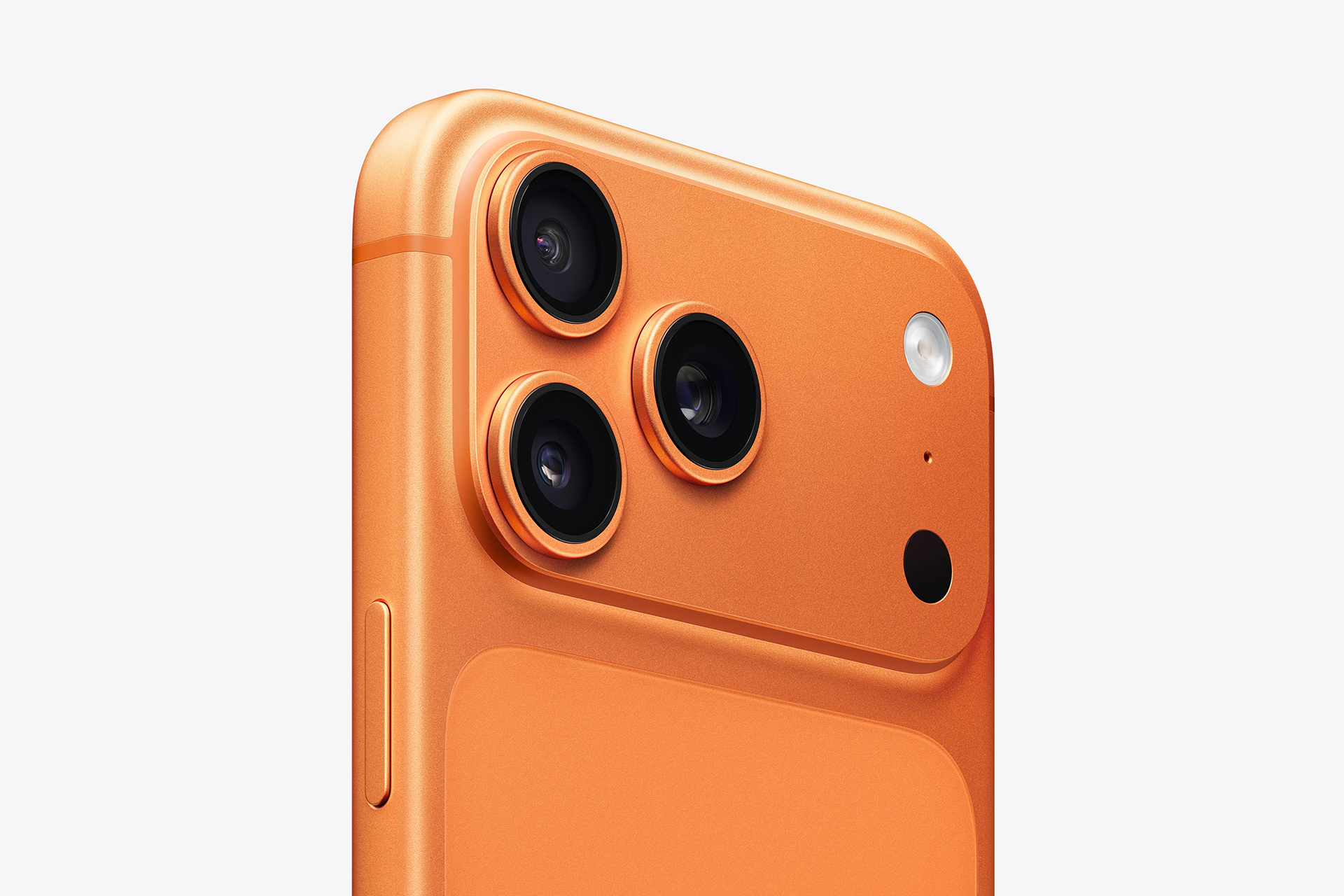
This works well because the Camera app gives a clean live preview. It also allows zoom, focus, exposure adjustment, and lens switching on supported iPhone models. For a close-up view, the user can move the iPhone closer to the object or use optical zoom if the iPhone has a telephoto camera.
To zoom while viewing:
Camera > Pinch to Zoom or Tap Lens Options
For small objects, it is often better to move the iPhone physically closer instead of using too much digital zoom. The picture usually stays clearer that way.
Use Magnifier for Tiny Details
The Magnifier app can be even better than Camera when the goal is reading, inspecting, or enlarging something small. Magnifier is built into iPhone and is designed specifically for close-up viewing. It includes zoom, brightness, contrast, filters, flashlight control, and the ability to freeze a frame without saving it as a photo.
To open Magnifier:
Magnifier App > Point iPhone at Object > Adjust Zoom
If Magnifier is not easy to find:
Settings > Accessibility > Accessibility Shortcut > Magnifier
Then use the shortcut:
Triple-Click Side Button > Magnifier
When the iPhone is mirrored to Apple TV, Magnifier becomes a large-screen viewing tool. It can help with fine print on packaging, small model numbers, tiny screws, labels behind electronics, embroidery details, jewelry clasps, skin marks, or anything that is easier to inspect on a larger screen.
The flashlight button inside Magnifier is especially useful under furniture or in dim corners. It lets the iPhone light the area while the TV shows the enlarged view.
To use the light:
Magnifier > Flashlight Button > Adjust Brightness
Magnifier also lets the user freeze the image. That can help when the iPhone is hard to hold still under a couch, behind furniture, near a cable label, or close to a small object.
To freeze the view:
Magnifier > Freeze Frame Button
Turn a Room Into a Tiny Studio
Screen mirroring can also make iPhone and Apple TV feel like a simple live production setup. The iPhone can stay in one room pointed at a scene, craft table, puppet show, drawing board, science project, or short performance, while Apple TV shows the live view on the larger screen in another room.
This works especially well when the performance area is small. A child can use a table as a stage, arrange toys like characters, read a story aloud, show a handmade poster, or present a small project while someone else watches from the TV. The larger screen makes the moment feel more theatrical without needing editing software, extra cameras, or a complicated setup.
For young movie makers, the same setup can introduce basic production ideas. One person can hold or place the iPhone as the camera. Another can perform. Someone else can watch the live feed on Apple TV and give simple direction about framing, lighting, movement, or where to stand. It turns a normal room into a small practice set.
A few small changes make the effect better. Place the iPhone on a tripod, shelf, or stand so the image looks stable. Use a lamp to light the scene from the front or side. Keep the background simple. Start with short scenes instead of long performances. If the iPhone is in another room, test the Wi-Fi connection first so the AirPlay feed stays smooth.
To create a simple live presentation setup:
Control Center > Screen Mirroring > Choose Apple TV > Camera > Video
The iPhone does not need to record for this to work. It can simply show the live camera preview on the TV. If the moment should be saved, recording can be started from the Camera app, but the basic live-view setup works without saving anything.
Practical Ways to Use the Live View
The most useful part of this setup is that it turns iPhone into a flexible inspection camera without extra hardware. The Apple TV screen becomes the large display, while the iPhone becomes the movable lens.
For missing tiny items, place the iPhone low to the floor and open Camera or Magnifier. The TV can show what is under the couch, bed, cabinet, or car seat without anyone needing to crawl around with a flashlight.
For close-up checks, Magnifier can make details easier to see. It can show a scratch, bruise, cut, splinter, bug bite, or irritated area more clearly in good light. This is helpful for deciding whether to clean the area, take a photo for later comparison, or contact a qualified clinician if something looks concerning.
For hair styling, the mirrored camera can show angles that are hard to see in a mirror. Place the iPhone behind the person or to the side, then watch the Apple TV screen while adjusting the back, braid, curls, clips, or parting line.
For makeup testing, the iPhone can be placed at face level while the Apple TV shows a larger preview. This can help compare lighting, colors, blending, and symmetry from a more distant view than a handheld mirror.
For group photos, the setup can act as a large preview screen before taking the picture. Place the iPhone on a tripod, stand, shelf, or stable surface, mirror it to Apple TV, and open Camera. Everyone can see the framing on the TV before the photo is taken.
To take a photo without touching the iPhone:
Camera > Timer > 3s or 10s > Shutter
Apple Watch can also work as a remote camera viewfinder and shutter for iPhone, which pairs nicely with this setup. The TV shows the large preview, while Apple Watch can start the shot from across the room.
Better Results With Simple Setup Changes
A stable iPhone makes the biggest difference. For close-up work, place the phone on a small tripod, MagSafe stand, stack of books, or any steady surface. A shaky iPhone becomes more noticeable when the image is enlarged on a TV.
Good lighting also matters. The iPhone camera can brighten dark areas, but the image will look cleaner with a lamp, flashlight, window light, or the Magnifier flashlight. For reflective objects, move the light slightly to the side to reduce glare.
For close-up details, tap on the iPhone screen to set focus. If the camera struggles to focus because the object is too close, move the phone slightly farther away and use a small amount of zoom.
To lock focus and exposure:
Camera > Touch and Hold on Subject > AE/AF Lock
This can help when looking at tiny text, skin details, fabric, labels, or small objects. The camera will stop hunting for focus every time the iPhone moves slightly.
For the cleanest TV view, turn off notifications before mirroring. Screen mirroring shows what appears on the iPhone screen, including banners and alerts.
To reduce interruptions:
Control Center > Focus > Do Not Disturb
AirPlay Tips and Privacy
Screen mirroring sends the iPhone screen to Apple TV, so the TV can show anything that appears on the device. Before starting, close private apps, hide sensitive messages, and turn on a Focus mode if needed.
If the Apple TV does not appear in Screen Mirroring, check that both devices are on the same Wi-Fi network. Apple TV should also have AirPlay enabled on the television box.
To check Apple TV AirPlay settings:
Settings > AirPlay and HomeKit > AirPlay > On
If mirroring lags, move closer to the Wi-Fi router, close heavy apps, or restart AirPlay. The live camera view does not need perfect timing for most uses, but a stronger Wi-Fi connection makes movement feel smoother.
The setup is best for short viewing sessions. iPhone may get warm if the camera, screen mirroring, flashlight, and high brightness are used for a long time. For longer use, keep the iPhone charged and avoid covering the camera or vents with a case, blanket, or cushion.
A Simple iPhone Trick With Many Uses
Using iPhone camera with Apple TV is one of those features that feels more useful once it becomes a habit. It can turn the TV into a large live preview, a magnifier, a mirror, a framing screen, a small studio monitor, or a quick inspection display without buying a separate camera.
The best part is that it uses tools already built into Apple devices. AirPlay handles the screen. Camera provides the live view. Magnifier adds zoom and lighting controls. Apple TV turns the small iPhone preview into something easier to see from across the room.
For small searches, close-up checks, styling, makeup tests, photo framing, tiny presentations, and everyday inspection tasks, the combination gives iPhone a second role: a portable camera lens for the biggest screen in the room.