iPhone Cinematic mode is one of the most advanced automated video features Apple has introduced. Rather than just recording what’s in front of you, Cinematic mode analyzes depth, motion, and focus to create a look that resembles professional film techniques. It automatically adjusts focus between subjects and applies depth-of-field effects that draw attention to people, objects, and action in a scene without a separate lens or editing software.
What sets Cinematic mode apart is its reliance on real-time processing. Apple’s latest chips and camera systems work together to calculate subject distance, predict movement, and decide when to shift focus — delivering a polished visual result straight from the camera. For influencers, storytellers, and video producers looking to balance quality and speed, Cinematic mode often replaces heavier workflows.
While powerful, Cinematic mode does demand more from your iPhone. The depth analysis, focus tracking, and sensor use require high processing power, which can drain battery faster than traditional video recording. For serious shooting, it’s wise to plan battery support, such as a high-capacity portable battery (often rated in mAh and watts) to keep your iPhone running for longer sessions.
When to Use Cinematic Mode
Cinematic mode shines in scenarios where storytelling and subject focus matter:
- Interviews and talking heads: The subject stays sharp while the background gets pleasing separation.
- Narrative clips: Use focus shifts to guide viewer attention like a scene in a short film.
- Event highlights: Capture people interacting, reacting, and moving with dynamic focus pulls.
- Everyday creativity: Vlogs, lifestyle clips, and social content that benefit from a cinematic look.
Because Cinematic mode thinks about focus and depth for you, it saves time in post-production while offering a look that feels more intentional than standard video.
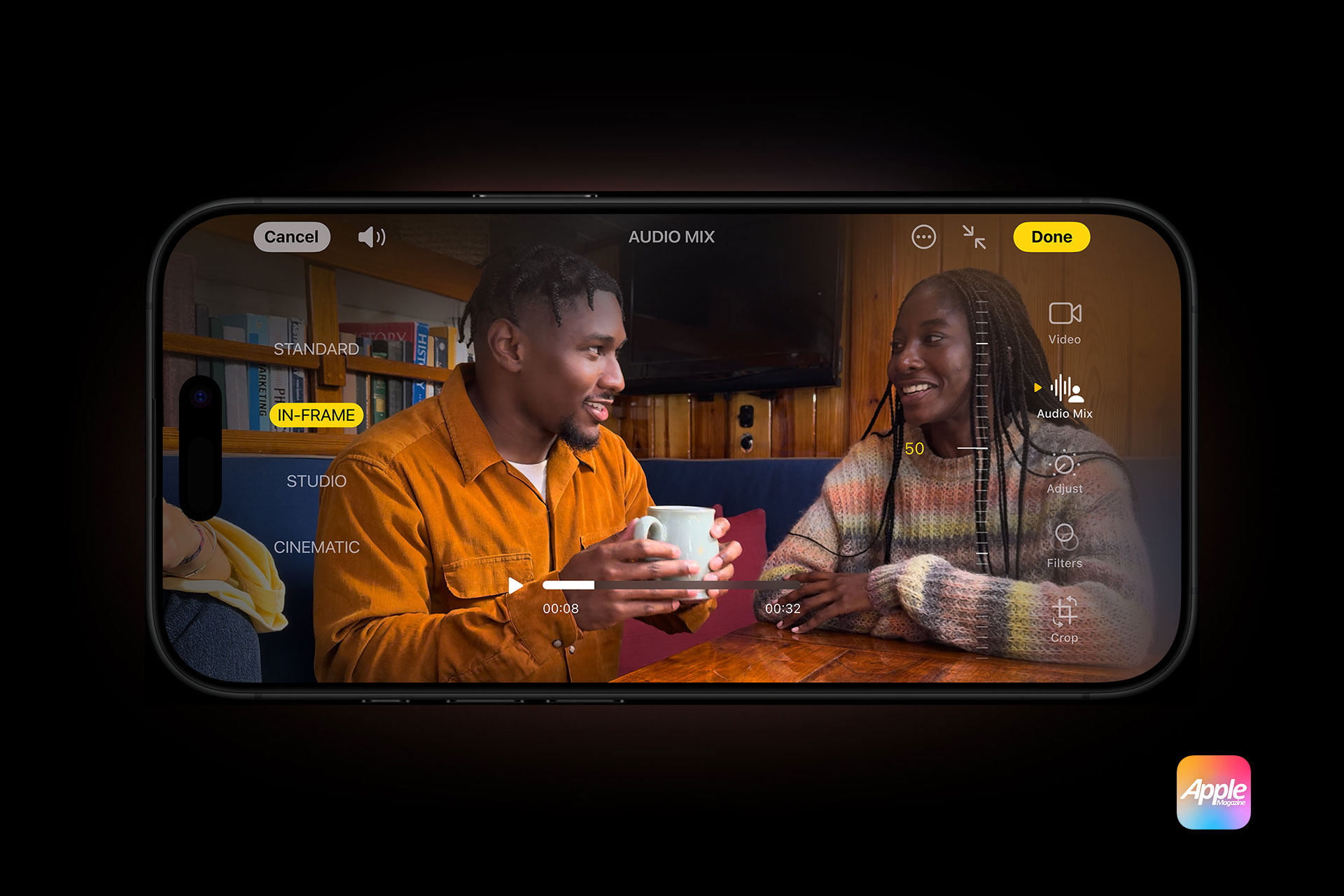

How Cinematic Mode Works
Cinematic mode relies on multiple camera lenses, depth sensors, and Apple silicon to create its effect. When enabled, your iPhone analyzes people and objects in the frame, determining which subject should be in focus and predicting moments where focus should change naturally.
To record in Cinematic mode:
Open the Camera app > Swipe to Cinematic > Frame your subject > Tap the record button
As you record, the focus will shift automatically when a new subject enters the frame or current subjects move. You can also change focus points manually while filming by tapping a new subject.
On-screen controls let you adjust exposure and zoom like in normal video modes. Cinematic mode supports 4K and high frame rates on compatible iPhone models, giving you both resolution and depth.
Depth Control and Adjustments After Recording
One of Cinematic mode’s strongest features is the ability to adjust focus and depth after recording.
Photos > Select your Cinematic video > Edit
Inside edit mode you can:
- Change which subject is in focus
- Adjust the strength of the background blur
- Shift focus at specific moments
This post-capture flexibility makes Cinematic mode powerful for creators who want control without heavy editing software.
Practical Shooting Tips
- Lighting matters: Cinematic mode performs best with good light. Low light can limit depth detection, so aim for well-lit environments when possible.
- Use grid lines: Turn on the grid to help align your shot and maintain visual balance.
- Keep steady: Even with stabilization, smooth movement improves the cinematic feel. A handheld grip or small tripod can help.
- Mind your battery: Because Cinematic mode uses depth sensors and processing power throughout recording, it can reduce battery life more quickly. For long sessions, consider a portable battery pack with sufficient capacity (higher-capacity packs often rated in tens of thousands of mAh) and fast charging support to keep your device going.
Settings > Camera > Grid
Settings > Battery > Low Power Mode (optional for longer sessions)

Real-World Examples
Interview-Style Clips
Film a conversation with two people. Position them slightly apart in the frame and Cinematic mode will keep the primary speaker sharp while the background and secondary subject blur artistically. You can tap to shift focus when the speaker changes or fine-tune it in edit mode.
Vlogs and Lifestyle
Record a scene like walking through a street market or landscape. The automatic focus pulls add a sense of motion and intentionality that makes daily footage feel more polished.
Event Highlights
Capture candid moments — applause, laughter, a toast — with focus transitions that naturally follow where attention goes without manual focus pulls. This helps produce clips that feel ready for social or portfolio use.
Balancing Quality and Power
Cinematic mode delivers a production-ready look directly from your iPhone, but advanced processing and sensor use mean balancing quality with battery and storage needs. High-frame and high-resolution settings also take more space, so planning around power and storage is part of a pro workflow.
Settings > General > iPhone Storage
Settings > Battery > Battery Health
Your iPhone becomes more than a quick video camera — it becomes a filmmaking tool capable of capturing expressive, intentional footage that stands apart from ordinary clips.