

Every year, when a new iPhone arrives, millions of users unbox their devices and immediately focus on one task: getting their old phone’s life into the new one. Photos, messages, apps, settings, health data, Wi-Fi passwords — the expectation is that nothing gets left behind.
Apple has gradually refined iPhone Data Transfer so that switching devices feels less like a technical migration and more like a continuation. But there are still choices to make, and each method serves a different situation.

Why Data Transfers Spike During New Releases
New iPhone launches trigger a predictable wave of upgrades. Carriers offer promotions. Trade-in programs expand. Families replace multiple devices at once. With each of these cycles comes the same need: seamless data migration.
The spike happens because switching devices is no longer rare. Many users upgrade every two or three years. That rhythm creates recurring demand for a reliable, low-stress transfer process.
Apple’s ecosystem design reflects that pattern.
Quick Start: The Most Direct Method
The most common iPhone Data Transfer method today is Quick Start.
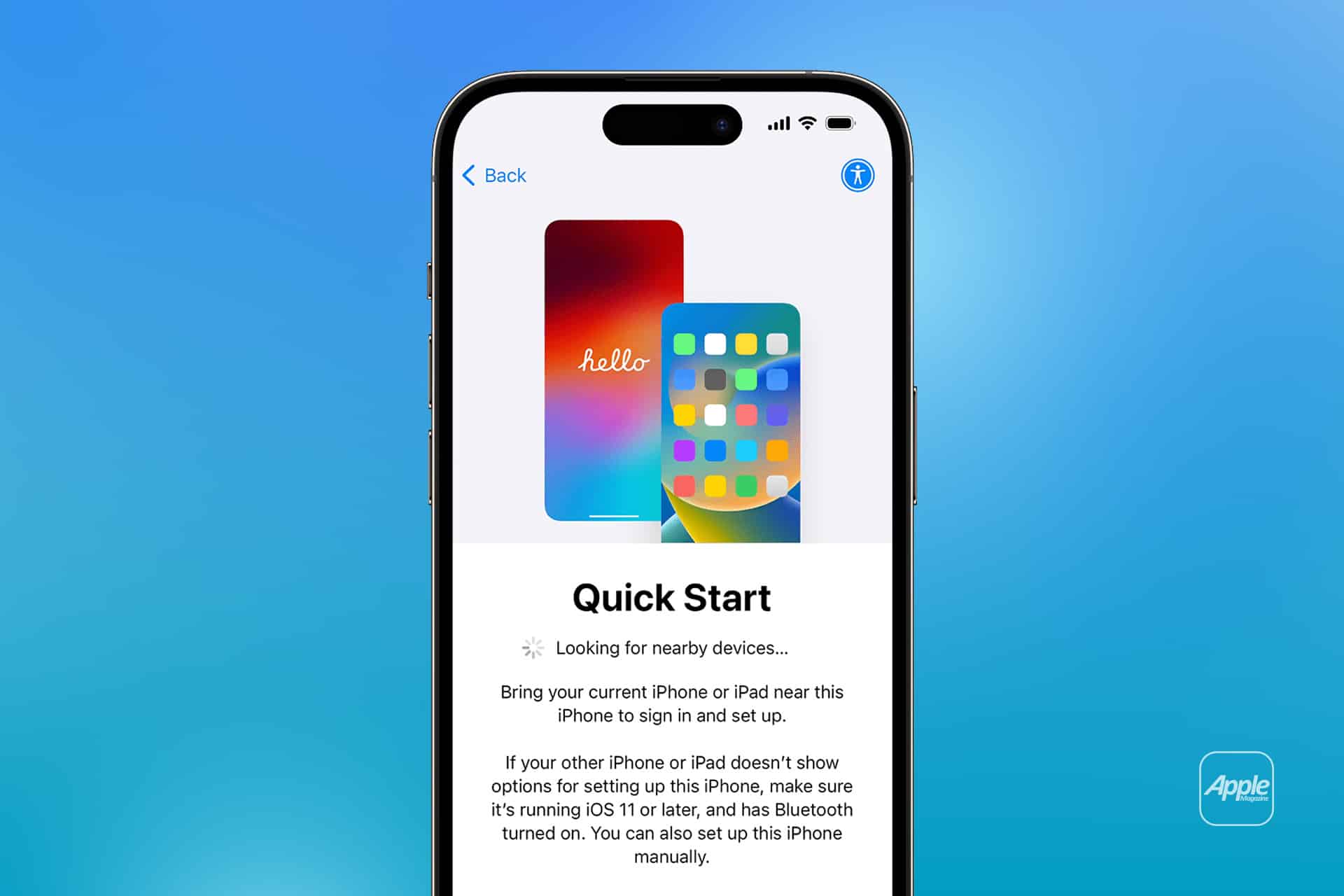
Place New iPhone Near Old iPhone > Follow On-Screen Instructions
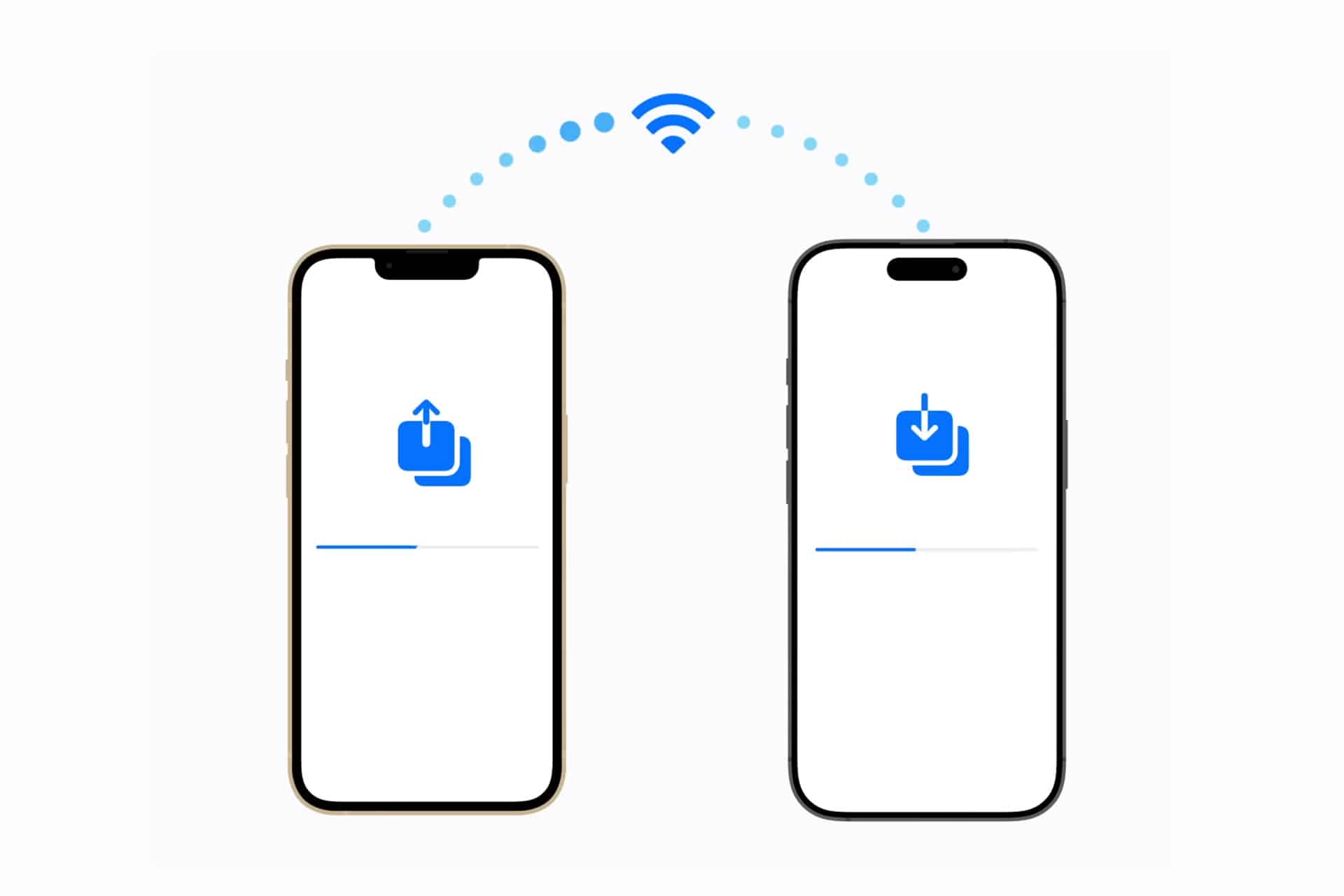
When both devices run recent versions of iOS and Bluetooth is enabled, a setup animation appears on the new device. After authentication, users can choose direct device-to-device transfer.
This method moves data wirelessly between phones. It preserves:
- App layouts
- Messages
- Photos and videos
- Settings
- Apple ID configuration
- Keychain passwords
Depending on data volume and Wi-Fi conditions, the process may take minutes or over an hour. During this time, both devices should remain near each other and connected to power.
The benefit is continuity. The new iPhone mirrors the old one almost exactly.
iCloud Backup and Restore
Another widely used method relies on iCloud.
Old iPhone:
Settings > [Your Name] > iCloud > iCloud Backup > Back Up Now
New iPhone:
> Restore from iCloud Backup During Setup
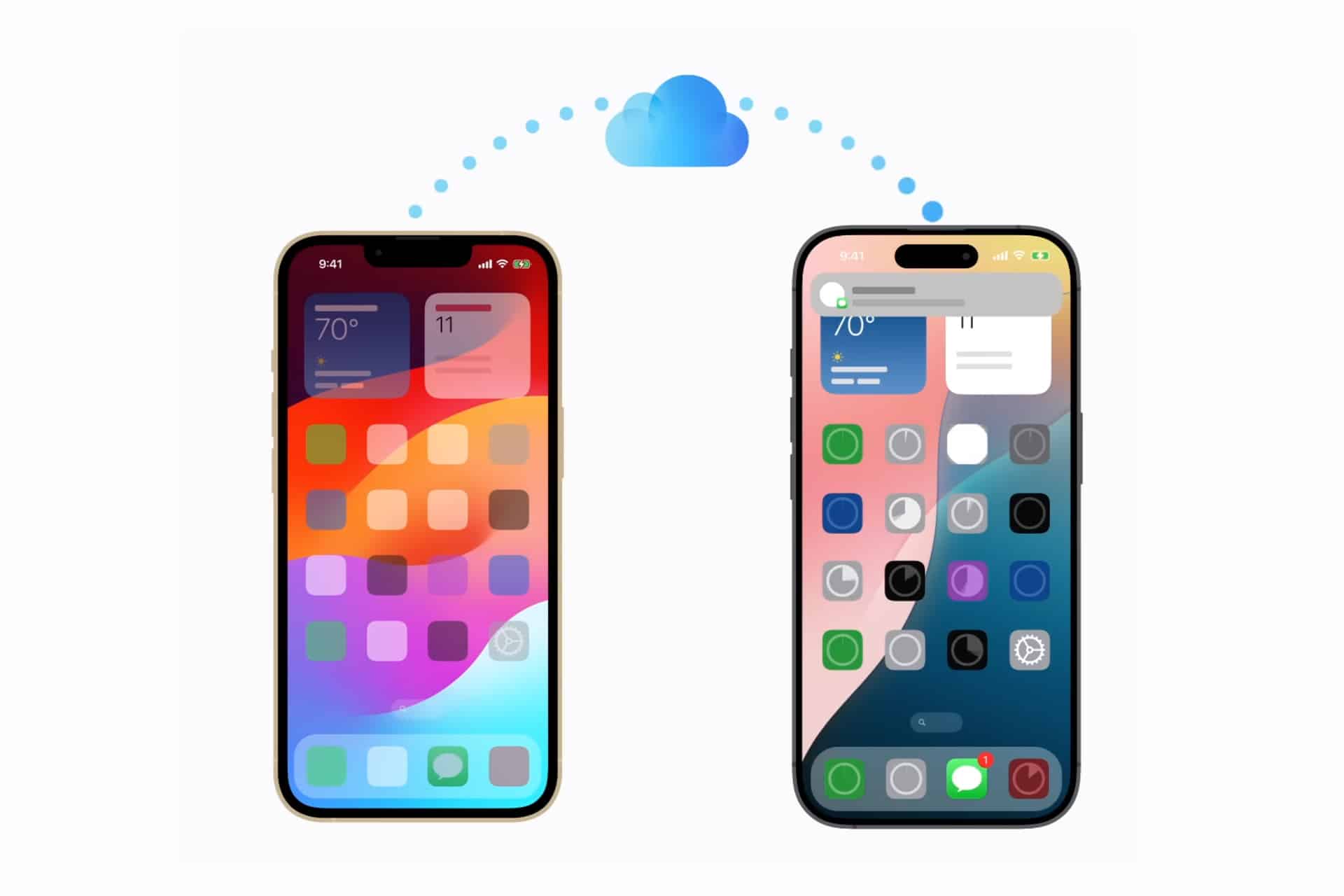
This approach uploads device data to Apple’s servers, then downloads it onto the new device during setup.
It is useful when:
- The old device is unavailable
- Devices are not physically near each other
- You prefer a cloud-based copy
However, restoration speed depends on internet connection quality. Large photo libraries can extend download times significantly.

Direct Wired Transfer
In environments with limited wireless stability, wired transfer can be faster.
Using a cable connection between devices during setup can accelerate the process, particularly for large data sets.
This method reduces reliance on Wi-Fi bandwidth and can shorten total migration time.
Managing Expectations During Transfer
Not all content behaves identically.
Apps themselves transfer quickly, but app data may restore in stages. Some apps re-download content from their own servers after installation. Cloud-stored items may appear gradually.
Health data, messages, and settings typically transfer fully if both devices use the same Apple ID and encryption settings.
Large photo libraries often require patience.
Preparing Before You Transfer
Before starting iPhone Data Transfer, preparation improves results.
- Update Both Devices to Latest iOS Version
- Ensure Apple ID Password Is Known
- Enable Wi-Fi and Bluetooth
- Connect to Power
These steps reduce interruption risk. If storage on the new device is smaller than the old one, reviewing unused apps or media beforehand avoids capacity issues.
Trade-In and Data Erase
Once migration is complete and verified, the old iPhone can be erased.
Settings > General > Transfer or Reset iPhone > Erase All Content and Settings
Only do this after confirming that the new device contains everything needed.
Apple’s trade-in programs often coincide with new releases, making proper data removal important for privacy.
Why Migration Feels Simpler Now
Years ago, transferring data required computers, manual syncing, and separate backups. Today, iPhone Data Transfer integrates directly into the setup experience.
The goal is continuity. When users turn on a new device, they expect familiarity — same wallpaper, same apps, same arrangement.
That expectation has shaped Apple’s migration tools.
As each new device cycle begins, millions of transfers take place quietly in homes, stores, and offices. What once required cables and software now happens with proximity and authentication, preserving the digital footprint users carry from one generation of iPhone to the next.