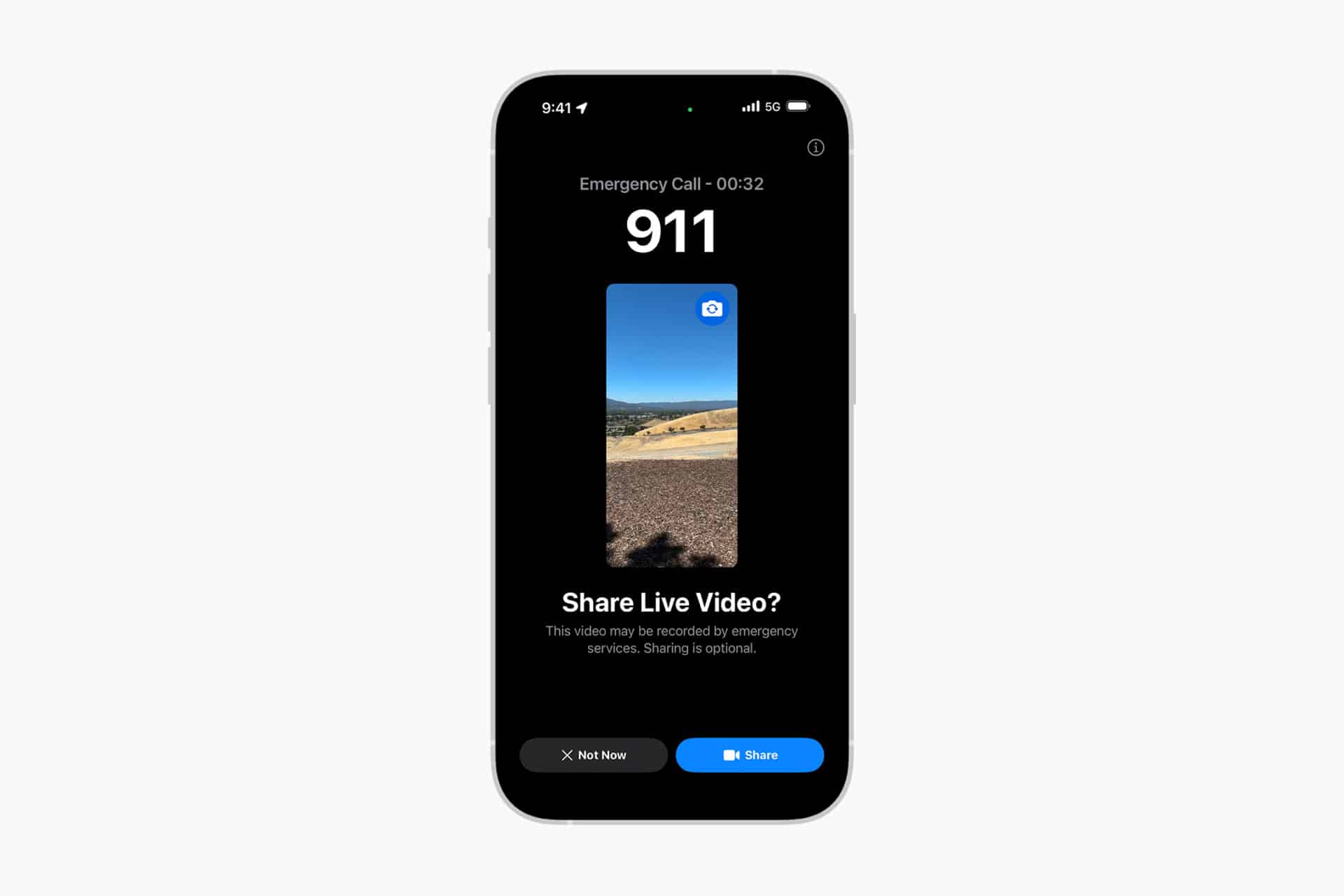
iPhone Emergency SOS exists for situations most people hope they will never face. It is not a feature designed for daily interaction or convenience. It is engineered for moments when disorientation, shock, or physical limitation may prevent someone from navigating menus or unlocking a device. In those seconds, the difference between searching for help and activating it instantly can be critical.
Over the years, Apple has transformed iPhone Emergency SOS from a simple shortcut into a layered safety system. What began as a faster way to dial emergency services has evolved into a combination of hardware-triggered calls, automatic crash detection, medical information access, live location sharing, and satellite communication in areas without cellular coverage. Each component addresses a different failure point — lack of signal, loss of consciousness, inability to unlock the phone, or absence of network infrastructure.
The system is intentionally built into the operating system rather than treated as an optional app. That integration allows the iPhone to monitor motion patterns in the background, respond when sensors detect severe impact, and escalate automatically if the user cannot interact with the screen. At the same time, manual activation gestures remain available for scenarios where immediate intervention is necessary but the device remains functional.
Understanding how iPhone Emergency SOS operates before it is needed changes the experience entirely. Configuration takes only minutes, but that preparation determines whether trusted contacts are notified, whether medical details are accessible to first responders, and whether the device can communicate from a remote location beyond cellular coverage.


Setting Up Emergency SOS
To configure iPhone Emergency SOS:
Settings > Emergency SOS
Here you can enable:
- Call with Hold and Release
- Call with 5 Presses
- Call Quietly (optional, depending on region)
Call with Hold and Release allows users to press and hold the side button with a volume button to initiate a countdown and automatic call. Call with 5 Presses triggers an emergency call after rapidly pressing the side button five times.
The device plays a countdown alarm by default, though this can be adjusted in settings.
Adding Emergency Contacts
Emergency contacts are notified automatically when an SOS call is placed.
To set emergency contacts:
Settings > Health > Medical ID > Edit > Add Emergency Contact
These contacts receive a message with your location after the call ends. If location changes, updates continue for a period of time.
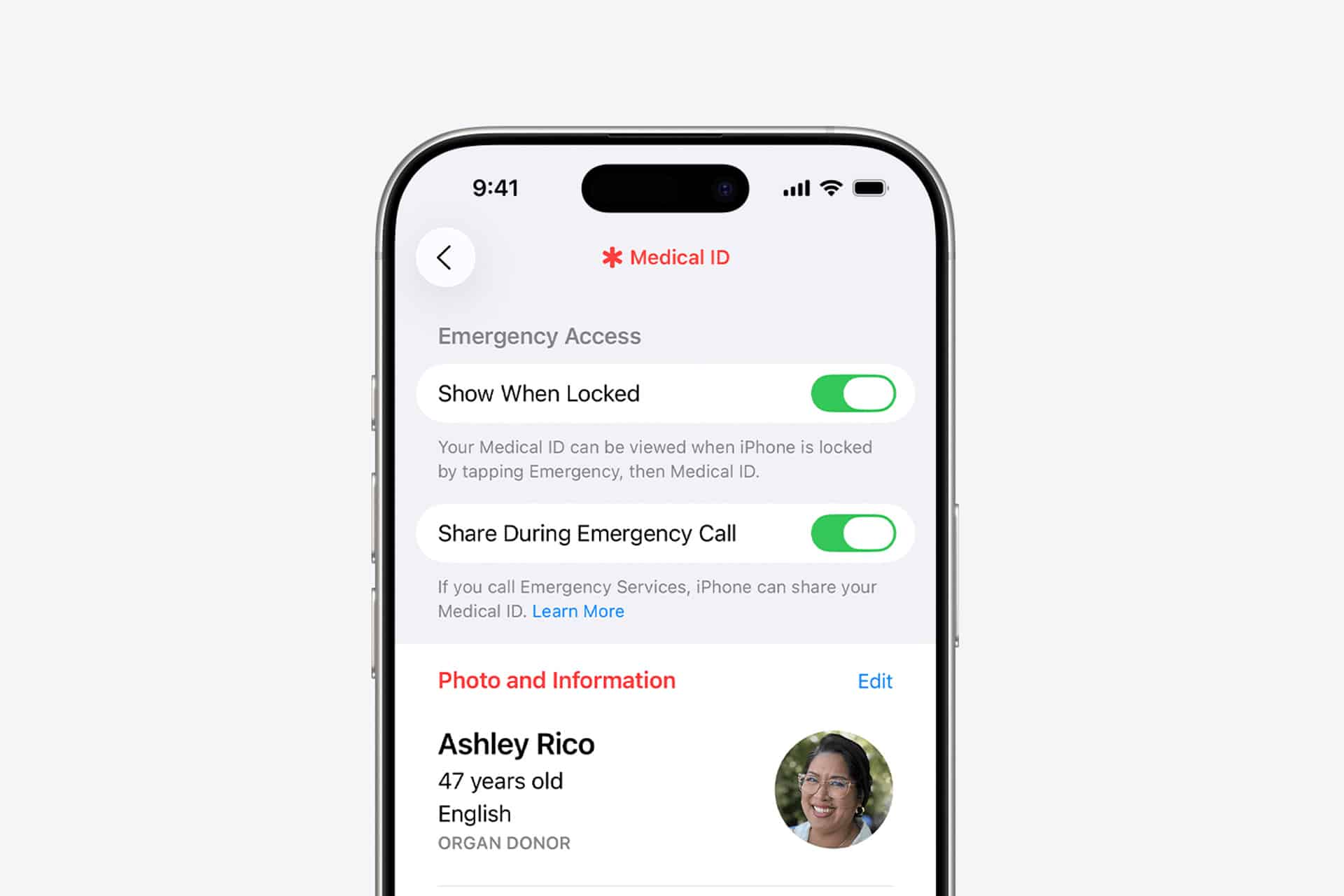
Medical ID information, including allergies or conditions, can also be accessed from the Lock Screen by first responders.
Crash Detection
Crash detection operates automatically on supported iPhone models. It monitors sudden deceleration patterns, extreme pressure changes, and impact signals associated with severe car accidents.
If a crash is detected and the user does not respond to the on-screen alert, the iPhone automatically contacts emergency services and shares location data.
No manual activation is required once the feature is supported by the device and region.
However, it can be reviewed here:
Settings > Emergency SOS > Call After Severe Crash
Satellite Emergency Messaging
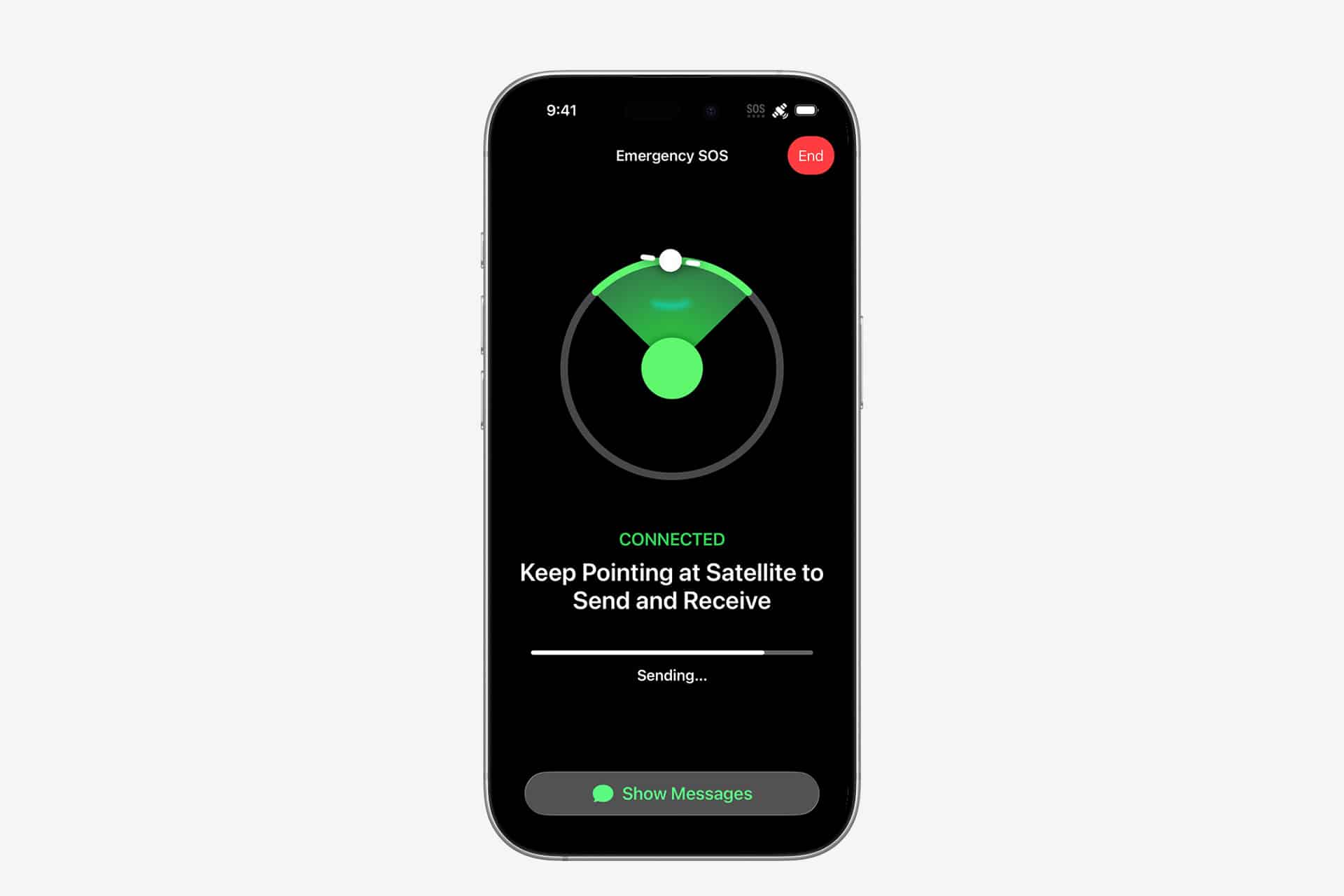
In regions where available, iPhone Emergency SOS supports satellite communication when cellular and Wi-Fi networks are unavailable.
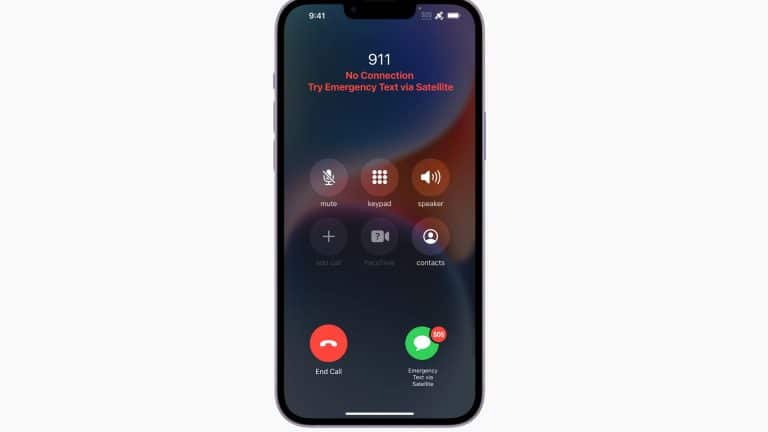
When attempting an emergency call without signal, the device prompts users to connect to a satellite:
Emergency Call Screen > Try Emergency Text via Satellite
The interface guides users to align the phone toward the satellite. A short questionnaire helps transmit essential information efficiently.
This feature is designed for remote environments such as hiking areas, mountains, or rural roads.
Location Sharing and Follow-Up
After an emergency call, iPhone Emergency SOS shares your location with designated contacts. If you continue moving, updates are transmitted for a limited duration.
This automatic follow-up allows trusted contacts to track your position without requiring additional manual steps.
Roadside Assistance via Satellite
In certain regions, iPhone also supports satellite roadside assistance requests when off-network. The process is similar to emergency satellite messaging but routes through service providers rather than public emergency lines.
Availability depends on country and service partnerships.
Testing and Awareness
Users can familiarize themselves with iPhone Emergency SOS settings without placing an actual call by reviewing configuration menus. It is important not to test live calls unless required, as emergency lines should remain available for real incidents.
Understanding activation gestures in advance reduces hesitation during real emergencies.
iPhone Emergency SOS integrates rapid emergency calling, automatic crash detection, satellite communication, and trusted contact notifications into a unified safety system. By configuring contacts, enabling crash detection, and understanding satellite support options, users ensure the device is prepared before it is ever needed.