

iPhone file protection is one of the strongest parts of iOS security because it works below the surface of daily use. Most people think of an iPhone as locked or unlocked. The real system is more precise. iOS does not treat every file the same way. It can protect individual files differently depending on what kind of data they contain, which app created them, whether the device has been unlocked since restart, and whether the screen is currently locked.
Apple calls this system Data Protection. It combines hardware encryption, the user’s passcode, Secure Enclave, and file-level protection classes to decide when stored data can be accessed. That means the lock screen is not only a visual barrier. It changes which encryption keys are available inside the device. Some files can remain accessible after the first unlock so the system can keep working normally. Other files become unavailable again as soon as the iPhone locks.
This is why the iPhone can still receive calls, show notifications, download certain messages, or perform background tasks while locked without exposing every piece of private data at the same level. Apple’s security model is built to balance usability and protection. A phone that became completely frozen whenever locked would be frustrating. A phone that left everything accessible while locked would be unsafe. iPhone file protection sits between those extremes.


How iOS Protects Files by Lock State
The key idea behind iPhone file protection is that each file can be assigned a protection class. Apple’s Platform Security documentation explains that when a new file is created on devices that support Data Protection, the app creating the file assigns it to a class. Each class has its own rules for when the file’s data can be accessed.
The strongest common class is complete protection. Files in this class are accessible only while the device is unlocked. When the iPhone locks, the keys needed to read those files are discarded from accessible memory after a short period. If someone gets physical access to the locked phone, those files remain encrypted and unavailable without unlocking the device.
Another class allows files to be opened while unlocked and remain accessible until they are closed, even if the phone locks afterward. This is useful for tasks that begin while the user is active and need to finish safely after the screen turns off. There is also a class that makes files inaccessible until the first unlock after restart, then keeps them available while the device remains powered on. This supports background services that need to function after the user has authenticated once.
That layered design matters because apps store very different kinds of data. A secure note, health record, financial file, or private document may need stronger protection than cached artwork or app support files. iOS gives developers a way to assign protection based on sensitivity and function.
Secure Enclave and the Passcode Connection
The passcode is far more than an unlock shortcut. It helps protect the encryption keys used for Data Protection. Apple’s security architecture uses hardware-backed encryption and key hierarchy, with Secure Enclave playing a central role on supported devices. Secure Enclave helps manage key material and evaluates the lock state of the device.
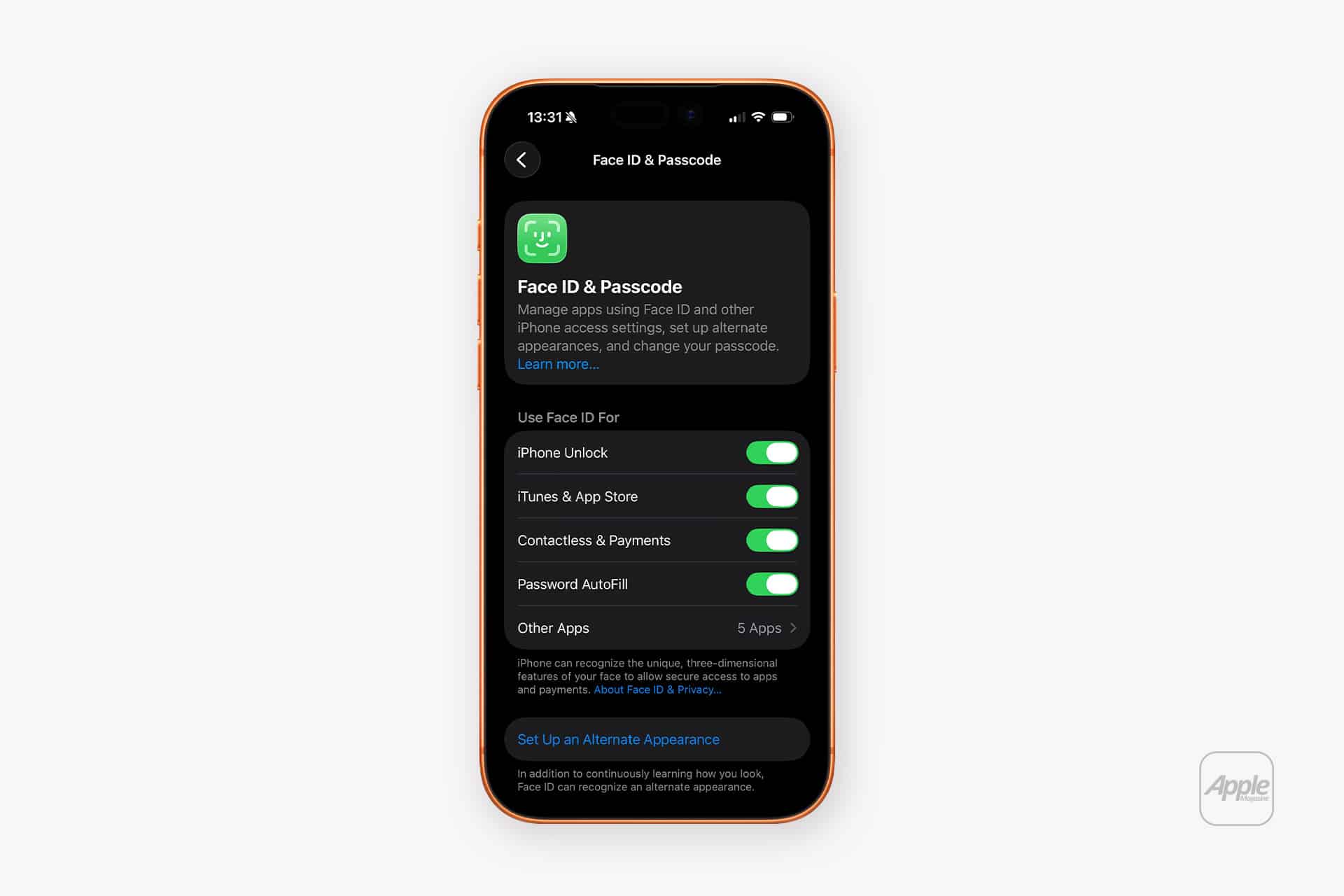
This is one reason a strong passcode matters. Face ID and Touch ID are convenient ways to unlock, but the passcode remains foundational. After restart, iPhone requires the passcode before biometric unlocking becomes available. That first unlock releases access to certain protection classes and allows the phone to resume normal secure operation.
To strengthen the iPhone passcode:
Settings > Face ID & Passcode > Change Passcode > Passcode Options > Custom Alphanumeric Code
A longer alphanumeric passcode improves resistance against guessing compared with a short numeric code. For most users, this is one of the simplest ways to make iPhone file protection stronger, because Data Protection is tied to the passcode that helps protect the device’s keys.
Apple also limits access through lock-state behavior. If the iPhone is restarted and has not yet been unlocked, many forms of data remain more restricted. Security researchers often describe this as the “before first unlock” state. After the user enters the passcode once, the device enters a different state where more services can operate while still enforcing file protection boundaries.
Why Individual File Protection Matters
Full-disk encryption is important, but iPhone file protection goes further by applying different access rules to different files. That is a major advantage for a mobile device. Phones need to keep working while locked, but not every file should be available during that state.
For example, an app may need to receive a background update, but it should not necessarily expose sensitive stored documents while the phone is locked. A messaging app may need to process incoming content, but older private attachments can remain under stronger protection. A health or finance app may choose stricter data classes so sensitive information is available only after unlock.
This makes iOS security more adaptive. The system does not rely on one simple “encrypted or not encrypted” state. It uses a hierarchy. Hardware encryption protects storage. The passcode protects key access. Data Protection classes govern file availability. Secure Enclave helps enforce the trust boundary.
The result is a device that can remain useful and responsive without treating all data as equally accessible. That is especially important when an iPhone is lost, stolen, or temporarily outside the user’s control.
App Developers Shape Part of the Protection
A key detail is that apps assign protection classes when files are created. Apple provides the security architecture, but app developers decide how to classify their own files within that system. Well-built apps use stronger classes for sensitive material and more flexible classes only where background access is necessary.
That means iPhone file protection depends partly on developer choices. Apple’s own apps and system services are designed around its security model, but third-party apps may vary. This is one reason App Store review, developer guidelines, and platform security APIs matter. Apple gives developers the tools to protect app data properly, and the best apps use those tools carefully.
For users, there is usually no direct setting to choose file protection classes app by app. The strongest practical controls are keeping iOS updated, using a strong passcode, avoiding unknown configuration profiles, limiting unnecessary app access, and choosing trustworthy apps for sensitive data.
To check for configuration profiles:
Settings > General > VPN & Device Management
To review app privacy permissions:
Settings > Privacy & Security
These settings do not change file protection classes directly, but they help reduce unnecessary exposure around the data apps can collect and manage.

iCloud, Backups, and the Wider Security Layer
Local iPhone file protection applies to data stored on the device. iCloud and backups add another layer to understand. Apple says iCloud secures information by encrypting it in transit and storing it in encrypted form. Some categories use end-to-end encryption by default, while Advanced Data Protection expands end-to-end encryption to more iCloud data categories where available.
This matters because protecting a file on the iPhone is not the entire story if that data also syncs to iCloud or appears in a backup. Advanced Data Protection can strengthen iCloud security by making more categories end-to-end encrypted, meaning the data can be decrypted only by trusted devices, not by Apple.
To review Advanced Data Protection:
Settings > Apple Account > iCloud > Advanced Data Protection
To manage iCloud Backup:
Settings > Apple Account > iCloud > iCloud Backup
A strong local passcode, updated iOS software, encrypted backups, and Advanced Data Protection where available create a stronger overall setup. Each layer supports the others. The device protects files locally. iCloud protects synced data. The Apple Account protects access across devices.
Simple Habits That Strengthen iPhone File Protection
The strongest iPhone file protection setup begins with basics that are easy to ignore. Use a longer passcode. Keep iOS updated. Leave Face ID or Touch ID enabled for convenience, but remember that the passcode remains the deeper security layer. Avoid sharing the passcode casually. Be careful with apps that handle sensitive files. Review privacy settings occasionally.
It also helps to understand that locking the iPhone is not symbolic. When the device locks, iOS changes which file keys remain accessible. That is the point of Data Protection classes. A locked iPhone is not just hiding the Home Screen. It is enforcing a different access state for protected data.
For sensitive work, restart behavior matters too. After a restart, before the first passcode unlock, the device is in a more restricted state. That is one reason iPhone asks for the passcode after reboot before allowing Face ID or Touch ID. The system needs that authentication to unwrap certain keys and restore normal access.
iPhone file protection is one of Apple’s most important privacy foundations because it treats personal data as layered, not generic. Photos, messages, app files, notes, health information, business documents, and cached data do not all need the same access rules at the same time. iOS is built to recognize that difference, applying encryption in a way that follows the device’s lock state and keeps sensitive files harder to reach when the phone is not actively unlocked.