


Helping a child use an iPhone safely starts with understanding how Apple designed its parental tools to work together. Apple does not treat kids’ safety as a single switch, but as a layered system that combines Screen Time, communication controls, location sharing, and privacy protections. When configured correctly, an iPhone can be both empowering and secure for children of different ages.
This guide walks through how to set up an iPhone for kids and how to keep those protections effective over time.
Start With a Child Apple ID and Family Sharing
The foundation of a safe iPhone setup for kids is Family Sharing. This allows parents to manage settings remotely while the child uses their own Apple ID. Each child account is linked to the family organizer, making it possible to approve downloads, track location, and adjust limits without touching the child’s device.
Family Sharing also ensures purchases, subscriptions, and content approvals remain under parental control while still giving kids a sense of ownership over their device.
Settings > Family Sharing > Add Family Member > Create an account for a child
Once this is set, all safety features become easier to manage and adjust as the child grows.
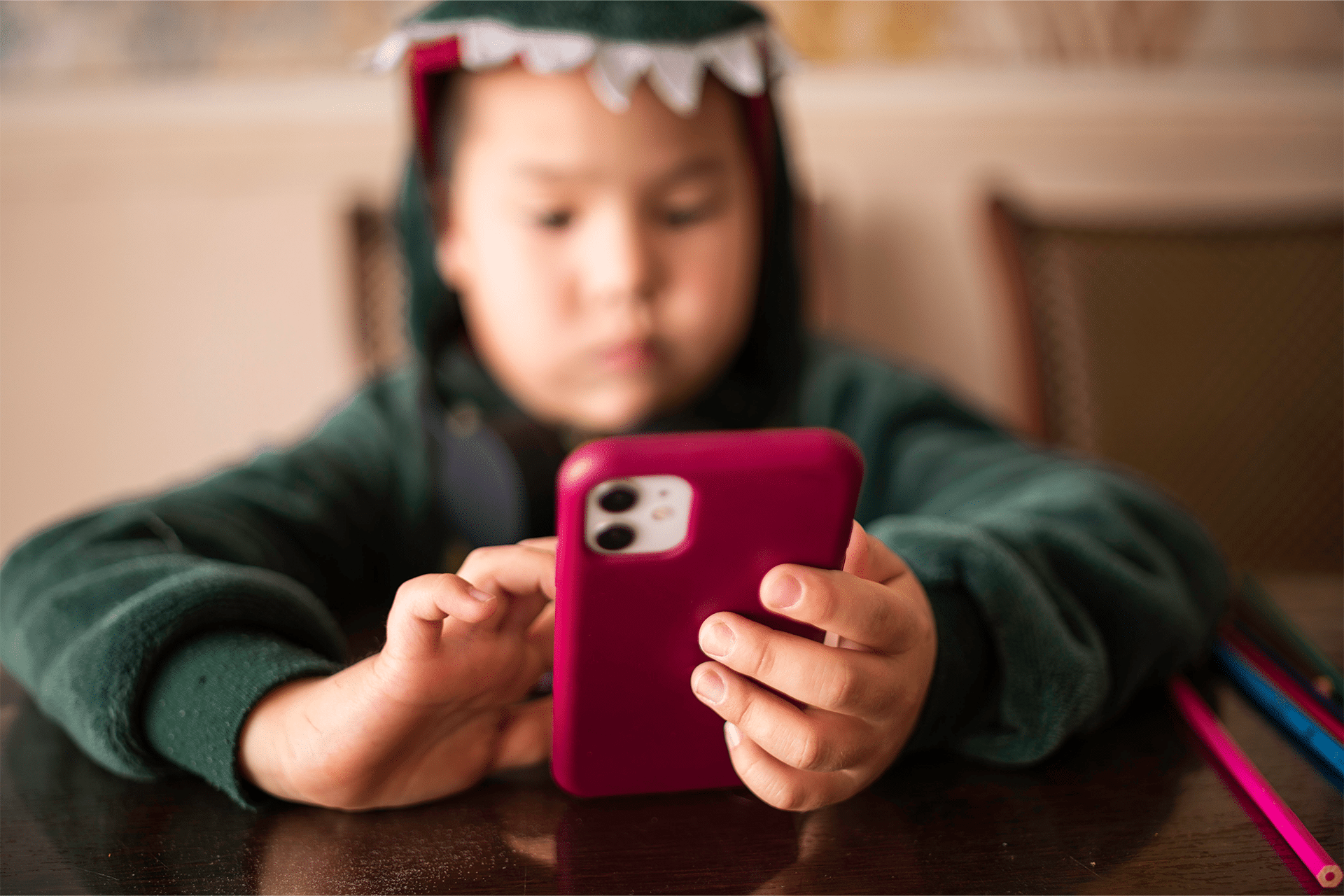
Use Screen Time as the Core Safety Tool
Screen Time is the most important control system on an iPhone for kids. It governs app usage, content access, and device downtime.
Parents can limit how long certain apps are used each day, restrict access during bedtime hours, and block entire app categories when needed. Screen Time also provides weekly reports, helping parents understand usage patterns rather than guessing.
Settings > Screen Time > Turn On Screen Time > This is My Child’s iPhone
Key areas to configure include app limits, downtime schedules, and always-allowed apps for emergencies or school communication.
Set Clear Communication Limits
Apple allows parents to define who children can communicate with, both during allowed screen time and during downtime. This applies to phone calls, FaceTime, and Messages.
This feature is especially useful for younger kids, ensuring they can only contact approved family members or trusted contacts while still keeping emergency access available.
Settings > Screen Time > Communication Limits
You can adjust these settings over time as your child’s independence grows, without removing protections entirely.
Control App Downloads and In-App Purchases
Kids explore through apps, but not every app is appropriate. Apple’s content restrictions let parents block apps based on age ratings and prevent unauthorized downloads or in-app purchases.
Ask to Buy is a particularly effective feature, requiring parental approval before new apps or purchases are completed.
Settings > Screen Time > Content & Privacy Restrictions > iTunes & App Store Purchases
This helps avoid accidental spending while keeping parents involved in what kids are installing.

Keep Location and Find My Enabled
Location sharing is not about constant surveillance; it’s about safety and reassurance. Apple’s Find My app allows parents to see where their child’s device is, receive alerts when they arrive or leave certain places, and help locate a lost iPhone.
Find My also enables Lost Mode, which can lock the device remotely if it goes missing.
Settings > Privacy & Security > Location Services > Find My
This feature is most effective when explained clearly to kids as a safety measure rather than a punishment tool.
Protect Privacy and Personal Data
Children often do not understand how apps collect data. Apple’s privacy settings allow parents to limit access to location, contacts, photos, microphones, and cameras.
It’s a good practice to review app permissions together with your child, helping them understand why some apps don’t need access to everything.
Settings > Privacy & Security > App Privacy Report
This not only protects data but also teaches digital responsibility early.
Prepare for Emergencies and Travel
Set up Emergency Contacts and Medical ID so the iPhone can be helpful even when locked. Adding parents or guardians as favorites ensures quick access during stressful moments.
Wallet features like boarding passes or school IDs can be useful for older kids, but should be reviewed together to avoid misuse.
Settings > Health > Medical ID
Settings > Phone > Favorites
Revisit and Adjust Over Time
No setup should be permanent. As children grow, their needs change. Apple designed these tools to be adjusted gradually rather than removed entirely.
Review Screen Time reports weekly, revisit app permissions monthly, and talk openly about digital habits. The iPhone works best as a shared responsibility between parent and child.

