Modern smartphones store an enormous portion of daily life, from personal memories to sensitive documents captured quickly with the camera. Apple gradually expanded privacy protections inside the Photos app, and the iPhone Hidden Album Lock is one of the most important features introduced in recent iOS updates. By combining album visibility controls with biometric authentication, the system ensures that private photos remain accessible only to the device owner.
The Hidden album was originally designed as a simple way to remove selected images from the main library grid. Over time, Apple strengthened the feature by allowing users to completely hide the album from the Photos interface and secure access with Face ID or Touch ID. This two-layer approach transforms the Hidden album into a protected space rather than just an organizational tool.

How Hidden Album Lock Works
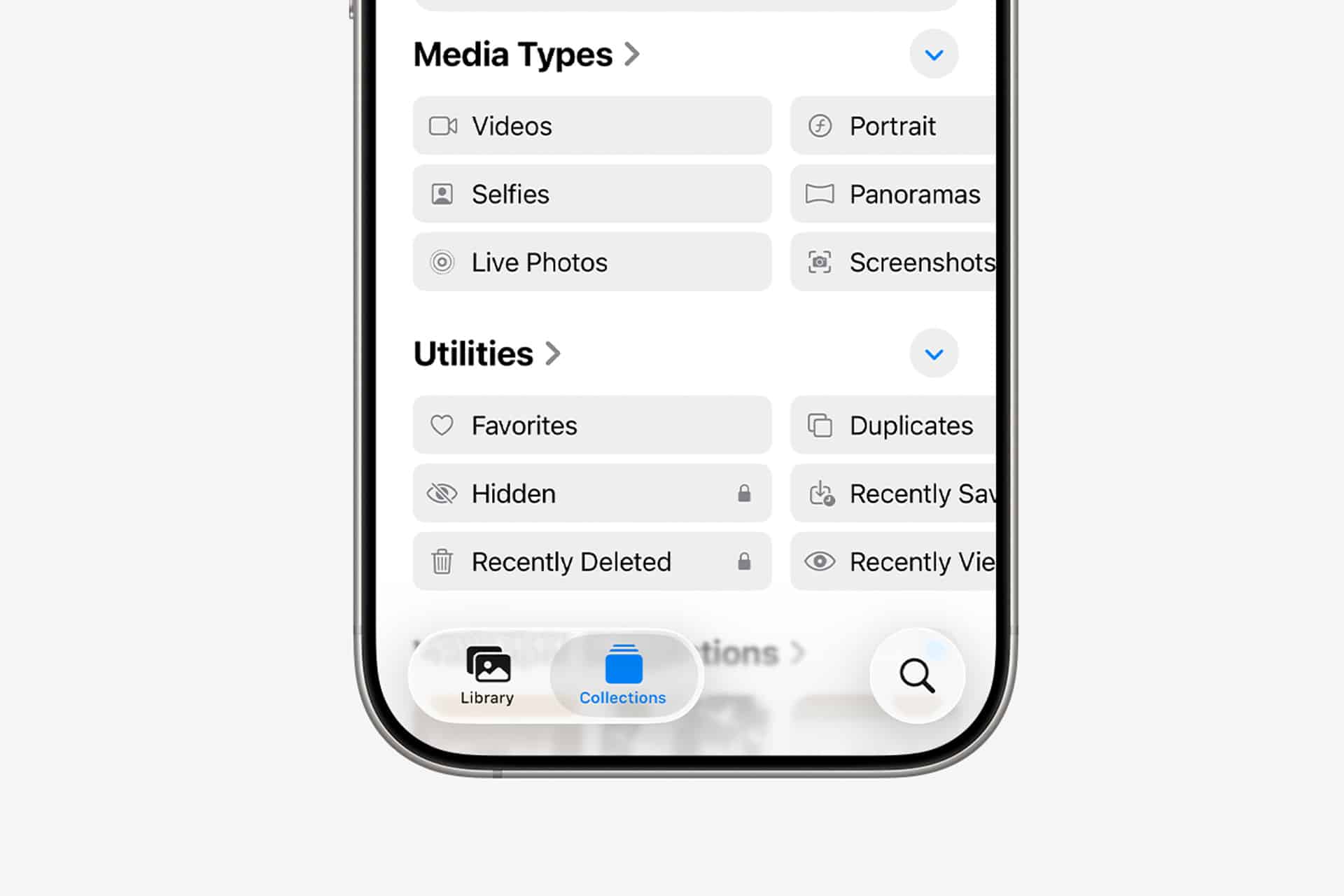
When Face ID protection is enabled, any attempt to open the Hidden album requires biometric verification. Even if someone navigates through the Photos interface, the album contents remain blurred until authentication succeeds. This behavior applies across the Photos app, widgets, and search previews, ensuring that hidden media cannot be casually viewed from notifications or system suggestions.
Another important layer of privacy comes from album visibility control. Users can remove the Hidden album from the Photos interface entirely, making it invisible unless the setting is manually re-enabled. This prevents casual browsing from revealing that a private album even exists.
How to Enable Hidden Album Lock
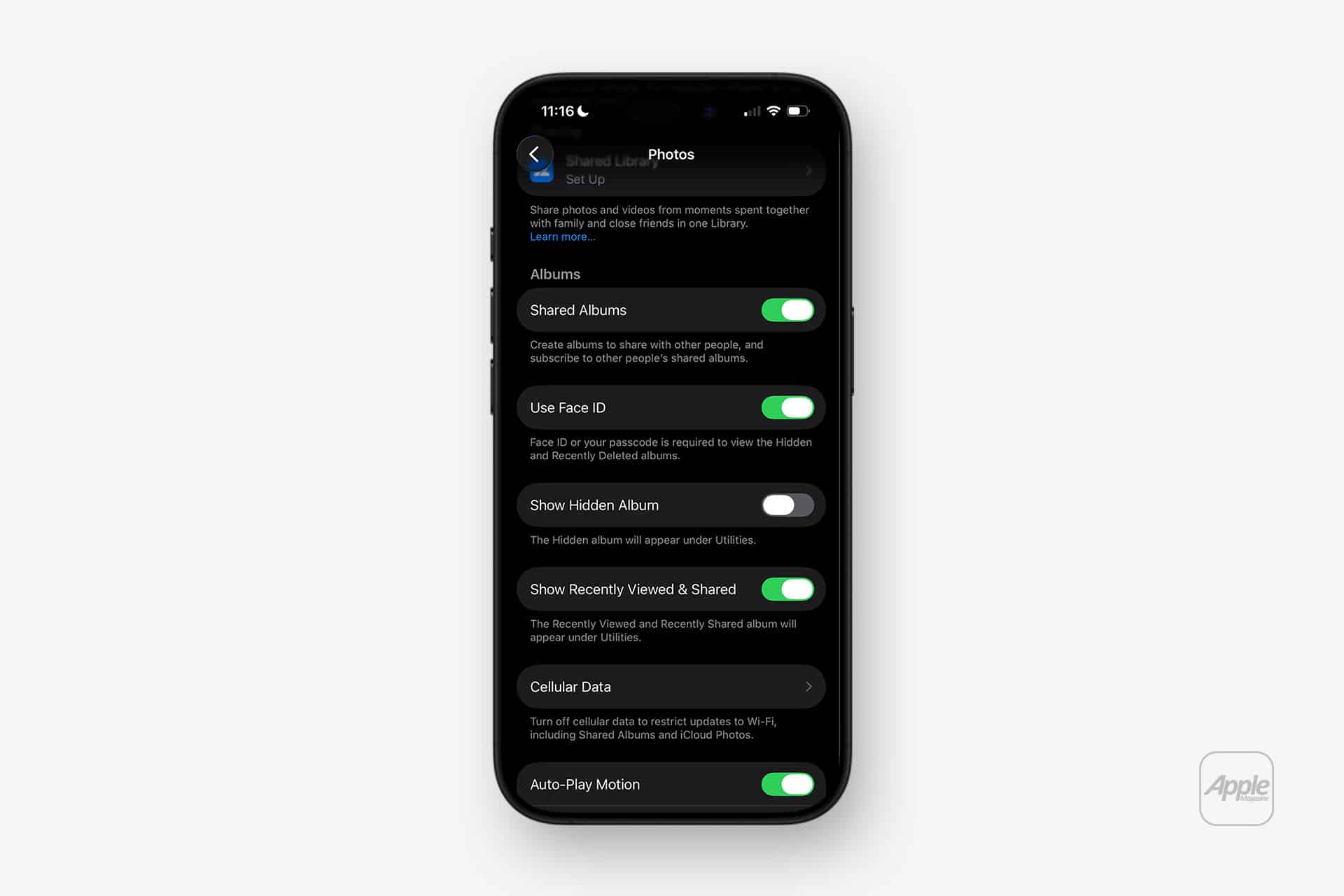
To activate biometric protection and manage album visibility:
Settings > Photos > Use Face ID (or Touch ID) for Hidden Album > Turn On
Settings > Photos > Show Hidden Album > Turn Off (optional if you want the album fully invisible)
Once these options are configured, the Hidden album becomes both protected and optionally concealed from the Albums list. When the album is hidden, it only appears again after the visibility setting is manually restored.
Managing Photos Inside the Hidden Album
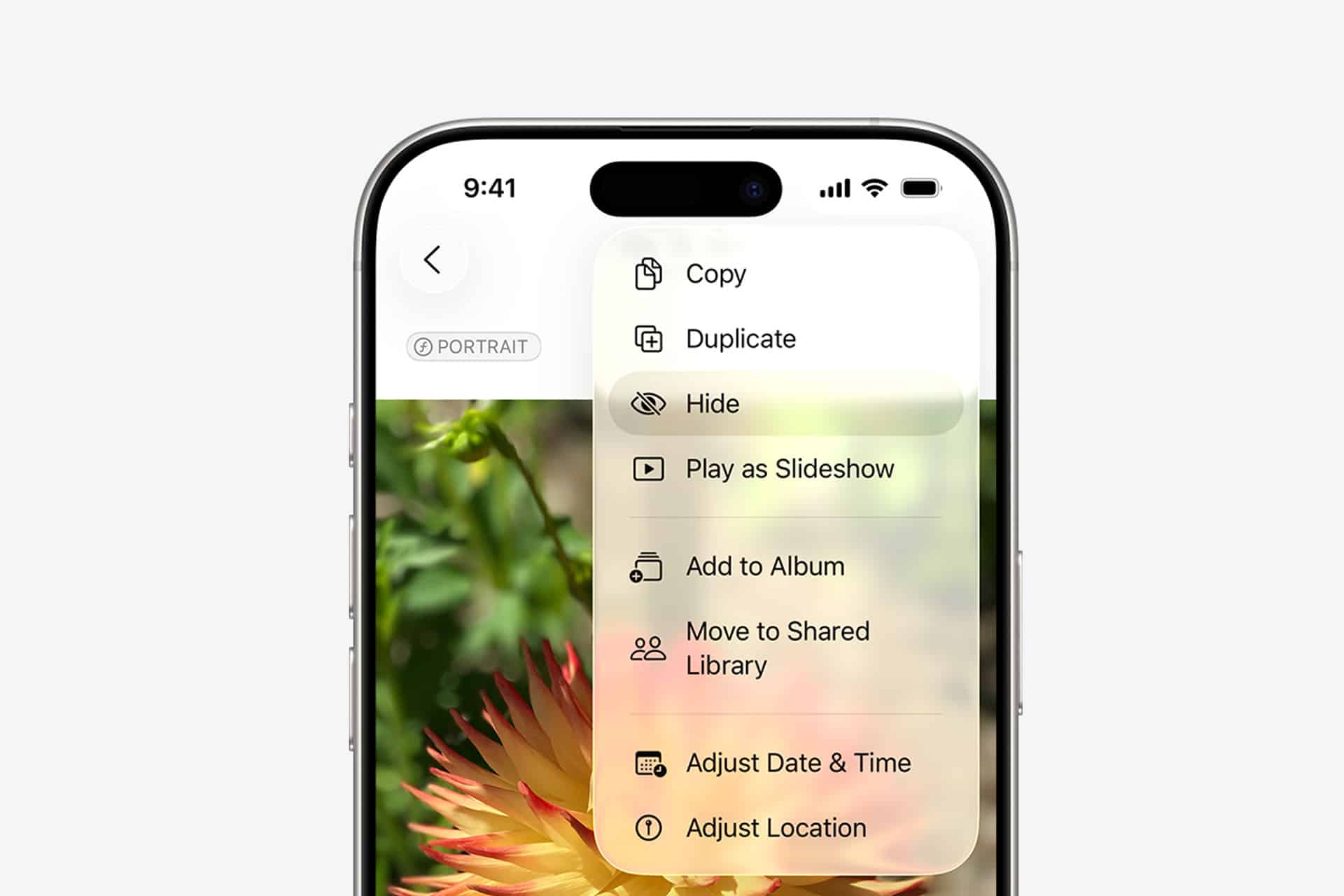
Moving images to the Hidden album is handled directly within the Photos interface. Selecting one or multiple images and choosing the Hide option transfers them immediately into the protected album. From that moment forward, the images disappear from the main library grid, search results, Memories suggestions, and widgets.
Photos stored in the Hidden album remain encrypted within the device’s secure storage system, benefiting from the same on-device encryption protections used for the broader photo library. Because authentication is required before access is granted, accidental exposure becomes significantly less likely, particularly when the device is shared among family members or temporarily handled by others.
Controlling Access Across Devices
If iCloud Photos is enabled, hidden photos sync across Apple devices connected to the same Apple ID. The Hidden Album Lock applies independently on each device, meaning Face ID or Touch ID authentication is required locally even when the photos originate from another synced device. This ensures consistent privacy protection across iPhone, iPad, and Mac environments.
Users who want maximum separation can also disable iCloud Photos for certain devices, keeping sensitive images available only on a single device while maintaining hidden-album protection locally. This approach is particularly useful for documents, identification photos, or confidential work materials that should not appear across multiple screens.
When to Use the Hidden Album
The Hidden album is frequently used for storing identification cards, financial documents, screenshots containing passwords, private personal photos, and travel documents captured quickly for convenience. Because the album integrates directly with the Photos system rather than requiring third-party vault apps, access remains seamless while maintaining strong security controls.
Another useful scenario involves organizing professional workflows. Designers, photographers, or journalists often capture reference material that should remain separate from the main photo stream. Placing these files inside the Hidden album prevents them from appearing in automatic slideshows, shared albums, or suggestion feeds.
Strengthening Everyday Photo Privacy
Combining biometric authentication, album invisibility, and encrypted storage creates a layered protection system that operates quietly in the background. Once configured, the iPhone Hidden Album Lock functions automatically, requiring no additional maintenance beyond normal photo management habits. As photo libraries continue to grow with screenshots, scanned documents, and private records, this feature provides a straightforward method for maintaining control over which images remain visible and which remain securely protected within the device.