Backing up your devices is one of the most important habits you can build. A backup is a copy of your device’s data and settings that can be used to restore your information if the device is replaced, lost, stolen, or needs troubleshooting. Apple offers two primary backup methods: iCloud backup, which stores your data securely in Apple’s cloud, and local backup, which save your information to a computer you control.
iCloud backups are automatic and work over Wi-Fi, while local backups are stored on your Mac or PC and give you a hands-on copy you keep yourself. Both methods are useful, and many people choose to use both for the highest level of protection.

Backing Up iPhone and iPad with iCloud
iCloud backup lets you save your iPhone or iPad data without connecting to a computer. When enabled and connected to Wi-Fi, your device backs up daily while charging and locked.
Settings > [your name] > iCloud > iCloud Backup > Turn on iCloud Backup > Tap Back Up Now
After enabling iCloud Backup, your device will automatically back up important data such as your photos, messages, app data, device settings, and home screen layout. The first backup can take several minutes or longer if you have a lot of data, but after the first time, only changes are backed up, which is faster.
Make sure you have enough iCloud storage to hold your backup. Apple provides 5 GB for free, but most users need more space. Plans start at 50 GB and go up from there, which can also help store photos, videos, and other content beyond backups.
If your device shows a message like “Not Enough iCloud Storage,” you can either choose a larger iCloud plan or remove old backups and data you no longer need.
Backing Up iPhone and iPad Locally
If you prefer to keep backups on your own computer, you can create a local backup. This is useful if you want a full copy you control or if you are managing devices for business or school.
Connect your iPhone or iPad to your Mac using a USB-C or Lightning cable.
On Mac with macOS Catalina or later:
Finder > Select your iPhone or iPad in the sidebar > General > Back up all of the data on your device to this Mac > Click Back Up Now
On a Mac with older macOS or a PC with iTunes:
Open iTunes > Select your device > Summary > Back Up Now
Local backups include nearly all data and settings. If you want to secure sensitive data like Health and Keychain information, choose Encrypt local backup before creating it and set a backup password. This encrypted backup can be restored later only with the password you set, so keep it safe.

Backups and Restores on Mac
Backing up a Mac is a bit different because Macs store many kinds of files: documents, apps, photos, media libraries, and system settings. Apple’s built-in solution for local backups is Time Machine, which saves hourly, daily, and weekly snapshots to an external drive.
Apple menu > System Settings > General > Time Machine > Choose Backup Disk > Select your external drive
Once set up, Time Machine automatically backs up your Mac in the background. You can browse previous versions of files and restore them if needed. Time Machine backups are incremental, meaning only new or changed files are copied after the first backup, saving space on your drive.
iCloud also backs up important data from your Mac, such as Desktop and Documents if you enable iCloud Drive.
Apple menu > System Settings > your Apple ID > iCloud > iCloud Drive
Turn on Desktop & Documents Folders
This means the contents of your Mac’s Desktop and Documents folders sync to iCloud and are accessible from your other Apple devices as well.

Choosing a Backup Strategy
A good backup strategy often uses both iCloud and local backups. iCloud is automatic and painless, protecting data nearly every day without thinking about it. Local backups give you a complete copy you control, which can be especially valuable if you travel often, have limited internet bandwidth, or need a full restore quickly.
For iPhone and iPad, using iCloud Backup as your primary method ensures daily protection. Creating periodic local backups adds an extra layer of safety. For Mac, enabling Time Machine with an external drive and syncing key folders with iCloud balances both local and cloud safeguards.
Restoring Your Data
If you get a new device or need to restore your current device, backups make the process smooth.
For iPhone or iPad: When setting up the device, you’ll be prompted to Restore from iCloud Backup or Restore from Mac or PC if you connect to your computer. Choose the backup you need and follow the onscreen steps.
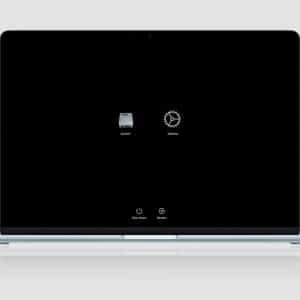
For Mac: If you need to recover from a Time Machine backup, restart your Mac and hold the Command–R keys to enter macOS Recovery, then choose Restore from Time Machine Backup. Select the drive and snapshot you want to restore.
Best Practices
- Back up regularly. Set up iCloud backups and a local backup schedule with Time Machine or to your computer.
- Check backups periodically. Make sure backups finish successfully and that you have enough storage.
- Use encryption for sensitive data. Encrypt local backups to preserve passwords, health data, and keychain data.
- Keep multiple backup sources. Combining iCloud and local backups offers maximum safety.
Following these steps protects your iPhone, iPad, and Mac data so you can upgrade, troubleshoot, or recover from accidental loss with confidence.