

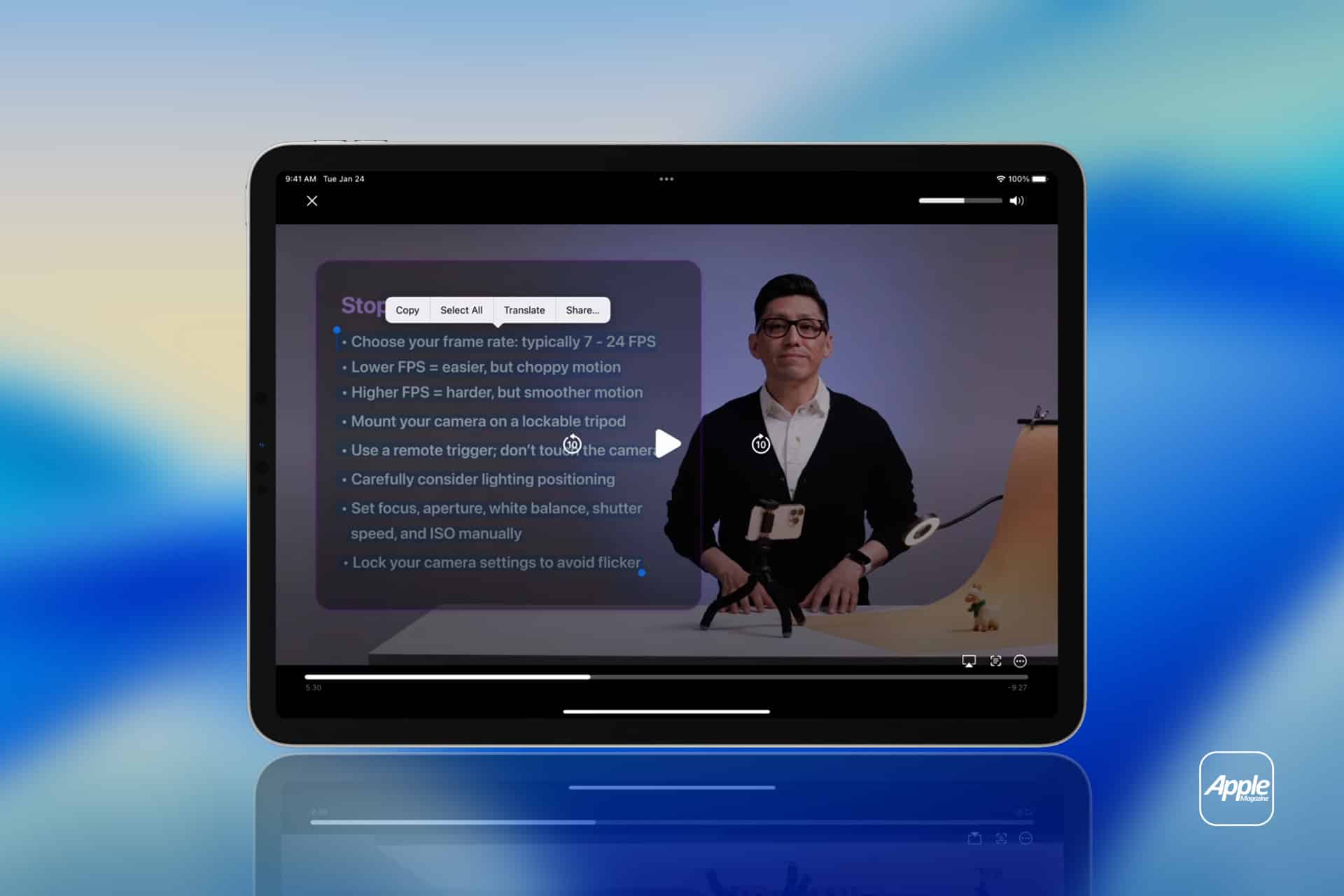
When Apple introduced Live Text, most people associated it with photos — snapping a picture of a receipt or a street sign and copying the words. What changed quietly over time is that Live Text now works inside videos as well. That shift turns video from passive media into something interactive.
Pause any recorded clip in Photos and the frame becomes searchable, selectable, and actionable.
How Live Text Works Inside Video Frames
The moment a video is paused, iPhone analyzes the still frame using on-device computer vision. The Neural Engine isolates letter shapes, reconstructs words, and layers selectable text over the image. This happens locally, without uploading the video to external servers.
To extract text:
Photos > Open Video > Pause on Frame > Tap the Live Text icon
If the system detects readable characters, they become highlightable. You can drag across the words just as you would inside Notes or Safari.
Behind the interface, multiple processes occur at once:
- Frame stabilization
- Character recognition
- Language detection
- Context classification
The recognition engine distinguishes between decorative shapes and actual characters. It compensates for lighting shifts, angled perspectives, and partial motion blur. Even when text appears briefly during a moving clip, pausing freezes enough visual data for analysis.
This capability transforms recorded content into a source of structured information.
Real-Time Translation From Video
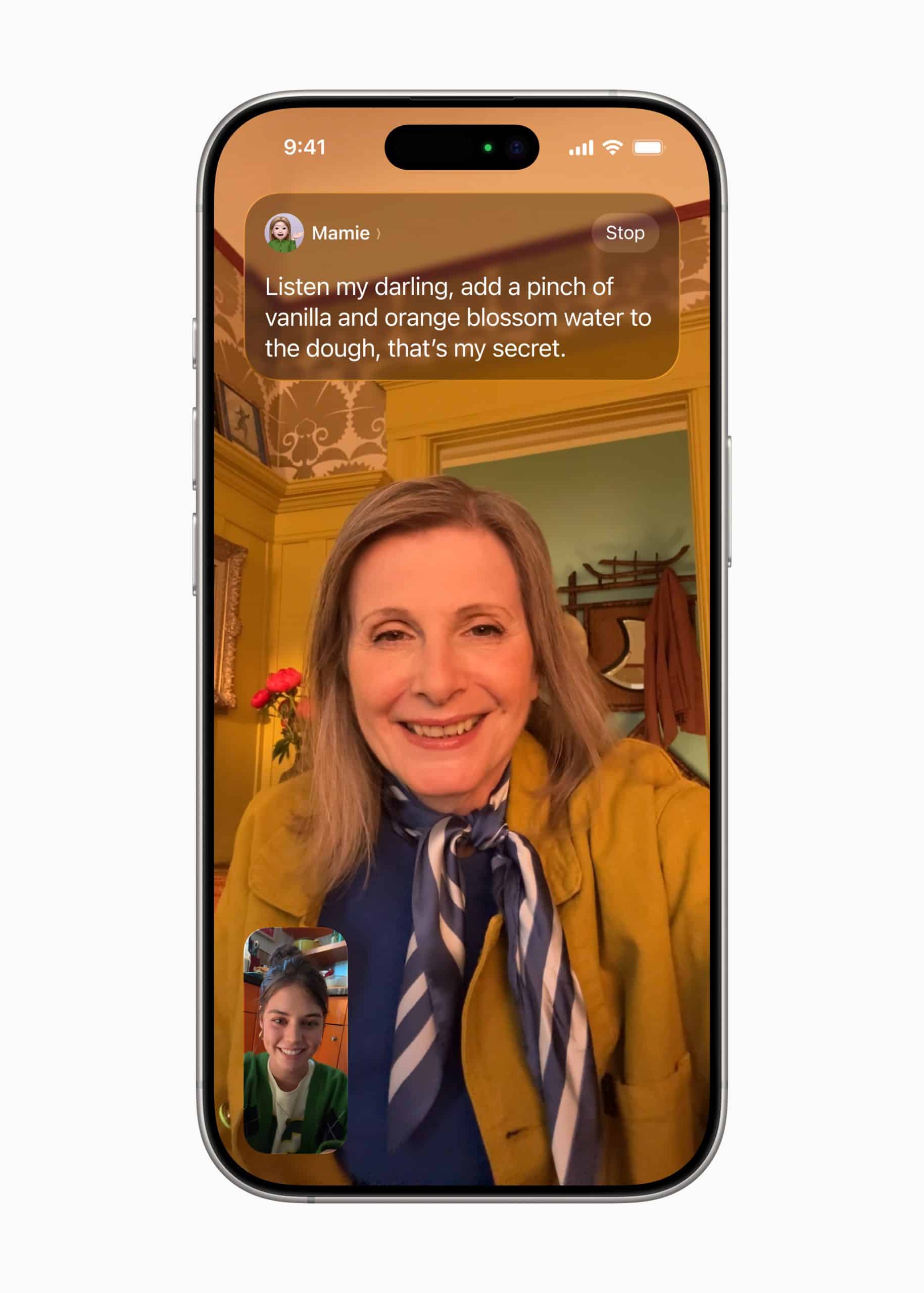
If the paused frame contains foreign language text, translation is immediate.
Select Text > Translate
The translated overlay appears without leaving the Photos app. This is particularly useful when reviewing travel videos, international news clips, or recordings taken abroad. Street signs, menus, transit boards, and public notices become readable instantly.
Because processing is performed on device, translation results appear quickly and maintain privacy.
The system auto-detects supported languages and adjusts accordingly. If a bilingual frame appears, Live Text separates text blocks by language rather than merging them into a single result.

Quick Actions Triggered From Video Content
Live Text recognizes structured data patterns inside video frames:
- Phone numbers
- Email addresses
- Website URLs
- Tracking numbers
- Dates and times
When selected, these elements activate context-specific options.
For example:
Pause on a frame displaying a phone number
Tap the Number > Call
If a meeting date appears in a recorded webinar:
Tap the Date > Create Event
This reduces friction between viewing and acting. Instead of replaying a segment repeatedly to transcribe information, one pause completes the action.
Comparison: Photos vs Video Live Text
In still photos, Live Text processes static imagery captured by the camera. In video, the system must account for motion, compression artifacts, and shifting light conditions.
Video frames contain:
- Lower per-frame detail compared to high-resolution still images
- Compression noise
- Motion blur
Despite these constraints, the recognition pipeline functions effectively once the clip is paused. The difference lies in timing. With photos, text is available immediately. With video, the user controls the moment of analysis by pausing on a stable frame.
This subtle distinction encourages intentional review rather than passive viewing.
Productivity Use Cases
Students reviewing recorded lectures can copy slide text without screenshots. Journalists extracting quotes from press conference footage can capture exact phrasing directly from playback. Travelers watching local information clips can translate instructions or addresses in seconds.
In business settings, recorded presentations often display:
- Contact information
- Project timelines
- Financial figures
Pausing and selecting removes the need for manual transcription.
Live Text in video also supports copy-paste into other apps:
Select Text > Copy
Open Notes or Messages > Paste
The transition is immediate.


Performance Considerations
Recognition accuracy depends on:
- Frame clarity
- Text contrast
- Motion stability
- Lighting conditions
Text that appears briefly during rapid motion may require precise pausing. Small fonts or heavily stylized typography may reduce detection reliability. High-resolution recordings improve recognition consistency.
Supported devices typically include iPhone models equipped with advanced Neural Engine capabilities. Older hardware may not support video-based extraction.
To confirm Live Text is enabled:
Settings > General > Language & Region > Live Text
If active, it applies across Photos, Camera, and supported system views.
Privacy and On-Device Intelligence
Apple emphasizes on-device machine learning for Live Text. The Neural Engine processes visual data locally. Extracted text is not uploaded to Apple servers during recognition.
This architecture maintains privacy while delivering immediate results.
The combination of computer vision, language modeling, and contextual classification turns paused video into an interactive surface.
Instead of watching information pass by, users can freeze a moment and extract meaning from it. Words become selectable. Numbers become actionable. Foreign text becomes readable. The frame becomes functional rather than static.
Live Text inside video extends iPhone camera intelligence beyond capture and into interaction, reshaping how recorded content can be used in daily workflows.