


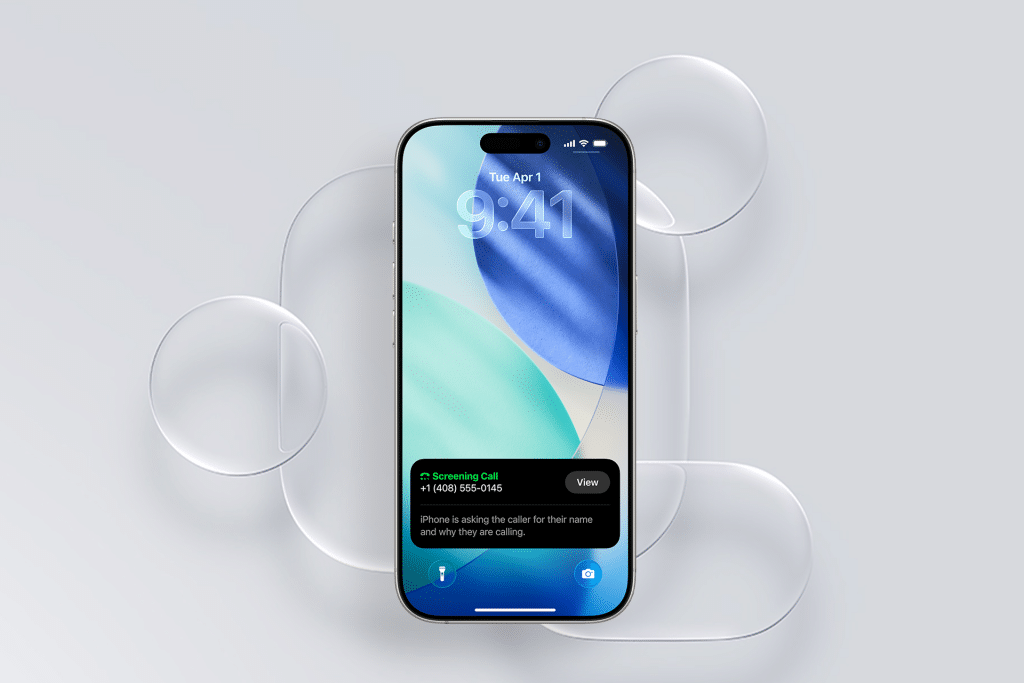
Your iPhone Lock Screen is the first thing you see every time you pick up your device. On iOS 26, Apple keeps it calm, useful, and personal. A quick glance can show the weather before you leave home, your next meeting, or your battery level when you’re heading out. With a few small choices, your Lock Screen can quietly match how you live each day.

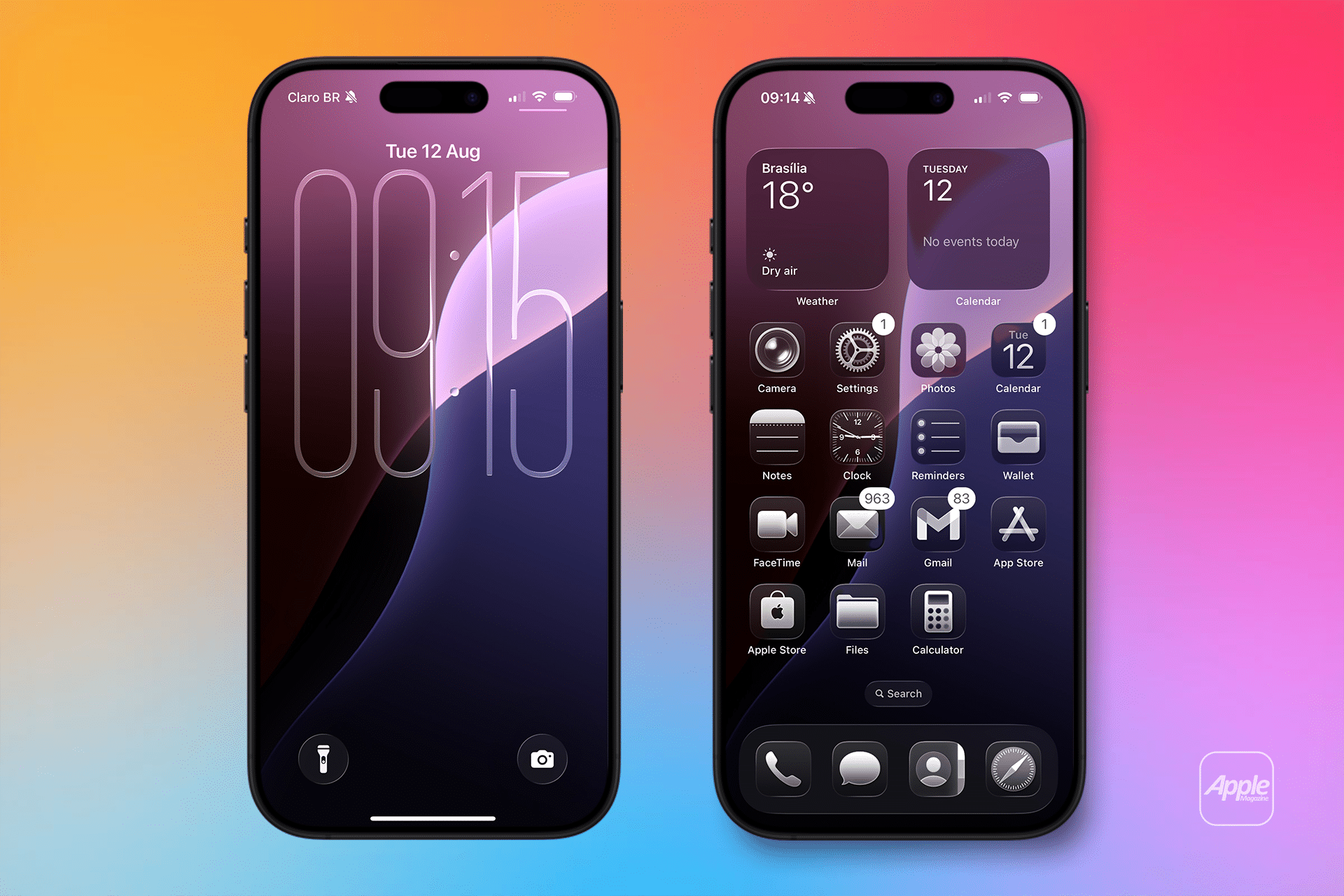
Create or Change Your Lock Screen
Start by waking your iPhone and pressing and holding the Lock Screen. You’ll enter a gallery where you can swipe through existing designs or create a new one. Adding a new Lock Screen lets you pick a photo, system wallpaper, or a dynamic style that subtly changes during the day. Take a moment to adjust the framing so it feels natural when the clock appears.
Workflow
Lock Screen > Press and hold > Add New or Customize
Customize the Clock and Look
Tap the clock to explore fonts and colors. iOS 26 keeps the choices clean and readable, so nothing feels overdone. A softer font works well with family photos, while bolder styles pair nicely with graphic wallpapers. The system automatically adjusts spacing as you make changes, so everything stays balanced without effort.
This is where your Lock Screen starts to feel like yours, without trying too hard.
Workflow
Lock Screen > Customize > Tap Clock
Add Widgets You’ll Actually Use
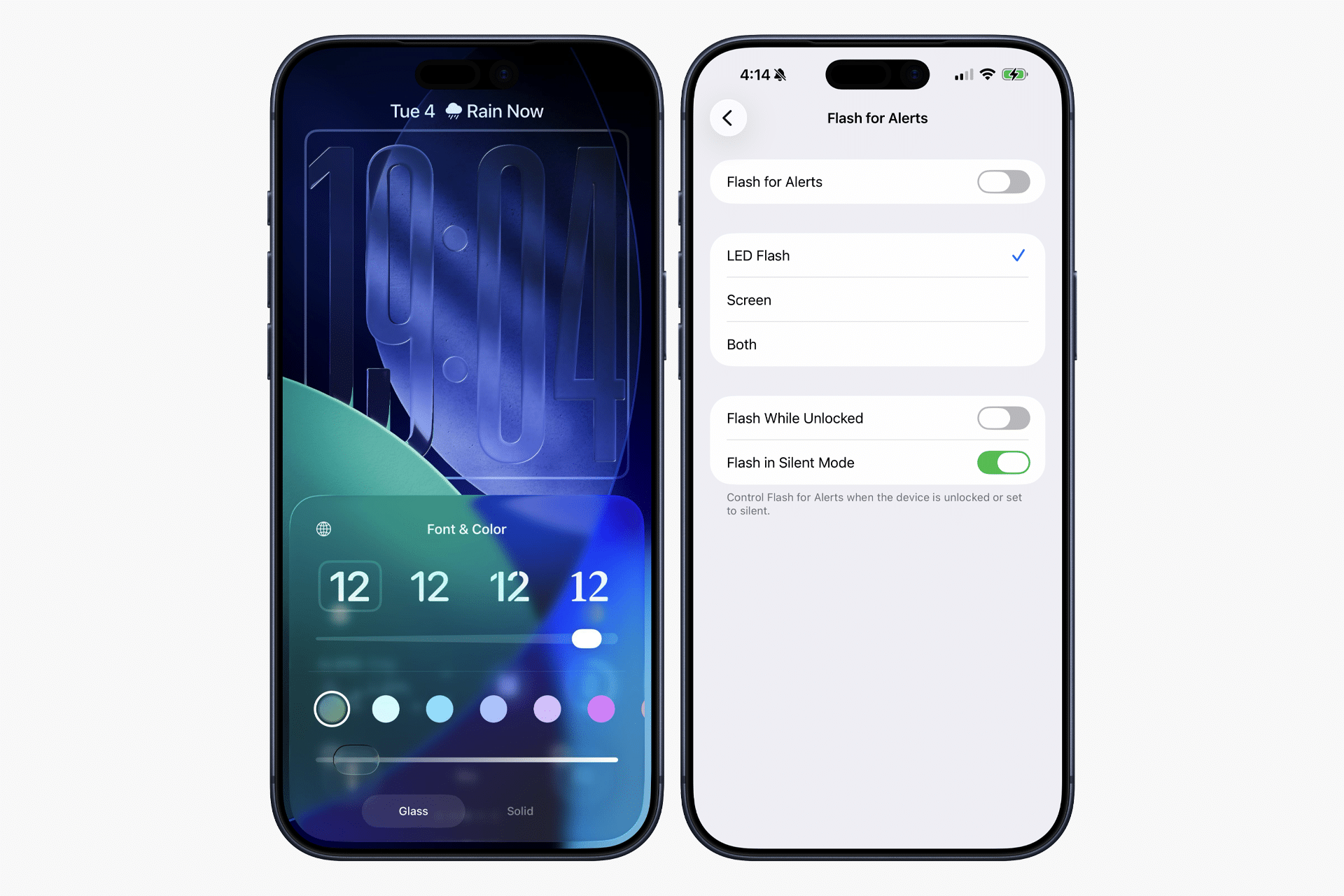
Widgets are meant to save time, not add noise. On iOS 26, you can add a small set of widgets that fit neatly around the clock. Weather, Calendar, Batteries, and Fitness are popular because they answer quick questions at a glance. Third-party apps can also appear here if they support Lock Screen widgets.
Think about what you check most during the day and keep it simple.
Workflow
Lock Screen > Customize > Add Widgets
Connect Lock Screens to Focus Modes
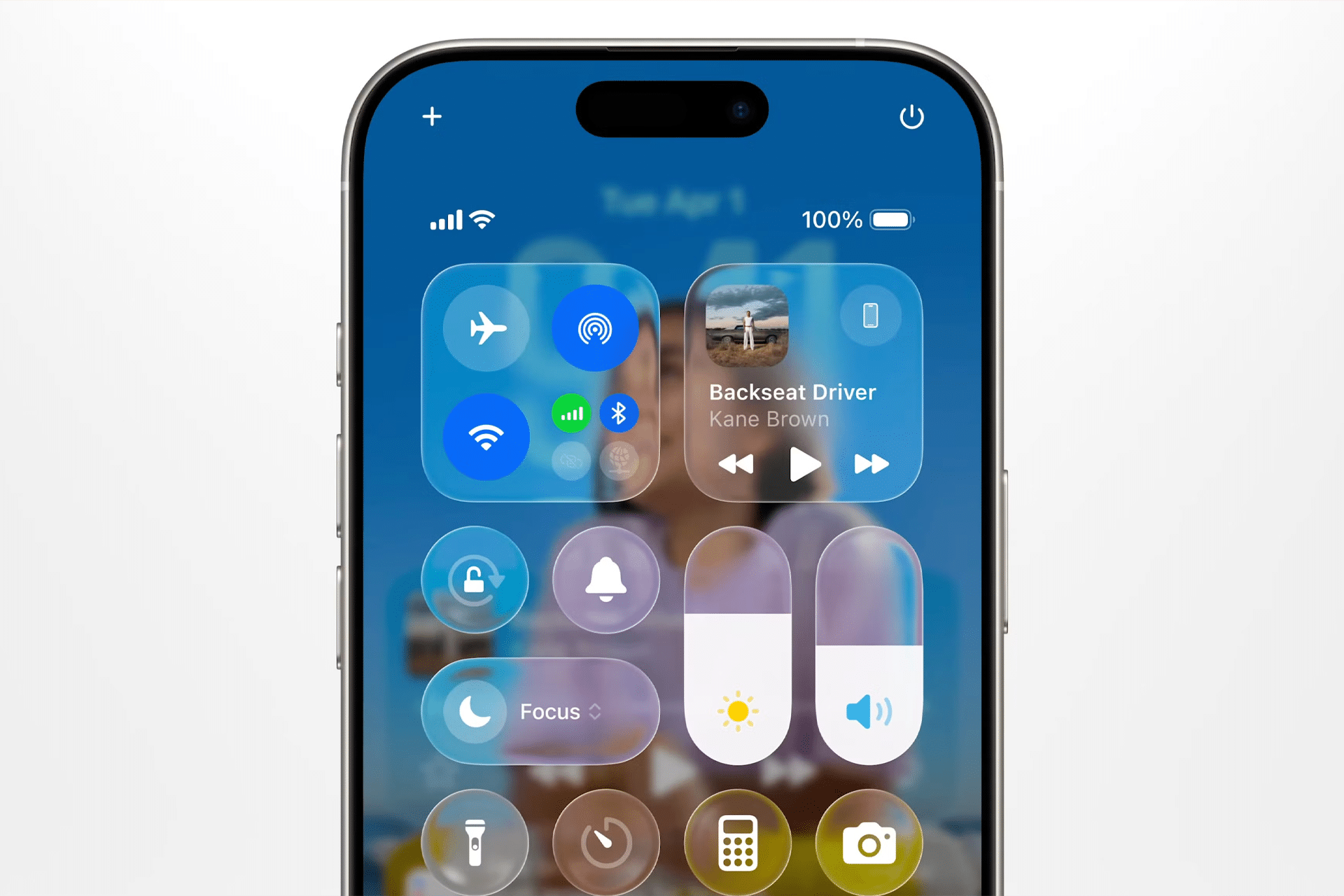
One of the most useful habits is pairing Lock Screens with Focus modes. A work Lock Screen can show your calendar and reminders, while a personal one might highlight weather and photos. When a Focus turns on, your iPhone automatically switches to the matching Lock Screen, without you doing anything.
It’s a quiet change, but it makes your phone feel more aware of your day.
Workflow
Settings > Focus > Choose Focus > Lock Screen
Using It Every Day
Once set up, the Lock Screen becomes part of your routine. In the morning, it helps you prepare. During the day, it keeps you informed without distractions. At night, it can feel calm and minimal. You’re not constantly tweaking it — it just works in the background, the way Apple intends.
Over time, many users create a few Lock Screens and rotate them naturally, depending on mood or schedule.

