Your iPhone password — often called a passcode — is one of the strongest defenses you have against unauthorized access. It protects everything on your device: messages, photos, email, banking apps, Wallet, health data, and more. Even if others briefly hold your iPhone, a secure passcode keeps strangers from reaching what matters most. The combination of Face ID (or Touch ID) and a strong passcode helps block not just casual access but also sophisticated attacks that rely on guessing or exploiting weak codes.
In daily life, having a strong iPhone password prevents identity theft, protects financial apps, and keeps your Apple account connected only to you. When traveling, when iPhone is lost or stolen, or when setting up new devices or services, the passcode acts as the foundation of your security — authenticating you before anything sensitive can be changed or accessed.
Why Your Passcode Matters
Your iPhone passcode works together with Face ID or Touch ID as part of Apple’s authentication framework. Even if you use Face ID every day, the passcode is the ultimate fallback. It’s required when:
- You restart your iPhone
- You change passcode settings
- You install an OS update
- You enroll Face ID or Touch ID
- More than 48 hours have passed without unlocking
In addition, encrypted backups, secure authentication for Apple Pay and Apple Card, and access to sensitive settings all depend on the passcode. Without it, many Apple security features simply won’t work.

Choose a Strong Passcode
Not all passcodes are created equal. A 4-digit code is better than none, but a longer, randomized passcode is far more secure. Here’s how to set or change yours:
Open Settings > Tap Face ID & Passcode or Touch ID & Passcode > Enter your current passcode > Tap Change Passcode > Choose Passcode Options > Select Custom Alphanumeric Code or Custom Numeric Code
Alphanumeric codes (letters + numbers + symbols) offer the highest security. Even a simple length increase — like a 6-digit or 8-digit code — dramatically improves resistance against guessing and brute-force attacks.
Tips for Strong Passcodes
- Avoid obvious dates (birthdays, anniversaries)
- Do not reuse codes from other accounts
- Choose a mix of letters, numbers, and symbols
- Never share your passcode with others
Face ID and Passcode: How They Work Together
Face ID (or Touch ID) makes everyday unlocking effortless and secure. But it’s always backed by your passcode. When Face ID cannot recognize you — because of light, angle, or changes in appearance — your passcode proves you’re the rightful owner.
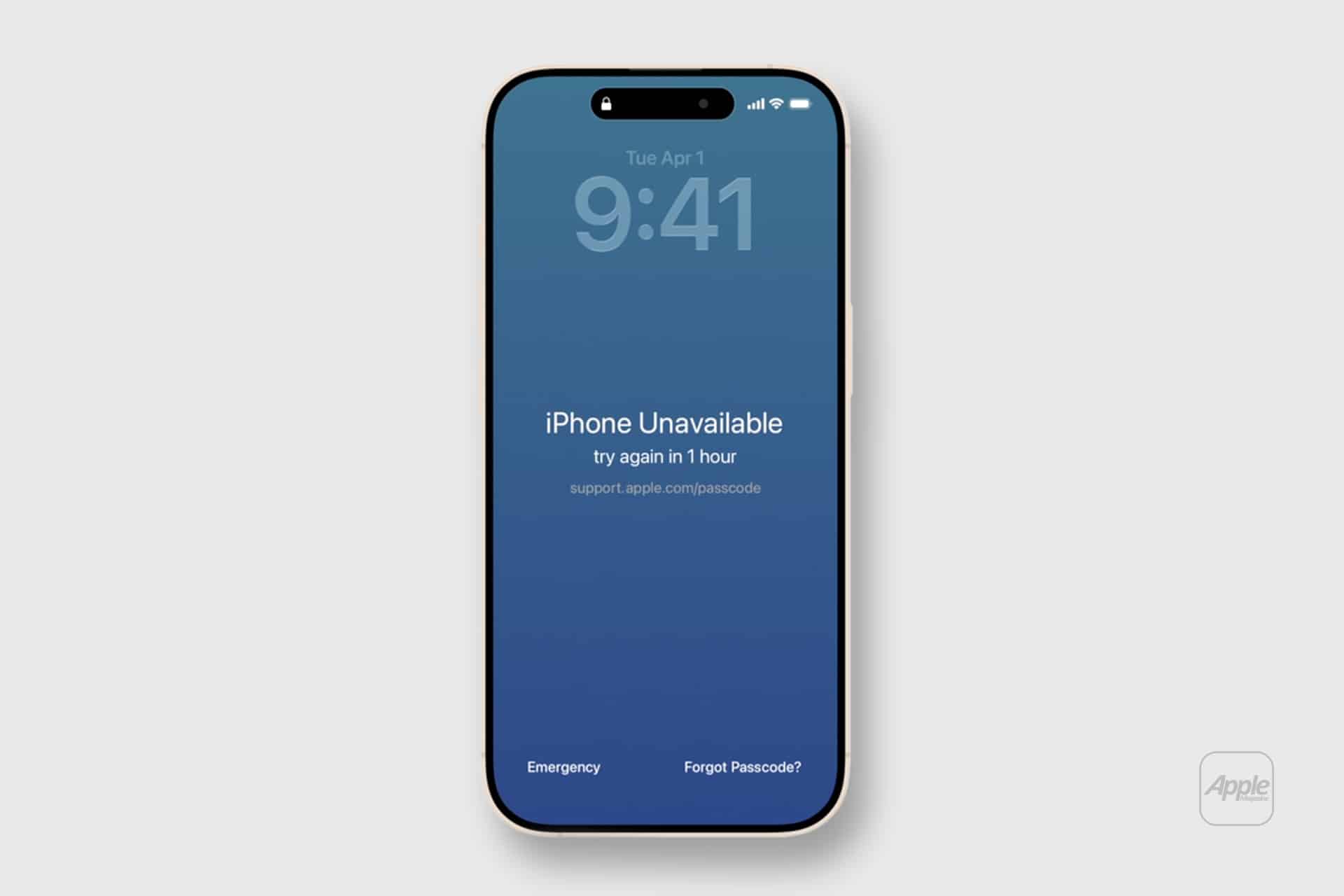
Face ID + Passcode is stronger than either alone. If someone attempts repeated unlocks, the iPhone will require the passcode and may delay further attempts, protecting against brute-force access.
Set Up or Change Your Passcode
Settings > Face ID & Passcode (or Touch ID & Passcode) > Enter current passcode > Tap Change Passcode
From this screen, you can also explore additional passcode options, including:
- Custom Numeric Code
- Custom Alphanumeric Code
- 4-Digit Numeric Code (not recommended)

Managing Passcode Security
In the same settings area, you can also control how soon the iPhone requires your passcode after the screen turns off. Shorter time frames increase security but may slightly reduce convenience.
Settings > Face ID & Passcode > Require Passcode
Set to Immediately for maximum protection
Always require the passcode immediately, especially if you carry sensitive data — like financial apps, health records, or work accounts — on your iPhone.
Protect Against Unauthorized Changes
A strong passcode also protects account settings. Changing Apple ID, disabling Find My, adding trusted phone numbers, or resetting passwords all require your passcode first. This prevents someone with temporary access to your device from making permanent changes.
Backup and Recovery
Your iPhone passcode is also tied to encrypted backups. When backing up to iCloud or a computer, that passcode can protect sensitive information. If you ever forget your passcode, Apple provides recovery options — but those require verified identity steps to ensure it’s really you.
Keep Your Passcode Fresh
Over time, your habits change. It’s smart to review and update your passcode periodically — especially after travel, device repair, or shared usage. Treat your iPhone passcode as a core part of how you protect your digital life.