

An iPhone personal hotspot is easy to think of as a backup feature, something you turn on only when the home internet goes down or when someone nearby needs a quick connection. In real life, it is much more useful than that. It can be the safest way to get a MacBook online in an airport lounge, the easiest way to help a family member during a signal emergency, and the most practical option when a public network looks questionable or simply feels too exposed to trust.
That last point matters more than ever. Public Wi-Fi may be convenient, but it is still a shared environment. In places you do not know well — airports, hotels, cafés, stations, convention centers, waiting rooms, malls — connecting to an unfamiliar network means stepping into a space you do not control. With an iPhone personal hotspot, the connection starts from your own device, protected by a password you control, rather than from a network that may be open, crowded, or confusingly named.
Apple’s own security documentation says Personal Hotspot on iPhone and iPad uses WPA2/WPA3 Personal Security by default, with a secure random password generated for access point modes. That alone makes it a stronger everyday option than random public Wi-Fi for many situations.
The other reason this feature matters is trust between people. Sharing a hotspot from your iPhone is not only about internet access. It is a simple, generous way to help the people around you stay connected when they need it most. A friend trying to board a flight, a child needing homework access, a parent using an iPad, a partner whose signal just dropped, or your own Mac during a travel day can all benefit from one tap.
It turns the iPhone into a small private bridge between devices and the network, and that is one of the most quietly useful things the device can do.

A Private Connection Is Often Better Than a Public One
The security difference between an iPhone personal hotspot and public Wi-Fi begins with ownership. Public Wi-Fi is shared by strangers. A personal hotspot begins with your iPhone, your cellular connection, and your password. Apple says Personal Hotspot on iPhone and iPad supports WPA2/WPA3 Personal Security by default, while enabling Maximize Compatibility drops the connection to WPA2 Personal for older devices. In simple terms, that means the standard setup is already built around modern wireless security rather than convenience-first openness.
That does not mean every public Wi-Fi network is automatically dangerous, and it does not mean a hotspot makes someone invisible online. Websites, apps, carriers, and account security still matter. But a personal hotspot removes one of the weakest links in the chain: the shared local network environment. When the network comes from your own iPhone, you know where it started, who is joining, and whether the password has been shared.
This is especially valuable in places you are not used to being. Travel creates rushed decisions. People often connect to the first network that looks right. Hotel names can be copied. Airport Wi-Fi names can be confusing. Some venues require captive portals, personal details, or repeated logins. With a hotspot, that uncertainty disappears. The connection is yours.
There is also a privacy advantage in how Apple devices behave on secure networks. Apple says devices can use private Wi-Fi addresses on secure networks to reduce tracking across different places. That is a broader Apple networking feature rather than something unique to hotspot, but it strengthens the overall idea that Apple treats wireless privacy as part of the everyday experience, not a specialist setting.
How Speed Really Works on iPhone Personal Hotspot
Hotspot speed is not a separate internet service. It is your iPhone’s cellular connection shared outward. That means the speed your other device sees depends on the same factors that affect the iPhone itself: carrier coverage, signal strength, plan limits, congestion, and the network generation available in that location. If your iPhone has strong 5G service, the hotspot can feel surprisingly fast. If the signal is weak or the network is crowded, the hotspot will reflect that too.
That is why an iPhone hotspot can sometimes outperform public Wi-Fi, even when the public network looks official. A public network may be overloaded with hundreds of users sharing the same bandwidth. Your iPhone hotspot may have a cleaner path if the cellular signal is strong. In other places, the reverse may happen. The point is not that hotspot is always faster. The point is that it is often more predictable because it depends on your own line rather than a crowded shared one.
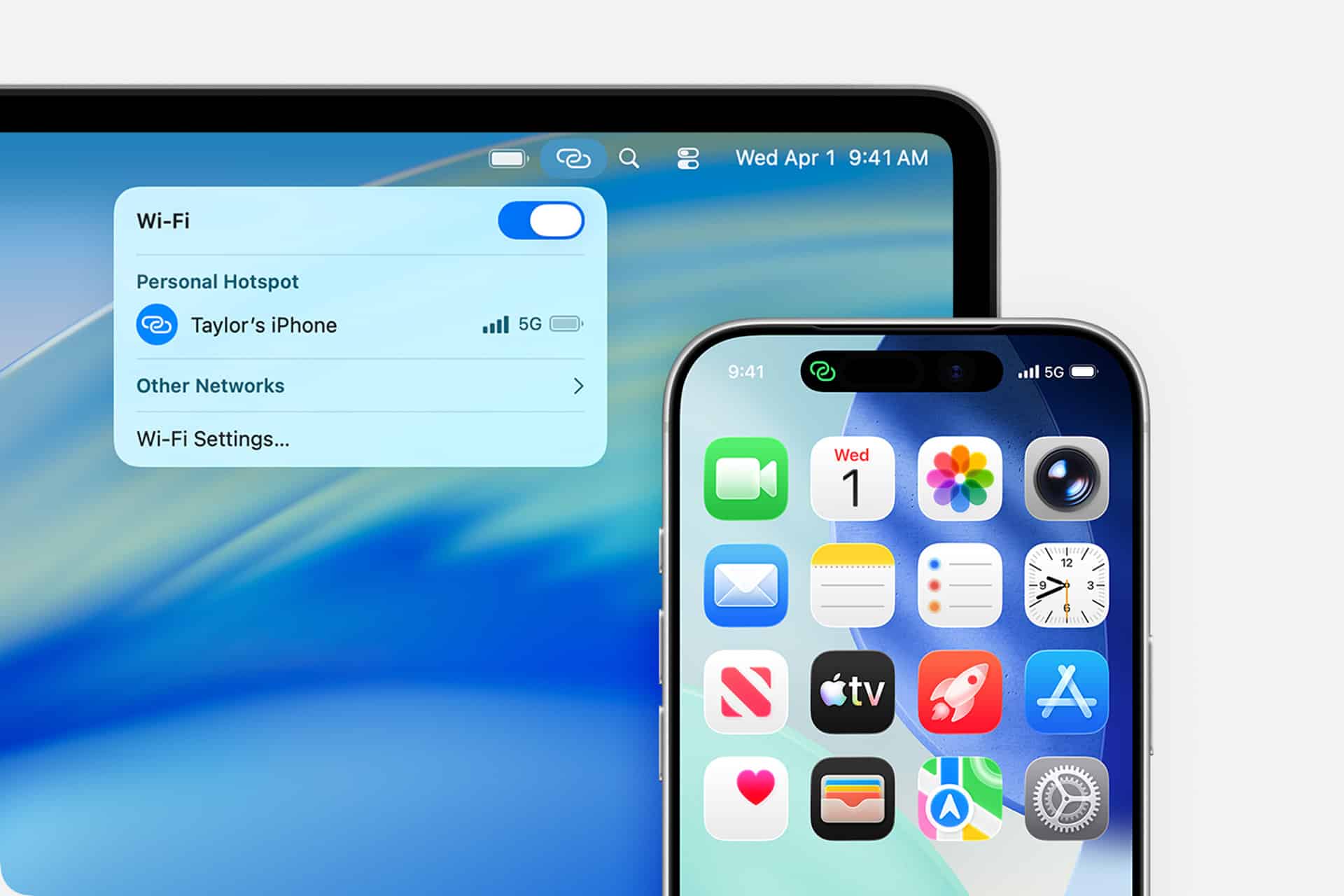
Apple also supports Instant Hotspot, which makes the connection smoother across your own devices. A Mac, iPad, Apple Watch, or Apple Vision Pro signed in to the same Apple Account can discover and join your iPhone hotspot more naturally, often without manually typing the password each time. That removes friction and makes hotspot more practical as a daily tool rather than an emergency workaround.
For the best performance, keep the iPhone reasonably close to the device using the hotspot and avoid barriers when possible. If an older device is struggling to connect, Apple allows Maximize Compatibility, but that setting trades some performance for broader device support.
To turn on Personal Hotspot:
Settings > Personal Hotspot > Allow Others to Join
To improve compatibility for older devices:
Settings > Personal Hotspot > Maximize Compatibility
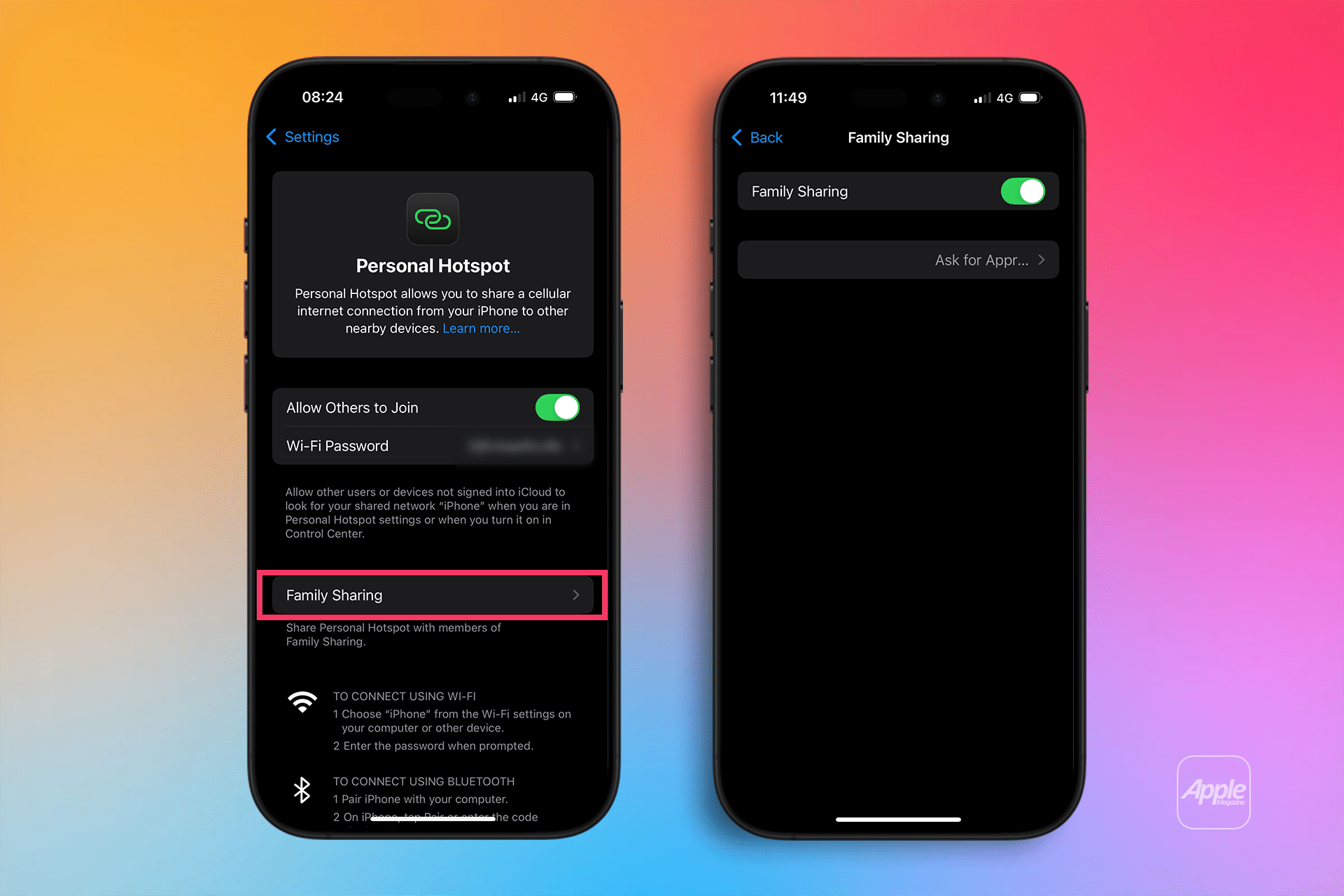
To control who in your family can join automatically:
Settings > Personal Hotspot > Family Sharing
Instant Hotspot and Family Sharing Make It More Useful at Home and on the Road
One of the smartest parts of iPhone personal hotspot is how naturally it fits into the Apple ecosystem. This is not only a feature for strangers borrowing a connection for five minutes. It is also a useful family and travel feature.
Apple’s Instant Hotspot support lets your other Apple devices connect more easily when they are signed in to the same Apple Account and meet the usual Bluetooth, Wi-Fi, and Apple ID requirements. Apple also allows Family Sharing controls for hotspot access. That means you can decide whether specific family members join automatically or need approval first.
This changes the feel of the feature. It becomes less like “sharing internet” and more like extending your connection to the people and devices already close to you. A child’s iPad in the car, a spouse’s MacBook in a hotel, an Apple Watch on the move, or your own iPad in a weak Wi-Fi space can all benefit from the same trusted connection.
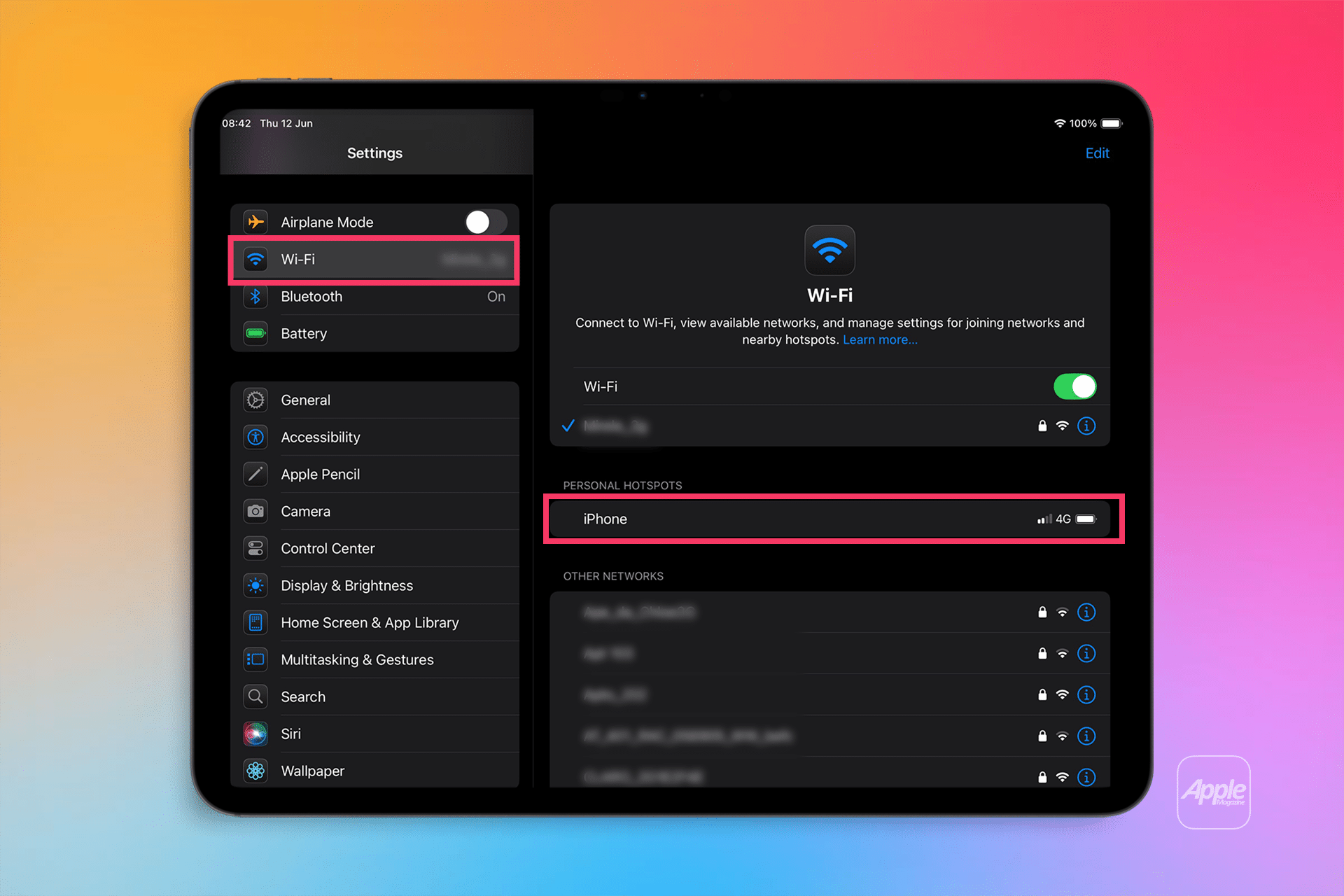
To manage Auto-Join Hotspot on iPhone or iPad:
Settings > Wi-Fi > Auto-Join Hotspot
To connect a Mac using Instant Hotspot:
Mac > Wi-Fi Menu > Select iPhone Hotspot
To set Family Sharing hotspot access:
Settings > Personal Hotspot > Family Sharing > Choose Family Member > Automatic or Ask for Approval
A good habit is to keep hotspot ready before it becomes urgent. On travel days especially, knowing where the setting lives and keeping Family Sharing configured can save time when someone suddenly needs a connection.
Small Habits That Make iPhone Personal Hotspot Better
A secure password matters. Apple already generates a default secure password, and in most cases it is better to keep a strong one than simplify it too much for convenience. The people who use your hotspot regularly can save it once, and after that the process becomes easier.
Battery matters too. Hotspot uses cellular and Wi-Fi resources at the same time, so long sessions will drain the iPhone faster than ordinary use. If you expect to use hotspot for an extended period, carrying a charger or battery pack helps. A hotspot is most useful when it is dependable, and a dead phone helps no one.
Data limits matter as well. Since hotspot shares your iPhone’s mobile connection, whatever the connected device does will count against your plan just as if the activity happened on the iPhone itself. A MacBook software update, cloud backup, or large video stream can consume far more data than expected. This is one reason hotspot works best when paired with awareness. It is secure and useful, but it is still tied to your mobile plan.
What makes the feature so strong is the balance it offers. It is private enough to trust, simple enough to use quickly, and integrated enough to feel natural across Apple devices. In unfamiliar places especially, that combination can be far more comforting than joining a public network and hoping it behaves well. An iPhone personal hotspot is not only a way to share connection. It is one of the easiest ways to create a small, reliable circle of connectivity around the people and devices that matter most.