
Your iPhone is one of the most powerful cameras most people carry every day. From street snapshots to family gatherings, landscapes to close-ups, iPhone Photos makes it easy to capture and keep moments that matter. The trick to better photos is not just pressing the shutter button — it’s understanding how to use the camera’s tools and features in real-world situations.
In iOS 26, Apple refined the photo experience with smarter controls, easier editing, and helpful guidance built right into the Camera and Photos apps. This article helps you make the most of what your iPhone already offers, whether you’re shooting on the fly or crafting a memory you’ll treasure.
Choose the Right Mode for the Moment
The iPhone camera has multiple shooting modes, each optimized for different scenarios:
- Photo – Standard mode for everyday shots.
- Portrait – Blurs the background for subject-focused portraits.
- Night – Automatically activates in low light.
- Macro – Close-up photography with fine detail.
- Panorama – Wide scenes like landscapes or group shots.
Open the Camera app and swipe left or right to switch between modes. For portraits, keep your subject between 2 and 8 feet away and tap the shutter gently — that’s often all it takes for sharp focus and pleasing background blur.
Practical Tip: For group photos or kids at play, tap on the subject on the screen so the camera knows where to focus, then gently slide your finger up or down to adjust exposure (brightness) before you shoot.

Frame With Purpose
Great photos begin before you tap the shutter. Think about composition — how elements are arranged inside the frame:
- Use the grid to align horizons and verticals.
- Put your subject along the intersections of the grid lines (the “rule of thirds”).
- Look for leading lines — paths, fences, or walls that draw the eye into the scene.
Enable the grid:
Settings > Camera > Composition > Grid
Everyday Use Case: When shooting a landscape at sunset, place the horizon on the top third of the frame to show more foreground detail, or on the bottom third to emphasize the sky’s colors.

Control Light and Focus
Tap anywhere on the screen to tell the camera what to focus on. Once you tap, you’ll see a yellow square showing the focus point. For tricky light situations — strong backlight or shadows — tap on the brightest part of your subject to help the camera balance exposure.
iPhone Camera also uses intelligent HDR (High Dynamic Range) to preserve detail in highlights and shadows. In bright scenes with sky and ground detail, HDR helps keep both from looking washed out or too dark.
Live Photos and Motion
Live Photos capture a few moments before and after you press the shutter, creating a short moving image. It’s great for action or unpredictable moments.
In Photos:
Open a Live Photo > Edit > choose a key frame or apply effects like Loop or Bounce.
Practical Case: At a birthday party, Live Photos can turn a wish-blowing moment into an animated memory. Later, you can pick the exact frame where everyone smiles.

Editing Right on Your iPhone
Once you’ve taken a photo, the iPhone’s editing tools help you refine it without third-party apps.
Photos > Select a photo > Edit
- Auto Enhance – Quick overall improvement
- Light & Color – Adjust brightness, contrast, and warmth
- Crop & Rotate – Straighten horizons or improve framing
- Filters – Artistic styles for mood
- Detail tools – Sharpen or reduce noise
For portraits, the Portrait mode editor lets you adjust background blur (depth) and lighting effects after the shot.
Practical Case: After a sunset shot, use the Light slider to bring up shadow detail and the Vibrance slider to enrich colors without oversaturating.
Zoom and Lenses
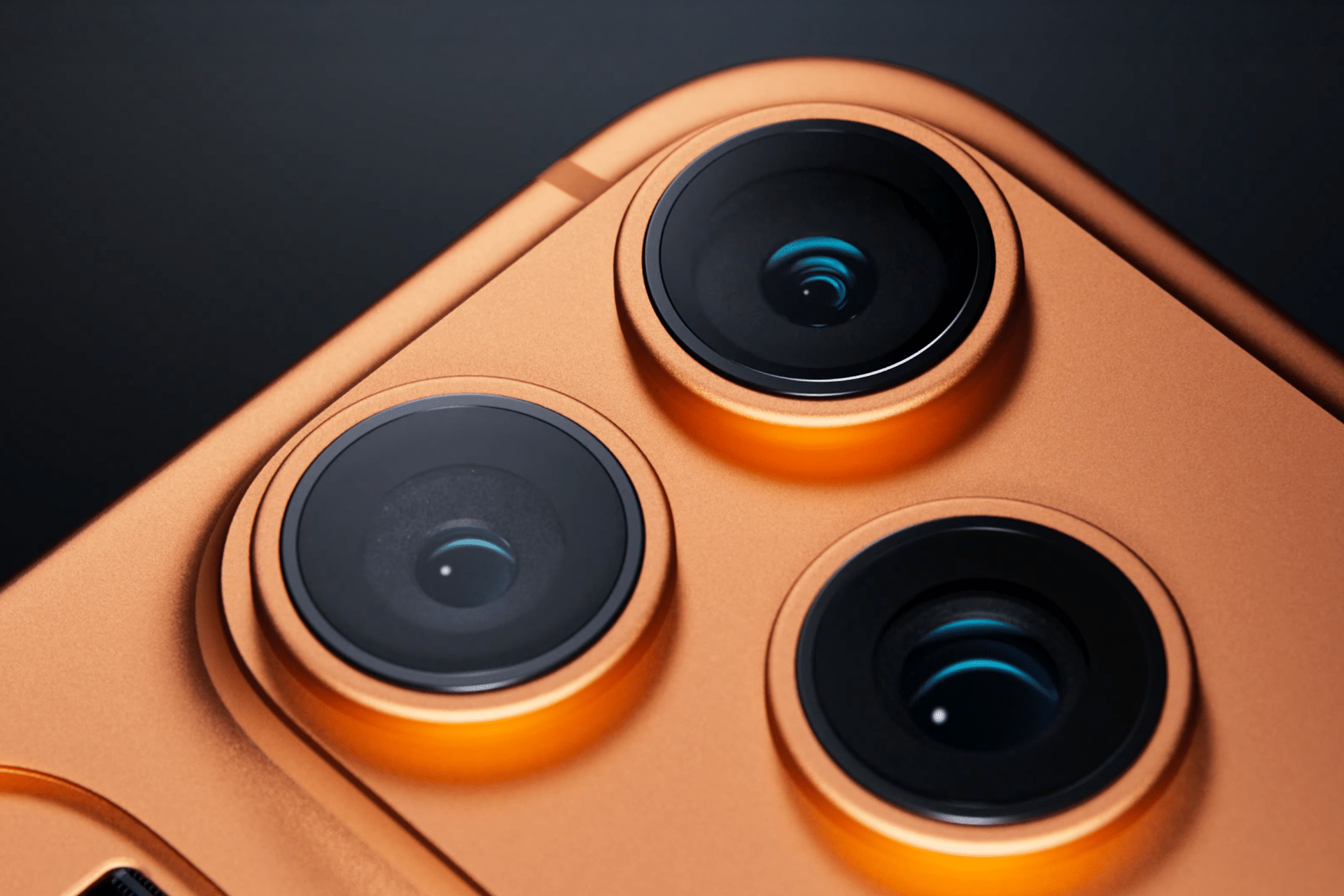
Many recent iPhones have multiple lenses: ultra-wide, wide, and telephoto. Tap the 0.5×, 1×, or 2× (or higher) buttons to switch lenses. Ultra-wide is excellent for architecture and landscapes, while telephoto brings subjects closer without cropping.
When zooming digitally beyond the lenses’ optical range, remember that quality can drop. Try to stick to optical zoom options when possible for sharper results.

Organizing and Finding Photos
As your library grows, Apple Photos helps keep things organized:
- Albums – Group similar photos
- People & Places – Sort by faces or map locations
- Memories – Automatically generated collections
- Search – Find photos by object, scene, or date
Photos uses on-device intelligence so you can search for terms like “beach,” “dog,” or “birthday,” and quickly locate relevant images.
Photos > Albums > + > New Album
Photos > Search > enter keywords
Share and Relive Memories
Sharing photos with family and friends is built into the system. Tap the share button and choose AirDrop, Messages, Mail, or social apps. For iCloud Shared Albums: create a shared album that others can contribute to, which is ideal for group trips or events.
Photos > Albums > Shared Albums > + New Shared Album
Your iPhone can also create slideshows or highlight videos from your collections — perfect for sharing at gatherings or saving as a keepsake.

A Camera That Grows With You
Today’s iPhone camera is not just a point-and-shoot tool; it’s a creative platform. Use it to document everyday life, explore artistic expression, or build a visual journal of key moments. With thoughtful composition, good light, and a few built-in tools, you can take photos that look more deliberate and expressive. And because your photos sync across iCloud, they’re accessible from iPad, Mac, and even Apple TV — so memories travel with you.