

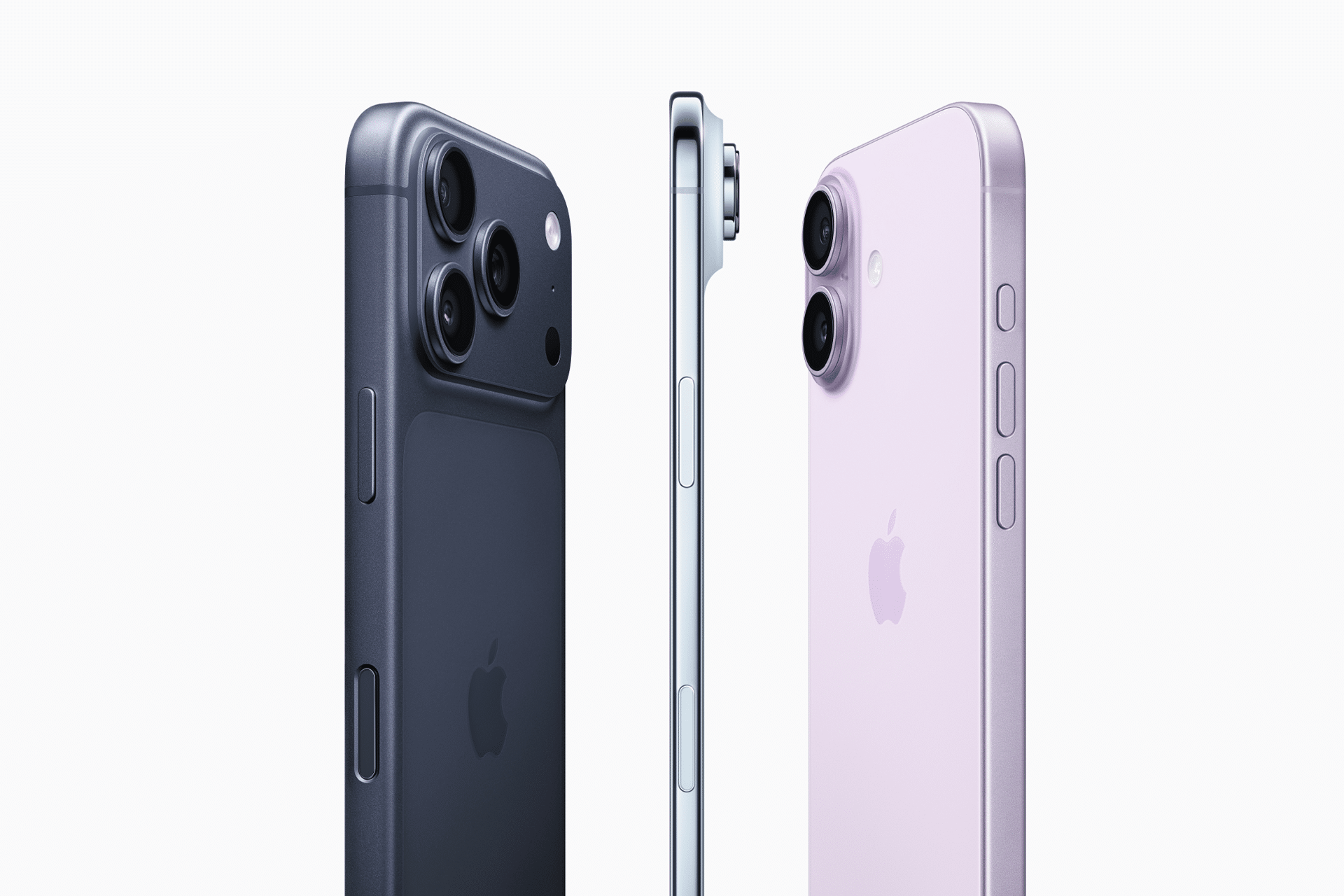
iPhone is one of the most personal devices people own. It holds conversations, passwords, photos, payment cards, location history, contacts, health data, files, browsing activity, family details, work accounts, and access to almost every other digital service. That makes iPhone protection less about one setting and more about building a full shield around the device, the Apple Account, and the information inside it.
Apple already includes many of those protections in iOS. Some are visible, such as Face ID, Find My, and passcodes. Others sit deeper in Settings, such as Stolen Device Protection, Safety Check, App Privacy Report, Lockdown Mode, passkeys, Advanced Data Protection, and permission controls for camera, microphone, photos, contacts, Bluetooth, and location.
The best iPhone protection setup is layered. A strong passcode protects the Lock Screen. Face ID or Touch ID protects daily access. Stolen Device Protection blocks sensitive changes if someone steals the iPhone and learns the passcode. Find My and Activation Lock help if the device is lost or stolen. Privacy controls limit what apps can see. iCloud security protects backups and synced data. Lockdown Mode is available for people facing targeted digital threats.
Passcode, Face ID, and Touch ID
The first protection layer is still the Lock Screen. A strong passcode, combined with Face ID or Touch ID, keeps most casual access attempts away from personal information.
A six-digit passcode is better than nothing, but a longer alphanumeric passcode is stronger. That matters because the passcode can unlock the iPhone, approve some settings, and protect encrypted data. If someone sees or guesses it, they may gain far more access than expected.
Face ID and Touch ID reduce how often the passcode needs to be typed in public. That is helpful because passcode theft can happen through shoulder surfing, hidden cameras, or someone watching before a theft. The less often the passcode is entered, the harder it is for someone else to learn it.
Users should also review what is available from the Lock Screen. Wallet, Control Center, Siri, message replies, widgets, and notification previews can be convenient, but they may expose information or controls before the iPhone is unlocked. For stronger protection, sensitive Lock Screen access should be limited.


Stolen Device Protection
Stolen Device Protection is one of the most useful iPhone security features Apple has added in recent years. It is designed for a specific but serious risk: someone steals the iPhone and also knows the passcode.
When Stolen Device Protection is turned on, iPhone requires extra biometric authentication for certain sensitive actions, especially when the device is away from familiar locations such as home or work. Some actions also require a security delay before changes can be completed.
That can protect against account takeover after theft. A thief who knows the passcode may try to change the Apple Account password, disable Find My, remove security settings, access saved passwords, or reset the device. Stolen Device Protection makes those actions harder because Face ID or Touch ID is required, and some changes cannot happen instantly.
For stronger protection, users can set Stolen Device Protection to always require the extra security measures rather than only away from familiar locations.
Settings > Face ID & Passcode > Stolen Device Protection
This feature should be turned on by default for anyone who uses iPhone in public places, travels often, or stores passwords, payment cards, work accounts, and private information on the device.
Find My, Lost Mode, and Activation Lock
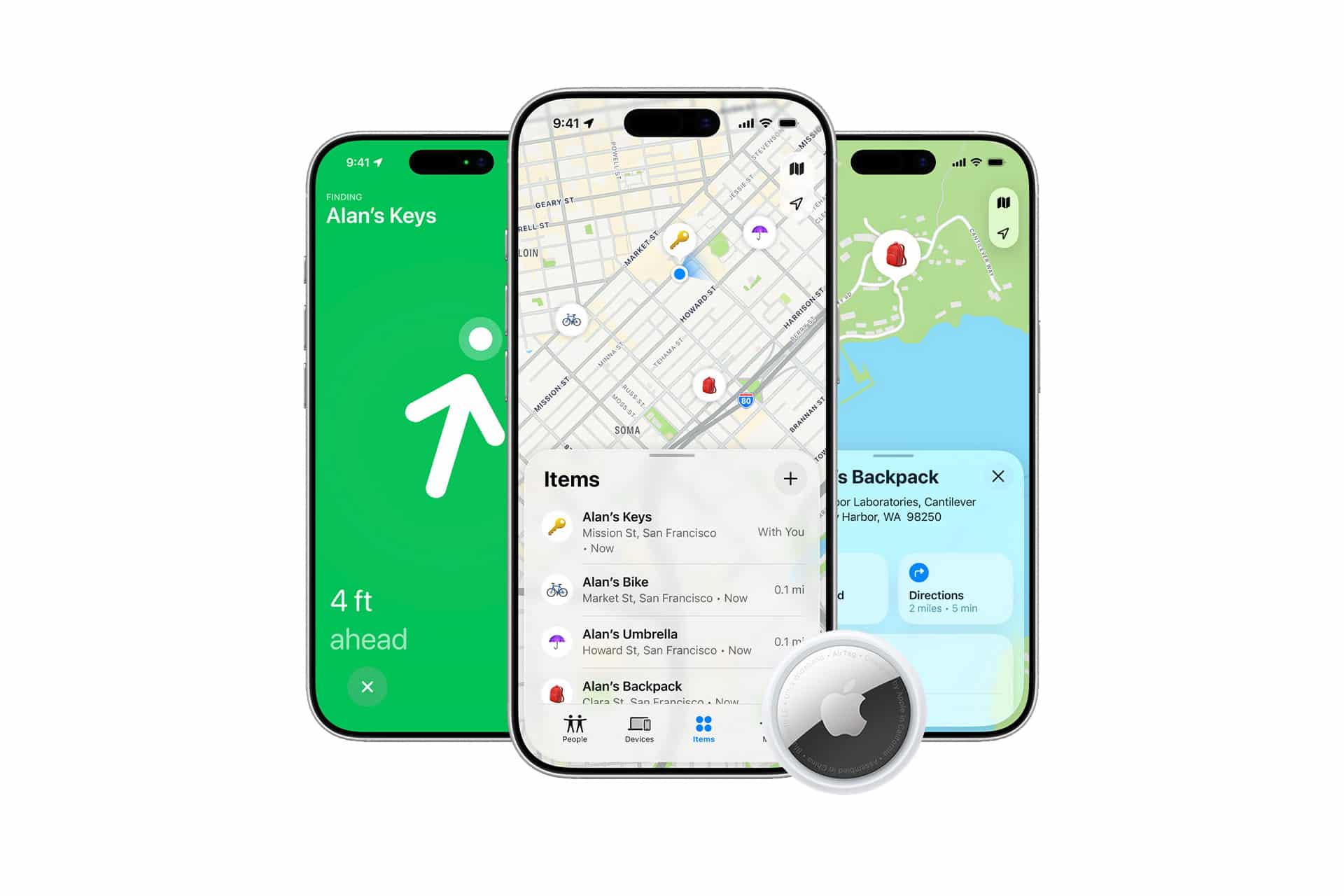
Find My is the main protection layer for a lost or stolen iPhone. When Find My is enabled, the device can be located, marked as lost, locked, or erased remotely. It also enables Activation Lock, which is designed to prevent someone else from using the iPhone even after it is erased.
Activation Lock is one of the strongest theft deterrents in Apple’s system. It links the iPhone to the owner’s Apple Account and requires that account before the device can be reactivated. This makes stolen iPhones harder to resell and reuse.
Lost Mode is the first step when an iPhone disappears. It locks the device, suspends Apple Pay, and can display a message on the Lock Screen. Apple’s support guidance says users should mark a stolen device as lost as quickly as possible through iCloud.com/find or the Find My app.
Users should also turn on Find My network and Send Last Location. Find My network can help locate a device even when it is offline by using Apple’s encrypted network of nearby devices. Send Last Location can automatically send the iPhone’s last known location before the battery runs out.
Settings > Apple Account > Find My > Find My iPhone
A lost iPhone can also attract phishing attempts. Scammers may send fake messages claiming the device has been found and asking the owner to sign in. Users should avoid entering Apple Account details through links in unexpected texts or emails and should use iCloud.com/find or the Find My app directly.
Apple Account Protection
The Apple Account is the center of the iPhone security system. It connects iCloud, Find My, backups, purchases, subscriptions, photos, messages, passwords, devices, and payment information. Protecting the Apple Account is as important as protecting the iPhone itself.
Two-factor authentication should be enabled. This requires a trusted device or phone number when signing in from a new device or browser. Users should also review trusted phone numbers, trusted devices, recovery contacts, and account recovery settings.
A strong Apple Account password should not be reused anywhere else. If an attacker gets a reused password from another service, they may try it against Apple. Password reuse is still one of the easiest ways accounts get compromised.
Apple also supports security keys for Apple Accounts. This option is more advanced and uses physical hardware security keys as an extra layer for signing in. It is not necessary for everyone, but it can help people who want stronger protection against phishing and targeted account attacks.
Passwords, Passkeys, and iCloud Keychain
iPhone includes built-in password protection through iCloud Keychain and the Passwords app. These tools can save passwords, create strong passwords, fill them securely, warn about reused or compromised passwords, and store passkeys.
Passkeys are designed to replace passwords with a more phishing-resistant sign-in method. Instead of typing a password, users sign in with Face ID, Touch ID, or a device passcode. The private credential stays protected, making passkeys harder to steal through fake websites.
Users should review the Passwords app regularly for security recommendations. Reused passwords, weak passwords, and passwords found in known data leaks should be changed. For accounts that support passkeys, switching can reduce risk.
Passwords also need device protection. If someone can access the unlocked iPhone, they may try to view saved passwords. Stolen Device Protection and Face ID help protect that area, especially after theft.
Advanced Data Protection for iCloud
Advanced Data Protection expands end-to-end encryption for more iCloud data categories. When enabled, more iCloud information is protected so that only trusted devices can decrypt it.
This can protect data such as iCloud backups, Photos, Notes, and other supported categories. It also means Apple cannot help recover some encrypted data if access is lost, so users need to keep account recovery methods updated before turning it on.
This feature is best for users who want stronger iCloud privacy and are comfortable managing recovery contacts or recovery keys carefully. It is powerful, but it requires responsibility. Losing access without recovery options can mean losing data.
Settings > Apple Account > iCloud > Advanced Data Protection
Safety Check
Safety Check is a privacy and personal safety feature that helps users review and reset what they are sharing with people and apps.
It can show who has access to location, photos, calendars, and other shared information. It can also help stop sharing quickly, reset privacy permissions, and review account security. The feature is especially useful when someone needs to regain control of personal information after sharing access with another person.
Safety Check also includes Emergency Reset, which immediately stops sharing with people and apps and helps secure the Apple Account. That should be used carefully because it can change many permissions quickly.
Settings > Privacy & Security > Safety Check
Even for users who are not in a crisis, Safety Check is a useful privacy review tool. It can reveal old sharing settings that were forgotten years ago.
App Privacy Permissions
Apps often request access to sensitive information: location, camera, microphone, contacts, photos, Bluetooth, local network, calendars, reminders, health data, and motion activity. iPhone gives users control over those permissions, but they need to be reviewed.
The first time an app asks for access, iOS shows a permission prompt. Users can allow or deny it, then change the decision later in Privacy & Security settings. Apple’s iPhone guide says users can control which apps can access data, location, camera, microphone, and other information from that section.
Settings > Privacy & Security
Location access deserves special attention. Many apps do not need precise location all the time. Users can choose Never, Ask Next Time, While Using the App, or Always, depending on the app. Precise Location can also be turned off for apps that only need approximate location, such as weather or local content apps.
Photos access can also be limited. Instead of giving an app full photo library access, users can select specific photos or use limited access. That prevents apps from seeing years of private images when they only need one upload.
App Tracking Transparency
App Tracking Transparency lets users decide whether apps can track activity across other companies’ apps and websites. When an app asks to track, users can allow it or ask the app not to track.
This is one of the most visible iPhone privacy protections because it addresses advertising and cross-app profiling. Users can also turn off the ability for apps to request tracking.
Settings > Privacy & Security > Tracking
Turning off tracking requests does not block every form of data collection, but it reduces a major category of cross-app tracking and gives users more control over advertising profiles.
App Privacy Report
App Privacy Report shows how apps are using the permissions they have been granted. It can show access to location, photos, camera, microphone, contacts, and network activity.
This is useful because permissions can feel invisible after they are granted. An app may access location more often than expected or contact domains that raise questions. App Privacy Report helps users notice patterns and decide whether to remove an app or reduce permissions.
Settings > Privacy & Security > App Privacy Report
The feature is not only for experts. It is a practical way to check whether an app behaves in a way that matches its purpose.
Lock or Hide Apps
iPhone also lets users add protection around sensitive apps. App locking and hiding features can require Face ID, Touch ID, or a passcode before an app opens. Hidden apps can be moved out of normal view and placed behind authentication.
This is useful for apps containing banking information, private messages, health data, work tools, photos, notes, or personal documents. It also helps when someone occasionally hands their iPhone to another person.
Locked apps are not a replacement for a strong device passcode, but they add another barrier. If the iPhone is unlocked for a short moment, sensitive apps can still require authentication.
Photos Privacy: Hidden and Recently Deleted
Photos has its own privacy protections. Hidden and Recently Deleted albums can be locked with Face ID, Touch ID, or passcode. That prevents someone casually browsing the Photos app from seeing hidden images or recovering deleted ones without authentication.
Users can also control which apps have access to the photo library. A photo-editing app, shopping app, or social app may not need full library access forever. Limited access reduces exposure.
For stronger privacy, users should review shared albums, iCloud Shared Photo Library participation, and any apps with full photo access.
Mail Privacy Protection and Hide My Email
Mail Privacy Protection helps protect activity in Apple’s Mail app by limiting whether senders can learn when an email was opened and masking the user’s IP address. This reduces email tracking from marketers, newsletters, and other senders.
Hide My Email, included with iCloud+, lets users create random email addresses that forward to their real inbox. This is useful when signing up for apps, newsletters, stores, or services that do not need the user’s personal email address.
Hide My Email can reduce spam and make it easier to cut off unwanted messages later. If an address starts receiving junk, users can deactivate that alias without changing their real email.
Private Relay and Safer Browsing
iCloud Private Relay, available with iCloud+, helps protect Safari browsing by making it harder for websites and network providers to build a detailed profile based on IP address and browsing activity.
Private Relay is not the same as a VPN, and it does not apply to every app. But for Safari browsing, it can add a useful privacy layer.
Safari also includes protections such as Intelligent Tracking Prevention, privacy reports, fraudulent website warnings, and controls for camera, microphone, location, pop-ups, and downloads.
Users should also be careful with public Wi-Fi. Avoid entering sensitive information on suspicious networks, keep iOS updated, and use trusted sites and apps for banking, shopping, and account management.
Lockdown Mode
Lockdown Mode is Apple’s highest-security mode for users who may be targeted by sophisticated digital attacks. It reduces possible attack surfaces by limiting certain features in Messages, web browsing, FaceTime, shared albums, device connections, and configuration profiles.
Most people do not need Lockdown Mode. It is designed for a small group of users who face unusual risks, such as journalists, activists, government officials, executives, or others who may be targeted by advanced spyware.
That said, it is an important part of the iPhone protection system because it gives at-risk users a way to harden the device quickly. Lockdown Mode can make some features less convenient, so users should understand the tradeoffs before enabling it.
Settings > Privacy & Security > Lockdown Mode
Software Updates and Rapid Security Responses
Keeping iOS updated is one of the simplest ways to protect iPhone. Updates include security patches, bug fixes, privacy improvements, and protections against vulnerabilities that attackers may already know about.
Automatic updates should be enabled for most users. Rapid Security Responses, when available, can deliver urgent security fixes between major iOS updates.
Settings > General > Software Update > Automatic Updates
Outdated software can leave an iPhone exposed even if every privacy setting is perfect. Security protection is not only about settings; it is also about staying current.
Emergency SOS, Medical ID, and Check In
Protection is not only digital. iPhone also includes personal safety features that can help in emergencies.
Emergency SOS can quickly call emergency services and notify emergency contacts. Medical ID can show critical health information from the Lock Screen, such as allergies, medical conditions, medications, and emergency contacts. Check In in Messages can notify someone when the user arrives at a destination or if progress stops unexpectedly.
These features are not about hacking or theft, but they are part of iPhone’s broader safety system. A strong protection setup should include them, especially for people who travel, commute, exercise outdoors, or want trusted contacts to know when they arrive safely.
Screen Time and Content Restrictions
Screen Time is often associated with children, but it also adds protection for adults. It can limit app installs, purchases, explicit content, web access, account changes, passcode changes, and privacy changes.
For families, Screen Time can protect children’s devices with parental controls, app limits, Communication Safety, Ask to Buy, web restrictions, content ratings, and contact approvals. For adults, it can reduce impulse downloads, block certain account changes, and add friction around settings that should not be changed casually.
Screen Time should not be treated as a security lock for everything, but it can reinforce privacy and device control.
A Strong iPhone Protection Setup
The best protection shield starts with the basics: use a strong passcode, enable Face ID or Touch ID, turn on Find My, keep Stolen Device Protection enabled, secure the Apple Account with two-factor authentication, and keep iOS updated.
Then add privacy control: review app permissions, reduce location access, limit photo access, turn off unnecessary tracking, check App Privacy Report, use Hide My Email when signing up for services, and consider iCloud Private Relay for Safari privacy.
For sensitive data, use the Passwords app, switch to passkeys where possible, avoid reused passwords, lock sensitive apps, protect Photos, and consider Advanced Data Protection if account recovery is set up carefully.
For higher-risk situations, Lockdown Mode and security keys can add stronger protection. For lost or stolen devices, Find My, Lost Mode, Activation Lock, and Stolen Device Protection work together to reduce damage.
iPhone protection is strongest when these features overlap. No single setting can stop every risk, but a layered setup makes theft, hacking, tracking, lost-device exposure, and unauthorized access much harder.