

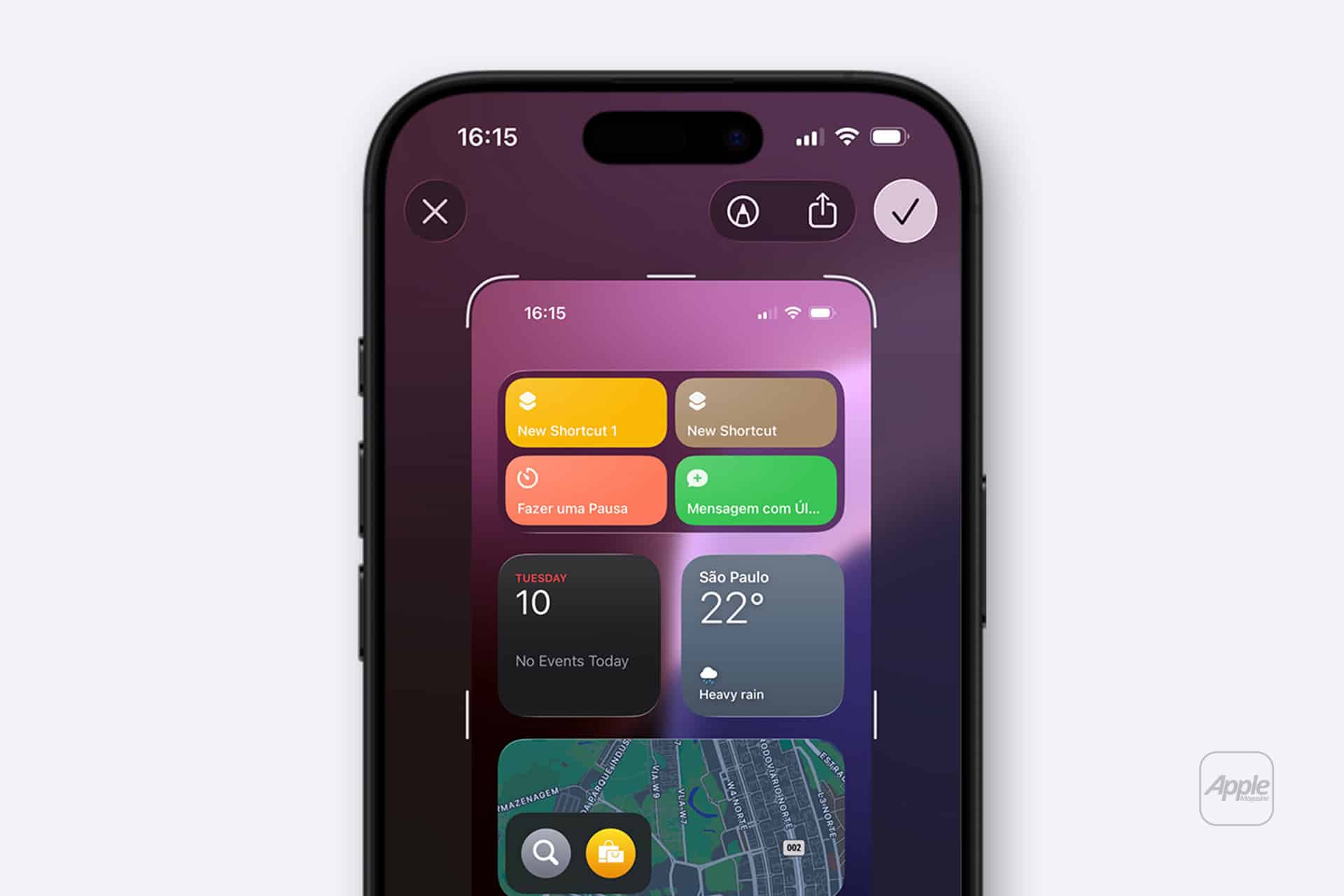
Taking an iPhone screenshot feels automatic. Press the buttons, see the flash, move on. Most people treat it as a quick way to save something before it disappears — a message, a receipt, a confirmation screen.
But screenshots on iPhone have evolved into something more flexible. What used to be a simple image capture now sits inside a broader workflow that includes editing, text extraction, document creation, and instant sharing.
The Basic Capture — and What Happens After
On modern iPhones, pressing the Side Button and Volume Up captures the screen. A thumbnail appears in the corner for a few seconds. That small preview is where most of the advanced features begin.
If you ignore the thumbnail, the image saves automatically to Photos. If you tap it, you enter an immediate editing space. That editing space is often overlooked.

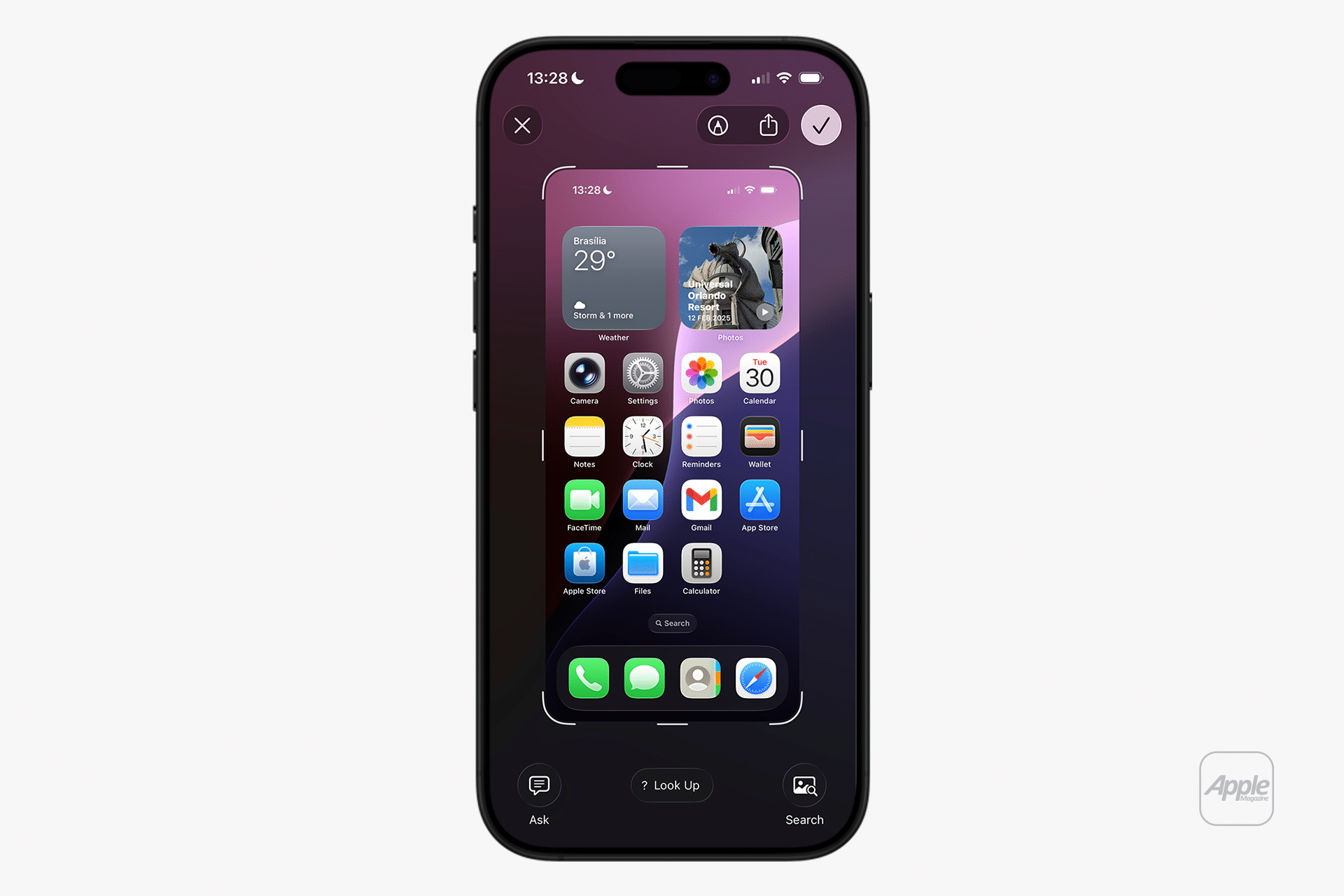
Markup: Fast Edits Without Leaving the Moment
Inside the preview, Markup tools appear instantly. You can underline a sentence, circle a detail, add arrows, write a quick note, or crop unnecessary sections.
For everyday use, this eliminates extra steps. Instead of saving the screenshot, opening Photos, and then editing, you can annotate immediately and send it within seconds.
The tools include:
- Pen and highlighter
- Shapes and arrows
- Text boxes
- Signature tool
- Magnifier
The magnifier option is especially useful when you want to emphasize a small detail without cropping the entire image.
After editing, the screenshot can be shared directly from that same screen. No need to save first.
Full-Page Screenshots in Safari
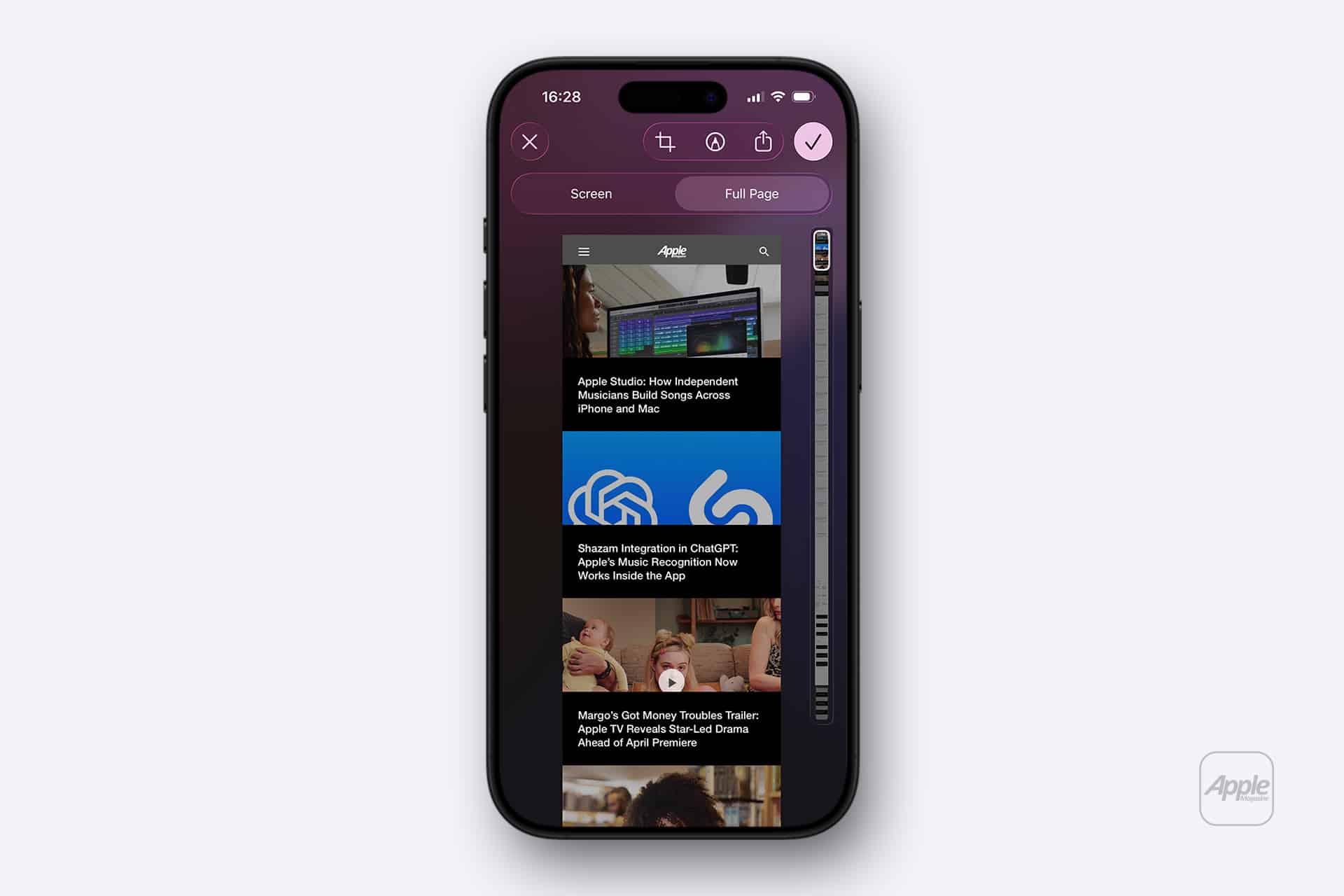
One of the most practical features is full-page capture in Safari and certain supported apps.
After taking a screenshot of a webpage:
Tap the Thumbnail > Select “Full Page”
Instead of saving only what is visible on the screen, iPhone captures the entire scrollable page.
This is useful for:
- Saving articles
- Capturing receipts
- Archiving online forms
- Keeping reference material
Full-page captures are saved as PDFs in the Files app rather than Photos, which keeps them separate from your image library. You can crop the PDF before saving, selecting only the sections you need.
Live Text: Turning Screenshots Into Usable Data
Screenshots are no longer static images. If the captured screen contains readable text, Live Text allows you to interact with it.
Open the screenshot in Photos, then press and hold on text. You can:
- Copy
- Translate
- Look up definitions
- Call a number
- Open a link
This changes how screenshots function. Instead of retyping information, you extract it directly.
For example:
- Copy a tracking number from a shipping confirmation
- Extract a Wi-Fi password
- Save an address from a website
- Grab a promo code
The screenshot becomes searchable and functional.
Drag and Drop Sharing
Another underused feature is drag and drop.
After taking a screenshot and opening the preview, you can press and hold the image, then switch apps and drop it into:
- Messages
- Notes
- Files
This works particularly well in multitasking scenarios on larger iPhones or when quickly moving between apps.
It shortens the gap between capture and communication.
Quick Deletion and Storage Control
Screenshots can build up quickly. If you capture something by mistake, swipe the thumbnail away immediately or delete it before saving.
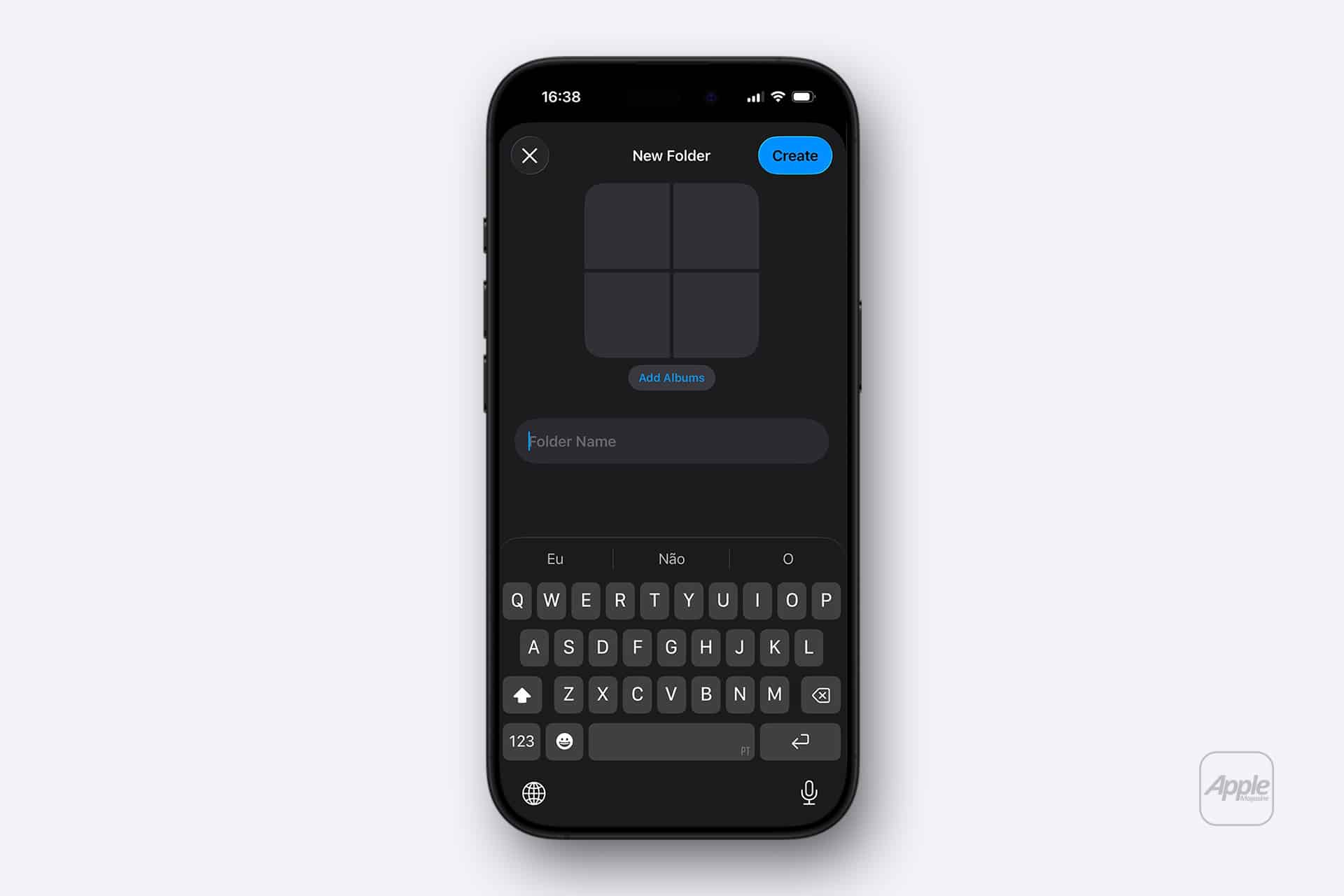
To keep your Photos library organized, create a dedicated Screenshots album:
Photos > Albums > New Album
You can also search for “Screenshots” directly in Photos, as iOS automatically categorizes them.
Editing After Saving
Even after a screenshot is saved, you can revisit it:
Photos > Select Screenshot > Edit
Adjust brightness, contrast, crop, or re-enter Markup.
Screenshots are treated like standard photos inside the editing system, which means you can refine them later without loss of quality.
Screen Recording When Still Images Aren’t Enough
Sometimes a static image does not capture what you need. In those cases, Screen Recording may be more effective.
Add Screen Recording to Control Center:
Settings > Control Center > Add Screen Recording
Then swipe down and tap Record. This captures a video of the screen, useful for demonstrating steps or preserving dynamic content.
Screenshots as Workflow Tools
Used intentionally, screenshots become part of a larger productivity system. They document temporary information, preserve content that cannot be downloaded, and capture conversations for reference.
They are particularly useful when:
- Saving order confirmations
- Keeping travel details
- Sharing technical instructions
- Capturing error messages
Instead of existing as isolated images, they can feed into Notes, project folders, and shared messages.
The iPhone screenshot has grown beyond a simple capture command. With markup tools, full-page saving, Live Text interaction, drag-and-drop sharing, and integration across apps, it becomes a flexible tool for managing information quickly and efficiently.
And most of it begins with that small thumbnail in the corner — a brief moment where you decide whether the image will simply be stored, or actually used.