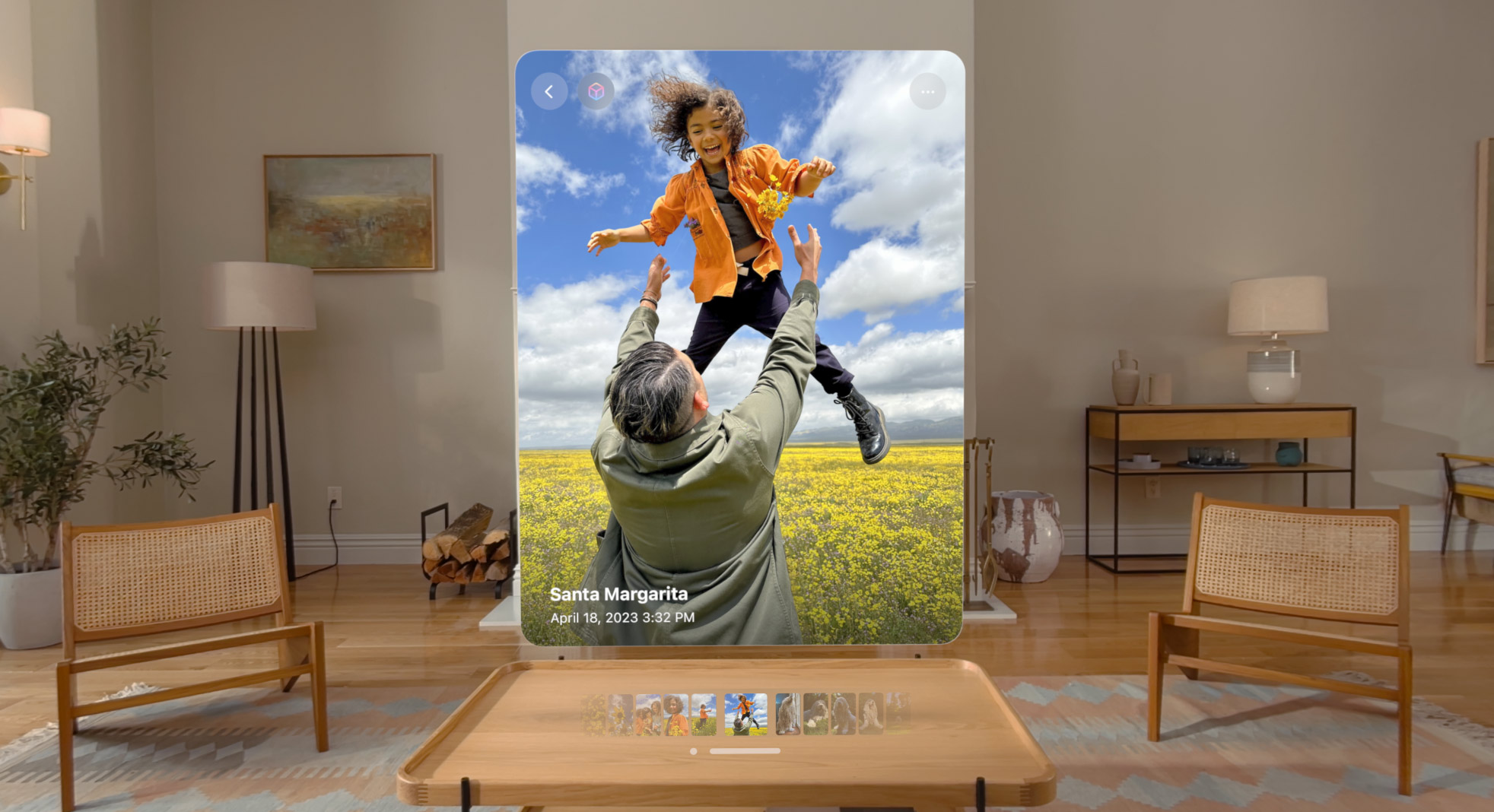
Spatial photos are immersive 3D-style images that capture depth and detail in a way that feels closer to how we see the real world. They’re designed to come alive when viewed in three dimensions — especially on Apple Vision Pro — but are stored and managed just like your regular photos.
Which iPhones Can Capture Spatial Photos
Not every iPhone supports this feature. To capture spatial photos and videos natively on Apple’s Camera app, you’ll need:
- iPhone 15 Pro or iPhone 15 Pro Max updated to iOS 18.1 or later.
- iPhone 16, iPhone 16 Plus, iPhone 16 Pro, and iPhone 16 Pro Max.
Later iPhone generations with dual wide and ultrawide cameras — like iPhone 17 series and beyond — also support spatial capture (hardware and software permitting).
These models use dual cameras positioned to mimic human depth perception, which is what allows spatial captures to feel three-dimensional.

How to Take Spatial Photos
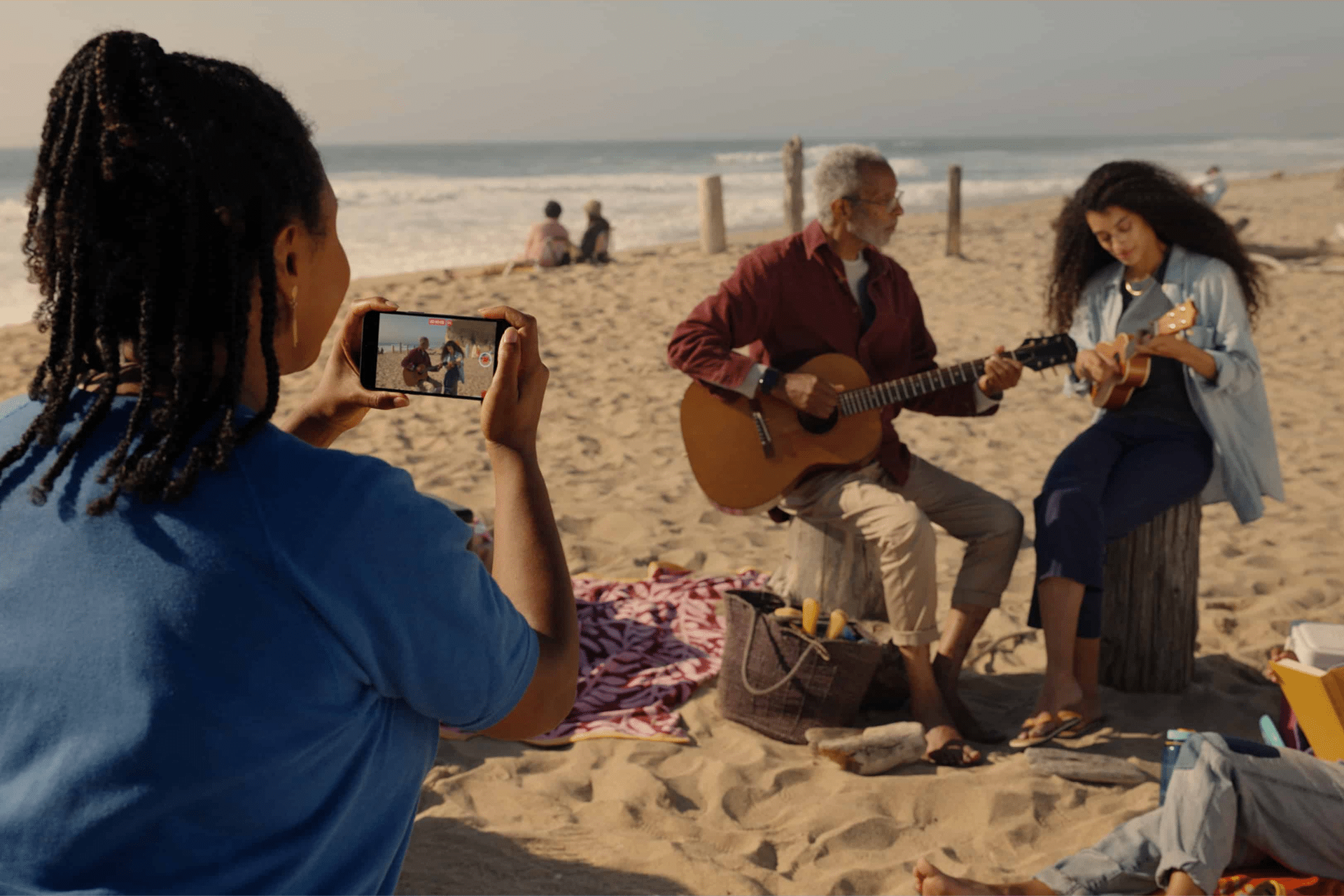
Capturing spatial photos on supported iPhones is similar to taking regular photos — only with a few extra steps:
- Open the Camera app on your iPhone.
- Swipe right below the viewfinder to select Spatial mode.
- Rotate your iPhone into landscape orientation so both cameras capture the scene.
- Frame your subject and tap the white shutter button to take your spatial photo.
- For best results, keep the camera steady, use even lighting, and place your subject between about 3 – 8 feet from the lens.
Your spatial photos will appear in a Spatial album in the Photos app alongside regular images.
Best Practices for Great Spatial Shots
• Use landscape mode — it helps the cameras align for depth capture.
• Steady hands or a small tripod improve clarity.
• Bright, even lighting enhances depth effects.
• Keep people and objects at moderate distances rather than too close or too far.
How to View Spatial Photos Without Vision Pro
If you don’t have an Apple Vision Pro, spatial photos still live in your Photos library and can be viewed as regular 2D images on iPhone, iPad, or Mac.
For a more dimensional experience without Vision Pro, you can:
- Export spatial captures using third-party apps that convert them to formats compatible with VR/AR headsets.
- View side-by-side or 3D-formatted captures on compatible AR glasses or headsets that support multiview video formats.

Sharing and Syncing
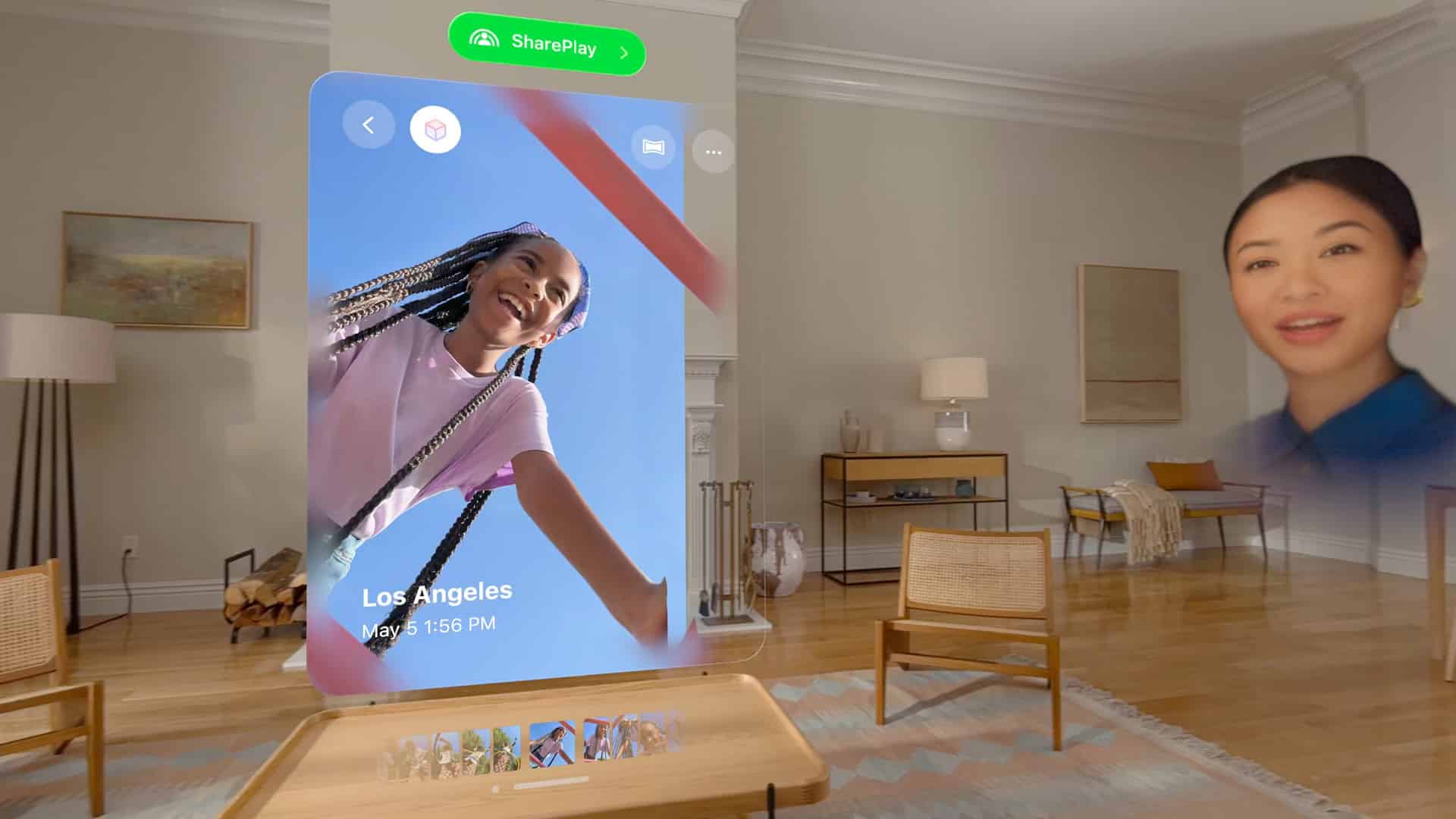
Spatial photos sync with iCloud Photos, so once taken, they appear across all your signed-in Apple devices. You can also share them like regular photos through Messages, AirDrop, or social apps — they’ll show as 2D images on devices that don’t support spatial rendering yet.
Spatial photos aren’t just a new “effect.” They capture more of the scene — depth, space, and subtle details — creating memories that feel closer to the moment you lived. When viewed in 3D on Apple Vision Pro, they can transport you back into the scene in a way nothing else on a phone can — a glimpse at the future of personal photography.