


iPhone StandBy is one of those features that quietly changes how you use your device at home. When your iPhone is placed on its side and connected to power, StandBy Mode turns the screen into a full-screen display designed for viewing at a distance. Instead of a dark, idle phone on your nightstand, you get a clean, readable interface that shows the information you care about while you sleep, work, or relax.
The feature blends the simplicity of a bedside clock with the flexibility of widgets, photos, and Live Activities. You can see the time, weather, calendar, music playback, or even delivery tracking without touching the phone. At night, StandBy dims and shifts colors to avoid disrupting your sleep, making it suitable for a bedroom environment.
StandBy also adapts based on the room and lighting. With supported iPhones, it uses ambient light sensors to reduce brightness automatically, and when paired with an always-on display, it can stay visible throughout the night.

How to Turn On iPhone StandBy
Settings > StandBy > Turn On StandBy
Once enabled, simply place your iPhone on its side and connect it to a charger. The display will automatically switch into StandBy Mode.
How to Customize StandBy Screens
Settings > StandBy > Display
Settings > StandBy > Photos
Settings > StandBy > Widgets
You can choose what type of content appears when StandBy is active. The system supports three main styles: clocks, widgets, and photos. Each can be swiped to switch layouts, and long-pressing lets you customize colors, widget stacks, and photo albums.
How to Use StandBy as a Bedside Clock
StandBy > Swipe to Clock View > Long-press to change style
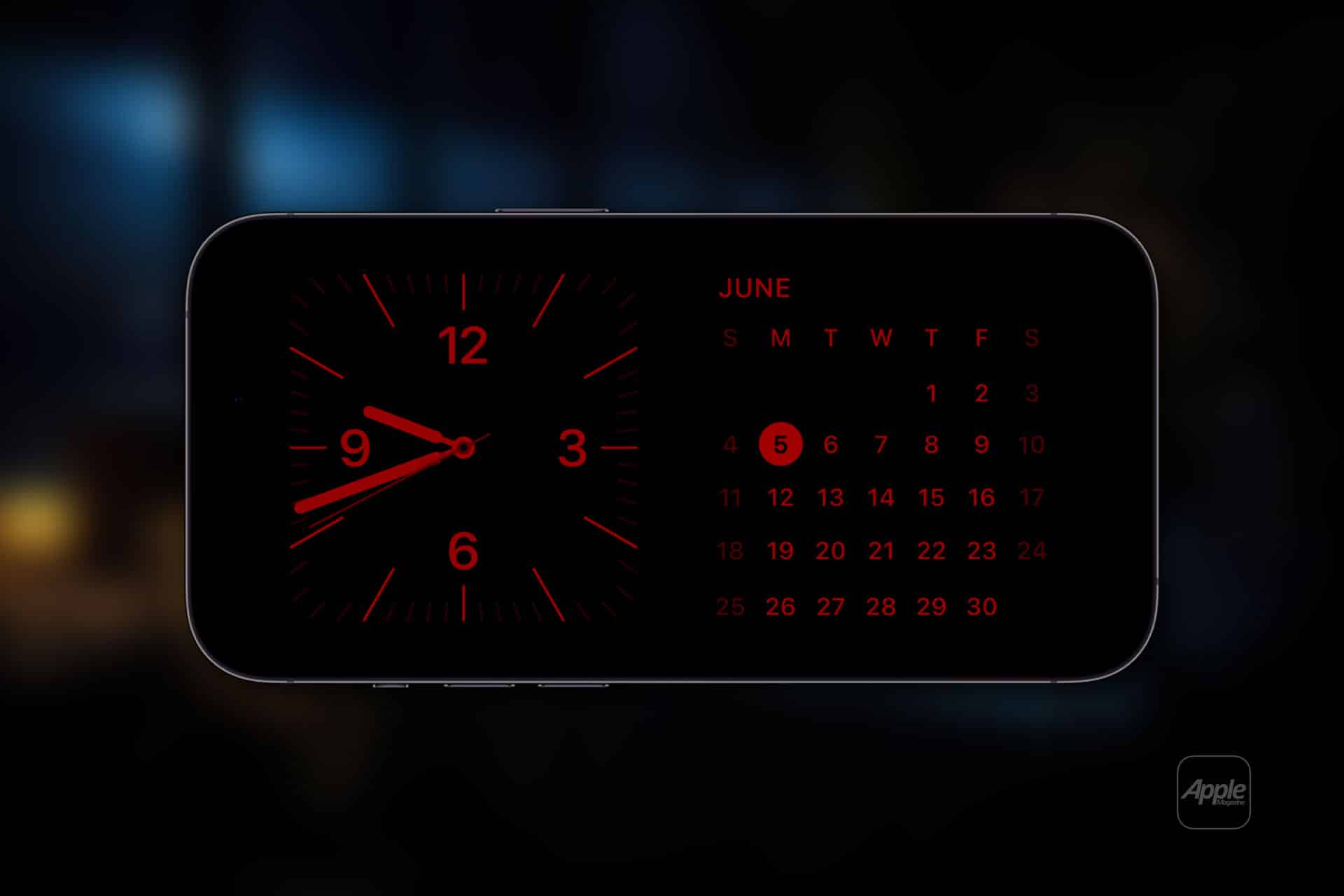
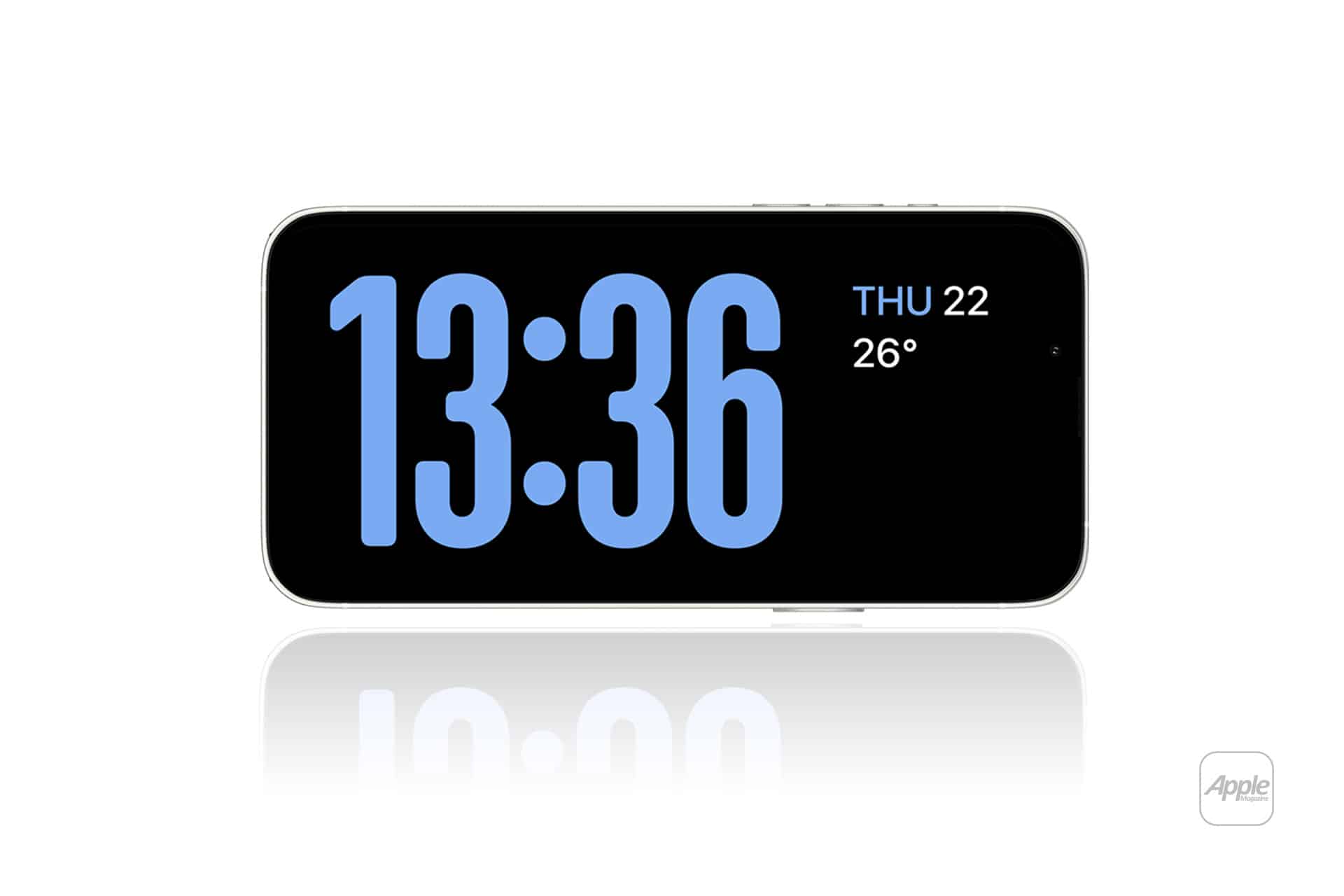
You can pick analog or digital clocks, bold fonts for easy reading, and color themes that match your room. At night, the red-tinted Night Mode helps prevent glare and protects your night vision.
How to Show Widgets and Live Activities
StandBy > Swipe to Widgets
Widgets can show weather, reminders, calendar events, battery levels, or music controls. Live Activities such as timers, workouts, or ride tracking also appear full-screen when active, making StandBy useful even outside the bedroom.
How to Display Photos
StandBy > Swipe to Photos
This turns your iPhone into a digital photo frame. You can choose specific albums so only favorite images appear, keeping the display personal and clutter-free.
How StandBy Works With Always-On Display
iPhone Settings > Display & Brightness > Always On
On supported models, StandBy stays visible even when the screen is technically asleep, showing time and widgets without requiring a tap.
iPhone StandBy turns a simple charging moment into a useful, elegant display that fits naturally into your home. It is not a flashy feature, but once you start using it on your nightstand or desk, it quickly becomes part of the daily rhythm of how your iPhone works for you.

