



Travel opens opportunities for adventure — and risk. Your iPhone is one of your most important companions on the road, serving as your camera, wallet, guide, and communication hub. Using a few practical precautions before and during your trip ensures your device stays safe and ready when you need it most.
Charger and Power Security
Original power accessories matter for travel safety and reliability. Apple’s own USB-C or Lightning chargers and certified cables (Made for iPhone) are designed to deliver stable voltage and protect your device’s battery and internal circuitry. Third-party or uncertified chargers can overheat, under-deliver power, or damage battery health — especially when charging in airports, hotels, or rental outlets.
Travel workflow example:
Pocket charger > Airport lounge USB port > Connect original Apple charger > Confirm charging indicator on iPhone screen
Bringing a reliable portable battery pack with adequate capacity also ensures you don’t get stranded without power during transit delays or long layovers.
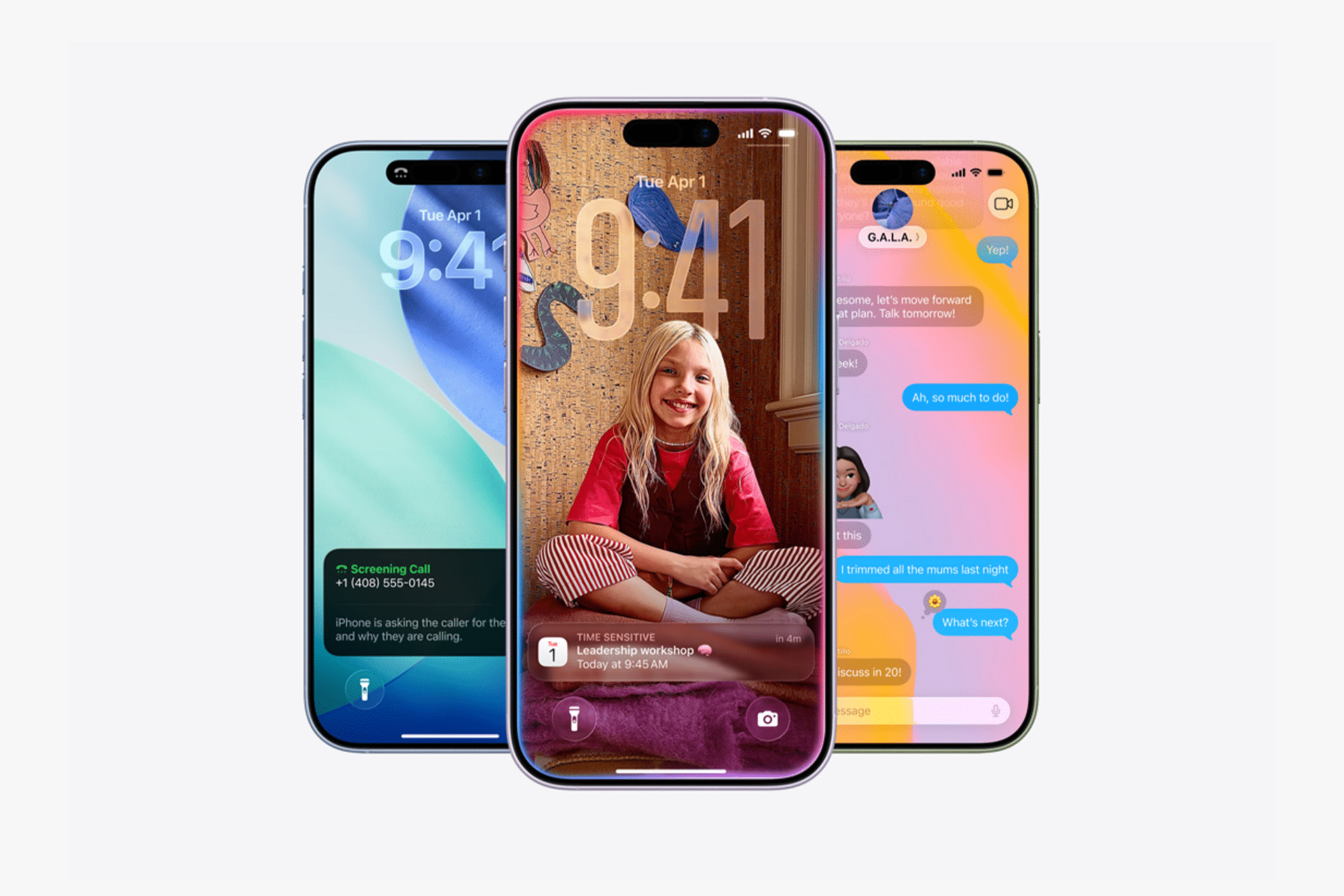
Protective Cases and Everyday Impact Resistance
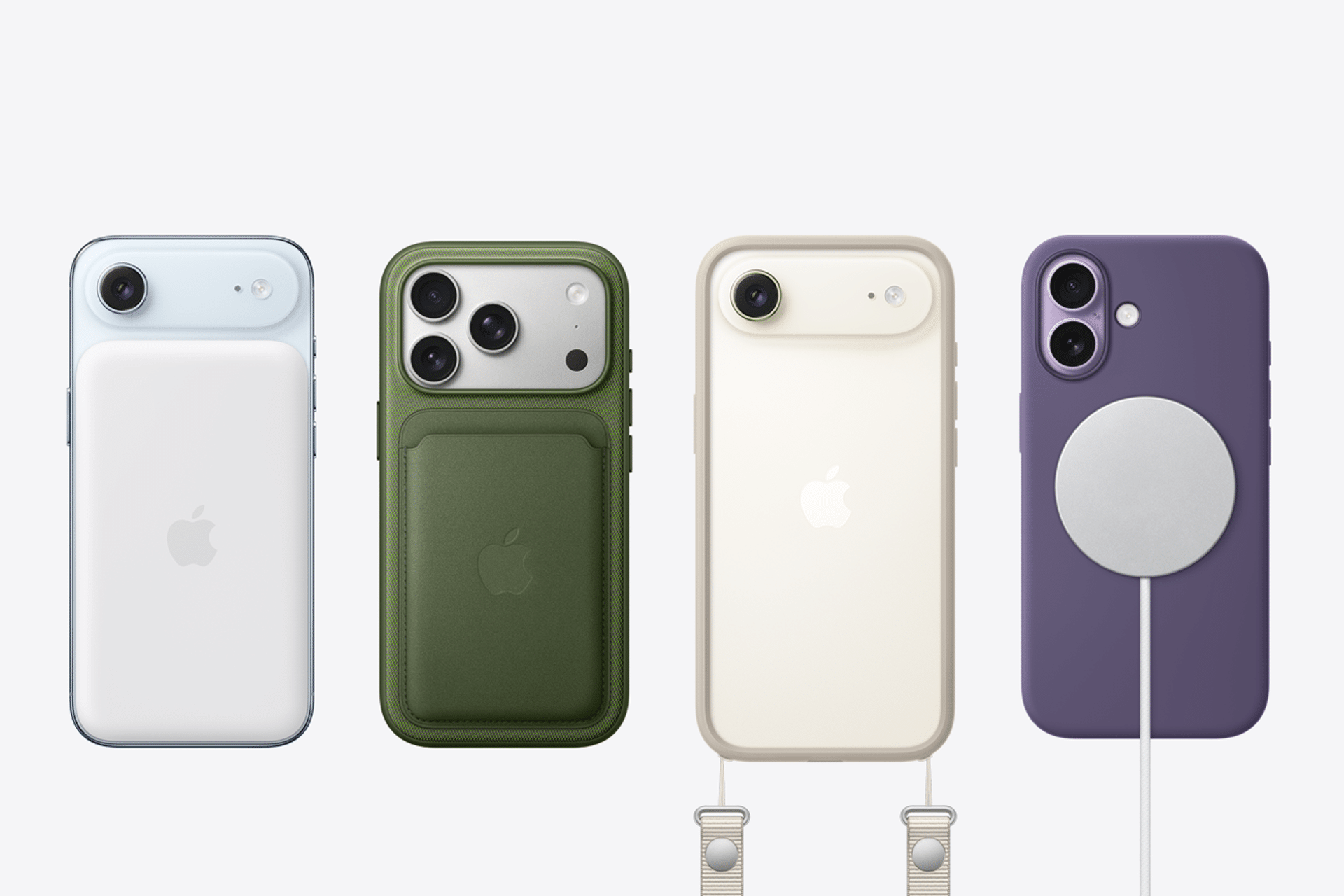
Wherever you go, protection against drops and impact is fundamental. Travel often takes you through busy streets, crowded transport hubs, or uneven terrain — each increasing the chance of accidental knocks. A protective case with reinforced corners and raised edges around the screen and camera helps distribute impact force and prevents scratches or cracks.
Choose a case that matches your travel style:
• Slim rugged case — lightweight but effective
• Heavy duty shock protection — for adventure travel
• Clear case with raised edges — for everyday balance
Many high-quality cases also provide grip on smooth surfaces like airplane trays or car armrests.
Water Resistance and Cleaning After Exposure
iPhones since recent generations include IP-rated water resistance, meaning they can withstand spills and light rain. However, water resistance is not waterproofing — and exposure to sand, mud, or food can compromise seals and ports. Sand particles can scratch finishes and enter speaker meshes; sticky substances like mud and drinks can clog buttons and charging ports.
After accidental exposure:
-
Gently wipe the exterior with a dry, lint-free cloth
-
Shake off loose particles without blowing into ports
-
Avoid inserting anything into speakers or ports
-
Use a soft brush for crevices if necessary
-
Air-dry any wet areas before charging
Avoid pressurized air, compressed spray cleaners, or submerging the device to remove debris, as these can force contaminants deeper or damage coatings.

Managing Core iPhone Settings Before Departure
Before travel, reviewing key iPhone settings enhances security and peace of mind.
Keep ‘Find My iPhone‘ enabled for location tracking, remote locking, and lost mode. If your iPhone is misplaced, Find My can help you locate it or erase it to protect personal data.
Settings > [your name] > Find My > Find My iPhone
Ensure all toggles are on, including Send Last Location — which saves your device’s last known position if the battery dies.
Another useful checklist before departure:
• Check iOS updates — Keeping iOS current ensures maximum compatibility with travel apps and security fixes.
• Enable Automatic Updates — in Settings > General > Software Update.
• Verify iCloud backups — so your data is recoverable if your device is lost.
Organizing Contacts and Emergency Access
During travel, quick access to family, emergency services, or travel companions can make a big difference in urgent situations. Setting key contacts as Favorites in the Phone and Messages apps ensures they’re always easy to reach.
Phone app > Favorites > Add contact
You can add multiple numbers for the same person (mobile, local, international) and set priority emergency contacts.
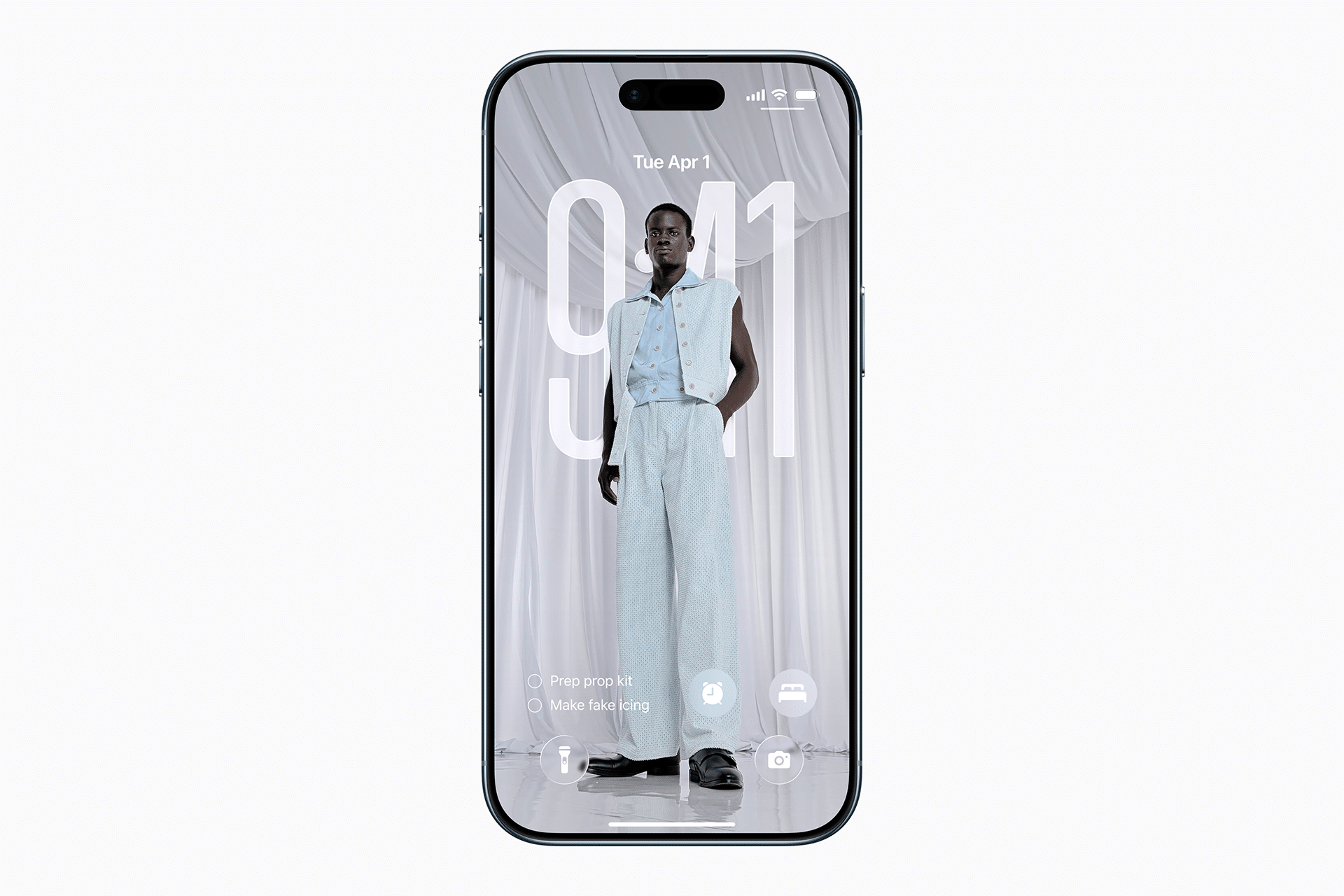
Adding emergency information to the Lock Screen also helps first responders if needed:
Health > Medical ID > Edit > Add emergency contacts
Boarding Passes and Wallet Convenience
Most airlines support digital boarding passes that integrate with Apple Wallet. Storing boarding passes and travel documents in Wallet speeds up security checks and boarding.
Typical workflow:
-
Receive boarding pass via airline app or email
-
Tap Add to Apple Wallet
-
Open Wallet at security or gate and present QR code
Wallet can also store transit cards, event tickets, and hotel keys where supported.
Optimizing Apple Music and Entertainment Offline
Long flights or lengthy layovers often mean limited connectivity. Before you travel, download favorite playlists, albums, or podcasts for offline listening.
Apple Music app > … > Download
Downloaded content plays without internet and saves roaming data charges.
Wireless headphones with noise cancellation can improve comfort in busy terminals, and enabling Spatial Audio enhances immersive playback without distracting your travel neighbors.

