

Presentations are no longer just static slides filled with bullet points. In meetings, classrooms, pitches, and even personal projects, visuals matter as much as words. iWork Keynote approaches presentations as a visual narrative rather than a document with slides attached, and that difference shapes everything about how the app works.
Instead of overwhelming users with endless menus and controls, Keynote focuses on clarity, motion, and design consistency. The result is a tool that feels approachable for beginners but powerful enough for professionals.
App Store > Search “Keynote” > Download
Keynote > New Presentation > Choose Theme > Start Editing
Why Keynote Feels Different From PowerPoint
The first thing most users notice is how clean Keynote looks. Slides are treated as canvases, not containers. Text, images, videos, and charts can be placed freely, aligned visually, and animated with precision.
Keynote’s inspector panel changes based on what you select. Tap text and typography controls appear. Select an image and visual tools show up. This contextual approach removes the clutter common in traditional presentation software and helps users focus on the content itself.
PowerPoint often feels built around formatting options. Keynote feels built around the message.


Themes That Elevate, Not Distract
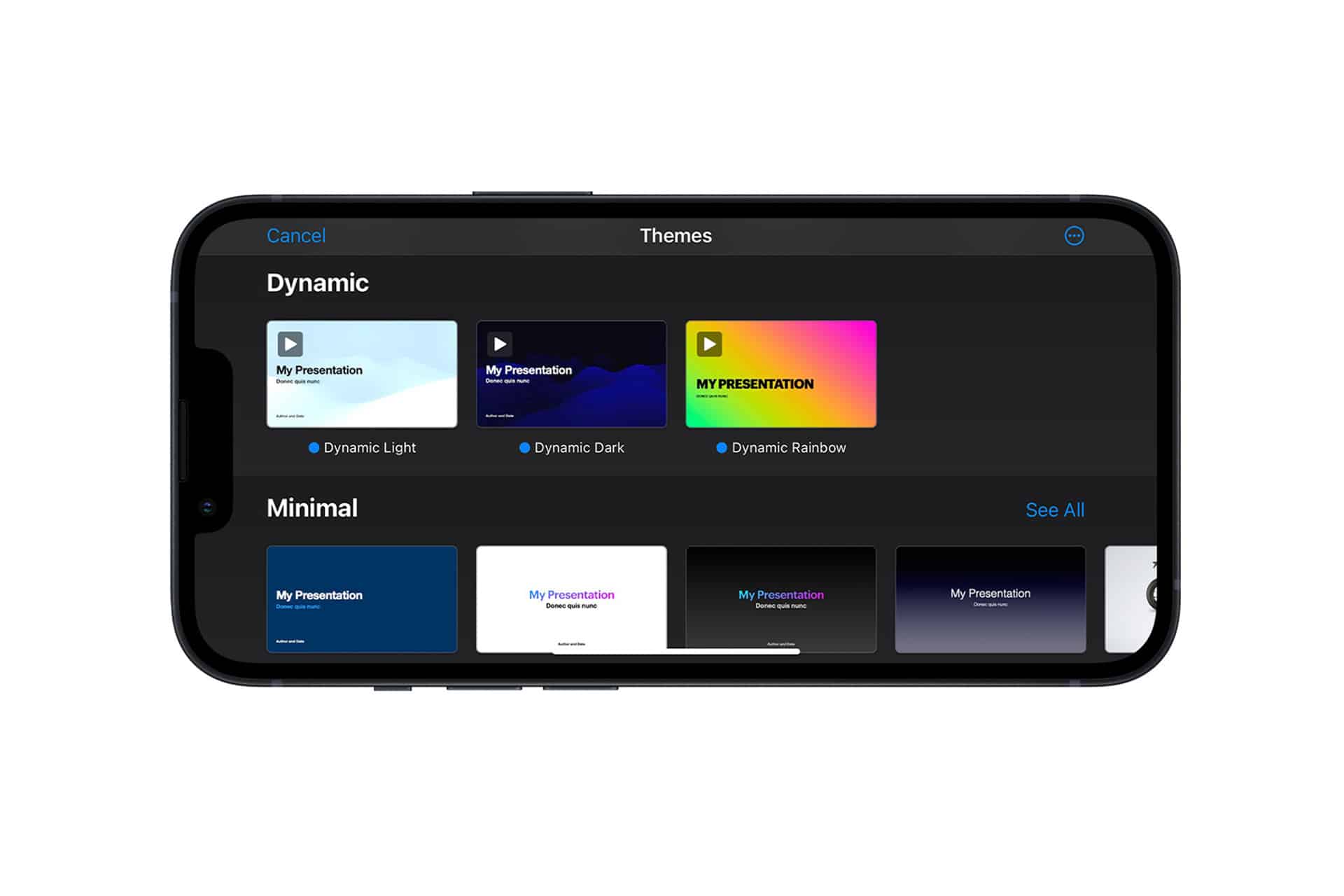
Keynote includes a carefully curated collection of themes designed to look professional without being flashy. Each theme is consistent across fonts, colors, transitions, and layouts, making it difficult to accidentally create an unbalanced slide.
These themes are especially useful for users who don’t consider themselves designers. You can build a polished presentation quickly, then refine details without breaking visual harmony.
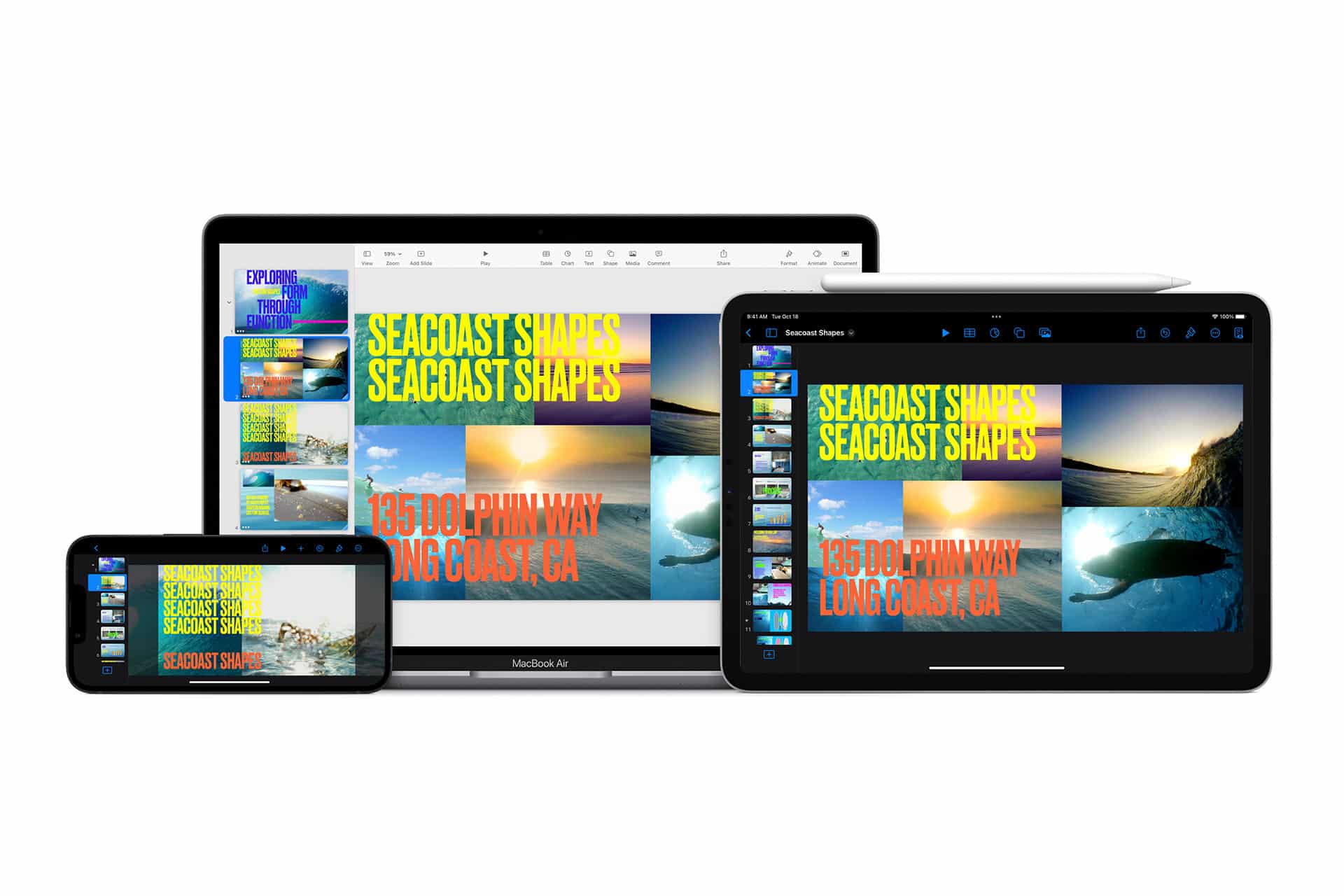
Themes also scale well across devices, maintaining layout integrity on Mac, iPad, and iPhone.
Cinematic Animations and Transitions
Animations are where Keynote truly separates itself. Instead of basic entrance and exit effects, Keynote supports object-level motion, layered animations, and cinematic transitions that feel fluid and intentional.
Magic Move is one of its standout features. When two slides share similar objects, Keynote animates the transformation automatically, creating smooth transitions that look professionally produced with minimal effort.
Animations in Keynote are optional, but when used thoughtfully, they enhance storytelling instead of distracting from it.
Presenting Across Devices
Keynote works seamlessly across the Apple ecosystem. A presentation started on Mac can be edited on iPad or iPhone, with changes syncing automatically through iCloud.
Keynote > Settings > iCloud > Enable Sync
This flexibility is especially valuable for people who build presentations at a desk but present on the go. iPad becomes a powerful presentation tool with Apple Pencil support for annotations, while iPhone can act as a remote.
Keynote also includes a presenter display showing notes, upcoming slides, and a timer, helping speakers stay on track without looking back at the screen.
Live Collaboration Made Simple
Collaboration in Keynote is built in, not layered on. You can invite others to edit or comment in real time, whether they are using Mac, iPad, iPhone, or even a browser.
Share > Invite Collaborators > Set Permissions
This makes Keynote practical for teams, classrooms, and creative projects where multiple people contribute to a single narrative.
Compatibility With PowerPoint
Keynote opens and exports PowerPoint files, allowing collaboration with users outside the Apple ecosystem.
File > Open > PowerPoint File
File > Export To > PowerPoint
While some advanced PowerPoint animations may not translate perfectly, most layouts, text, and visuals remain intact. This makes Keynote a viable primary tool even in mixed-platform environments.
A Presentation Tool Focused on Ideas
iWork Keynote is not about stuffing more information onto slides. It encourages clarity, pacing, and visual emphasis. For users tired of rigid templates and overcomplicated interfaces, Keynote offers a calmer, more expressive way to present ideas.
It doesn’t try to replace every enterprise feature found in PowerPoint. Instead, it excels at helping people communicate clearly, visually, and confidently.

