

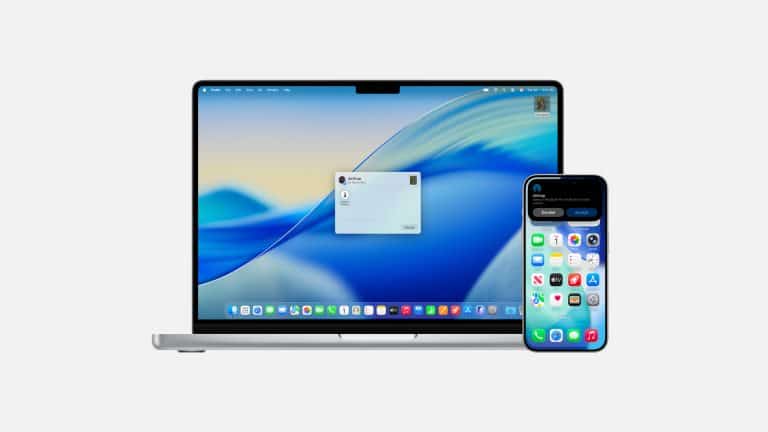
Mac AirDrop visibility settings are one of the simplest ways to keep wireless file sharing useful without leaving the Mac open to unwanted requests. AirDrop is built for quick transfers between nearby Apple devices, but the feature works best when visibility is controlled carefully. A Mac does not need to be discoverable to everyone all the time just because AirDrop is convenient.
AirDrop uses Bluetooth and Wi-Fi to discover nearby Apple devices and send files, photos, links, documents, contacts, PDFs, videos, locations, and other supported content. It is one of the most useful parts of the Apple ecosystem because it removes the need for email attachments, messaging yourself, cloud links, or USB drives when moving something between iPhone, iPad, and Mac.
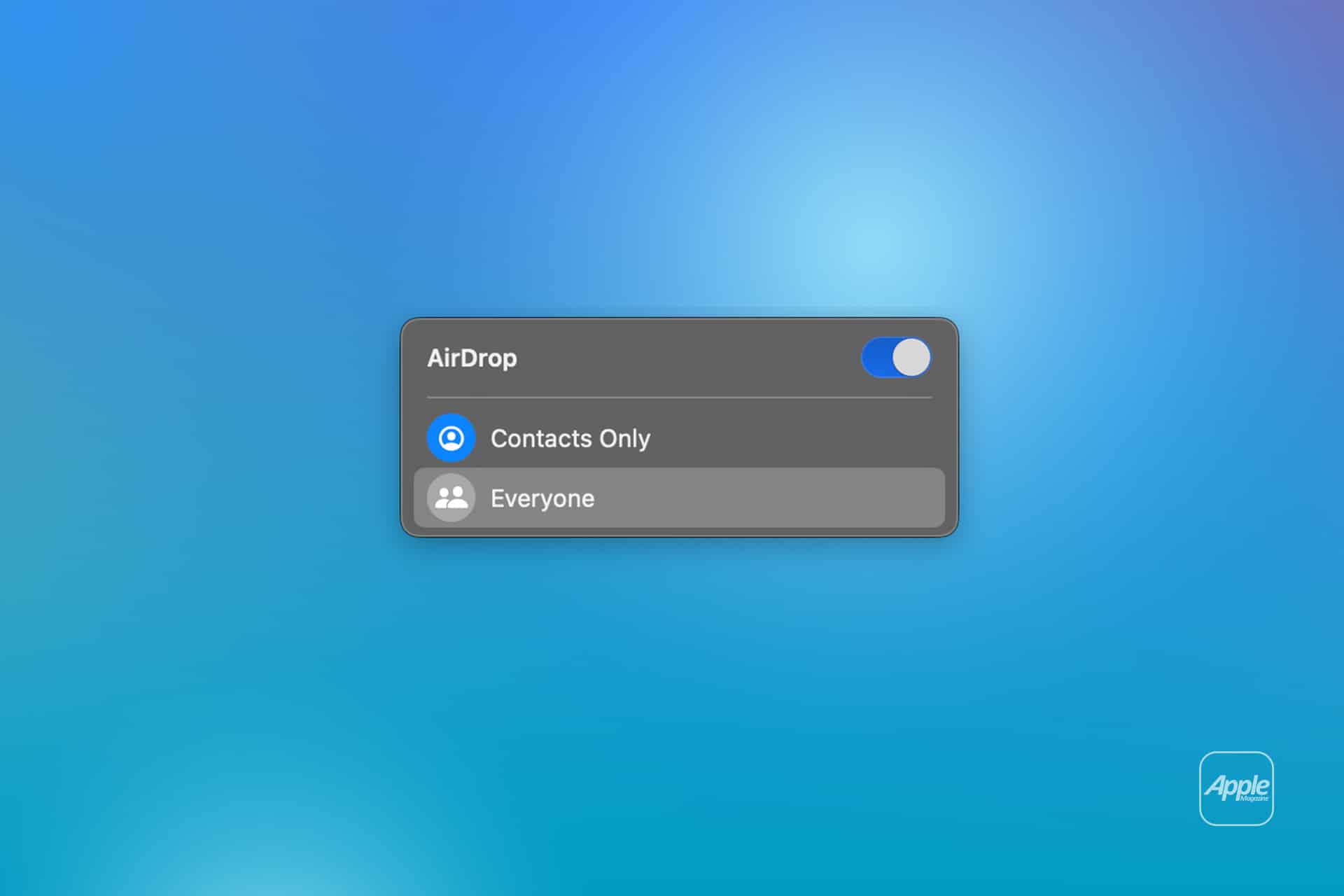
The privacy side matters because discoverability controls who can see the Mac as an AirDrop destination. Apple gives users three practical states: Receiving Off, Contacts Only, and Everyone for 10 Minutes. Receiving Off blocks AirDrop requests. Contacts Only limits visibility to people in Contacts who are signed in with an Apple Account. Everyone for 10 Minutes makes the Mac discoverable to nearby Apple devices for a short window before automatically returning to a more limited state.
That time limit is important. Older AirDrop behavior made it easier for users to leave “Everyone” enabled longer than necessary. The 10-minute option keeps AirDrop convenient in public or mixed-device situations without making broad visibility the permanent default.
How to Change AirDrop Visibility on Mac
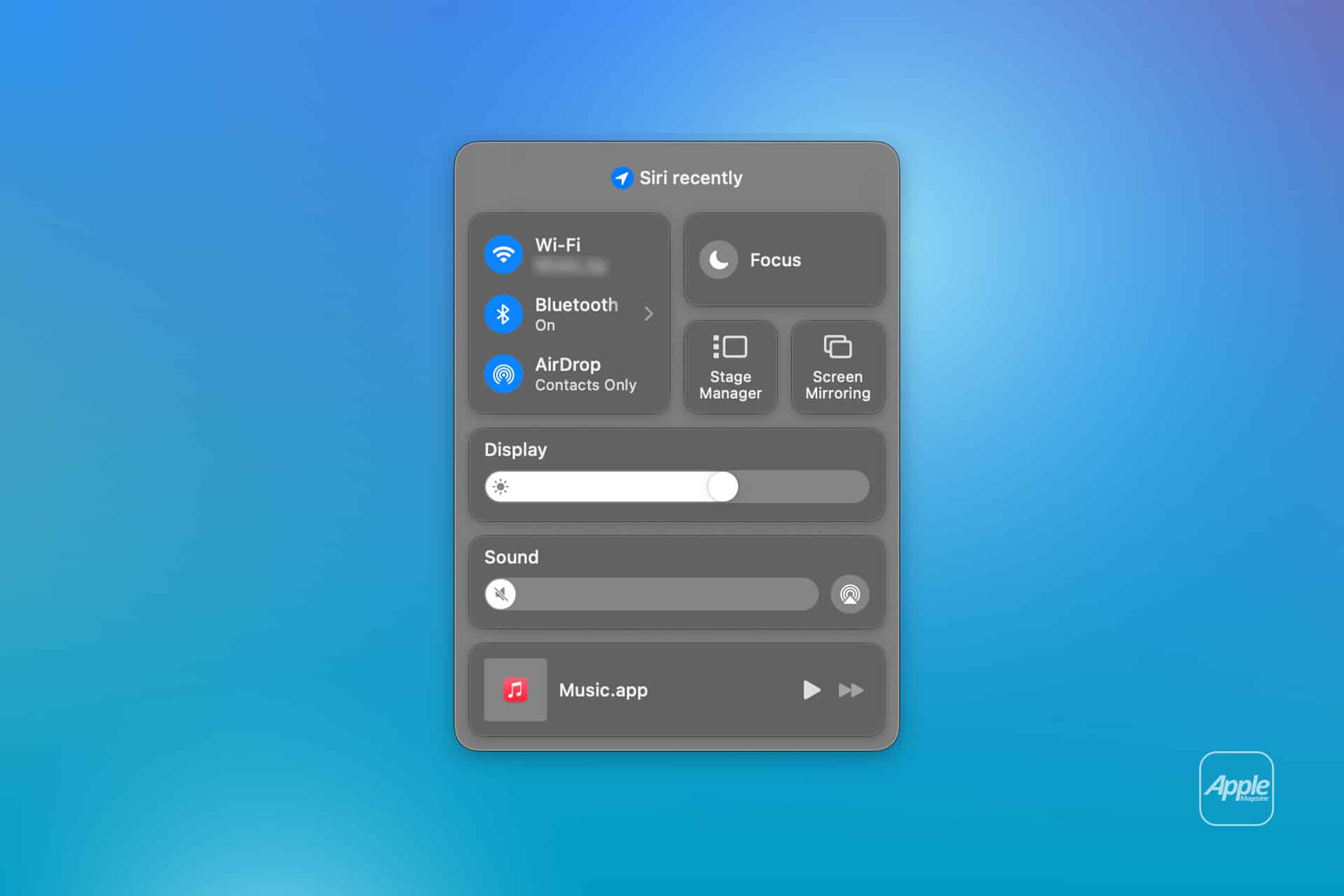
Mac AirDrop visibility can be changed from Control Center or Finder. Control Center is usually the fastest option because it is available from the menu bar.
To change AirDrop from Control Center:
Control Center > AirDrop > Choose Receiving Off, Contacts Only, or Everyone for 10 Minutes
Finder also gives a familiar AirDrop view, especially when sending or receiving files.
To change AirDrop from Finder:
Finder > AirDrop > Allow Me to Be Discovered By > Choose Setting
AirDrop also depends on Wi-Fi and Bluetooth. Both need to be turned on for discovery and transfer to work properly. The devices must be nearby, and neither device should be using settings that block the connection.
To check Wi-Fi and Bluetooth:
- Control Center > Wi-Fi > On
- Control Center > Bluetooth > On
If AirDrop does not work, the first fix is usually to check visibility on both devices. A Mac set to Receiving Off will not appear. A Mac set to Contacts Only may not appear if the sender is not saved correctly in Contacts, uses a different Apple Account email or phone number, or is not signed in properly. In that case, temporarily switching to Everyone for 10 Minutes can solve the transfer without leaving the Mac open indefinitely.

Contacts Only Is the Best Everyday Setting
Mac AirDrop visibility is safest for daily use when set to Contacts Only. This keeps AirDrop available for people the user knows while reducing random requests from nearby strangers in airports, schools, cafés, offices, events, trains, or shared buildings.
Contacts Only is useful because AirDrop can otherwise become too visible in crowded places. If a Mac is discoverable to everyone nearby, anyone with an Apple device in range may be able to see it as a sharing target and send a request. The file does not transfer unless accepted, but the request itself can still be annoying, distracting, or inappropriate.
Contacts Only reduces that problem. The Mac appears only to people who are in Contacts and have the right Apple Account details available. For family, close friends, coworkers, classmates, and trusted collaborators, that is usually enough.
The setting also fits how most people use AirDrop. Many transfers happen between personal devices or known people: sending photos from iPhone to Mac, sharing a PDF with a coworker, moving a video to iPad, sending a presentation to another Mac, or sharing a link across devices. Contacts Only keeps those transfers easy while avoiding unnecessary exposure.
Everyone for 10 Minutes Is for Temporary Sharing
Mac AirDrop visibility set to Everyone for 10 Minutes is best for short moments when Contacts Only creates friction. This can happen during meetings, classrooms, conferences, photo shoots, family gatherings, repair visits, events, or quick exchanges with someone who is not saved in Contacts.
The time limit makes the setting safer. The Mac becomes visible broadly, the transfer happens, and AirDrop automatically returns from that open state after the window ends. Users do not have to remember to switch it back later.
That is especially helpful in public. A person may need to receive a file from someone nearby once, but there is no reason to remain visible to every Apple device in the room afterward. The 10-minute window matches the real use case: open visibility, finish the transfer, close the door.
To receive from someone not in Contacts:
Control Center > AirDrop > Everyone for 10 Minutes
After the transfer, the user can manually switch back to Contacts Only or Receiving Off if they do not want to wait for the timer.
Receiving Off Is Best for Quiet or Sensitive Moments
Mac AirDrop visibility should be set to Receiving Off when file sharing is not needed. This is the cleanest option for exams, meetings, work sessions, public presentations, travel, private environments, or any situation where unexpected transfer prompts would be distracting.
Receiving Off does not remove AirDrop from the Mac. It simply prevents the device from receiving AirDrop requests. Users can turn it back on whenever needed.
To stop receiving AirDrop requests:
Control Center > AirDrop > Receiving Off
This setting is also useful for shared Macs, managed devices, school laptops, or work machines where unexpected file transfers are not appropriate. Some organizations may restrict AirDrop through device management, especially in workplaces or schools with stricter data-control rules.
For personal Macs, the choice can be simple. Contacts Only is the normal setting. Everyone for 10 Minutes is for quick open sharing. Receiving Off is for privacy, focus, or public situations where AirDrop is not needed.
AirDrop Works Best With Clear Contact Details
Mac AirDrop visibility issues often come from Contacts Only. The setting depends on Apple Account information, Contacts entries, and device sign-in status. If a known person cannot see the Mac, the issue may not be AirDrop itself. It may be that their Apple Account email address or phone number is not saved in the right contact card.
To improve Contacts Only reliability, the sender and receiver should both be signed in to iCloud with their Apple Account, have Wi-Fi and Bluetooth enabled, and have each other’s Apple Account email or phone number saved in Contacts. Personal Hotspot should also be off, because it can interfere with AirDrop behavior in some cases.
To check Apple Account:
System Settings > Apple Account
To check Contacts:
Contacts > Open Contact > Confirm Email or Phone Number
If a transfer is urgent and contact details are not matching, Everyone for 10 Minutes is usually easier than editing contact cards immediately. Afterward, the contact can be corrected so future transfers work through Contacts Only.
This is one of the reasons AirDrop feels simple when it works and confusing when it does not. The technology is fast, but Contacts Only adds an identity layer that must match correctly.

AirDrop Is Convenient, but Still Needs Judgment
Mac AirDrop visibility settings reduce risk, but users should still treat incoming files with care. AirDrop requests show a preview and sender name, and the transfer requires approval. A file from a stranger should not be accepted just because it appears on screen. Unknown documents, installers, archives, images, or links can still be unwanted or risky.
AirDrop is safest when the sender is known, the file is expected, and the device is using a limited visibility setting. A surprise AirDrop request in public should usually be declined.
The feature also has workplace and privacy implications. Sending the wrong file to the wrong nearby device is easy if several devices have similar names. Users should check the recipient carefully before sharing sensitive PDFs, documents, videos, personal photos, contracts, IDs, or work files.
Renaming a Mac can help make the device easier to identify in AirDrop.
To rename the Mac:
System Settings > General > About > Name
A clear device name reduces confusion, especially in homes, classrooms, offices, and studios with multiple Macs.
A Small Setting That Makes Sharing Safer
Mac AirDrop visibility is one of those settings that works best when users think of it as a door. Contacts Only keeps the door open to people they know. Everyone for 10 Minutes opens it briefly to the room. Receiving Off closes it entirely.
That simple control is what makes AirDrop practical. The feature remains fast and easy when needed, but the Mac does not have to broadcast availability everywhere. For most users, Contacts Only should be the default. Everyone for 10 Minutes should be used when receiving from someone new. Receiving Off should be used when focus, privacy, or public settings matter more than quick sharing.
AirDrop is still one of the best examples of Apple’s ecosystem advantage. Moving a file from iPhone to Mac, sending a photo to iPad, or sharing a link with someone nearby can take seconds. The visibility settings make that convenience safer, quieter, and easier to control.