


Mac AirPlay display mirroring can turn a nearby screen into a wireless extension of the Mac. With AirPlay, a Mac can mirror its display to Apple TV, an AirPlay-compatible smart TV, an iPad, or another supported Mac. The feature is useful for presentations, quick reviews, video playback, shared browsing, temporary workspaces, and moments when the Mac screen needs to be seen by more people without connecting a cable.
The feature works in two main ways. Mirroring shows the same Mac screen on another display. Extended display mode gives the Mac extra screen space, letting users place windows on the second display while keeping the main Mac screen separate. Both options can be useful, but they serve different needs.
Mirroring is best for showing the same thing to someone else. Extended display mode is better for productivity, notes, controls, reference pages, and temporary second-screen work.
Mac AirPlay Display Mirroring
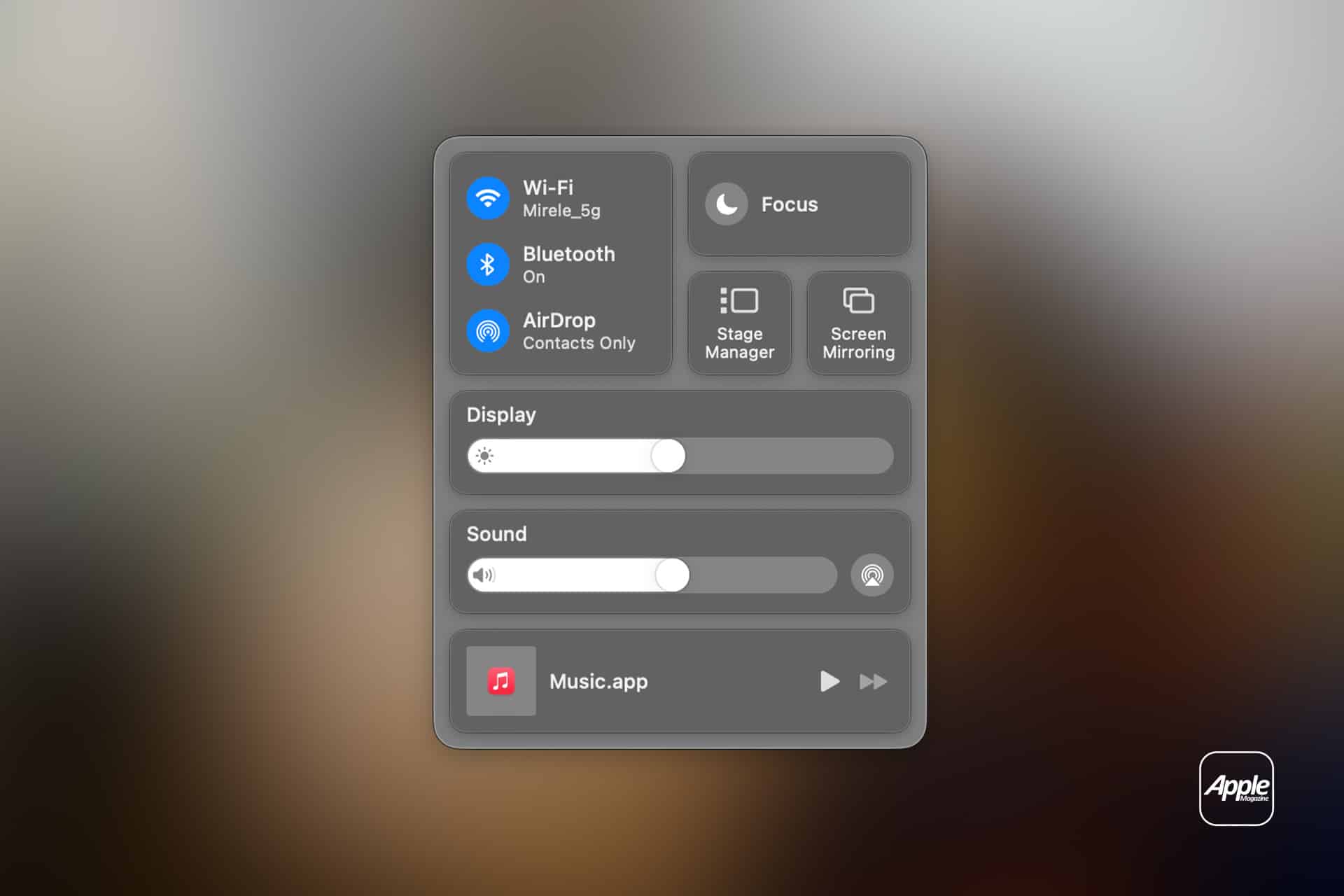
Mac AirPlay display mirroring starts from Control Center on macOS. The Mac and receiving device usually need to be on the same Wi-Fi network, and the receiving device must support AirPlay.
To mirror a Mac screen:
Control Center > Screen Mirroring > Choose Apple TV, Smart TV, iPad, or Mac
To change whether the screen is mirrored or extended:
System Settings > Displays > Choose AirPlay Display > Use As > Mirror or Extended Display
On Apple TV:
Settings > AirPlay and HomeKit > AirPlay > On
Once connected, the Mac screen appears on the selected display. If the image does not fit correctly, the Displays settings on Mac can be used to adjust resolution, arrangement, and scaling.
AirPlay is useful because it removes the need for HDMI cables, adapters, and docks in quick situations. A user can walk into a room, choose the Apple TV, and show a Keynote deck, Safari page, spreadsheet, video, photo album, or app window on the larger screen.

Mirroring for Presentations and Meetings
AirPlay mirroring is one of the easiest ways to present from a Mac. A user can show a Keynote presentation, website, design mockup, document, dashboard, or video on a larger screen without physically connecting the Mac.
For a clean presentation setup:
Control Center > Screen Mirroring > Choose Apple TV > Mirror Built-In Display
Then open the presentation:
Keynote > Play
Mirroring works well when the audience needs to see exactly what the presenter sees. It is useful for classrooms, meeting rooms, small offices, home presentations, creative reviews, and quick demonstrations.
For more control, extended display mode may be better. Keynote can show presenter notes on the Mac while slides appear on the external display. A browser can remain open on the large screen while notes stay on the Mac. A video call can stay on the Mac while a document or visual appears on the TV.
To extend instead of mirror:
System Settings > Displays > Use As > Extended Display
This setup makes AirPlay feel closer to a wireless monitor. The Mac remains the control center, while the second screen becomes the presentation surface.
Apple TV as a Wireless Mac Display
Apple TV 4K is one of the most reliable AirPlay targets because it is designed to sit on the main screen in a room. A Mac can mirror to Apple TV for work, entertainment, family photos, browser viewing, training, or app demonstrations.
This is especially useful in spaces where the TV is already installed and the Mac is portable. A person can use the living room TV for a larger Safari window, show vacation photos, review a design, watch a video, or share a document with others on the couch.
A simple media setup:
Control Center > Screen Mirroring > Choose Apple TV
Then open the content:
Safari, Photos, QuickTime Player, TV App, or Music
For video playback, AirPlay video streaming may be better than full display mirroring because it sends the media to the TV more directly. But for anything that needs the full Mac interface, mirroring is the simpler option.
AirPlay to iPad or Another Mac
AirPlay can also send a Mac display to a supported iPad or Mac. This is useful when a user wants a temporary second screen without carrying a monitor.
An iPad can work as a nearby display for reference material, notes, a chat window, a web page, or a preview panel. For more advanced iPad-as-display use, Sidecar may be better because it is designed specifically for using iPad as a Mac display and can support Apple Pencil in compatible apps.
To use AirPlay to iPad:
Control Center > Screen Mirroring > Choose iPad
To use Sidecar:
System Settings > Displays > Add Display > Choose iPad
AirPlay to Mac is useful in shared workspaces. One Mac can receive another Mac’s screen for quick review, collaboration, troubleshooting, or presentation. The receiving Mac needs AirPlay Receiver enabled.
To enable AirPlay Receiver on Mac:
System Settings > General > AirDrop & Handoff > AirPlay Receiver > On
This can be useful when someone wants to show a file or app without sending screenshots or starting a full video call.

When to Mirror and When to Extend
Mirroring and extending are often confused, but choosing the right mode changes the experience.
Mirroring shows the same screen on both displays. It is best for demos, videos, teaching, troubleshooting, and simple presentations where everyone should see the same thing.
Extended display mode creates more workspace. It is best for working with notes, multiple windows, reference pages, video calls, dashboards, timelines, and presentation controls.
A useful rule is simple. Mirror when others need to follow along. Extend when the second display is part of the workspace.
To switch modes:
System Settings > Displays > Use As > Mirror or Extended Display
This setting can be changed any time during an AirPlay session.
Practical Mac AirPlay Uses
Mac AirPlay display mirroring works well for everyday tasks that do not justify a permanent monitor. A student can mirror a research page to a TV while working on notes. A small team can review a presentation in a meeting room. A designer can show a mockup on a larger screen. A teacher can mirror a Mac to explain a website or document. A household can use the TV to review photos before choosing favorites.
It can also help when a MacBook screen feels too small for a temporary task. A user can mirror to a large TV to review a spreadsheet, compare images, read a long PDF, or watch training material.
For creative work, AirPlay can help with review, but it should not be treated as a color-accurate display path. Wireless mirroring may introduce compression, delay, and display differences. For final color decisions, a calibrated wired display or supported reference display is a better choice.
For casual review, AirPlay is convenient. For final grading, proofing, and precise visual work, use a controlled display setup.
AirPlay Limits to Know
AirPlay is wireless, so performance depends on Wi-Fi quality, device distance, network traffic, and the receiving display. A strong local network makes mirroring smoother. A weak network can cause delay, stutter, lower image quality, or disconnections.
For better results, keep the Mac and Apple TV near the router, use a 5GHz or Wi-Fi 6 network where available, and avoid heavy downloads during the session. Apple TV connected by Ethernet can improve reliability.
AirPlay can also have slight latency. That is usually fine for presentations, browsing, photo review, and video playback. It may feel less ideal for fast gaming, precise cursor work, music production, or tasks where timing matters.
Some protected video content may not mirror as expected because streaming services can limit external playback or screen mirroring. In those cases, using the native Apple TV app or the streaming app directly on the TV may work better.
Privacy and Notifications
Screen mirroring shows what appears on the Mac. That includes notifications, messages, browser tabs, file names, desktop items, and private windows if they are visible. Before mirroring, it is worth preparing the Mac.
A cleaner setup starts with Focus:
Control Center > Focus > Do Not Disturb
It also helps to close private windows, hide the desktop if needed, and open only the apps meant for display. Presenters can use a separate desktop space or full-screen app to reduce accidental exposure.
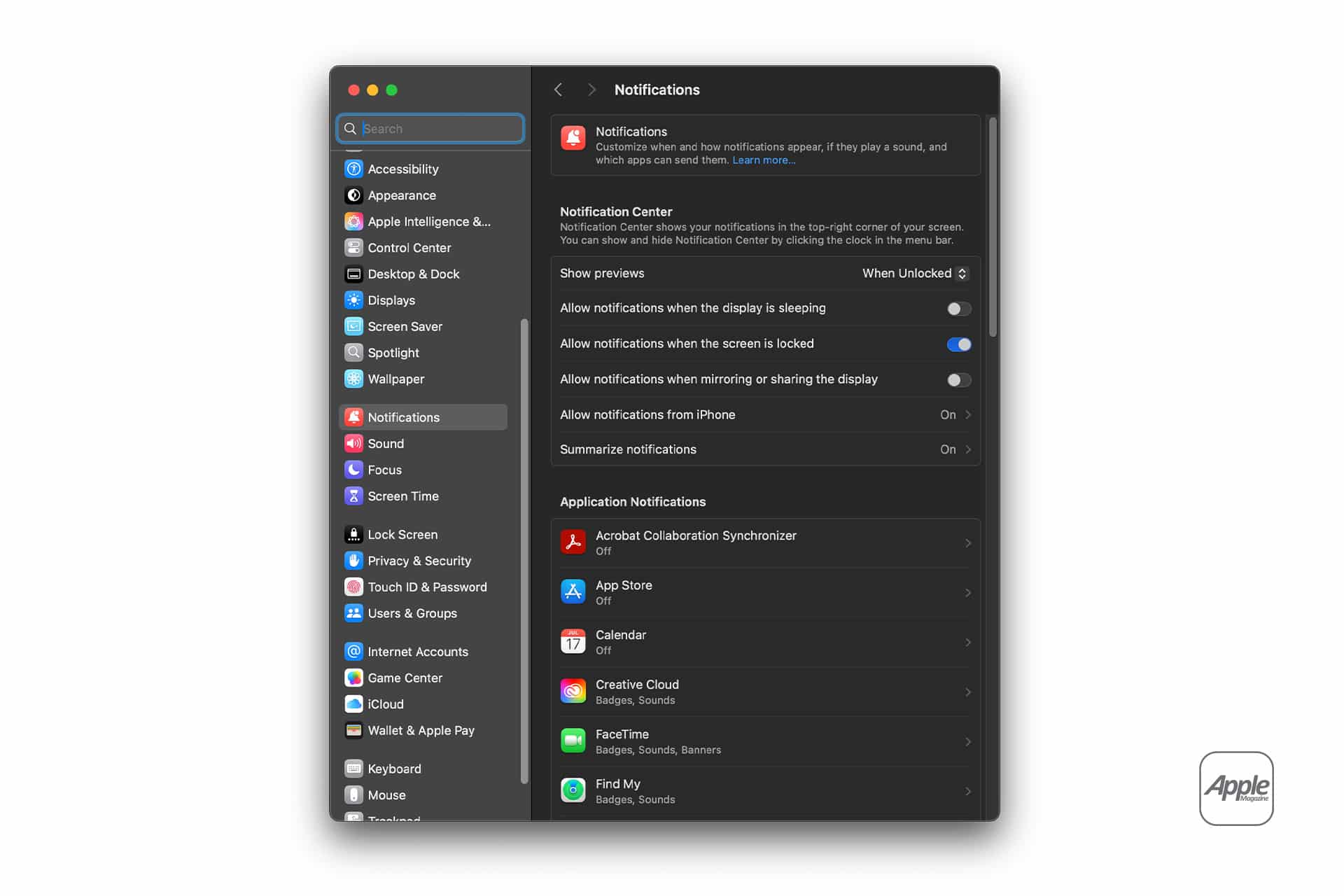
To manage notifications:
System Settings > Notifications
For business, school, or client settings, a few seconds of preparation can prevent personal messages or private files from appearing on the large screen.
A Simple Wireless Display Tool
Mac AirPlay display mirroring is not a replacement for every external monitor setup. A wired display is still better for long work sessions, high refresh rates, gaming, color work, and low-latency tasks. But AirPlay is excellent for quick, flexible, wireless screen sharing.
It gives Mac users a way to use Apple TV, smart TVs, iPad, and supported Macs as temporary displays without cables. It works for presentations, shared browsing, media, quick workspaces, second-screen use, and everyday moments when the Mac needs a larger audience.
The best setup is simple: use mirroring for showing, extended display mode for working, Sidecar when iPad needs to act like a Mac display, and Focus mode when privacy matters. With those habits, AirPlay turns the Mac into a more flexible workspace wherever a compatible screen is already nearby.