

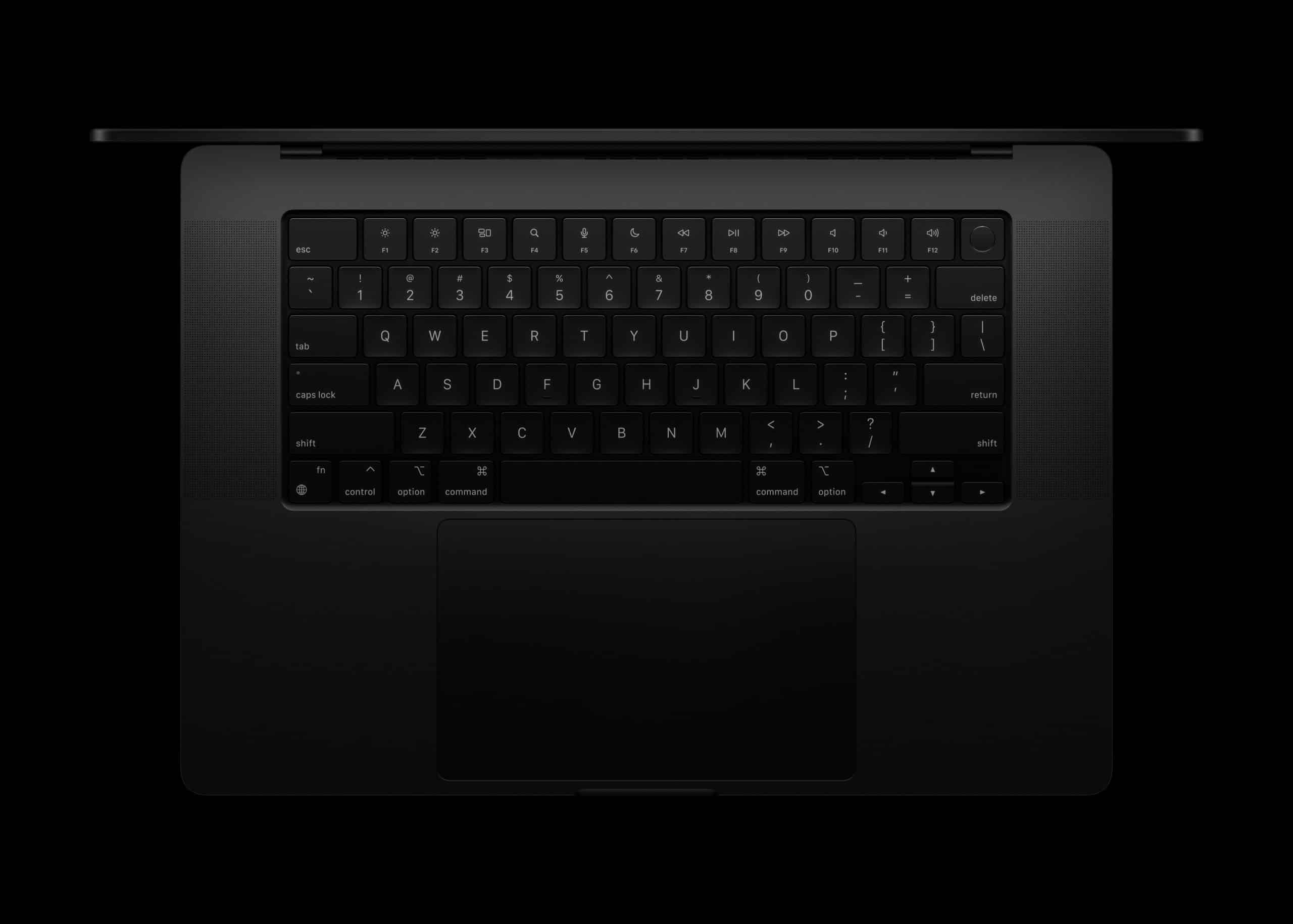
Mac keyboard shortcuts are one of the simplest ways to boost daily productivity on macOS—yet most users tap into only a fraction of their potential. Shortcuts reduce repetitive actions, minimize mouse movement, and help you stay focused on what you’re doing instead of how you’re doing it. Over time, they become muscle memory, turning everyday tasks into fluid, almost automatic actions.
These shortcuts are genuinely lifesaving once they become part of your routine.
Save this page for quick access, keep it open in a browser tab, or go old-school and print it out to pin beside your display on a bright yellow sheet of paper.
A quick glance today can turn into hours saved over time. You’ll be surprised how fast these combinations become second nature — and how strange it feels to work without them later. Thank us later.
macOS is designed around keyboard input as much as mouse or trackpad interaction. From its earliest days, Apple built the system so common actions could be triggered instantly with a combination of keys. Once you learn a core set of shortcuts, everything from file management to app switching becomes faster and less mentally taxing.
The key to learning shortcuts is not memorizing everything at once. It’s about starting with the most used commands and letting repetition do the rest. These shortcuts work consistently across apps, making them reliable tools rather than tricks tied to a single program.

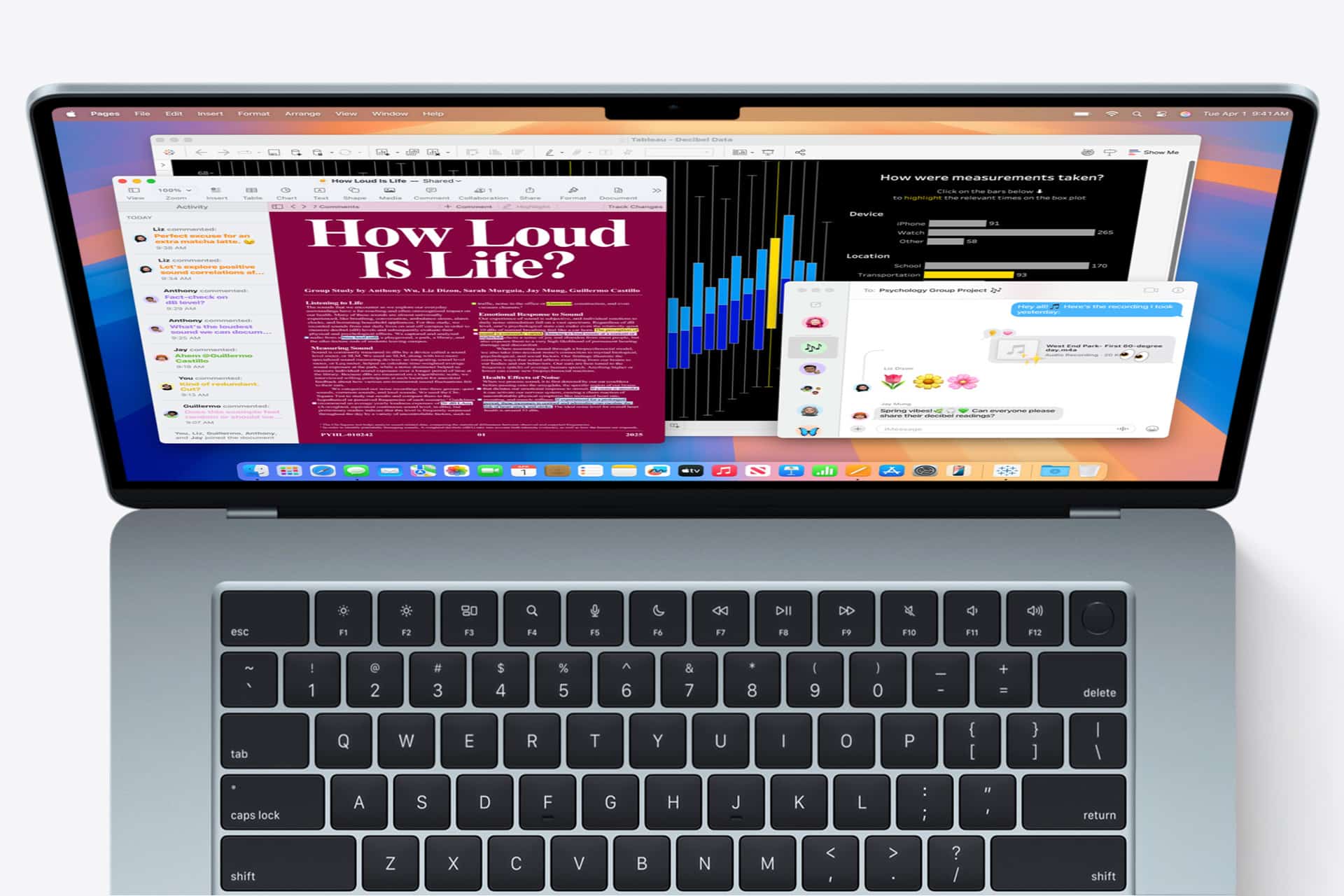
Essential Editing and Text Shortcuts
Text editing shortcuts are often the first ones people learn, and for good reason. They work in almost every app on macOS, from Notes and Mail to professional tools like Pages, Xcode, and design software.
- Command + C copies selected text or items
- Command + V pastes the copied content
- Command + X cuts the selection
- Command + Z undoes the last action
- Command + Shift + Z redoes an undone action
Navigation within text is just as important. Using the keyboard to move around avoids constant switching between typing and pointing.
- Command + Left Arrow moves to the beginning of a line
- Command + Right Arrow moves to the end of a line
- Option + Left Arrow jumps one word left
- Option + Right Arrow jumps one word right
These shortcuts are especially useful when editing long documents or writing frequently. They keep your hands on the keyboard and your attention on the content.
Window, App, and Multitasking Shortcuts
macOS shines when it comes to managing multiple apps and windows, and keyboard shortcuts are central to that experience.
- Command + Tab switches between open apps
- Command + ` switches between windows of the same app
- Command + H hides the current app
- Command + M minimizes the active window
For managing your workspace visually, Mission Control and app switching shortcuts are essential.
- Control + Up Arrow opens Mission Control
- Control + Down Arrow shows all windows of the current app
- Control + Left or Right Arrow moves between Spaces
These shortcuts become especially powerful on larger displays or multi-monitor setups. They allow you to move across apps and workspaces instantly, without breaking concentration.
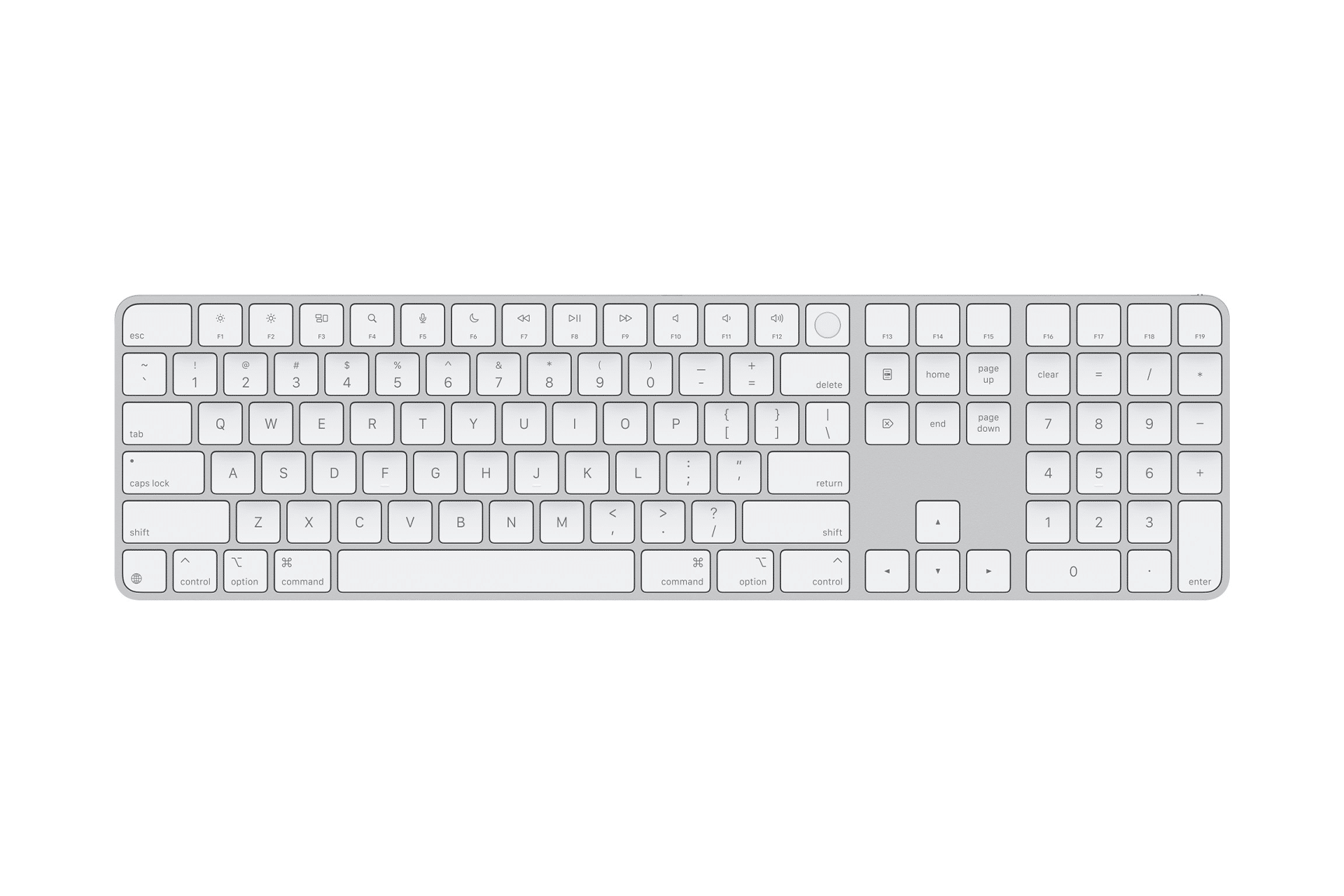
Finder and File Management Shortcuts
Finder is the backbone of macOS, and keyboard shortcuts make file management faster and more precise.
- Command + N opens a new Finder window
- Command + Shift + N creates a new folder
- Command + Delete moves selected files to Trash
- Command + Option + Delete empties the Trash without confirmation
Quick access shortcuts help you jump to common locations instantly.
- Command + Shift + H opens your Home folder
- Command + Shift + D opens the Desktop
- Command + Shift + A opens Applications
- Command + Shift + O opens Documents
Using these shortcuts consistently turns file navigation into a rapid, predictable process instead of a visual hunt.
System and Utility Shortcuts You’ll Use Daily
Some shortcuts control system-level actions that quickly become indispensable.
- Command + Space opens Spotlight search
- Command + Option + Esc opens Force Quit
- Command + Control + Q locks the screen
Spotlight deserves special attention. It’s more than a search tool. It launches apps, finds files, performs calculations, and converts units. Many experienced Mac users rely on Spotlight instead of the Dock or Launchpad entirely.

Screenshots
Another overlooked shortcut category is screenshots.
- Command + Shift + 3 captures the entire screen
- Command + Shift + 4 captures a selected area
- Command + Shift + 5 opens screenshot and recording options
These shortcuts are essential for communication, documentation, and creative work.
Customizing and Discovering More Shortcuts
macOS allows you to explore and customize keyboard shortcuts to match your workflow. This is especially useful if you want to create app-specific shortcuts or adjust system behavior.
Settings > Keyboard > Keyboard Shortcuts > App Shortcuts
From here, you can view existing shortcuts, disable ones you don’t use, or create new ones for menu commands in specific apps. This customization turns shortcuts from a fixed list into a personal productivity system.
Many apps also display their shortcuts directly in menu bars. Taking a moment to notice them reinforces learning naturally as you work.
Building Shortcut Habits Over Time
The real value of Mac basic keyboard shortcuts appears over weeks, not minutes. Start with a small set, use them consistently, and add new ones gradually. Each shortcut removes a tiny bit of friction. Over time, those small improvements add up to a noticeably smoother experience.
Shortcuts don’t replace the mouse or trackpad; they complement them. Together, they give you multiple ways to interact with macOS, letting you choose the fastest option in each moment. As they become second nature, working on a Mac starts to feel less like operating a computer and more like expressing intent directly.

