

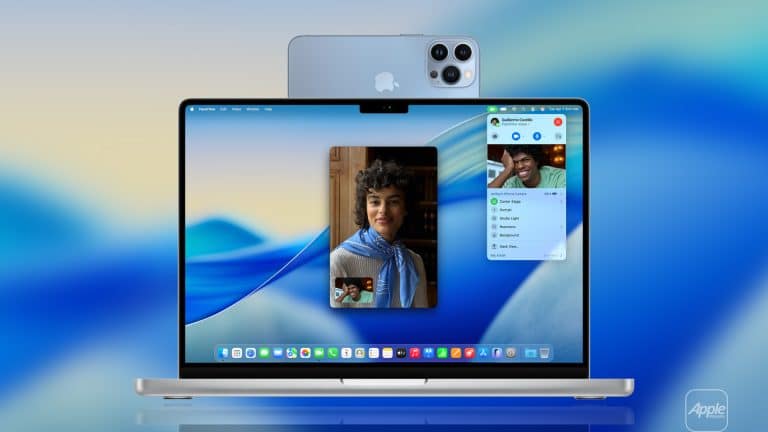
Mac Continuity Camera changes how video calls feel on a Mac. Instead of relying on the built-in laptop camera, which is limited by physical size constraints, the system allows the iPhone’s advanced camera hardware to take over wirelessly. The result is sharper image quality, better dynamic range, improved low-light handling, and access to features typically unavailable on standard webcams.
The experience is not just about image clarity. It is about integration. When your iPhone is near your Mac and signed into the same Apple ID, the system recognizes it automatically as an available camera source. There is no cable requirement, no manual driver installation, and no third-party software necessary for basic functionality.
Requirements for Mac Continuity Camera
Before using Mac Continuity Camera, ensure compatibility:
- iPhone running a supported iOS version
- Mac running a supported macOS version
- Wi-Fi and Bluetooth enabled on both devices
- Same Apple ID on iPhone and Mac
- Two-factor authentication enabled
Both devices must be physically near each other. The connection works over a secure wireless link using Apple’s ecosystem integration.
How to Use iPhone as a Webcam on Mac
Mac Continuity Camera activates automatically in most video apps once requirements are met.
Open FaceTime (or Zoom, Teams, etc.) > Video settings > Select your iPhone as camera
The iPhone locks into camera mode and begins transmitting video to the Mac. Audio can also route through the iPhone microphones if selected.
No additional configuration is required for basic video use.

Mounting the iPhone Properly
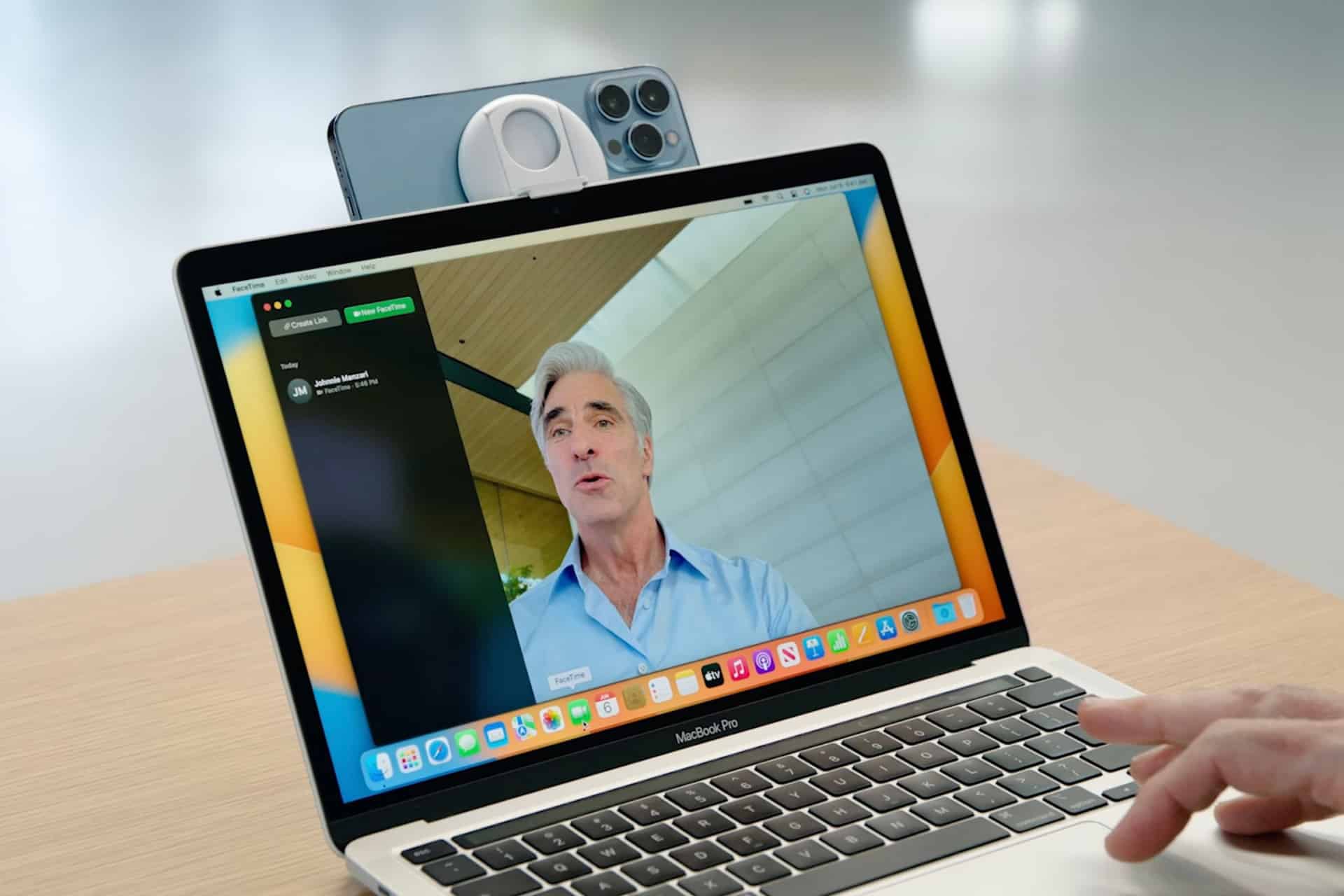
While handheld use is possible, stable positioning improves results significantly.
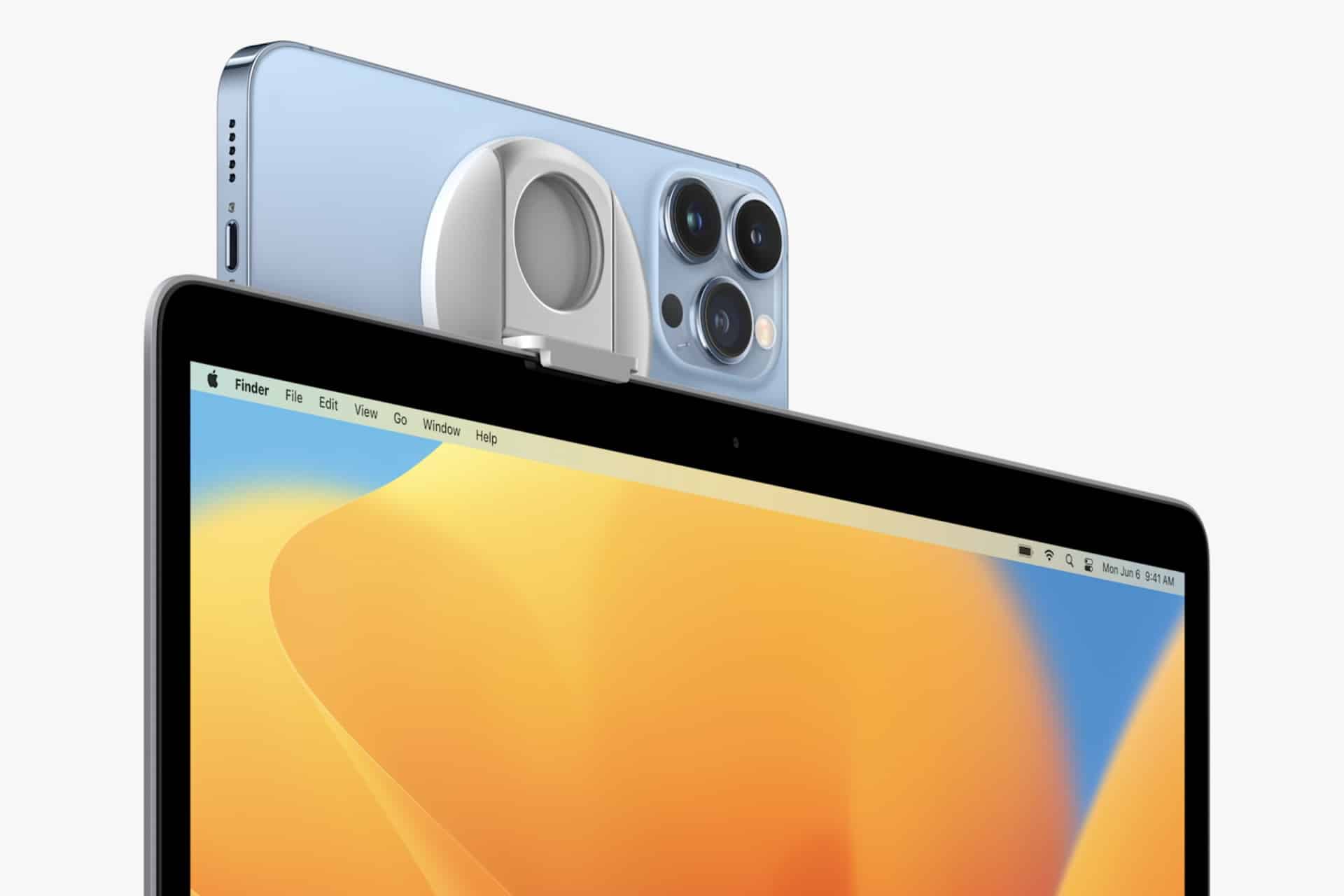
Apple and third-party manufacturers offer magnetic mounts designed to attach the iPhone to the top edge of a MacBook display. Positioning the camera at eye level produces more natural framing.
A stable mount prevents motion and ensures Center Stage and Portrait mode function accurately.
Advanced Features Available
Mac Continuity Camera enables access to features powered by the iPhone’s camera system:
Center Stage
Automatically adjusts framing to keep you centered when moving.
Portrait Mode
Adds background blur similar to iPhone portrait photography.
Studio Light
Brightens the subject while dimming the background.
Desk View
Uses ultra-wide camera processing to simulate a top-down view of your desk.
Desk View is particularly useful for demonstrations, drawing, or showing physical objects during meetings.
To enable these features:
Open Control Center on Mac > Video Effects > Toggle desired feature
Effects apply in real time during supported video calls.
Using Continuity Camera With Third-Party Apps
Mac Continuity Camera works across most modern video conferencing and streaming platforms. Once selected as the camera source, the iPhone functions like a standard webcam input.
Streaming software such as OBS can also recognize the iPhone feed when selected in camera settings.
Because processing occurs on the iPhone, video quality often surpasses traditional USB webcams in clarity and color balance.
Lighting Considerations
Even with advanced hardware, lighting matters. Position yourself facing a light source rather than sitting with bright light behind you. The iPhone sensor handles contrast better than most laptop cameras, but balanced lighting improves results.
Studio Light can help in moderately lit rooms, but strong backlighting may still reduce clarity.
Audio Configuration
Mac Continuity Camera allows users to choose audio input separately from video.
In video settings:
Select iPhone Microphone or Mac Microphone
The iPhone microphones often provide richer sound capture due to multiple mic arrays. However, external microphones connected to Mac may still be preferable for professional recording.
Security and Privacy
The wireless connection between Mac and iPhone is encrypted and tied to your Apple ID. When the iPhone camera activates, the screen shows an active camera indicator to prevent unnoticed recording.
The camera disengages automatically when the app stops using it.
Mac Continuity Camera turns the iPhone into a high-quality wireless webcam integrated directly into macOS. By leveraging advanced camera hardware and software features such as Center Stage, Portrait mode, and Desk View, it elevates video calls and content creation without requiring additional external equipment.