Files accumulate quickly. A few images for a project, several PDFs, maybe a folder filled with documents. When it’s time to share them — by email, cloud upload, or external drive — sending everything individually feels inefficient. That’s where Mac file compression becomes useful.
macOS includes built-in tools for compressing and extracting files. No additional software is required. The process is integrated into Finder and works quietly in the background.
What Compression Actually Does
File compression reduces the size of data or bundles multiple items into a single archive. The most common format on macOS is ZIP.
Compression serves two main purposes. First, it combines multiple files into one package. Second, it may reduce overall file size, making sharing faster.
It is important to understand that compression does not always dramatically shrink files. Images and videos that are already compressed may not reduce significantly. Documents and folders containing varied file types often compress more effectively.
How to Compress Files or Folders
The process is simple.
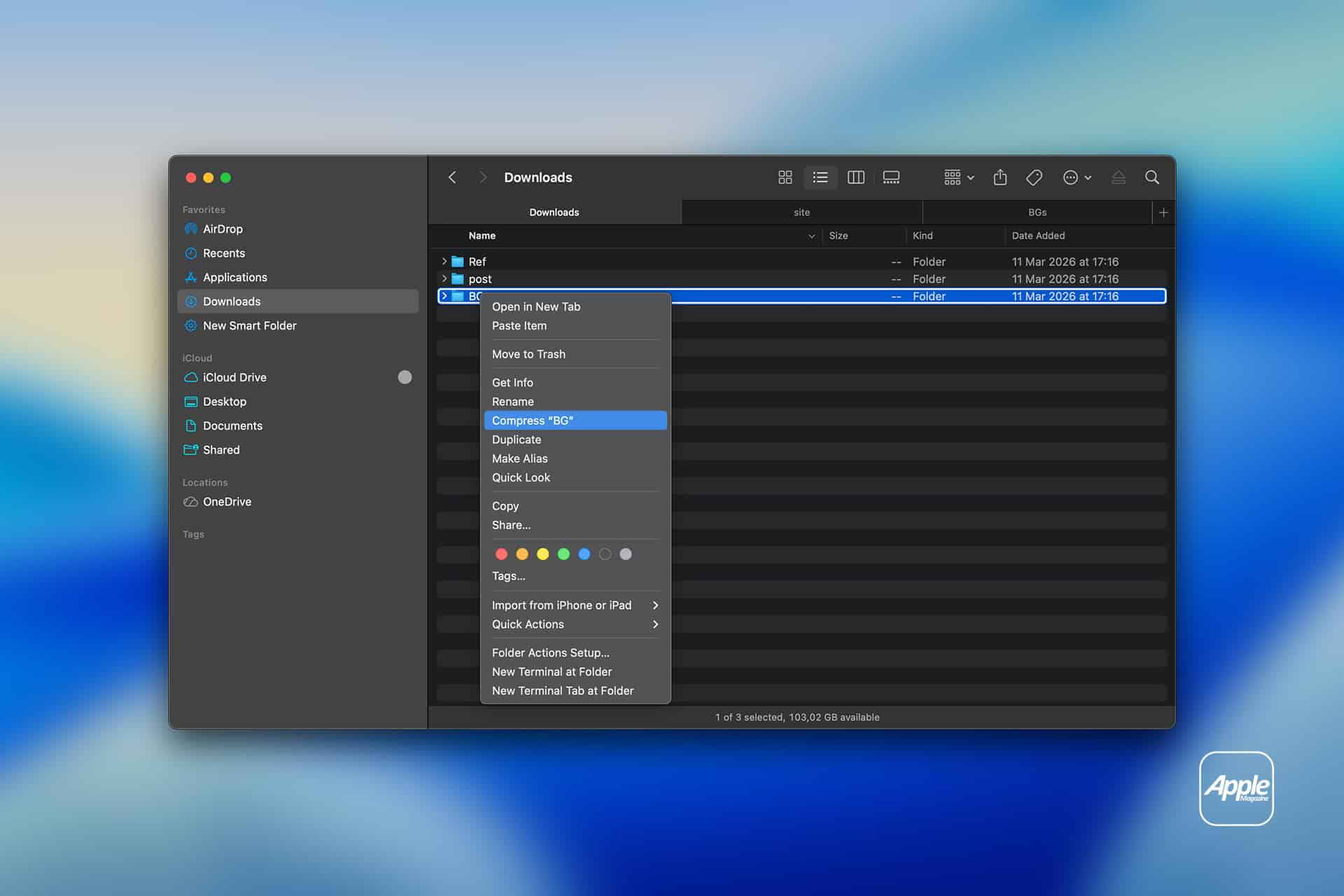
Select File or Folder > Right-Click > Compress
If you select one item, macOS creates a ZIP archive with the same name. If you select multiple items, it creates an archive titled “Archive.zip” by default.
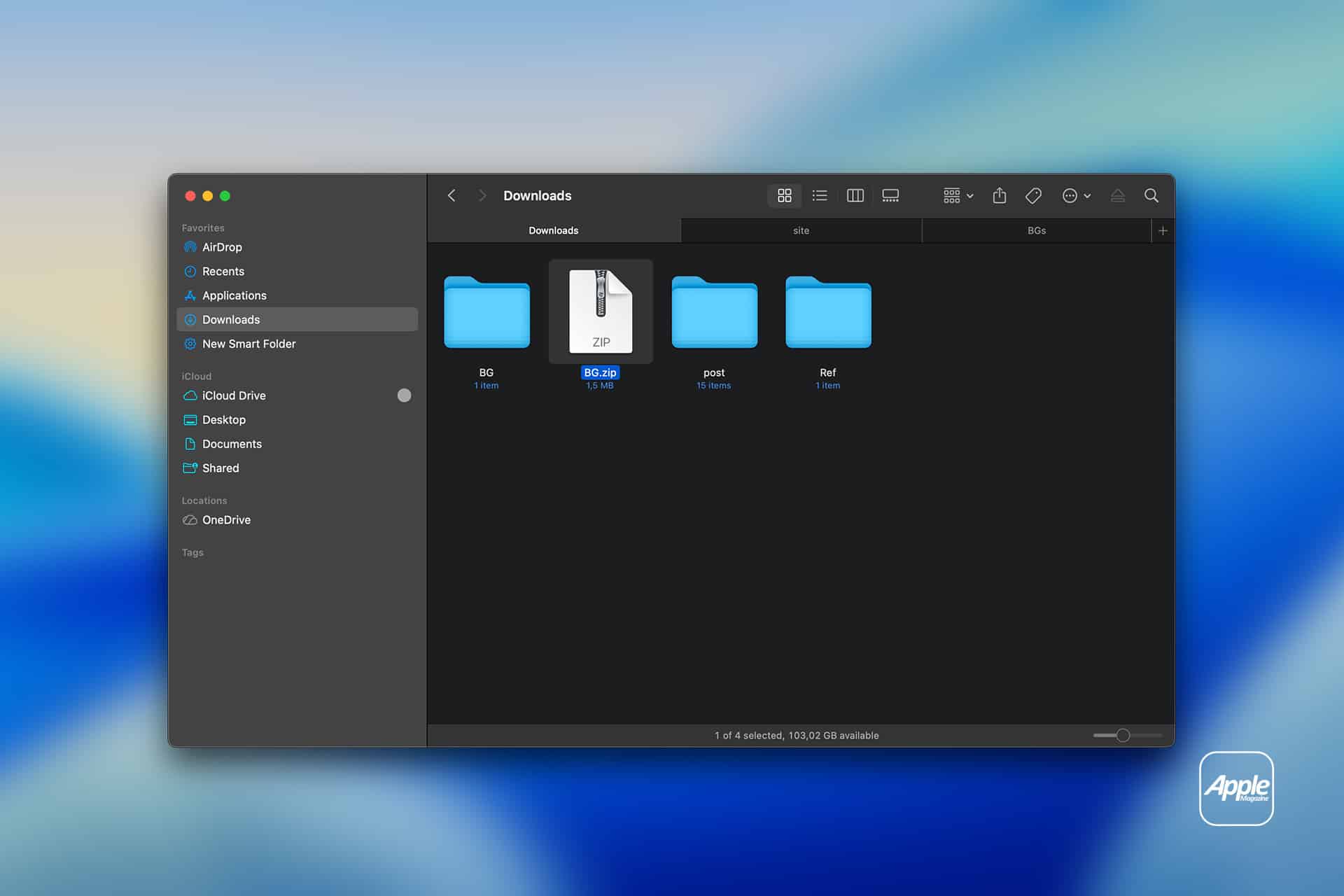
The new ZIP file appears in the same location as the original content.
Compression works equally for single documents, large folders, or grouped selections. Finder handles the process automatically using Archive Utility.

When Compression Makes Sense
Compression is useful when:
- Sending multiple files via email
- Uploading grouped documents to cloud storage
- Archiving older projects
- Reducing clutter by bundling related files
Instead of attaching five PDFs separately, a single ZIP file keeps everything organized. It also prevents files from being separated during transfer.
Extracting ZIP Files
Opening a ZIP file is even simpler.
Double-Click ZIP File
The archive automatically expands in the same folder. The original ZIP file remains unless deleted manually.
macOS supports common compressed formats, including ZIP. If you download a ZIP file from the internet, double-clicking usually extracts it instantly.
Archive Utility handles extraction without prompting most of the time.
Customizing Archive Behavior
For more control, Archive Utility settings can be adjusted.
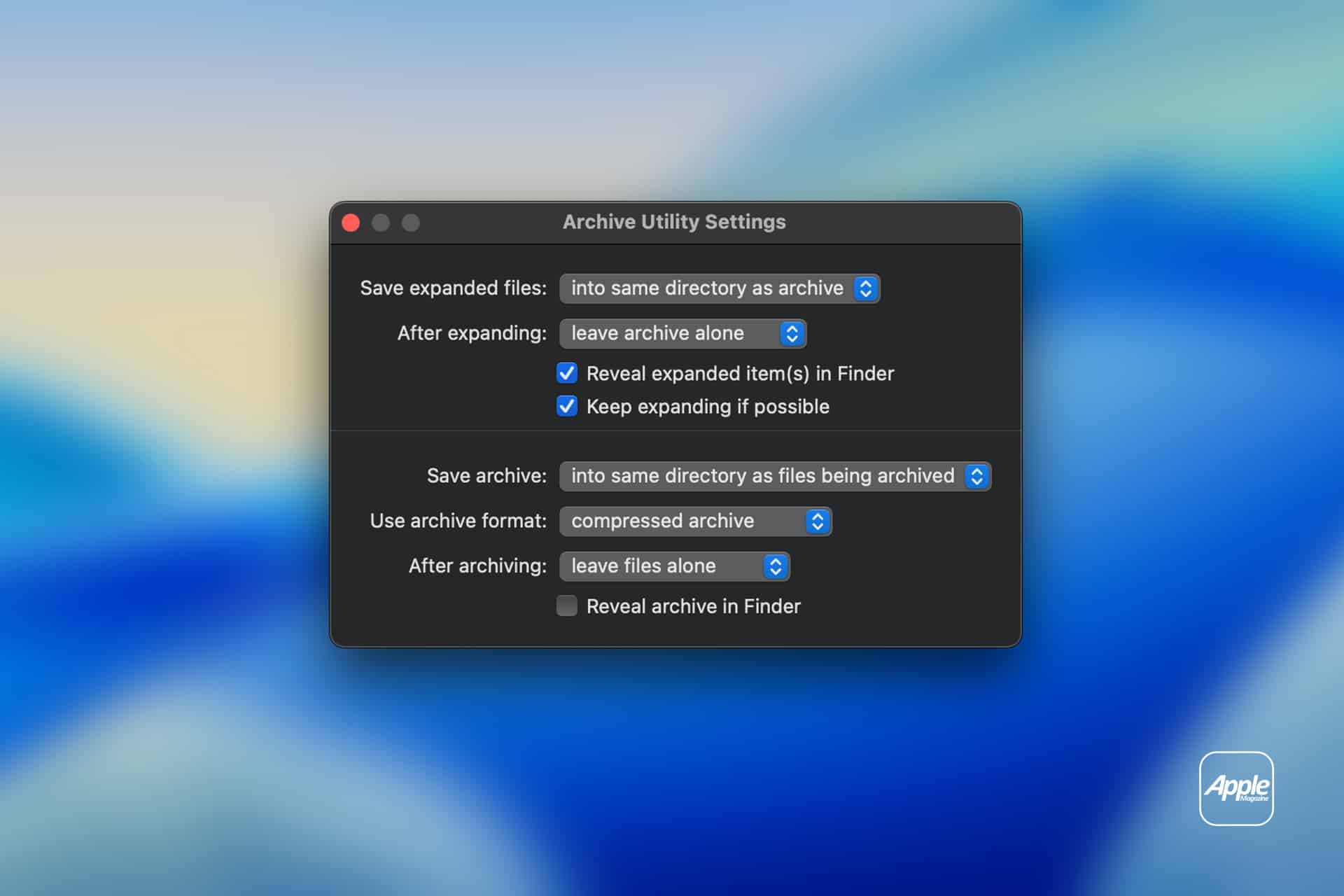
Open Archive Utility (via Spotlight search) > Settings
Here you can change:
- Where expanded files are saved
- Whether archives move to Trash after extraction
- Whether expanded files open automatically
For example, you may prefer extracted files to appear in a specific folder rather than next to the original ZIP.
These settings are optional but helpful for frequent file handling.
Compression and File Size Expectations
Not all files shrink equally.
Text documents, spreadsheets, and mixed folders usually compress well. Large media files such as JPEG images or MP4 videos may show minimal reduction because they are already optimized.
Compression focuses more on packaging than drastic size reduction in many modern workflows.
Security and Password Protection
Built-in macOS compression does not include password protection through Finder alone. For encrypted archives, additional tools or Disk Utility may be required.
For general sharing and organization, standard ZIP archives are sufficient.
Using Compression for Organization
Beyond sharing, compression helps organize completed projects. Moving finished folders into ZIP archives reduces visible clutter while preserving structure.
Archived folders can be stored externally or in cloud backups without occupying as much immediate Finder space.
Because ZIP files can be reopened anytime, compression acts as lightweight archiving rather than permanent storage.
Everyday Workflow Benefits
Mac File Compression works quietly because it is integrated directly into Finder. There is no learning curve, no additional installation, and no visible complexity.
Select. Compress. Share.
Double-click. Extract. Continue working.
For tasks that involve sending files or grouping related documents, built-in compression tools handle the job efficiently without adding software overhead.