

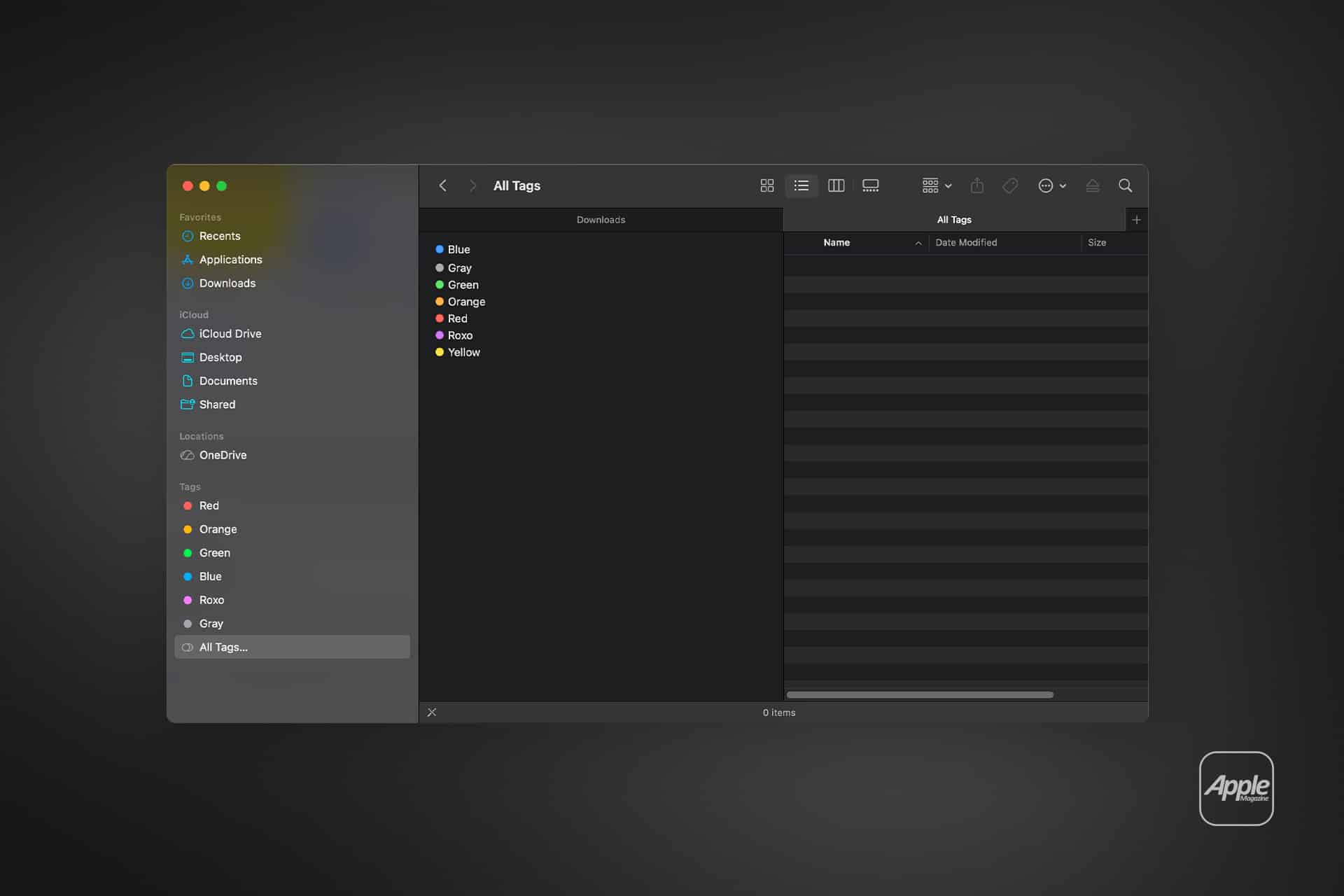
File organization on a Mac often begins with folders. Documents go into one directory, images into another, archived work into yet another. Over time, those folders multiply. A project may relate to two categories, but it can only live in one place.
Mac Finder Tags change that structure. Instead of forcing files into a single hierarchy, tags layer classification on top of the existing folder system. A file can remain in its original location while carrying multiple visual identifiers.
That flexibility is where tags become practical.
How Finder Tags Work
Finder Tags are metadata labels attached to files. They do not move the file or duplicate it. They simply mark it.
To add a tag:
Right-click File > Tags
Or select a file and use the tag field in the Finder toolbar.
You can assign existing color labels or create custom tags with descriptive names. A document might be tagged “Finance,” “2026,” and “Urgent” simultaneously.
Because tags function independently of folders, they create an overlapping organizational system.

Using Color for Immediate Recognition
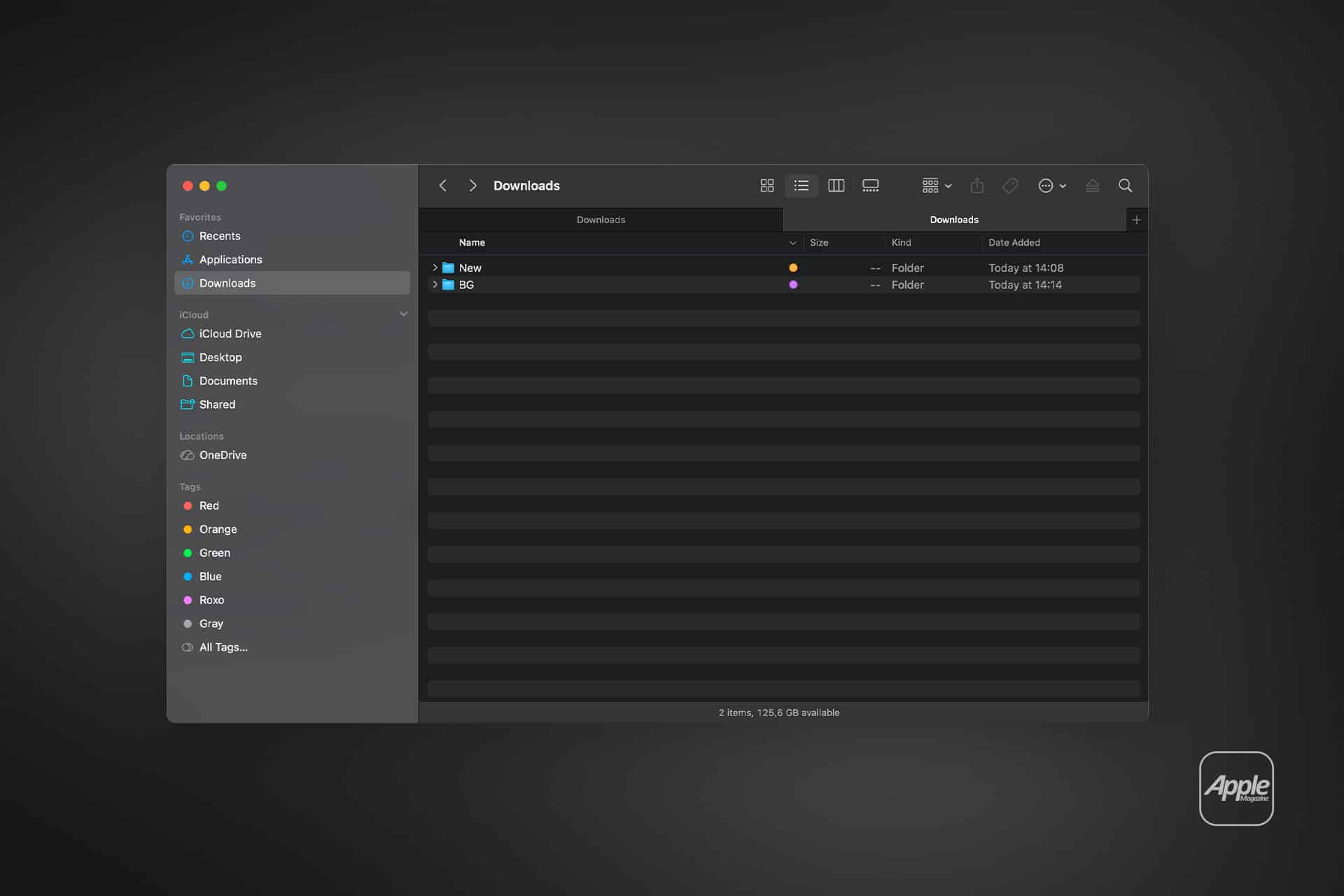
Color tags provide instant visual reference. Red might indicate priority, blue for personal, green for completed tasks.
Once applied, a colored dot appears beside the file name in Finder. This visual cue reduces the need to read file names repeatedly.
Tags appear in the Finder sidebar as well. Clicking a color shows every file with that tag, regardless of its folder location. This is particularly useful when working across multiple projects stored in different directories.
Creating Custom Tags
Default colors are only the beginning. Custom tags can reflect workflow stages or content types.
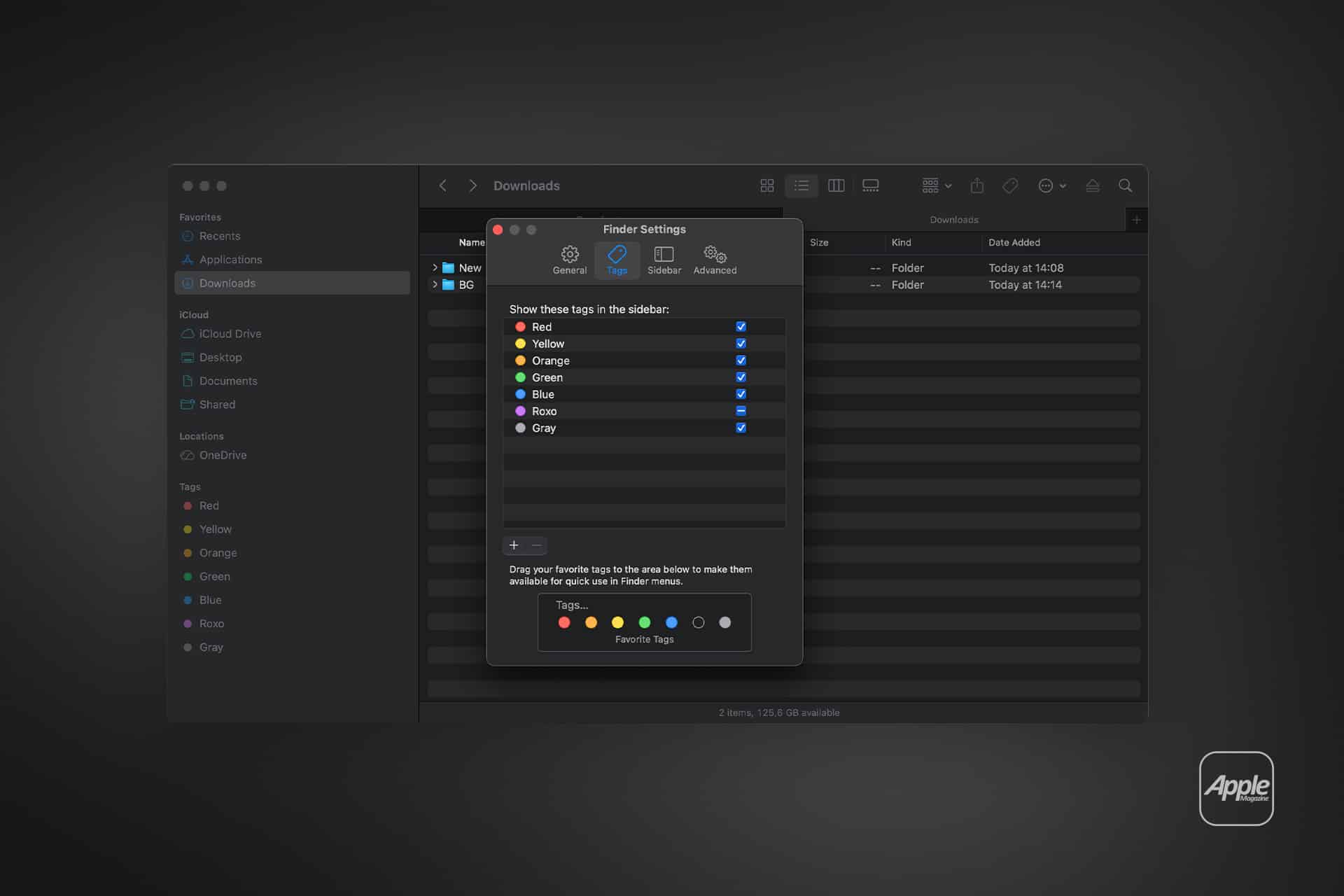
Open Finder > Settings > Tags
Here you can rename tags, assign colors, and reorder which appear in the sidebar.
For example, a designer might use tags such as:
- Draft
- Review
- Approved
These tags reflect status rather than file type. The file itself stays in its project folder. The tag indicates its stage in the process.
Smart Folders: Dynamic Organization
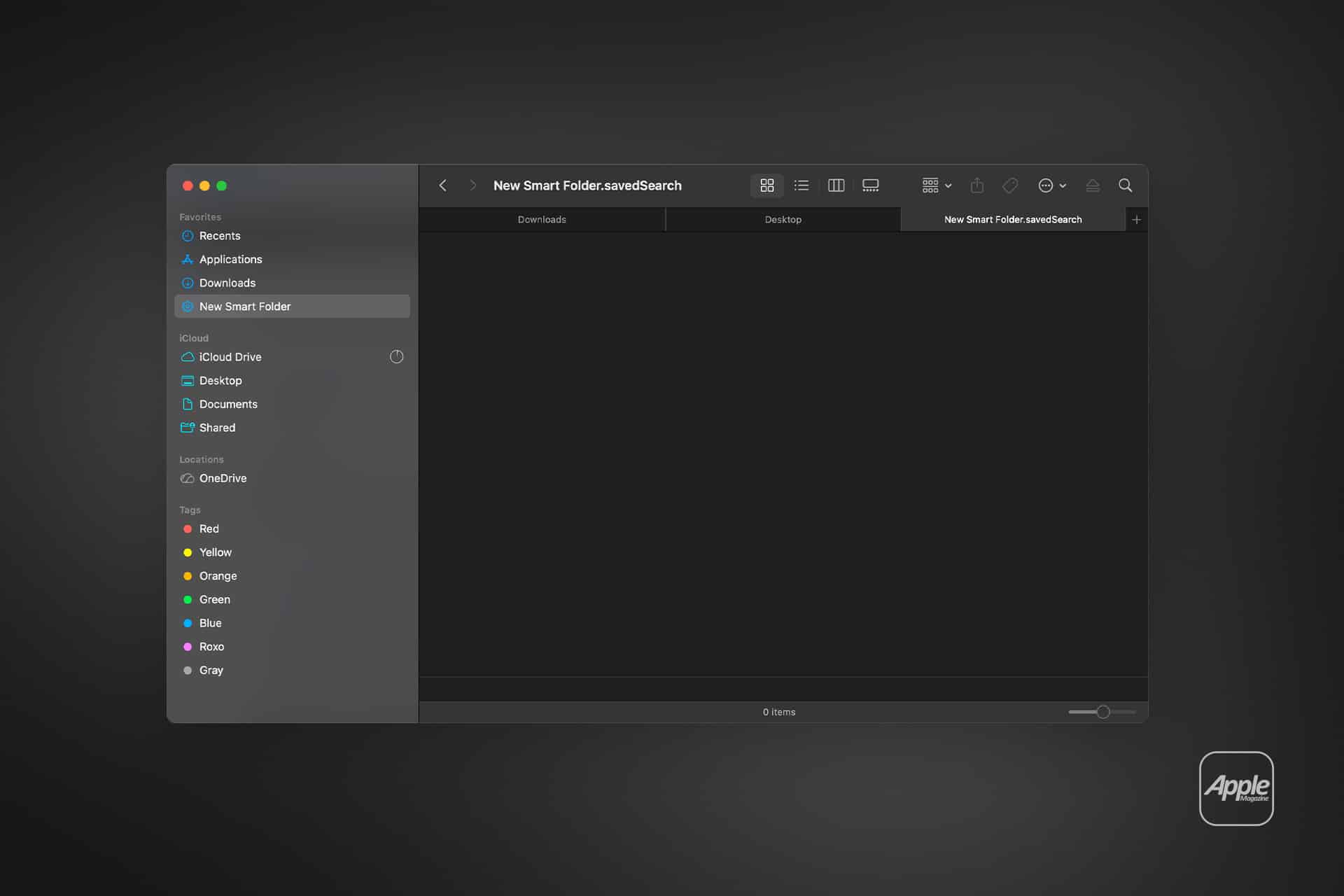
Finder Tags become more powerful when combined with Smart Folders.
Smart Folders automatically gather files based on defined criteria. They do not create duplicates. They generate a live collection.
To create one:
Finder > File > New Smart Folder
From there, add search criteria such as Tag is “Finance” or Tag is “Urgent.”
You can combine conditions, such as:
Tag is “2026” and File Type is PDF
The Smart Folder then displays all matching files instantly. As new files receive those tags, they appear automatically. No manual sorting required.
Managing Multi-Project Work
Tags simplify multi-project workflows. Suppose you manage marketing campaigns and accounting records. Instead of switching between multiple folders, tagging related files allows quick cross-reference.
A single file may belong to:
- Client Name
- Campaign Quarter
- Approval Status
Smart Folders can display any combination of those layers. This reduces duplication and prevents scattered versions of the same document.
Tagging Best Practices
Tags work best when applied consistently. Too many tags create confusion. A focused system of five to ten primary tags often works better than dozens.
Using tags for:
- Priority
- Status
- Department
- Year
Creates structure without clutter. Periodic review also helps. Removing outdated tags keeps the system clean.
Search Integration
Finder search includes tags automatically. Typing a tag name in the search bar surfaces tagged items immediately.
You can also use advanced search filters by clicking the plus icon next to the search field and selecting “Tags” as a parameter.
Because tags are metadata, they integrate seamlessly with Spotlight searches as well.
A Flexible Alternative to Folder Restructuring
Mac Finder Tags do not replace folders. They enhance them. Folders define storage location. Tags define meaning.
That separation makes it easier to adapt workflows without reorganizing entire directory trees. A file can shift in importance or context simply by changing its tag, without being moved. Over time, the combination of color tags and Smart Folders builds a dynamic organizational layer on top of macOS.
Instead of asking “Where did I save this?” the question becomes “How did I tag this?” That shift alone can shorten file searches and reduce manual sorting.
Mac Finder Tags turn file management into a layered system, allowing files to live in one place while appearing in many logical groupings at once — without duplication or restructuring.