


Sharing a Mac at home, in an office, or even temporarily with a friend raises a simple question: how do you let someone use the computer without exposing your personal files, apps, or browsing history? The Mac guest account exists specifically for that situation. It creates a temporary, isolated environment where someone can use the Mac without accessing your private data.
Unlike creating a full secondary user account, a guest account is designed to be temporary. When the guest logs out, their files and session data are erased automatically. This makes it useful for short-term access without long-term storage concerns.
How the Mac Guest Account Works
The guest account allows someone to log in without a password. Once signed in, the guest user can browse the web, open applications that are available to all users, and access system features within defined limits. However, they cannot see other users’ home folders or personal files.
When the guest logs out, macOS deletes files created during that session. Downloads, documents, and temporary data are removed. This automatic cleanup prevents data accumulation and protects privacy for both the Mac owner and the guest.
If FileVault disk encryption is enabled, the guest account can still be used, but configuration options may vary. In some setups, the guest account allows limited Safari access for locating a Mac using Find My, even if the device is locked.
How to Enable the Guest Account
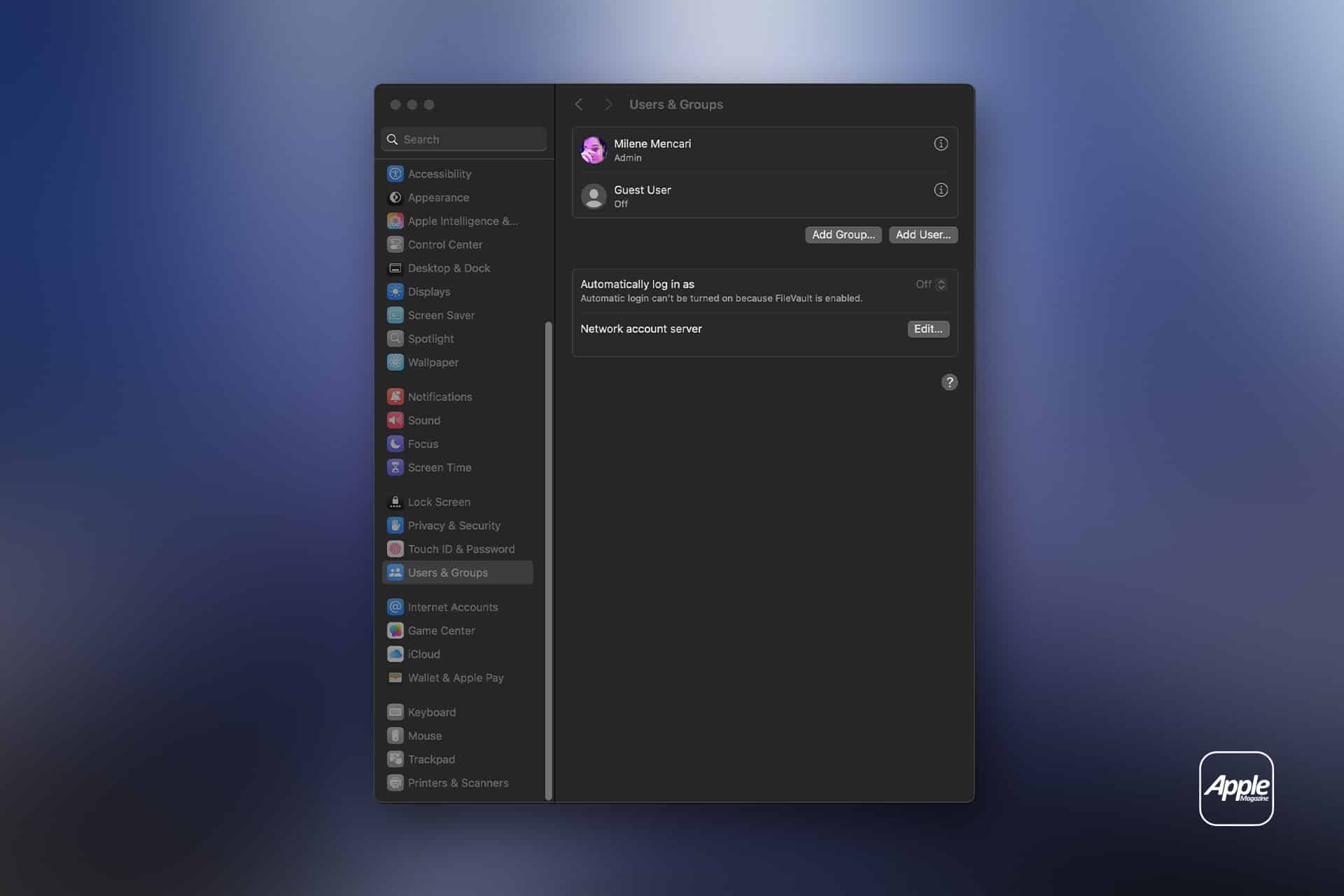
To create or enable a Mac guest account, open System Settings and navigate to Users & Groups. Under the list of user accounts, select Guest User. From there, toggle the option to allow guests to log in to this computer.
You can also enable the option that allows guests to connect to shared folders if needed. In most home setups, this option remains disabled for privacy reasons.
Once activated, the guest account appears on the login screen as an option alongside other user accounts. No password is required to enter the guest session.

Managing Permissions and Privacy
The guest account does not provide administrator privileges. Guests cannot install software system-wide, change core security settings, or access other users’ data. This separation protects the Mac owner’s environment.
However, guests can use available applications. If you prefer to limit what guests can access, consider reviewing which apps are accessible to all users. Removing unnecessary shared apps can help tighten control.
For families, a standard secondary user account may be more appropriate than a guest account. Guest accounts are best suited for short-term access rather than ongoing shared usage.
The automatic deletion of session data ensures that browsing history and temporary downloads disappear after logout. This protects both privacy and storage space.
When to Use a Guest Account
A guest account is ideal in situations where someone needs quick access to the internet or basic applications. For example, if a friend needs to check email, or a visitor needs temporary access to a browser, enabling guest login avoids sharing your password.
In workplaces or shared households, guest accounts provide flexibility without creating permanent user profiles. Because everything resets upon logout, maintenance remains minimal.
For environments requiring stronger oversight, such as public kiosks or school labs, additional configuration and network controls may be necessary beyond the standard guest account setup.

Security Considerations
Even though guest accounts isolate user data, they still operate within your Mac’s network environment. Monitoring overall system security remains important. Keeping macOS updated ensures the guest environment runs on the latest security patches.
If you no longer need guest access, disabling it is simple. Return to System Settings, open Users & Groups, and toggle off the guest login option.
Managing a Mac guest account is straightforward, but it adds meaningful flexibility. It allows shared access without compromising privacy, making it a practical feature for households and occasional shared use scenarios.