


Forgetting your Mac login password can feel like hitting a wall. The login screen appears, you type what you believe is correct, and the system refuses access.
Unlike a web account, a Mac password protects local files, settings, and in many cases encrypted data. The good news is that macOS includes built-in recovery paths designed specifically for this situation: The Mac password reset.
Before attempting a reset, it’s important to understand how your Mac account is configured. Whether FileVault encryption is enabled, whether the account is tied to an Apple ID, and whether you have additional administrator accounts on the device all influence the available recovery methods.

Using Apple ID to Reset Your Mac Password
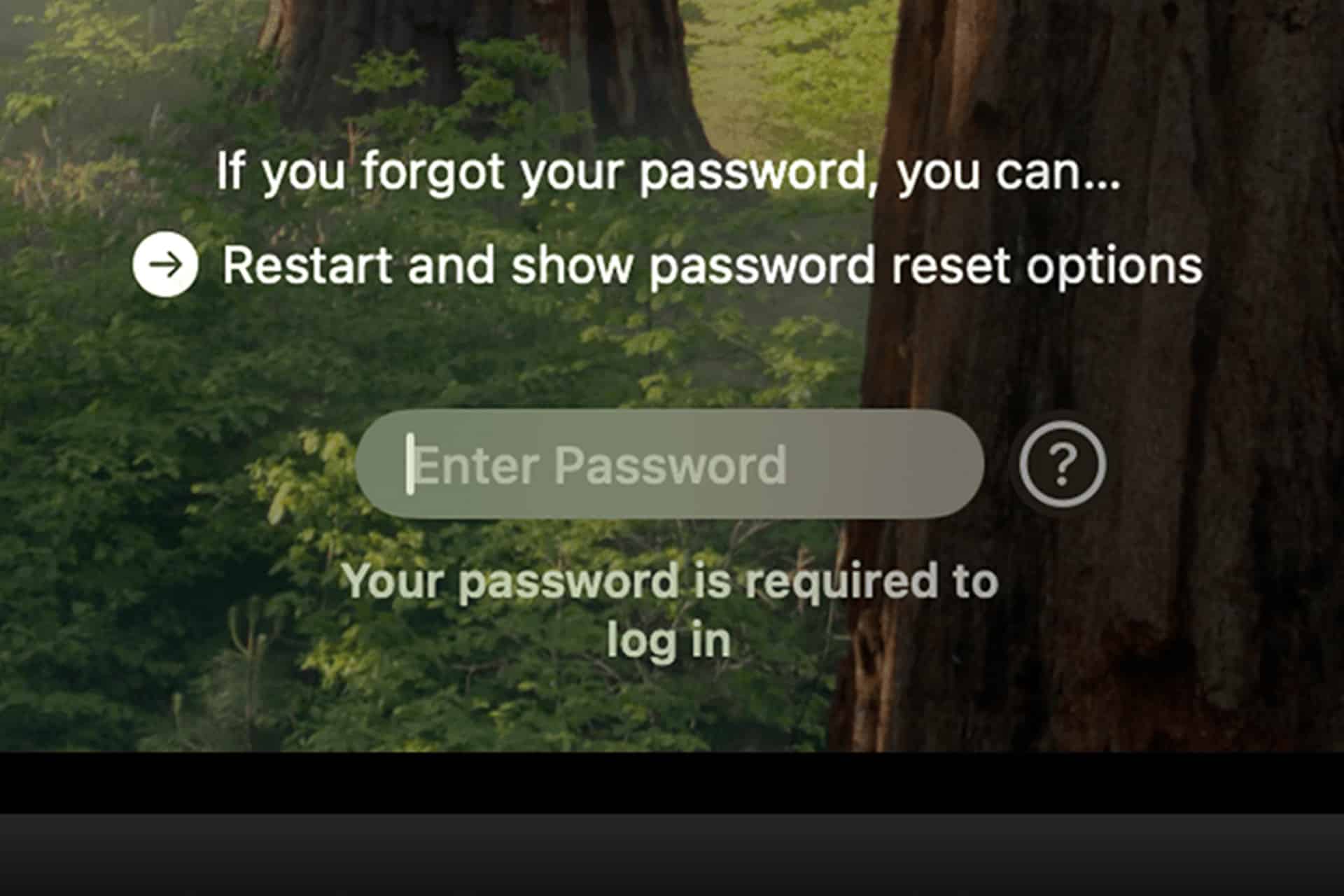
If your Mac account is linked to your Apple ID, macOS may offer a reset option directly on the login screen after several incorrect attempts. A message appears allowing you to reset your password using your Apple ID credentials.
Once authenticated, the system walks you through creating a new login password. This method preserves your files and user data. It simply replaces the login credential used to access your account.
This is the simplest recovery path, and it’s why linking your Apple ID to your Mac account during setup is helpful. It provides a secure fallback without requiring technical steps.
Resetting Through macOS Recovery
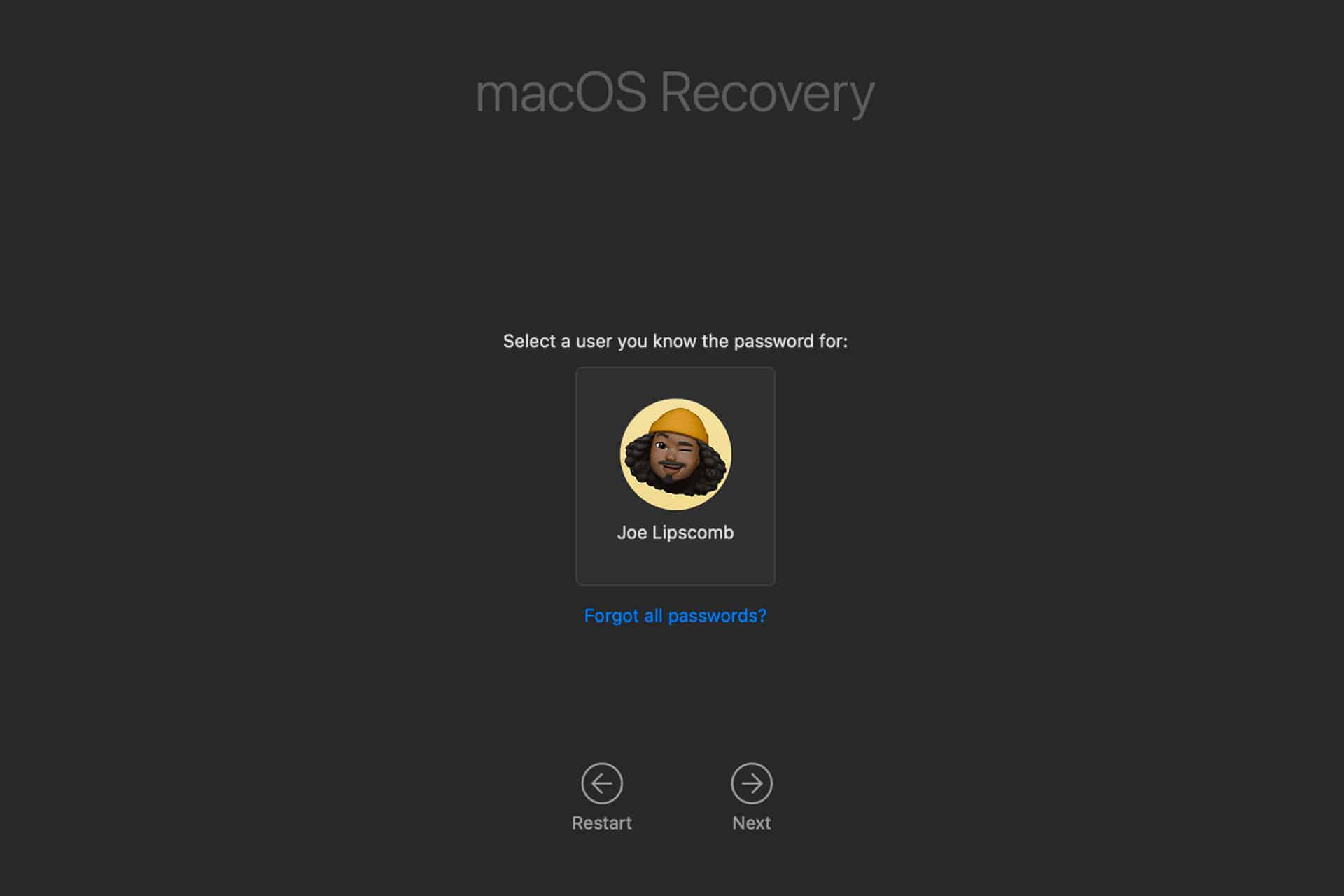
If the Apple ID option does not appear, macOS Recovery becomes the next solution. Restart the Mac and enter Recovery Mode. On Apple silicon Macs, press and hold the power button until startup options appear, then select Options. On Intel-based Macs, hold Command-R immediately after powering on.
Once in Recovery Mode, choose Utilities from the menu bar and open Terminal. Typing the command to launch the password reset assistant opens a graphical tool that allows you to select a user account and assign a new password.
This process does not erase your files. It resets the login credential associated with the selected account. After restarting, you can sign in using the new password.
If FileVault encryption is enabled, you may need a recovery key or another authorized user account to unlock the disk before resetting the password.
What Happens to Keychain Access
After resetting a login password, macOS may prompt you about your login keychain. The keychain stores saved website passwords, Wi-Fi credentials, and other secure items. Because the keychain password originally matched the old login password, resetting the account password can create a mismatch.
In many cases, you will need to create a new keychain. This does not delete your files, but previously stored credentials may need to be re-entered manually.
It’s a security design choice. The system protects stored credentials independently rather than automatically unlocking them with a newly created password.
When No Recovery Options Are Available
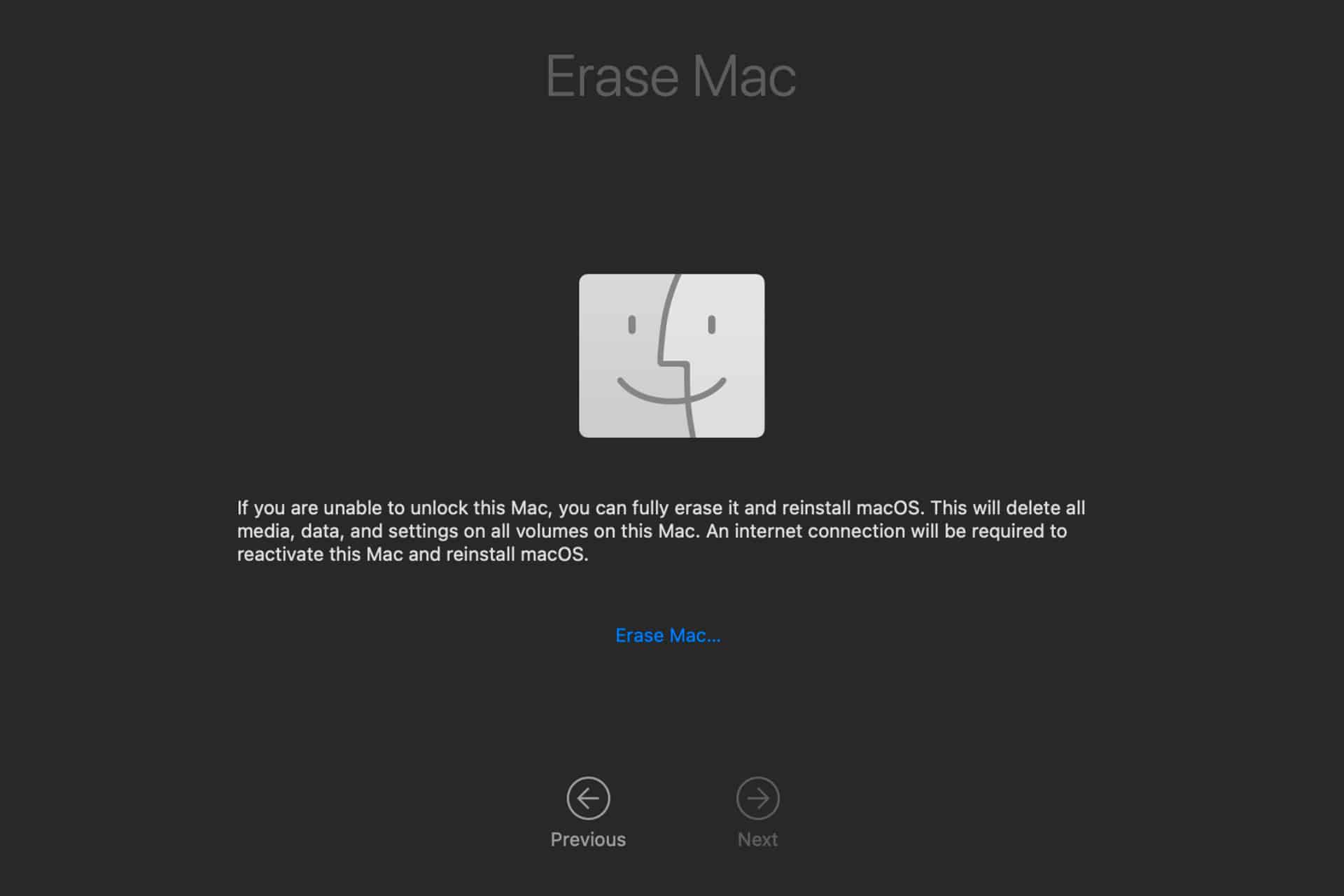
If none of the recovery methods work and no recovery key is available for FileVault-encrypted disks, access to the encrypted data may not be possible. Apple does not maintain backdoor access to user data. Encryption is designed to protect information, even from Apple.
In such cases, the only option may be erasing the Mac and reinstalling macOS. This restores system functionality but removes existing data unless backups are available.
This scenario highlights the importance of maintaining Time Machine backups or cloud synchronization for critical files.
Preventing Future Lockouts
After regaining access, reviewing account settings is a practical step. Confirm that your Apple ID is linked to your user account. Store your FileVault recovery key securely if encryption is enabled. Consider adding a secondary administrator account for emergency access.
Password managers can also reduce the likelihood of forgotten credentials. macOS integrates securely with password storage systems that help generate and remember strong passwords.
For most users, Mac password reset is a recoverable situation, thanks to built-in tools in macOS. Whether through Apple ID verification or Recovery Mode, regaining access typically requires authentication but not data loss.
Understanding the available paths ensures that a forgotten login password becomes a temporary inconvenience rather than a permanent barrier.