

Mac Private Wi-Fi address settings give users a simple way to reduce tracking when connecting to wireless networks. The feature changes how a Mac identifies itself to each Wi-Fi network, making it harder for network operators or nearby systems to recognize the same device across different places.
Every Wi-Fi device has a hardware address, often called a MAC address. Traditionally, that address stayed the same wherever the device connected. That made network management easier, but it also created a privacy problem. If the same address appeared at home, school, work, cafés, airports, hotels, stores, and public networks, it could be used as a persistent identifier.
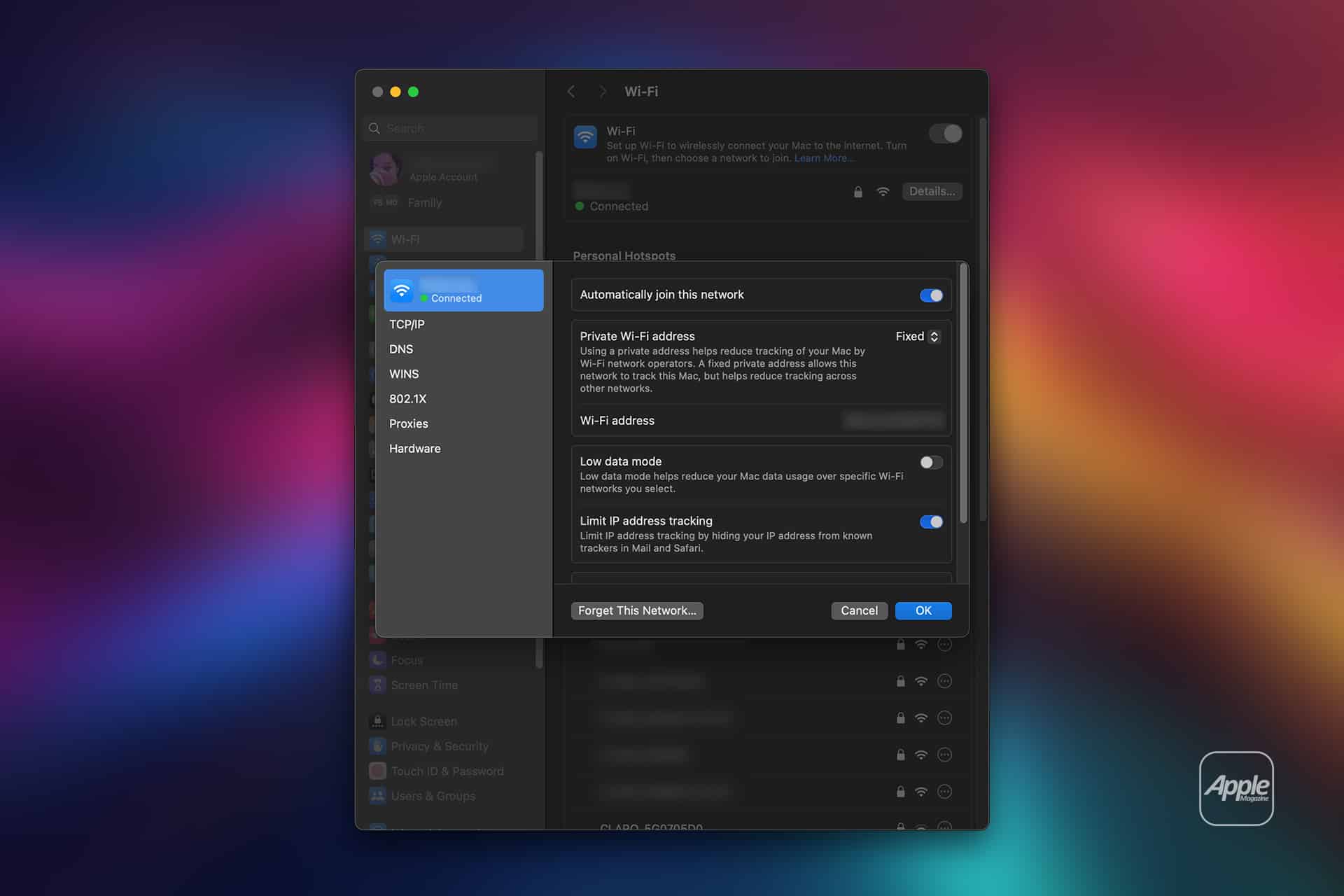
Apple’s private Wi-Fi address feature reduces that risk by using a different address for each network. On newer macOS versions, users can choose between Off, Fixed, and Rotating for a network. Off uses the device’s hardware address. Fixed uses a private address that stays the same for that specific network. Rotating uses a private address that changes over time.
For most people, the best setting is usually Fixed or Rotating, depending on the network. Fixed is often the safer everyday choice for home, work, and school because it protects privacy across different networks while keeping the same private address for one known network. Rotating offers stronger anti-tracking protection, but it can confuse routers, campus systems, parental controls, captive portals, device approvals, and office networks that expect the same address every time.
The feature is not about hiding everything a user does online. It does not replace a VPN, encrypted websites, iCloud Private Relay, or good network security. It addresses a specific privacy issue: making the Mac less recognizable through its Wi-Fi hardware identity.
What the Settings Mean
Mac Private Wi-Fi settings are easiest to understand as three levels of identification. Off is the least private option. It exposes the Mac’s hardware Wi-Fi address to that network, which can make the device easier to identify and track. Apple’s Wi-Fi settings explain that when Private Wi-Fi address is off, the Mac can be identified and tracked on that network and across other networks.
Fixed is the balanced option. The Mac creates a private address for that specific Wi-Fi network and keeps using it there. That means the home router, office network, or school Wi-Fi can recognize the device consistently, while other networks see different private addresses. This helps reduce cross-network tracking without breaking as many network features.
Rotating is the strongest privacy option for tracking prevention. The Mac uses a private address that changes periodically. Apple’s broader private Wi-Fi guidance says Apple devices can identify themselves to each network with a different Wi-Fi address and may rotate the address over time. This makes long-term tracking harder, but it can also create practical issues on networks that rely on device recognition.
To change the setting:
System Settings > Wi-Fi > Details > Private Wi-Fi Address > Off, Fixed, or Rotating
The setting applies per network, which is important. A user can use Rotating on public Wi-Fi, Fixed at home, and Off only for a network that truly requires the hardware address. This makes the feature flexible rather than all-or-nothing.

When Fixed Is the Best Choice
Mac Private Wi-Fi works best for most trusted networks when set to Fixed. This gives the Mac a private address for that network while keeping connection behavior predictable. A home router can still recognize the Mac. A school or office network can still apply the right access rules. The user still gets better privacy than exposing the hardware address everywhere.
Fixed is also useful for networks with device limits. Some routers, hotels, dorm networks, and workplace systems count devices by address. If the address rotates, the network may think the same Mac is a new device. That can cause sign-in loops, blocked access, or device-limit warnings.
The same applies to parental controls, screen-time systems, firewall rules, and network monitoring tools. A household may assign a Mac to a profile, allowlist it, or reserve an IP address for it. If the Wi-Fi address changes too often, the router may lose track of which device is which.
Fixed keeps the privacy benefit across networks while avoiding many of those problems. It is usually the right setting for a personal home network, trusted office Wi-Fi, university Wi-Fi, and any network where the user wants privacy but also needs the connection to behave consistently.
When Rotating Makes Sense
Mac Private Wi-Fi set to Rotating is most useful on networks where privacy matters more than convenience. Public Wi-Fi is the clearest example. A café, airport, hotel, mall, store, library, conference center, or public hotspot does not usually need to recognize the Mac permanently. A rotating address can make it harder for the network to build a long-term profile around the device.
This is also useful when traveling. A Mac may connect to many networks in a short time, and those networks may be managed by different companies, venues, advertisers, or access providers. Rotating reduces the value of the Wi-Fi address as a stable identifier.
The tradeoff is reliability. Some public networks use sign-in pages, vouchers, or access sessions tied to a device address. If the address changes, the Mac may need to sign in again. Some hotel or campus systems may reject a rotating address after registration. If that happens, switching from Rotating to Fixed for that specific network may solve the problem while still keeping the hardware address private.
To adjust only one network:
System Settings > Wi-Fi > Details Next to Network > Private Wi-Fi Address > Fixed
This is the best troubleshooting path before turning the feature off completely.

When to Turn It Off
Mac Private Wi-Fi should only be turned off when a network requires the actual hardware address. Some offices, schools, managed enterprise networks, labs, or campus systems use MAC address allowlisting to approve devices. A network administrator may ask for the Mac’s hardware address so the device can be registered.
In that case, Private Wi-Fi may need to be set to Off for that specific network. Turning it off globally is usually unnecessary. The user can keep private addresses enabled on other networks and expose the hardware address only where required.
To turn it off for one network:
System Settings > Wi-Fi > Details > Private Wi-Fi Address > Off
Users should avoid turning it off just because a connection fails once. A better order is to try reconnecting, forget and rejoin the network, switch from Rotating to Fixed, restart the router if it is a home network, and then turn Private Wi-Fi off only if the network still requires it.
Off is most useful for managed networks where device identity is part of security policy. It is not the best default for public Wi-Fi or casual networks because it restores the old tracking problem.
Privacy Is Not the Same as Anonymity
Mac Private Wi-Fi settings are useful, but they should not be misunderstood. A private Wi-Fi address helps reduce tracking based on the device’s network address. It does not make browsing anonymous. Websites can still recognize users through sign-ins, cookies, browser fingerprinting, IP address, account activity, advertising networks, and other signals.
Network operators may also still see traffic metadata, such as that a device connected to the network, used a certain amount of data, or accessed certain domains depending on DNS and network configuration. Encrypted websites protect page content, but the network may still know some connection details.
For stronger privacy, Private Wi-Fi can be combined with Safari tracking protections, iCloud Private Relay where available, secure DNS settings, HTTPS websites, and careful account use. The private address setting solves one layer of tracking, not every layer.
Apple’s security documentation also notes that Apple platforms use randomized MAC addresses when performing certain Wi-Fi scans before joining a network, which helps reduce passive tracking while a device looks for networks. That is separate from the address a Mac uses after joining a specific Wi-Fi network.
The larger point is that Apple is treating Wi-Fi identity as part of privacy. A device should not have to announce the same permanent identifier to every network it passes.
A Small Setting With Real Everyday Value
Mac Private Wi-Fi address settings are easy to overlook because they sit inside Wi-Fi details, but they are one of the most practical privacy controls in macOS. They protect against a quiet form of tracking that most users never see: device recognition through a stable network address.
The best setup is usually straightforward. Use Fixed for trusted networks where reliable recognition matters. Use Rotating for public and temporary networks where tracking reduction matters more. Use Off only when a specific network requires the real hardware address.
This gives users the right balance between privacy and compatibility. A Mac should connect easily at home, school, or work without becoming a permanent identifier everywhere else. Apple’s settings now make that balance easier to control.
For anyone using a MacBook across different locations, the feature is worth checking. It can reduce tracking without changing browsing habits, adding software, or making the Mac harder to use. The most private setting is not always the most convenient, but macOS gives enough control to choose the right level for each network.