

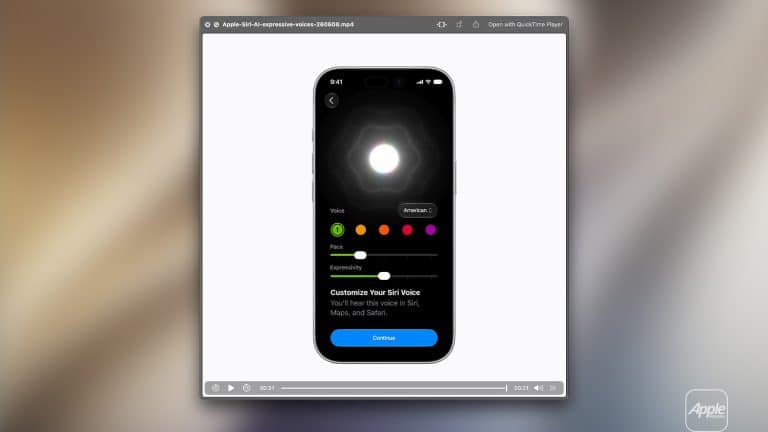
Quick Look is one of the fastest Mac tools for handling everyday files, and video trimming is one of its most useful hidden tricks. A Mac user can select a video in Finder, press the Space bar, preview the file instantly, trim the beginning or end, and save a cleaner clip without opening iMovie, Final Cut Pro, or another full editing app.
That makes Quick Look valuable for simple video tasks. A user may need to shorten a screen recording, remove a few seconds from the start of a clip, cut dead time from the end of a video, prepare a quick attachment, clean up a recorded tutorial, or send a shorter version of a file to someone else. For those jobs, a full video editor is often too much. Quick Look is faster because it starts directly from Finder.
This is the Mac at its best: a small feature that saves time because it is built into the place where the file already lives. The user does not need to import media, create a project, manage a timeline, export through complex settings, or learn editing software. Quick Look handles the simplest version of the task in seconds.
Quick Look Is More Than a Preview Window
Most Mac users know Quick Look as a preview feature. Select a file, press the Space bar, and macOS opens a floating preview window. It works with images, PDFs, text files, presentations, audio, and video. That alone makes Finder easier to use because users can inspect files without opening apps.
But Quick Look is not only passive. For certain file types, it includes action tools. Images can be rotated or marked up. PDFs can be reviewed. Videos can be trimmed. Files can be shared. Some actions depend on the file type and macOS version, but video trimming has become one of the most practical Quick Look features.
The advantage is speed. Finder is where many videos first appear: downloads, AirDrop transfers, iPhone imports, screen recordings, desktop captures, project folders, cloud folders, and shared files. Quick Look lets the user make a small edit before deciding whether the video needs anything more advanced.
That changes the role of Finder. It is not only a file browser. It becomes the first place for quick review and cleanup.
How to Trim a Video With Quick Look
The basic workflow is simple:
Finder > Select a video file > Press Space bar > Click the Trim button > Drag the yellow handles > Done
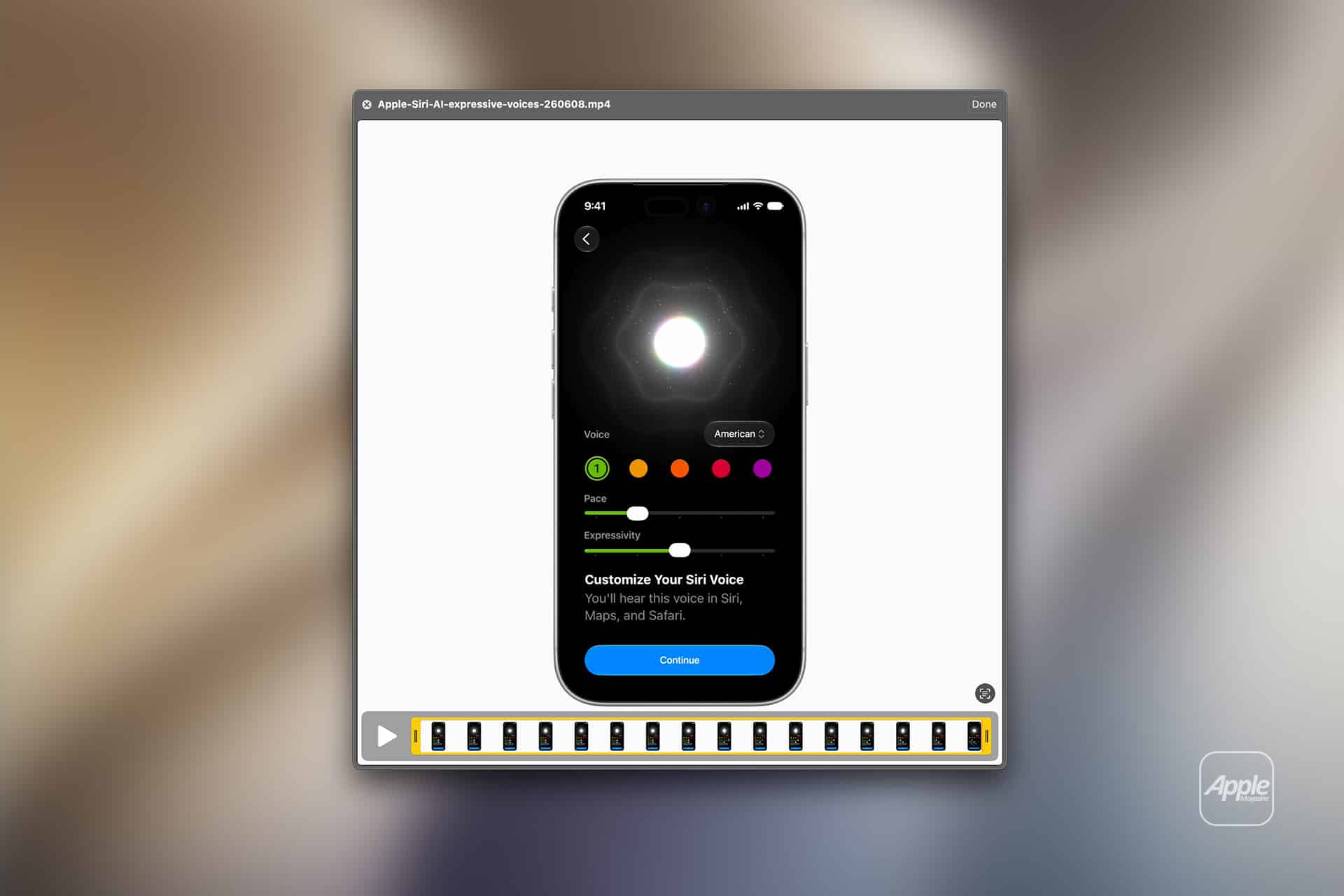
After the video opens in Quick Look, the trim tool shows a filmstrip timeline. Drag the left handle to remove the beginning of the clip. Drag the right handle to remove the end. Play the video to check the edit, then click Done.
macOS may ask whether to replace the original file or save the trimmed version as a new clip. Users should choose carefully. For important files, saving a copy is safer because it preserves the original video.
A good beginner habit is to duplicate the file first:
Finder > Select video > Command-D
Then trim the duplicate. This avoids losing footage by mistake.

When Quick Look Trimming Is Useful
Quick Look trimming is best for simple edits where only the beginning or end needs to be removed.
It is useful for screen recordings that start too early or continue after the important part is finished. It works well for short iPhone clips where the user wants to remove shaky seconds at the beginning. It can clean up a tutorial, meeting clip, product demo, app recording, presentation capture, or quick social video before sharing.
It is also useful for reducing file length before sending. A shorter video may be easier to attach to an email, upload to a content system, send through Messages, or store in a project folder.
The feature is not designed for complex editing. It does not replace iMovie, Final Cut Pro, Adobe Premiere Pro, DaVinci Resolve, or CapCut. It does not provide multi-clip timelines, transitions, captions, audio mixing, color correction, effects, or detailed export controls.
Quick Look trimming is for one job: remove unwanted material from the start or end of a single video quickly.
Use Quick Look for Screen Recordings
Screen recordings are one of the best reasons to use Quick Look trimming. macOS makes screen recording easy, but many recordings include unnecessary seconds before and after the real action. The user may start recording, prepare the window, perform the task, then stop recording. That extra setup and ending can make the clip feel unpolished.
Quick Look fixes that quickly:
Finder > Select screen recording > Space bar > Trim > Adjust beginning and end > Done
This is useful for tutorials, bug reports, app demos, design reviews, client feedback, school projects, or quick explanations sent to a colleague.
For people who create guides or publish support content, Quick Look can clean small recordings before they ever reach a full editing workflow. If the clip only needs trimming, there is no reason to open a larger app.
Quick Look vs. QuickTime Player
Quick Look and QuickTime Player can both trim videos on Mac, but they serve slightly different workflows.
Quick Look is faster when the user is already in Finder and wants a quick edit. It opens instantly, handles simple trimming, and keeps the user in the file-management flow.
QuickTime Player is better when the user wants a more traditional app window, playback controls, export options, or a slightly more deliberate editing session. QuickTime Player can also trim clips, and it may feel more comfortable for users who prefer opening the video in an app before editing.
A simple rule works well:
- Use Quick Look for the fastest trim from Finder.
- Use QuickTime Player when the video needs closer review.
- Use iMovie or a full editor when the project needs real editing.
- This keeps the workflow efficient. Not every clip deserves a timeline.
- Rotate or Share From Quick Look
Quick Look can also help with other fast video actions. Depending on the file and macOS version, users may see options to rotate, share, or open the file in another app.
Rotation is useful when a video has the wrong orientation. A clip recorded sideways or imported incorrectly can often be fixed quickly without opening a full editor.
Sharing is also useful because Quick Look sits between preview and action. A user can inspect the video, trim it, then send it through AirDrop, Mail, Messages, or another share option.
That makes Quick Look a small but practical review station. Open, check, trim, rotate if needed, share, and move on.

Save a Copy for Safer Editing
The biggest beginner mistake is trimming the only copy of an important video. Even when macOS offers a copy option, it is safer to duplicate first if the original matters.
To duplicate:
Finder > Select video > Command-D
Then rename the duplicate clearly. For example:
- Interview-original.mov
- Interview-trimmed.mov
- Screen-recording-full.mov
- Screen-recording-short.mov
This keeps the original available if the trim is too aggressive, the wrong section is removed, or the video needs a different edit later.
For casual clips, replacing the original may be fine. For work files, client videos, interviews, family recordings, school projects, or published content, preserve the original.
Quick Look Works Best With Finder Habits
Quick Look becomes more useful when combined with good Finder organization. A video workflow can be simple: keep raw files in one folder, duplicate the clip, trim the duplicate, rename it, and move the finished version to a final folder.
A clean folder structure might look like:
- Raw Videos
- Trimmed Clips
- Final Exports
- Shared
Even though Quick Look is simple, naming and folder habits make the workflow feel professional. This is especially helpful for people who handle many short clips: writers, teachers, designers, editors, marketers, students, small businesses, and anyone who creates screen recordings often.
A trimmed video with a clear name is easier to find, share, and publish later.
Quick Look Saves Time for Everyday Video Tasks
The best Mac features are often the ones that remove unnecessary steps. Quick Look video trimming does exactly that.
Instead of opening iMovie for a 20-second cleanup, users can trim directly from Finder. Instead of sending a recording with awkward silence at the beginning, they can cut it before sharing. Instead of importing a clip into a full editor just to remove the last few seconds, they can use the tool already built into macOS.
This feature is not meant for creative filmmaking. It is meant for everyday file handling. That is why it matters. Most video edits people make are not complicated. They are small fixes before sending, saving, posting, or organizing.
Quick Look turns those small fixes into a Finder-level action.

A Beginner Workflow to Try
A simple Quick Look video workflow takes less than a minute:
Finder > Select video > Command-D > Press Space bar > Click Trim > Drag handles > Done > Save as new clip
After saving, play the trimmed version once to make sure the cut starts and ends correctly. Rename the file so it is easy to understand later.
This is enough for most small video-cleanup tasks. A user can trim an iPhone clip, shorten a screen recording, prepare a quick demo, or remove unnecessary seconds from a downloaded video without opening anything heavier.
Quick Look is one of those Mac tools that feels minor until it becomes a habit. Once users learn that video trimming is built into Finder, opening a full editor for every small clip starts to feel unnecessary.