

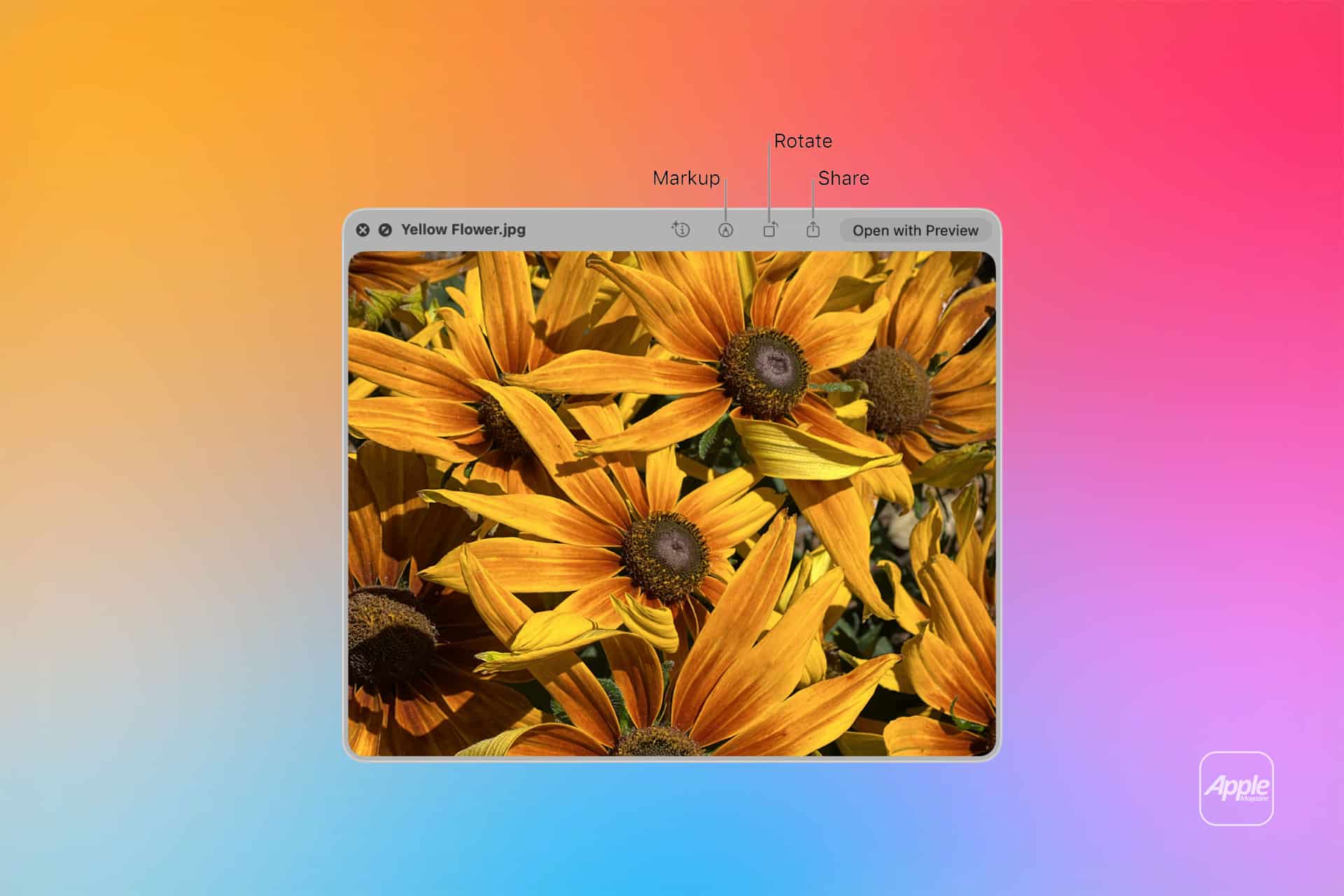
Opening files just to confirm their contents often slows daily workflows. macOS includes a built-in solution that allows instant previews of documents, images, videos, PDFs, spreadsheets, and even compressed files directly inside Finder. Mac Quick Preview, powered by Quick Look and Finder extensions, removes the need to launch multiple applications for simple checks, quick edits, or fast conversions. With a few keyboard shortcuts and optional extensions, this feature turns Finder into a lightweight productivity hub capable of handling everyday file tasks in seconds.
How Quick Look Works in Finder
Quick Look allows users to preview almost any file without opening it. Select a file in Finder and press the Space bar to open a full preview window. The same command works for images, PDFs, Keynote presentations, audio files, and many third-party formats supported by installed extensions. For folders containing multiple items, arrow keys can be used to browse files while the preview window remains open, creating a rapid navigation workflow for sorting and reviewing large collections.
The preview panel inside Finder also offers a compact version of Quick Look. Enable the Preview pane through the Finder menu:
View > Show Preview
This sidebar preview displays file details, metadata, and quick actions such as rotation for images or markup options for PDFs. It allows users to inspect content while continuing to browse the folder structure without opening additional windows.


Editing Files Without Opening Applications
Quick Look is not limited to viewing files. Built-in markup tools allow basic edits directly within the preview window. PDFs can be signed, annotated, or highlighted, while images can be cropped, rotated, or adjusted using simple editing tools available from the preview toolbar.
To access editing options:
Select file > Press Space bar > Markup button
This workflow eliminates the need to open Preview or third-party editing apps for minor adjustments, especially when handling batches of scanned documents, screenshots, or forms that require quick signatures.
Finder Quick Actions and File Conversion
Finder Quick Actions extend Quick Look functionality even further by allowing file operations such as rotation, trimming video clips, or creating PDFs from selected files. These actions appear in the Finder Preview pane and contextual menu depending on file type.
Enable Quick Actions from Finder settings:
Finder > Settings > Extensions > Finder Extensions
Once enabled, selected files display available actions automatically. For example, selecting several images can generate a combined PDF instantly, while videos can be trimmed without opening a full editing application. This approach simplifies repetitive tasks often handled by specialized software.
Using Third-Party Finder Extensions
Many professional tools install Finder extensions that integrate directly into Quick Look. Design software, compression utilities, and developer tools frequently add preview capabilities for specialized file formats such as PSD, SVG, or code files. These extensions expand Quick Preview into a universal viewing environment capable of handling complex professional assets directly inside Finder.
Users working with cloud storage platforms may also notice Quick Look previews functioning across synchronized folders, allowing remote files to be reviewed instantly without downloading full application environments.
Workflow Benefits for Daily Productivity
Mac Quick Preview becomes especially powerful when managing large file libraries, reviewing downloaded materials, or organizing project assets. Instead of opening multiple applications repeatedly, files can be scanned, verified, renamed, tagged, or lightly edited directly within Finder. Combined with keyboard shortcuts such as Space for preview and Command + Y for Quick Look slideshow mode, navigation speed increases significantly.
For teams working with shared drives or collaborative folders, Quick Look simplifies file verification before uploading, attaching, or sharing documents. It also reduces system load since preview operations require far fewer resources than launching full editing environments, helping maintain smooth performance during heavy multitasking sessions.
As Finder extensions continue evolving, Quick Preview gradually expands beyond a viewing feature into a lightweight file management layer capable of previewing, editing, converting, and organizing files without leaving Finder, streamlining workflows across both personal and professional Mac setups.

