Managing different browsing environments has become essential as work, personal, and academic activities increasingly overlap on the same device. Mac Safari Profiles provide a native way to separate browsing sessions without relying on multiple browsers or constantly signing in and out of accounts. Each profile operates as an independent environment, storing its own bookmarks, browsing history, cookies, extensions, tab groups, and privacy settings.
Once configured, switching between profiles is nearly instantaneous. A professional workspace profile can contain corporate logins, collaboration tools, and productivity extensions, while a personal profile remains dedicated to streaming, shopping, and everyday browsing. Students can maintain a separate academic profile containing research tabs, school portals, and study-related bookmarks without interfering with other sessions.


How Safari Profiles Separate Digital Workspaces
Safari Profiles function similarly to user spaces inside the same browser. Each profile maintains isolated data storage, meaning login credentials, tracking cookies, and browsing behavior remain confined to that environment. This separation prevents workplace accounts from mixing with personal sessions and keeps notifications or saved sessions relevant to the current activity.
Profiles also allow different extensions per environment. A work profile may include password managers, scheduling tools, and research add-ons, while a personal profile can operate with fewer extensions for faster browsing performance. Because extensions remain profile-specific, users avoid unnecessary tools loading across every browsing session.
Tab Groups also work independently inside each profile. A research-focused profile might maintain long-term tab collections related to academic projects, while a travel planning profile can store booking websites and itinerary tools separately. This structure reduces visual clutter and helps maintain continuity between browsing sessions over long periods.
Setting Up Safari Profiles on Mac
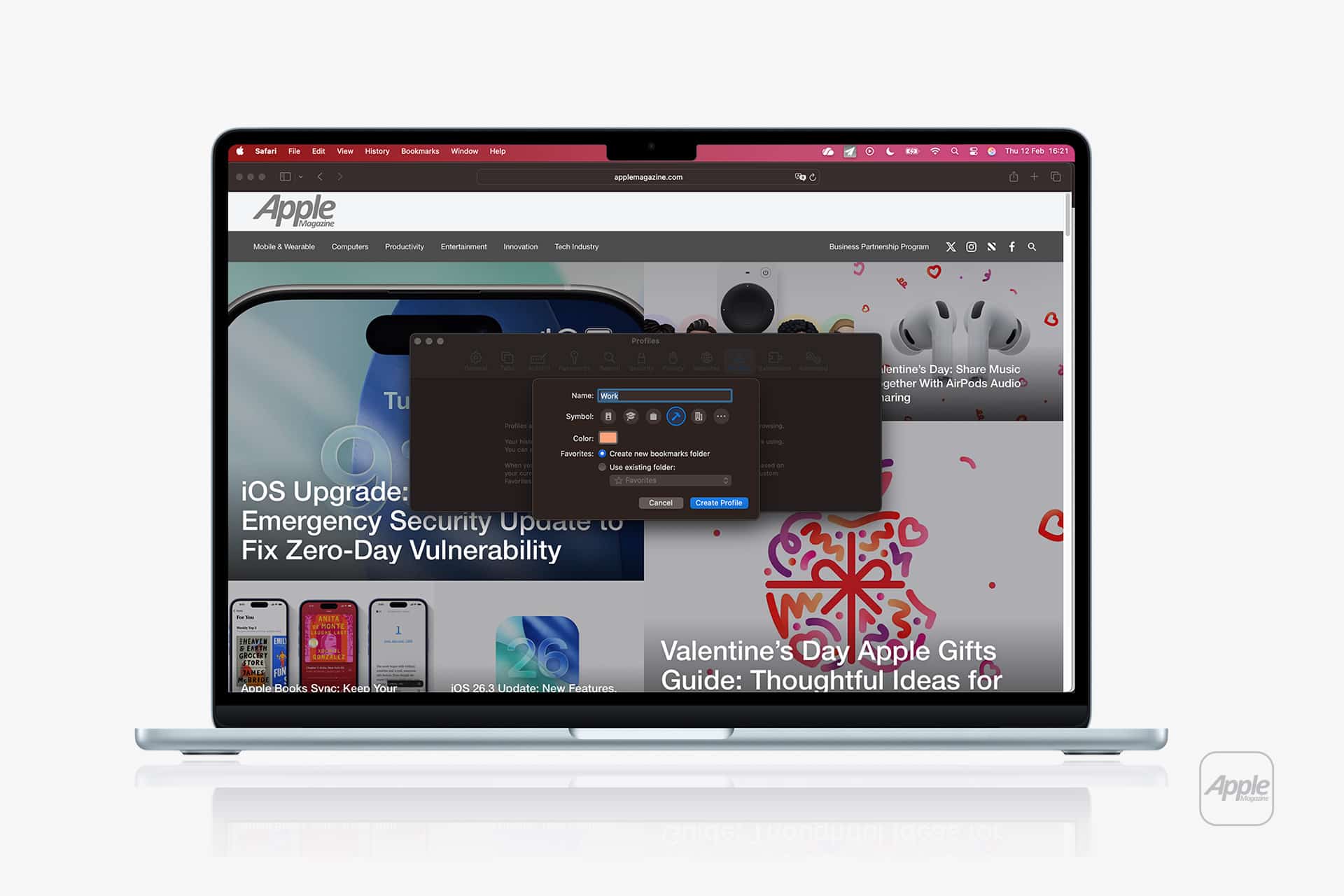
Creating Safari Profiles takes only a few steps and allows full customization of names, icons, colors, bookmarks, and default folders.
Safari > Settings > Profiles > Add Profile
After creating a profile, users can assign:
- A profile name (Work, School, Personal, Travel, etc.)
- A unique color and icon for quick recognition
- A dedicated bookmarks folder
- Separate extensions and privacy settings
Once configured, the profile appears in the Safari toolbar, allowing immediate switching without closing existing browsing sessions. Each profile remembers open tabs and windows independently, meaning returning to a profile restores the exact environment previously used.
Using Safari Profiles for Productivity and Focus
Professionals working across multiple organizations often need separate account sessions simultaneously. Safari Profiles allow login isolation without the need for additional browsers. One profile can maintain corporate authentication while another keeps freelance or secondary business accounts active, eliminating repetitive logins throughout the day.
Students benefit from using study-focused profiles that include research tools, library access portals, citation managers, and educational platforms. Because notifications and saved sessions remain tied to the academic profile, switching back to personal browsing prevents academic tabs from interfering with leisure browsing.
For everyday users, separating social media, shopping, and financial activities into different profiles improves privacy awareness. Tracking cookies remain confined to each profile, reducing cross-site behavioral tracking and simplifying permission management across browsing categories.

Advanced Profile Workflows Across macOS and iPhone
Safari Profiles sync through iCloud, allowing profile environments to appear automatically across Mac, iPhone, and iPad devices. A profile created for work browsing on Mac becomes available on iPhone, preserving bookmarks, extensions (when supported), and open tabs across devices.
Users working across multiple devices can maintain consistent workflows without recreating browsing setups manually. A project research session started on Mac can continue seamlessly on iPad, while personal browsing remains isolated within its own environment.
Profiles also integrate with Focus modes. A Work Focus can automatically open Safari using the Work profile, ensuring the browsing session aligns with the active activity mode. This connection allows macOS to coordinate notifications, applications, and browsing environments simultaneously, creating structured digital workflows tied to real-world schedules.
Safari Profiles introduce a structured method of organizing digital environments without requiring additional browsers, complex account switching, or repeated login processes. By separating bookmarks, sessions, extensions, and site data into independent browsing spaces, the feature provides a flexible foundation for managing modern multi-role computing across professional, academic, and personal activities.