

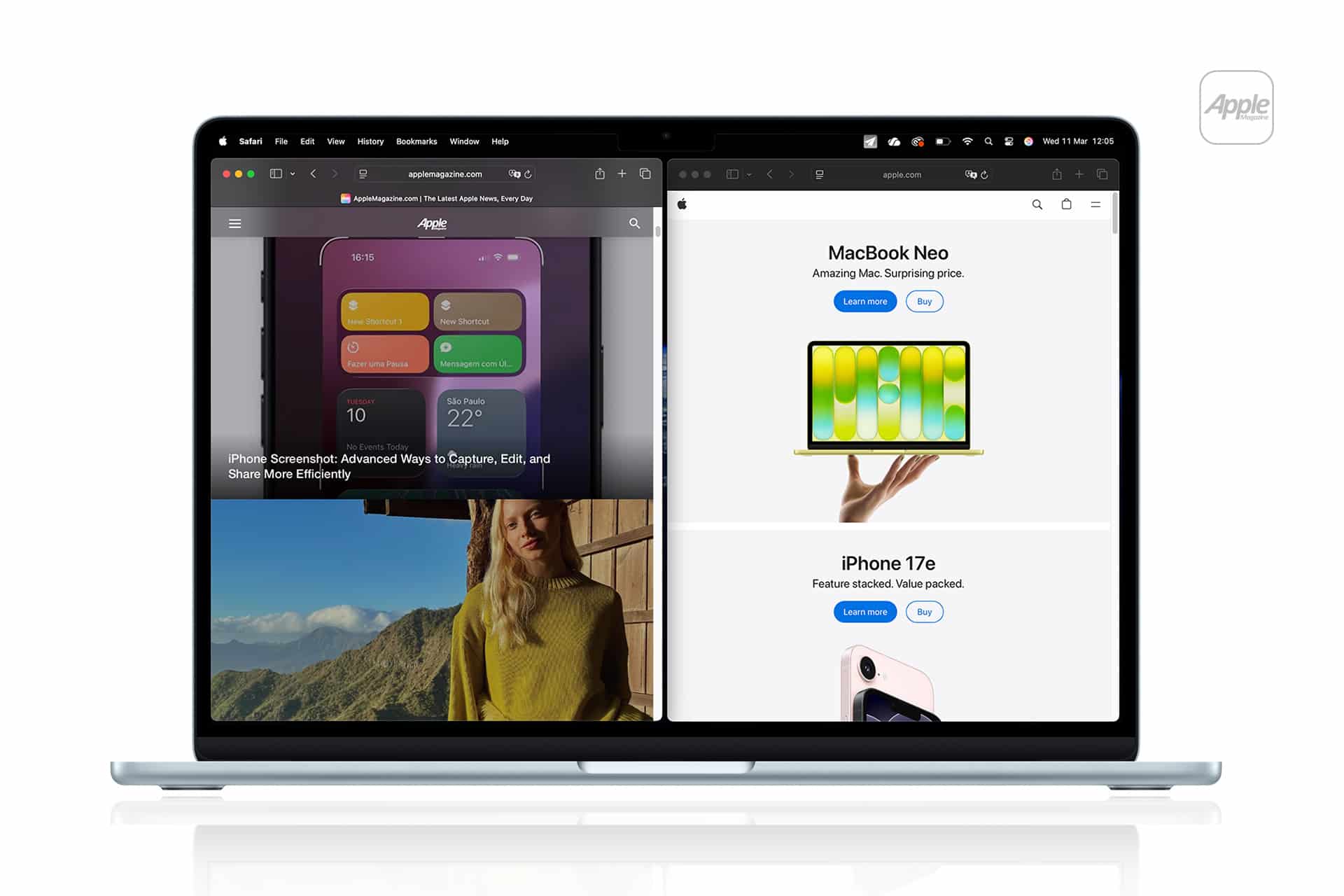
Working on a Mac often means juggling multiple windows at once. A document sits open while a browser window hovers behind it. Messages pop up in the corner. Notes overlap with email drafts. The screen becomes layered rather than organized.
Mac Split Screen offers a built-in way to reduce that visual clutter. Instead of manually resizing and aligning windows, Split View automatically arranges two apps to share the display evenly.
The result is not just cleaner alignment. It creates a more deliberate workspace.
Activating Split View
On macOS, Split View begins from the green full-screen button located in the top-left corner of any window.
Hover over the green button, and a menu appears offering the option to tile the window to the left or right side of the screen. Selecting one side places that app into half of the display. You can then choose a second open window to fill the remaining half.
The two apps now sit side by side, occupying the entire screen without overlapping.
To exit Split View, move the cursor to the top of the screen to reveal window controls and click the green button again.


Adjusting the Divider
Between the two apps is a vertical divider. Dragging it left or right changes how much space each window occupies.
This is useful when working with uneven content. For example, writing in a document while referencing a narrow webpage may require more space on one side.
The adjustment is fluid and immediate.
When Split View Helps Most
Split View is particularly effective in structured workflows.
Writing while researching is a common example. A word processor sits on one side, a browser on the other. Instead of switching back and forth between overlapping windows, both remain visible.
It also works well for:
- Comparing two documents
- Reviewing spreadsheets alongside email
- Editing photos while referencing a brief
- Attending a video call while taking notes
- The arrangement reduces window management overhead.

Interaction With Spaces
When Split View is activated, macOS places the paired apps into their own full-screen Space. Swiping left or right with a trackpad moves between desktop environments.
This means Split View does not interfere with other open windows. It becomes a separate workspace within Mission Control.
Opening Mission Control shows each Split View pair as its own Space, alongside full-screen apps and standard desktops.
This structure supports organized multitasking without stacking windows.
Limitations and Considerations
Split View supports two apps at a time. It is not designed for complex multi-window tiling layouts. For advanced grid-based arrangements, third-party window managers are often used.
Additionally, some apps may not support Split View fully if they are not designed for full-screen behavior.
Still, for everyday multitasking, the feature covers common needs without additional software.
Keyboard and Workflow Integration
While Split View is usually activated through the green button, some users prefer keyboard shortcuts and Mission Control gestures to move between workspaces quickly.
The goal is not to eliminate window switching entirely but to reduce the friction of constant resizing.
When two tasks require equal attention, Split View keeps them balanced on screen.
Maintaining Focus
A cluttered desktop can pull attention away from active tasks. Split View removes background distraction by isolating two selected apps.
There are no floating windows behind the main view. Notifications still appear, but the workspace remains contained.
That containment helps during concentrated sessions where reference material and output need to stay visible simultaneously.
Mac Split Screen does not introduce new functionality to apps themselves. It simply organizes them. By placing two windows side by side within a dedicated Space, Split View turns multitasking into a structured layout rather than a layered one.
For many users, that structural shift is enough to make daily workflows smoother.